> ## Documentation Index
> Fetch the complete documentation index at: https://stackone-hub-claude-issue-384-20260409-1436.mintlify.site/llms.txt
> Use this file to discover all available pages before exploring further.

# Teamtailor Assessment or Background Check

> To connect Teamtailor Marketplace Integration with StackOne and send webhook notifications from Teamtailor, follow these steps in your Teamtailor account, and complete the necessary actions.

## Activate Marketplace Integration from Teamtailor

<Steps>
  <Step title="To Get External Trigger Token">
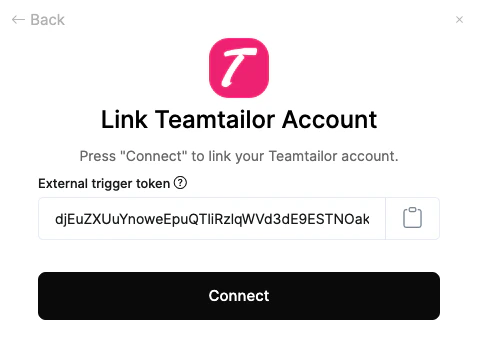
    From the StackOne Connector Hub, you will receive the External Trigger Token needed to connect with the Marketplace Integration.
    <Frame>
      <img className="rounded-md" style={{ margin: '0 auto', border: '1px solid #efefef' }} alt="Get Partner credentials" src="https://mintcdn.com/stackone-hub-claude-issue-384-20260409-1436/55sLrFoBUe2Jog05/images/teamtailor-marketplace-integration/connector_external_token.png?fit=max&auto=format&n=55sLrFoBUe2Jog05&q=85&s=4581ff8f143345e8b29e382899cc65a4" width="479" height="354" data-path="images/teamtailor-marketplace-integration/connector_external_token.png" />
    </Frame>
  </Step>

  <Step title="To Activate Integration from Marketplace page">
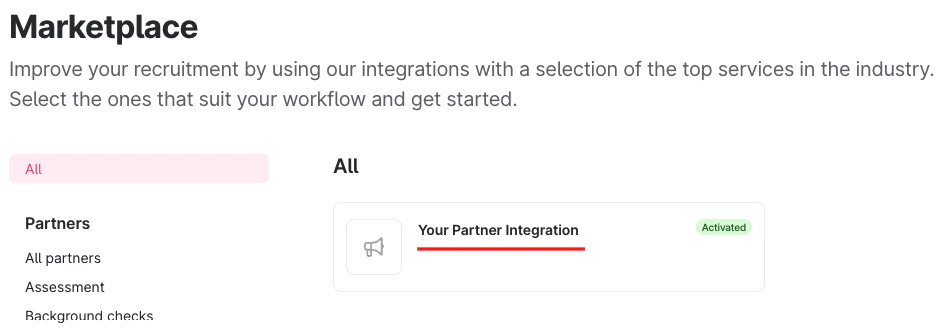
    Go to the <i>Teamtailor Marketplace</i> page and locate your Integration.

    <Frame>
      <img className="rounded-md" style={{ margin: '0 auto', border: '1px solid #efefef' }} alt="From Marketplace page" src="https://mintcdn.com/stackone-hub-claude-issue-384-20260409-1436/55sLrFoBUe2Jog05/images/teamtailor-marketplace-integration/activate_int_marketplace_5.png?fit=max&auto=format&n=55sLrFoBUe2Jog05&q=85&s=ac772dd0ed6289b7baa5c0e794735318" width="948" height="330" data-path="images/teamtailor-marketplace-integration/activate_int_marketplace_5.png" />
    </Frame>

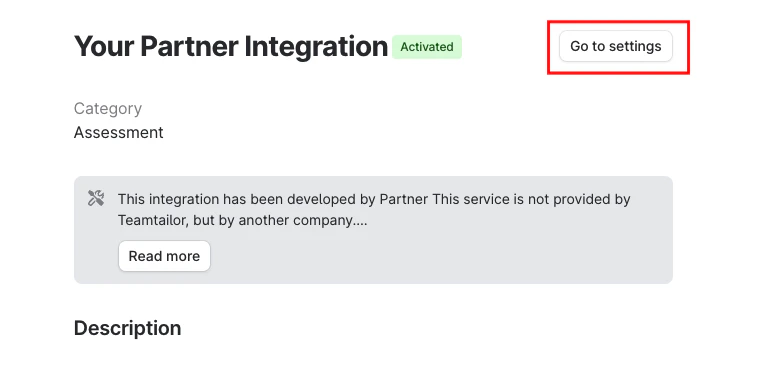
    Click on the Integration, then click on `Go to Settings` to activate.
    <Frame>
      <img className="rounded-md" style={{ margin: '0 auto', border: '1px solid #efefef' }} alt="Go to Settings" src="https://mintcdn.com/stackone-hub-claude-issue-384-20260409-1436/55sLrFoBUe2Jog05/images/teamtailor-marketplace-integration/activate_int_marketplace_6.png?fit=max&auto=format&n=55sLrFoBUe2Jog05&q=85&s=e511bd215b5de2c53a7a5e717519f8bc" width="769" height="389" data-path="images/teamtailor-marketplace-integration/activate_int_marketplace_6.png" />
    </Frame>

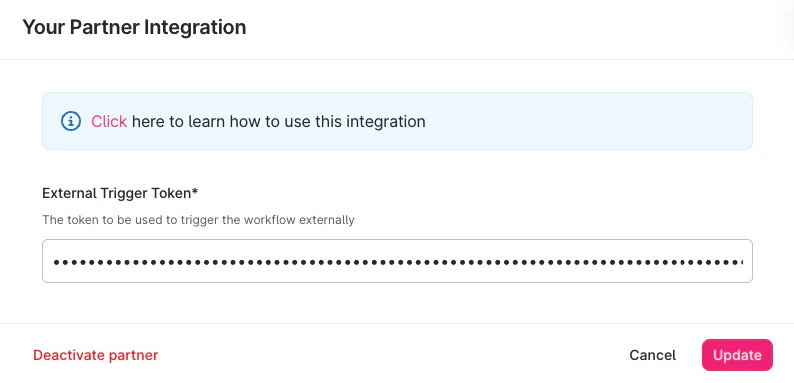
    Please enter the `External Trigger Token` and click the `Update` button to establish the connection.
    <Frame>
      <img className="rounded-md" style={{ margin: '0 auto', border: '1px solid #efefef' }} alt="Enter Token" src="https://mintcdn.com/stackone-hub-claude-issue-384-20260409-1436/55sLrFoBUe2Jog05/images/teamtailor-marketplace-integration/activate_partner_integration.png?fit=max&auto=format&n=55sLrFoBUe2Jog05&q=85&s=8adf540dedcdea8ce500090a4a3a451b" width="794" height="383" data-path="images/teamtailor-marketplace-integration/activate_partner_integration.png" />
    </Frame>
  </Step>
</Steps>

## Send the assessment/background check invitation to the candidate

<Steps>
  <Step title="Select Candidate from the Job">
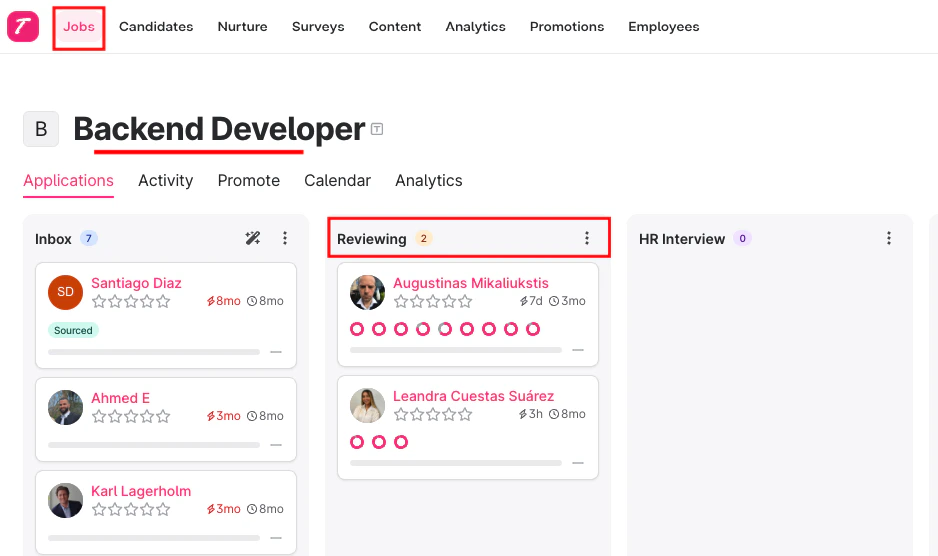
    Navigate to the <i>Job's</i> page and move one of the candidate to the specific stage where you want to trigger assessment/background check.
    <Frame>
      <img className="rounded-md" style={{ margin: '0 auto', border: '1px solid #efefef' }} alt="Maintain Assessment Status" src="https://mintcdn.com/stackone-hub-claude-issue-384-20260409-1436/55sLrFoBUe2Jog05/images/teamtailor-assessment/send_assess_1.png?fit=max&auto=format&n=55sLrFoBUe2Jog05&q=85&s=4f238de556d109a7f3af83de35132175" width="938" height="556" data-path="images/teamtailor-assessment/send_assess_1.png" />
    </Frame>

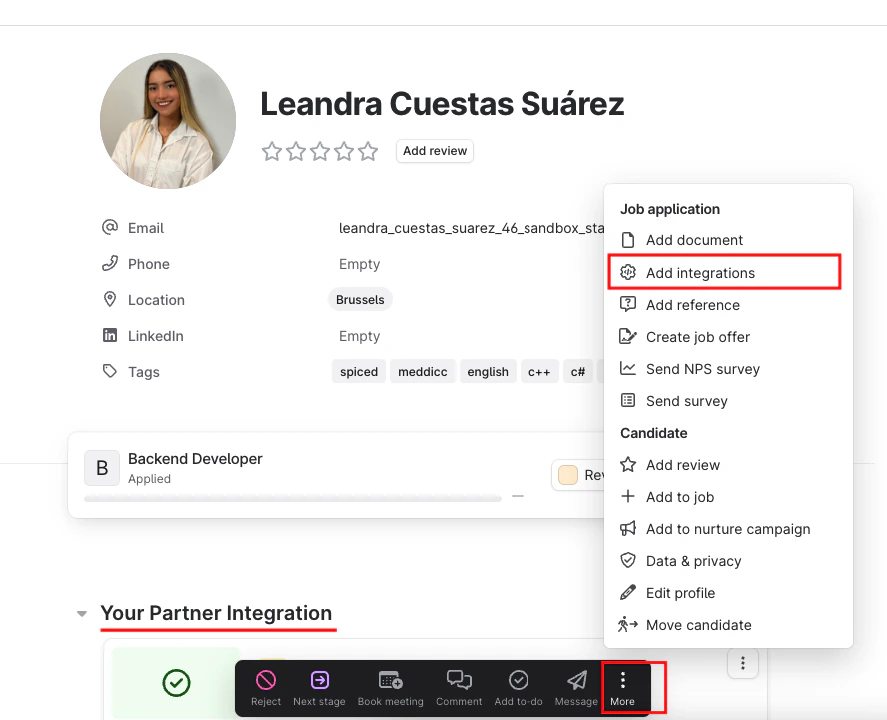
    Click on the candidate to open their application. Then, click on the three-dot more options in the lower bar and select `Add Integration`.
    <Frame>
      <img className="rounded-md" style={{ margin: '0 auto', border: '1px solid #efefef' }} alt="Maintain Assessment Status" src="https://mintcdn.com/stackone-hub-claude-issue-384-20260409-1436/55sLrFoBUe2Jog05/images/teamtailor-assessment/send_assess_2.png?fit=max&auto=format&n=55sLrFoBUe2Jog05&q=85&s=4d5cfd76d8906171a28d70d165a82806" width="887" height="720" data-path="images/teamtailor-assessment/send_assess_2.png" />
    </Frame>
  </Step>

  <Step title="To Select Integration & Send the Notification">
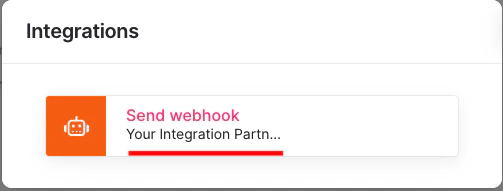
    Select the partner integration you want to use to send the assessment/background check to the candidate.
    <Frame>
      <img className="rounded-md" style={{ margin: '0 auto', border: '1px solid #efefef' }} alt="Edit/View Assessment/Background check Status ID" src="https://mintcdn.com/stackone-hub-claude-issue-384-20260409-1436/55sLrFoBUe2Jog05/images/teamtailor-assessment/send_assess_3.png?fit=max&auto=format&n=55sLrFoBUe2Jog05&q=85&s=b86f845d42117c9fa21cfb0c44f7ebdb" width="503" height="191" data-path="images/teamtailor-assessment/send_assess_3.png" />
    </Frame>

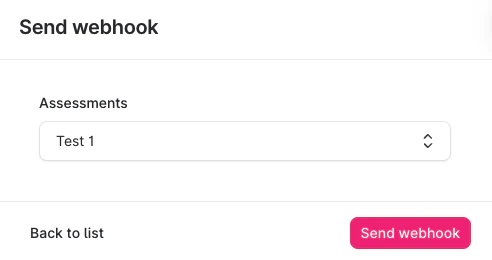
    A pop-up will appear to select the assessment/background check test. Below is an example of an assessment test.
    <Frame>
      <img className="rounded-md" style={{ margin: '0 auto', border: '1px solid #efefef' }} alt="Edit/View Assessment/Background check Status ID" src="https://mintcdn.com/stackone-hub-claude-issue-384-20260409-1436/55sLrFoBUe2Jog05/images/teamtailor-assessment/send_assessment_test.png?fit=max&auto=format&n=55sLrFoBUe2Jog05&q=85&s=06e9477924b75bc7cd399ded27498620" width="492" height="260" data-path="images/teamtailor-assessment/send_assessment_test.png" />
    </Frame>

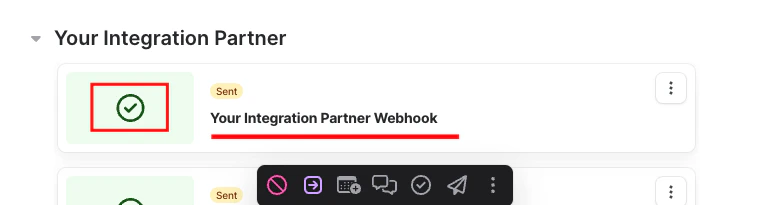
    Click the `Send webhook` button to dispatch the notification, and you will see a success response on the same page.
    <Frame>
      <img className="rounded-md" style={{ margin: '0 auto', border: '1px solid #efefef' }} alt="Edit/View Assessment/Background check Status ID" src="https://mintcdn.com/stackone-hub-claude-issue-384-20260409-1436/55sLrFoBUe2Jog05/images/teamtailor-assessment/send_assess_5.png?fit=max&auto=format&n=55sLrFoBUe2Jog05&q=85&s=b786913d17287abdfb04f047e1aa76fb" width="760" height="205" data-path="images/teamtailor-assessment/send_assess_5.png" />
    </Frame>
  </Step>
</Steps>

## To check updated result of the assessment/background check invitation of the candidate

<Steps>
  <Step title="To see the updated results of assessment/background check">
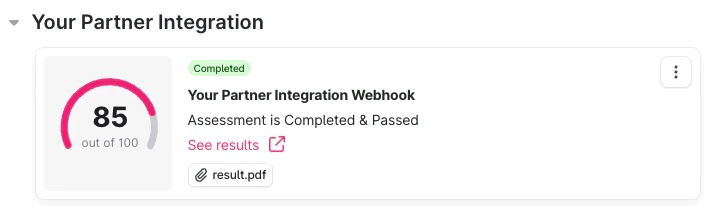
    Click on the candidate's name to view their application. You will see the updated results along with the score from the previously sent webhook.
    <Frame>
      <img className="rounded-md" style={{ margin: '0 auto', border: '1px solid #efefef' }} alt="View Assessment/Background check Updated Results" src="https://mintcdn.com/stackone-hub-claude-issue-384-20260409-1436/55sLrFoBUe2Jog05/images/teamtailor-assessment/updates_result_1.png?fit=max&auto=format&n=55sLrFoBUe2Jog05&q=85&s=f9fced2639f07de048bd223a76a5de95" width="706" height="206" data-path="images/teamtailor-assessment/updates_result_1.png" />
    </Frame>

    Whenever the candidate has completed the assessment and background check.
  </Step>
</Steps>

<br />

Congratulations, you're all set! If you face any issues with the steps mentioned above,
please contact us by emailing [integrations@stackone.com](mailto:integrations@stackone.com). We're always here to assist you!

## Useful Links

<Card title="API Reference" icon="link" href="https://doc.teamtailor.com/">
  [https://doc.teamtailor.com/](https://doc.teamtailor.com/)
</Card>