> ## Documentation Index
> Fetch the complete documentation index at: https://stackone-hub-claude-issue-384-20260409-1436.mintlify.site/llms.txt
> Use this file to discover all available pages before exploring further.

# SmartRecruiters Background Check

> To successfully send background check or assessment notifications from SmartRecruiters, follow these steps in your SmartRecruiters account and complete the required actions.

<Warning>
  The following guidance assumes you have Admin privileges for your SmartRecruiters
  account.
</Warning>

## To Get External Trigger Token

<Steps>
  <Step title="Get the External Trigger Token">
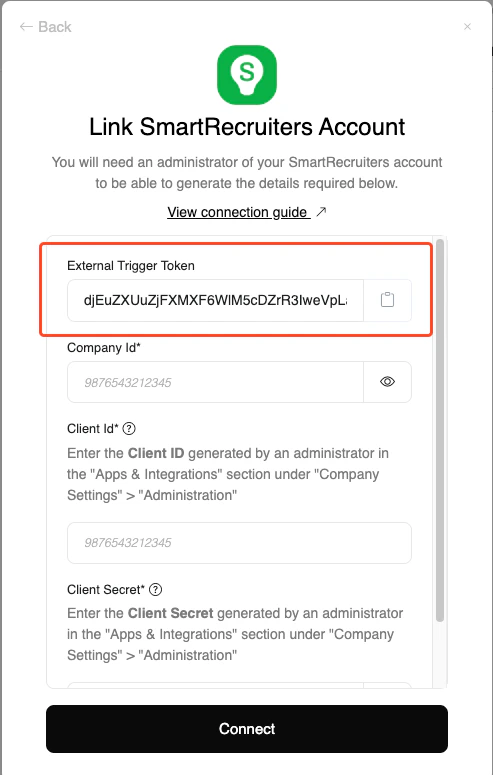
    From the StackOne Hub, you will receive the `External Trigger Token` needed to enable the SmartRecruiters integration.
    <Frame>
      <img className="rounded-md" style={{ margin: '0 auto', border: '1px solid #efefef' }} alt="External Trigger Token" src="https://mintcdn.com/stackone-hub-claude-issue-384-20260409-1436/knyftILoDWacwCGB/images/smartrecruiters-assessments-background-checks/external-trigger-token.png?fit=max&auto=format&n=knyftILoDWacwCGB&q=85&s=cd01353d2594920e6080540e7f10f86d" width="493" height="775" data-path="images/smartrecruiters-assessments-background-checks/external-trigger-token.png" />
    </Frame>
  </Step>
</Steps>

## Enable the integration in your SmartRecruiters account

<Steps>
  <Step title="Open Settings">
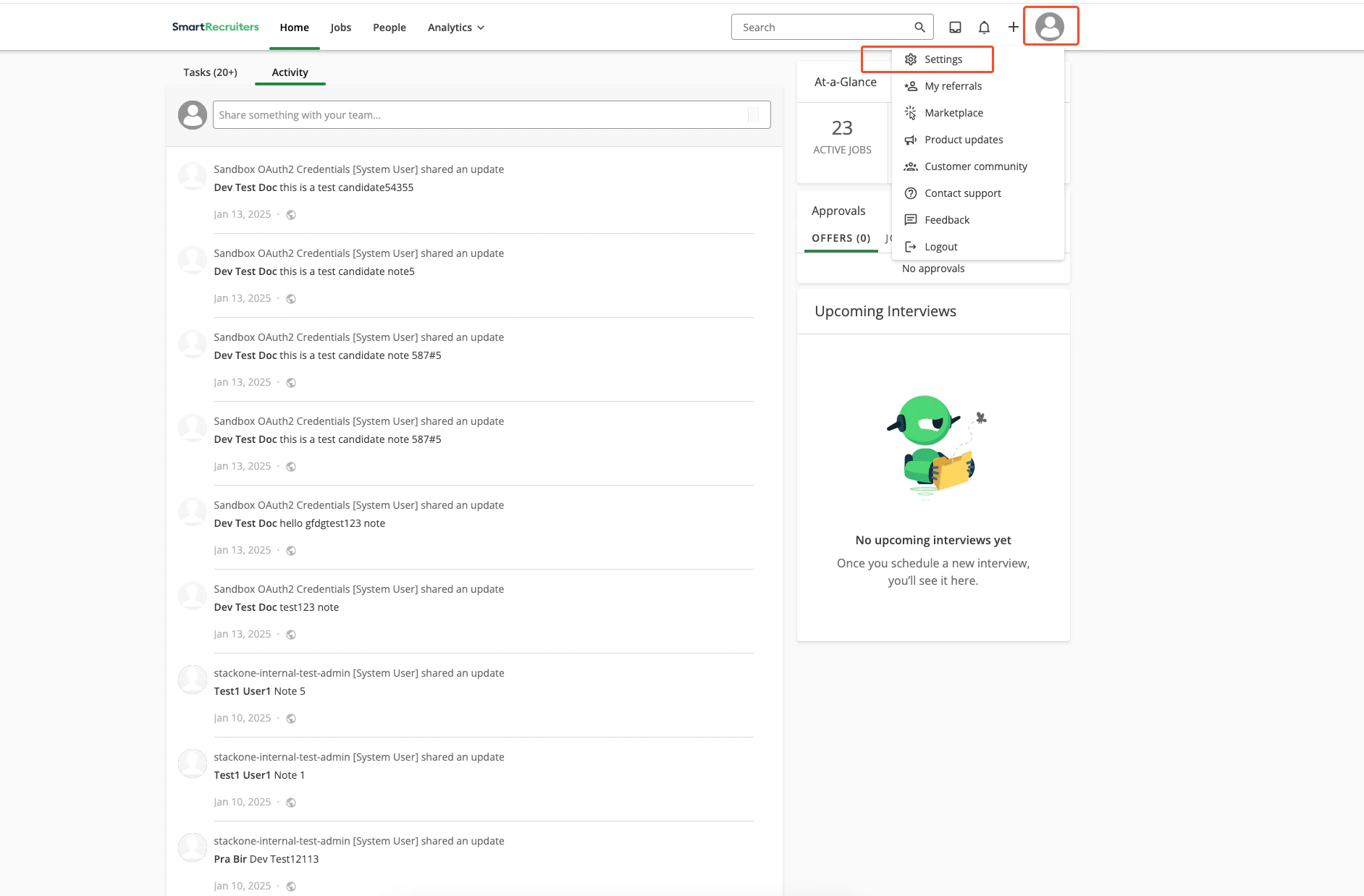
    Navigate to `Settings` in the SmartRecruiters dashboard. On the home page, click your account avatar and select `Settings`.
    <Frame>
      <img className="rounded-md" style={{ margin: '0 auto', border: '1px solid #efefef' }} alt="Navigate to Settings" src="https://mintcdn.com/stackone-hub-claude-issue-384-20260409-1436/knyftILoDWacwCGB/images/smartrecruiters-assessments-background-checks/sandbox-settings.png?fit=max&auto=format&n=knyftILoDWacwCGB&q=85&s=14e3f28a89320ec0e648785c65adc135" width="1884" height="1238" data-path="images/smartrecruiters-assessments-background-checks/sandbox-settings.png" />
    </Frame>
  </Step>

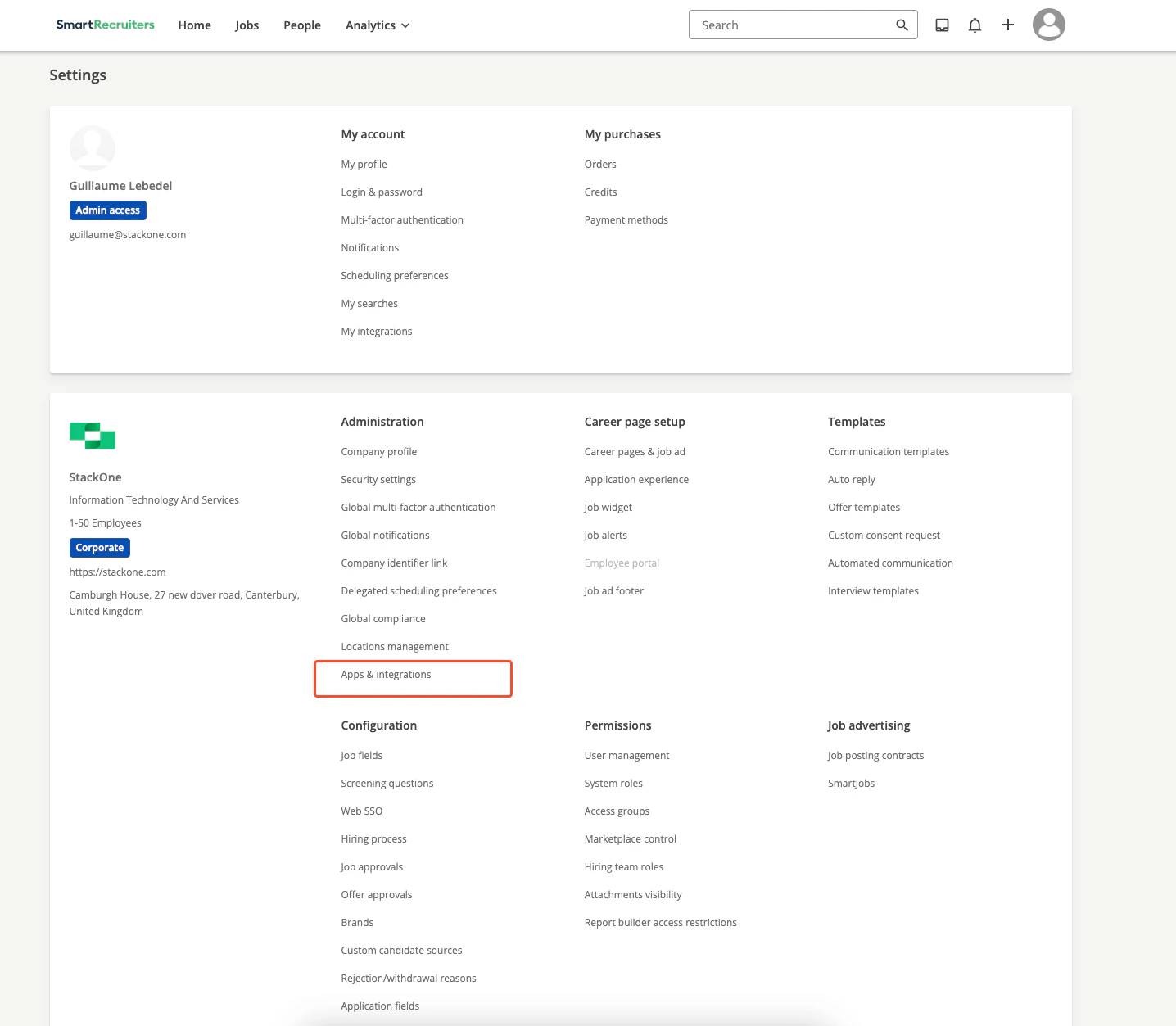
  <Step title="Open Apps & Integrations">
    Select `Apps & Integrations` under Settings.
    <Frame>
      <img className="rounded-md" style={{ margin: '0 auto', border: '1px solid #efefef' }} alt="Apps & Integrations" src="https://mintcdn.com/stackone-hub-claude-issue-384-20260409-1436/knyftILoDWacwCGB/images/smartrecruiters-assessments-background-checks/integration-page.png?fit=max&auto=format&n=knyftILoDWacwCGB&q=85&s=30d56209d1c59de7bbd91b1c9517160a" width="1436" height="1253" data-path="images/smartrecruiters-assessments-background-checks/integration-page.png" />
    </Frame>
  </Step>

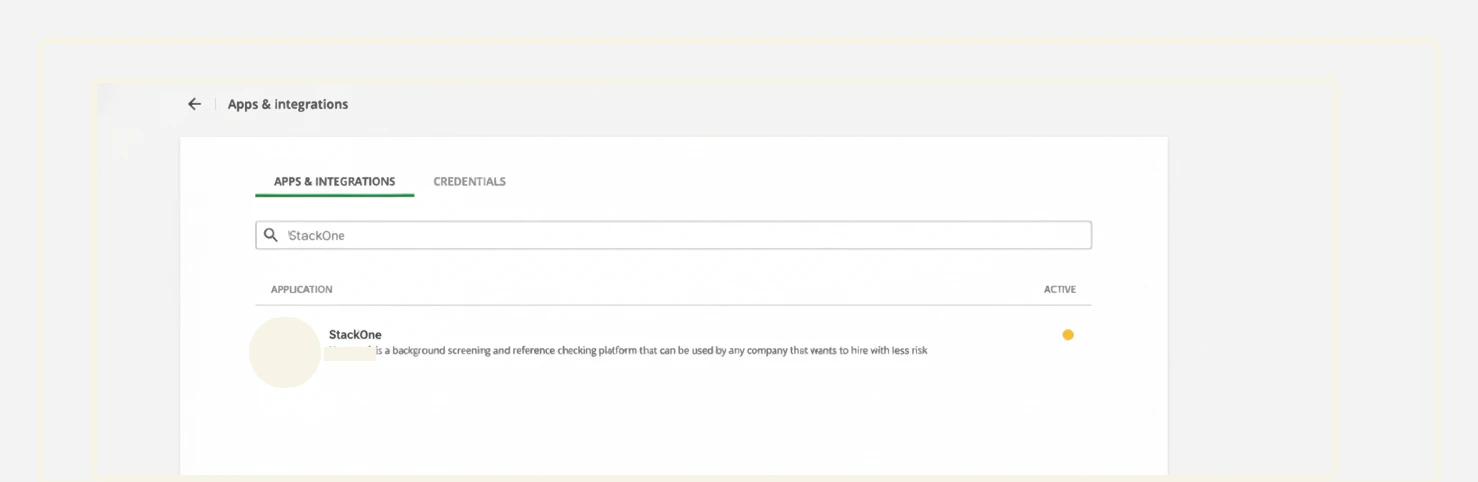
  <Step title="Select the integration">
    Locate and click the target integration in the list.
    <Frame>
      <img className="rounded-md" style={{ margin: '0 auto', border: '1px solid #efefef' }} alt="Select Integration" src="https://mintcdn.com/stackone-hub-claude-issue-384-20260409-1436/knyftILoDWacwCGB/images/smartrecruiters-assessments-background-checks/select-integration.png?fit=max&auto=format&n=knyftILoDWacwCGB&q=85&s=879a1cdc71d761e66fdf6bd7b63450bb" width="1478" height="482" data-path="images/smartrecruiters-assessments-background-checks/select-integration.png" />
    </Frame>
  </Step>

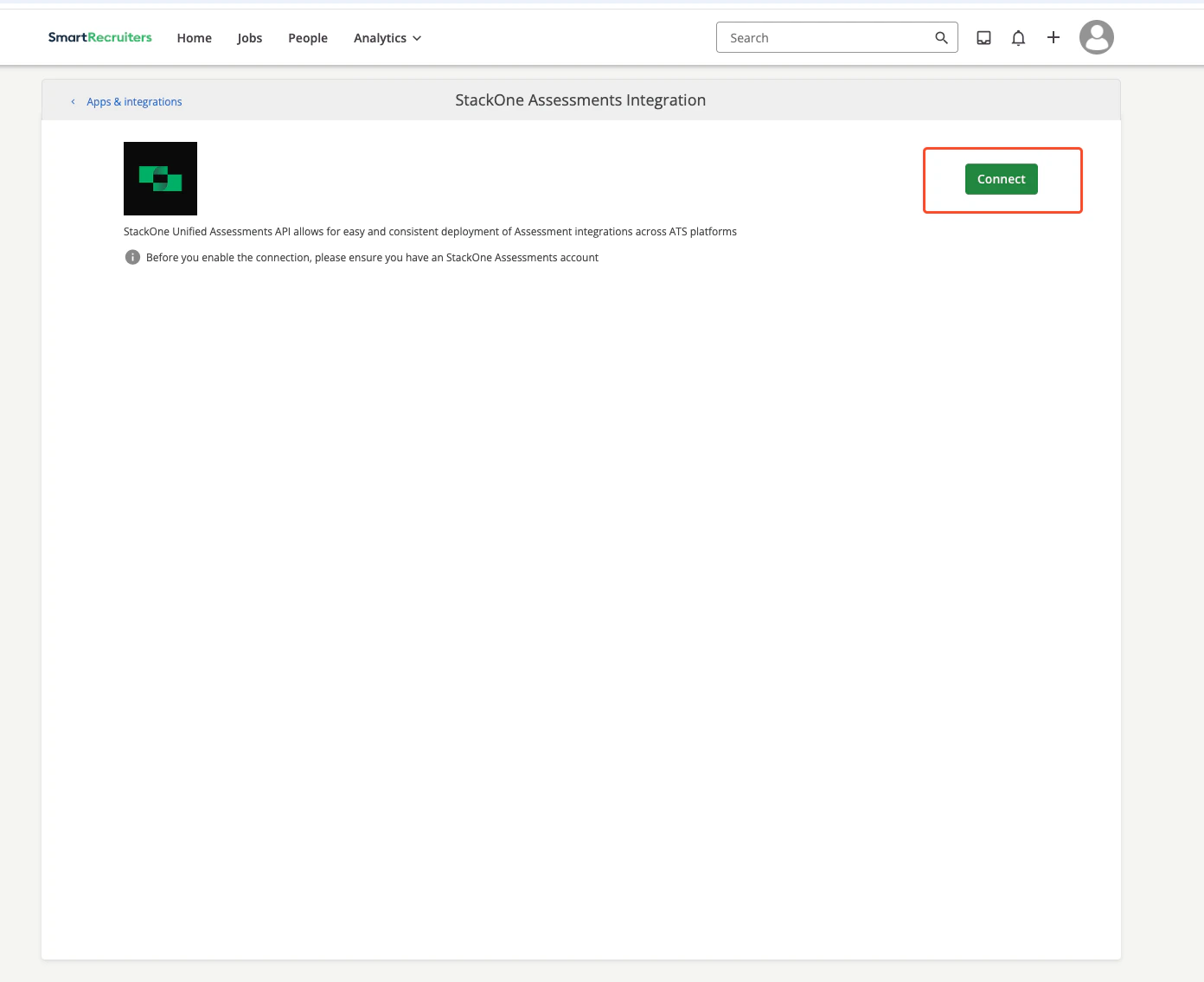
  <Step title="Review details & Connect">
    Review the integration details and click `Connect`.
    <Frame>
      <img className="rounded-md" style={{ margin: '0 auto', border: '1px solid #efefef' }} alt="View Integration Details" src="https://mintcdn.com/stackone-hub-claude-issue-384-20260409-1436/knyftILoDWacwCGB/images/smartrecruiters-assessments-background-checks/integration-details.png?fit=max&auto=format&n=knyftILoDWacwCGB&q=85&s=78b3a8ea0a39e520dbbd810b3da21462" width="1392" height="1135" data-path="images/smartrecruiters-assessments-background-checks/integration-details.png" />
    </Frame>
  </Step>

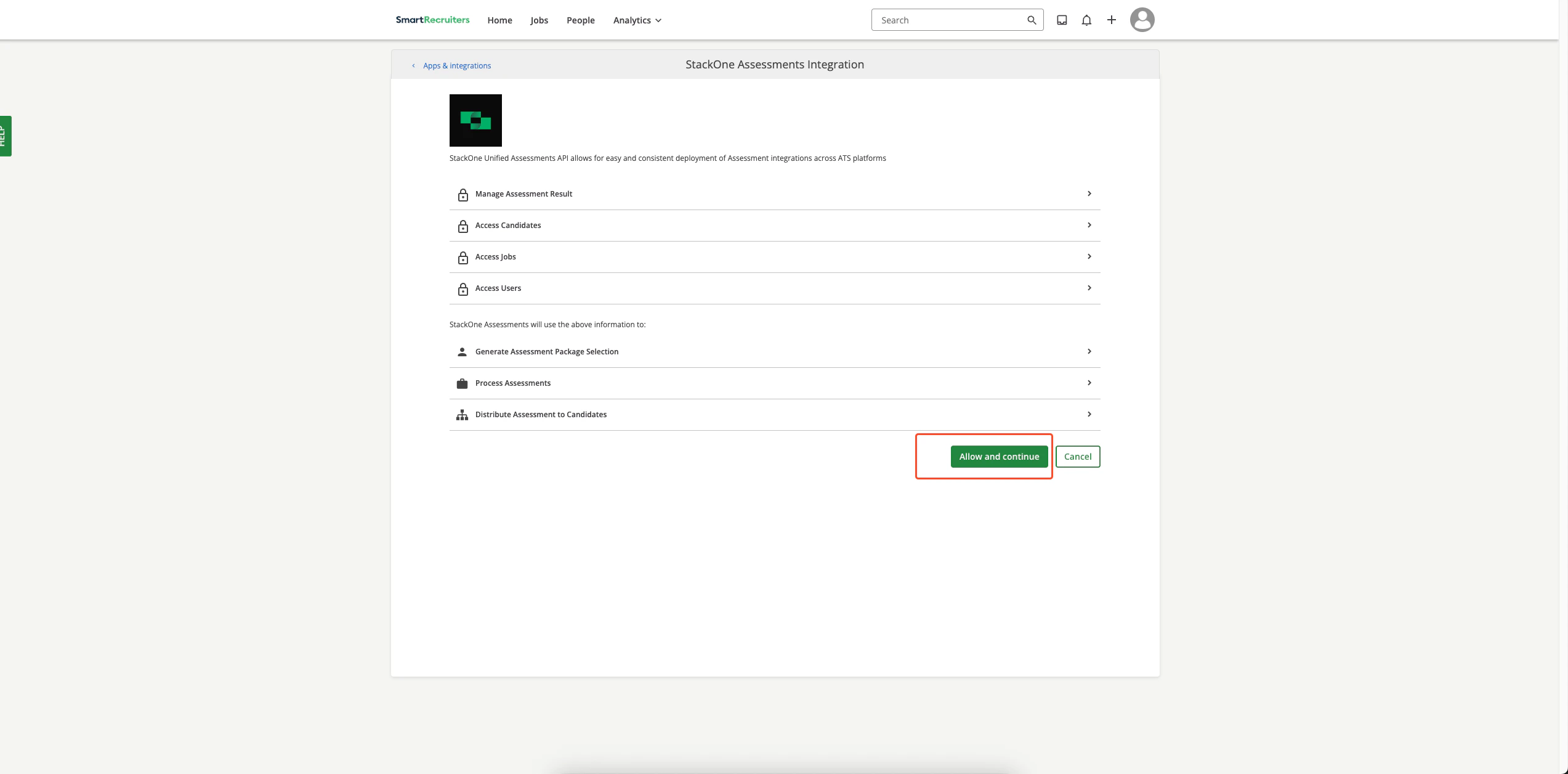
  <Step title="Authorize integration">
    1. Review the requested permissions.
    2. Click the **Allow and Continue** button.
    <Frame>
      <img className="rounded-md" style={{ margin: '0 auto', border: '1px solid #efefef' }} alt="Enable Integration Connect Button" src="https://mintcdn.com/stackone-hub-claude-issue-384-20260409-1436/knyftILoDWacwCGB/images/smartrecruiters-assessments-background-checks/enable-integration.png?fit=max&auto=format&n=knyftILoDWacwCGB&q=85&s=1e29d9663b281c904bdfaf82383bf1fc" width="2546" height="1256" data-path="images/smartrecruiters-assessments-background-checks/enable-integration.png" />
    </Frame>
  </Step>

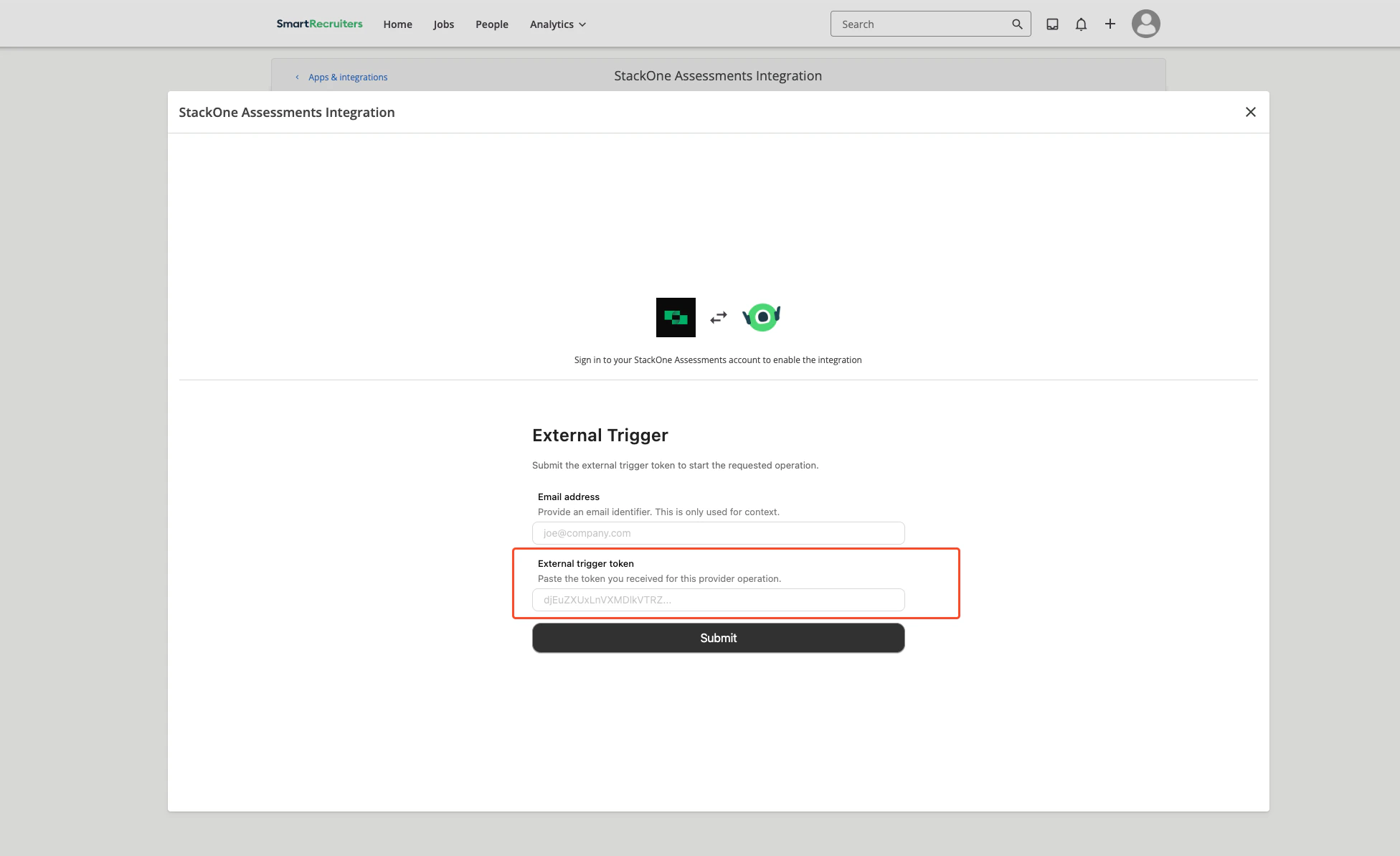
  <Step title="Submit credentials">
    Enter the external trigger token and your email in the form, then click the `Submit` button.
    <Frame>
      <img className="rounded-md" style={{ margin: '0 auto', border: '1px solid #efefef' }} alt="Input External Trigger Token" src="https://mintcdn.com/stackone-hub-claude-issue-384-20260409-1436/knyftILoDWacwCGB/images/smartrecruiters-assessments-background-checks/input-external-trigger-token.png?fit=max&auto=format&n=knyftILoDWacwCGB&q=85&s=719ae287768b908b8a64100c10d68e2b" width="1952" height="1193" data-path="images/smartrecruiters-assessments-background-checks/input-external-trigger-token.png" />
    </Frame>
  </Step>

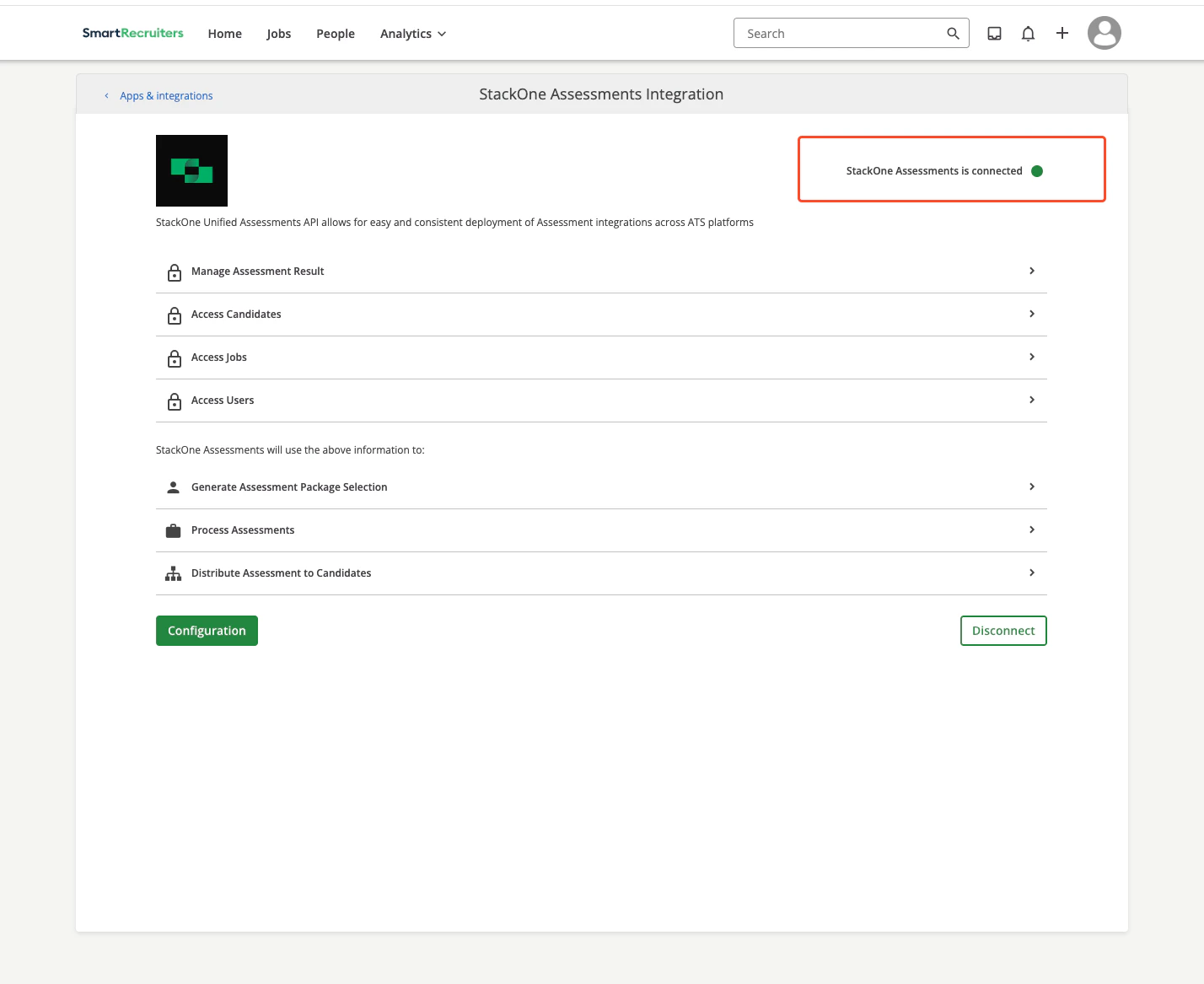
  <Step title="Confirm connection">
    After successful verification, a confirmation message appears in the top‑right corner: `StackOne Assessments is connected`.
    <Frame>
      <img className="rounded-md" style={{ margin: '0 auto', border: '1px solid #efefef' }} alt="Integration Connected Successfully" src="https://mintcdn.com/stackone-hub-claude-issue-384-20260409-1436/knyftILoDWacwCGB/images/smartrecruiters-assessments-background-checks/integration-connected.png?fit=max&auto=format&n=knyftILoDWacwCGB&q=85&s=f2fa60da7f1b8e21be07d10ebe5dc4fa" width="1428" height="1167" data-path="images/smartrecruiters-assessments-background-checks/integration-connected.png" />
    </Frame>
  </Step>
</Steps>

## Add an assessment / background check to a candidate

SmartRecruiters supports two assessment delivery modes: <b>Ad-hoc</b> (manual per candidate) and <b>Auto Trigger</b> (auto‑triggered by workflow configuration).

### Ad-hoc Assessments

<Steps>
  <Step title="Open candidate profile">
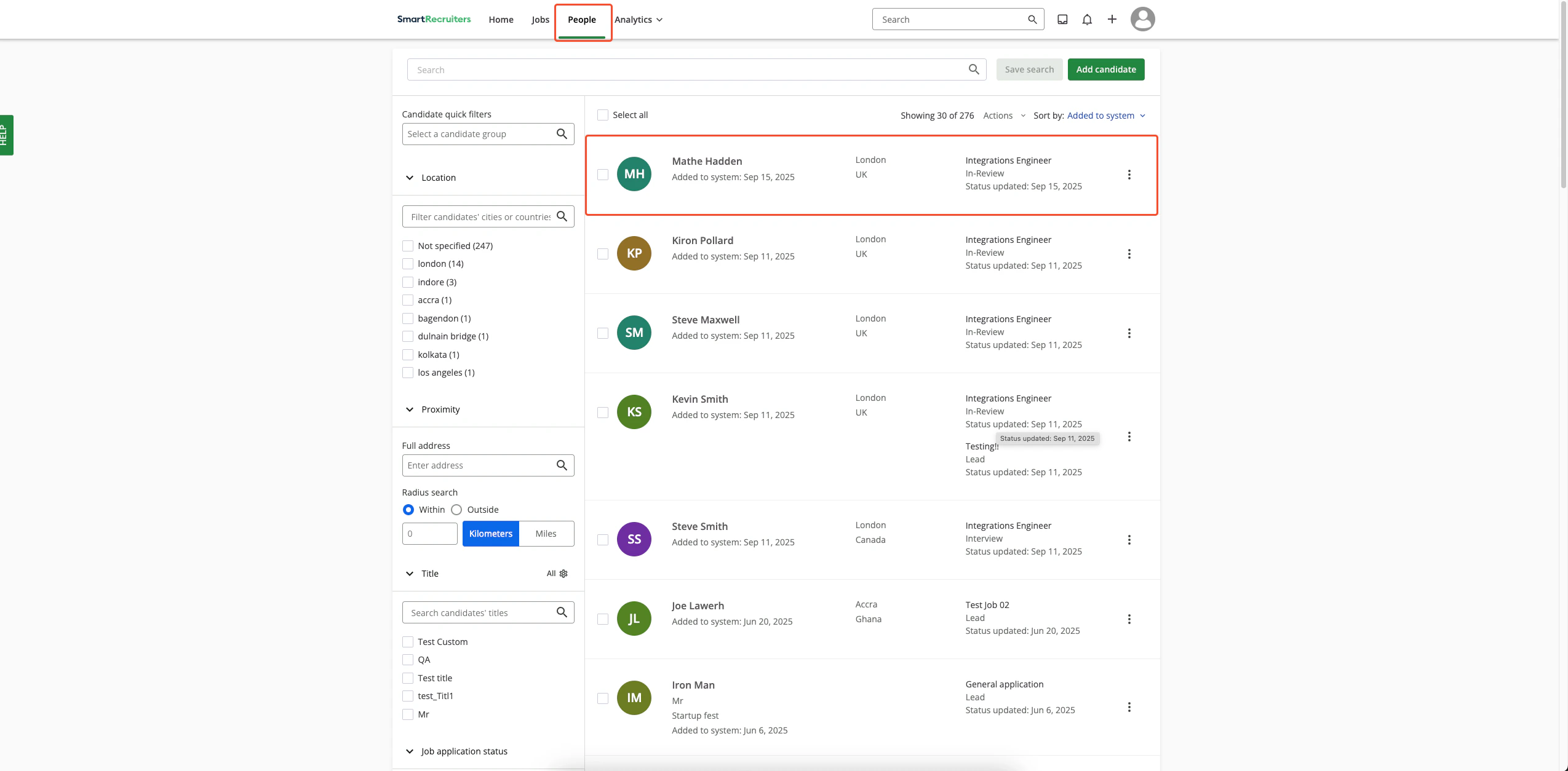
    1. Log in to SmartRecruiters.
    2. Navigate to **People**.
    3. Open the desired candidate profile.
    <Frame>
      <img className="rounded-md" style={{ margin: '0 auto', border: '1px solid #efefef' }} alt="Select Candidate" src="https://mintcdn.com/stackone-hub-claude-issue-384-20260409-1436/knyftILoDWacwCGB/images/smartrecruiters-assessments-background-checks/select-candidate.png?fit=max&auto=format&n=knyftILoDWacwCGB&q=85&s=7566127d5b7d5c655bc68f483be0c80f" width="2549" height="1254" data-path="images/smartrecruiters-assessments-background-checks/select-candidate.png" />
    </Frame>
  </Step>

  <Step title="Initiate assessment/background check">
    From the candidate profile:

    1. Look for the assessment section

    <Info>
      If a candidate has multiple jobs, the `Assessments` section won't appear directly on their profile. To access the assessments in this case, please follow these steps to navigate to the `Assessments` section for that candidate.

      <AccordionGroup>
        <Accordion title="How to navigate to Assessments section for candidates with multiple jobs">
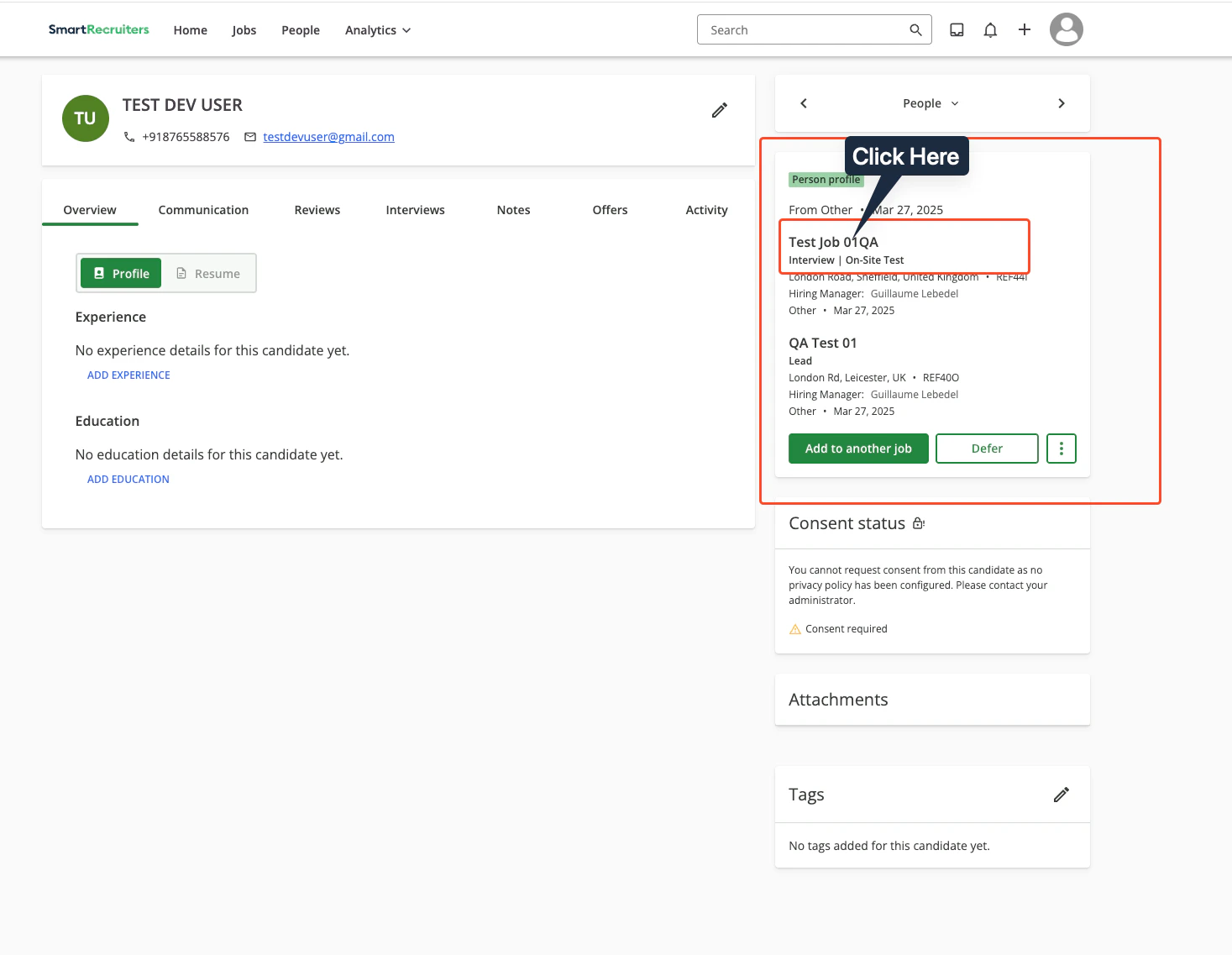
          **Step 1: Navigate to Person profile**

          Navigate to the `Person profile` and click on the `Job` for which you want to add the assessment.
          <Frame>
            <img className="rounded-md" style={{ margin: '0 auto', border: '1px solid #efefef' }} alt="Select Job on Candidate Profile" src="https://mintcdn.com/stackone-hub-claude-issue-384-20260409-1436/knyftILoDWacwCGB/images/smartrecruiters-assessments-background-checks/select-job-on-candidate-profile.png?fit=max&auto=format&n=knyftILoDWacwCGB&q=85&s=6a532e00978a0ca2acf7699b588c16b3" width="1467" height="1137" data-path="images/smartrecruiters-assessments-background-checks/select-job-on-candidate-profile.png" />
          </Frame>

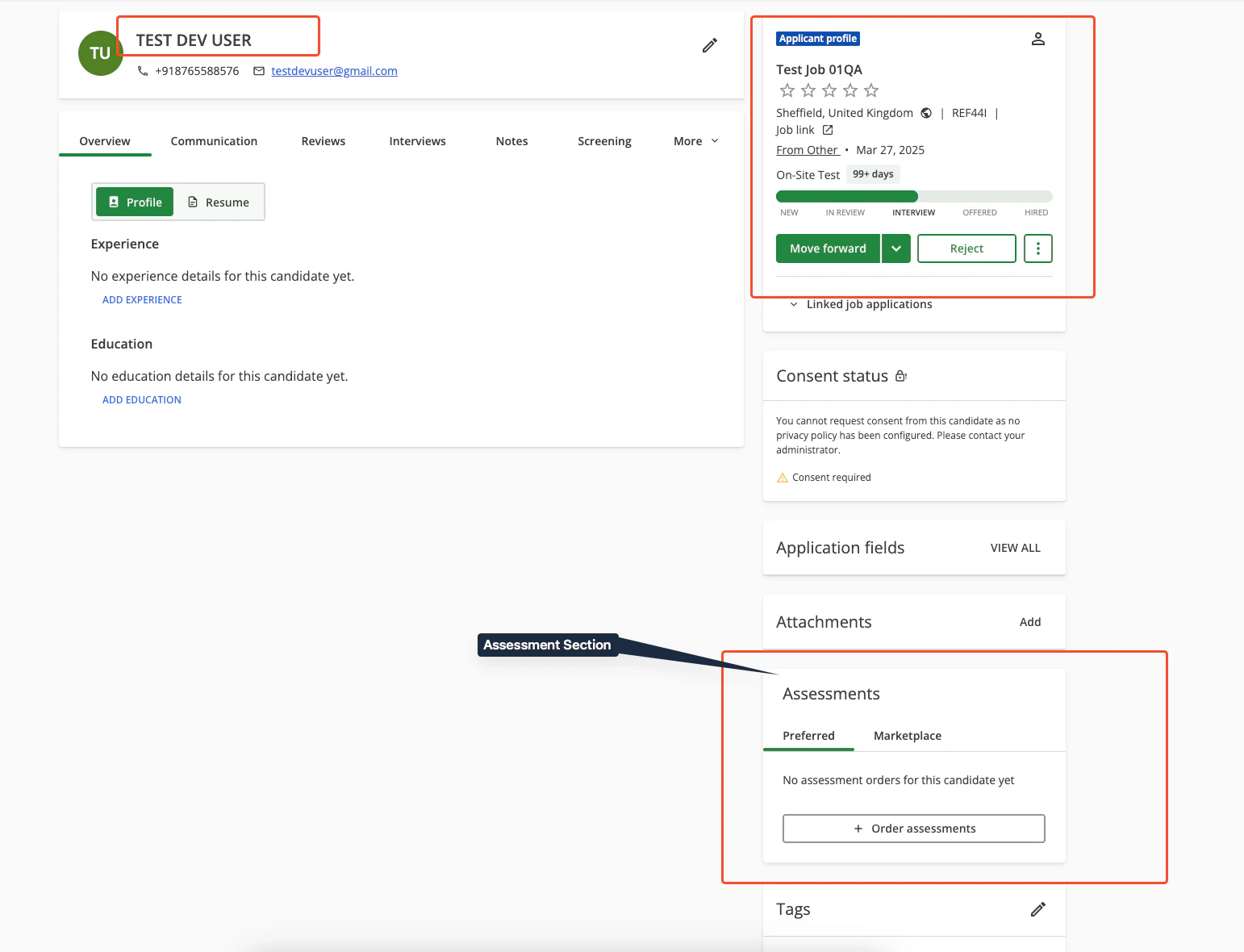
          **Step 2: Find Assessments Section**

          Once you open the `Job` for the candidate, you will find the `Assessments` section there, specific to that particular job application.
          <Frame>
            <img className="rounded-md" style={{ margin: '0 auto', border: '1px solid #efefef' }} alt="Assessment Section in Job Application" src="https://mintcdn.com/stackone-hub-claude-issue-384-20260409-1436/knyftILoDWacwCGB/images/smartrecruiters-assessments-background-checks/assessment-section-in-job-application.png?fit=max&auto=format&n=knyftILoDWacwCGB&q=85&s=b298a7565cccf429f9b7a84360d685f1" width="1542" height="1180" data-path="images/smartrecruiters-assessments-background-checks/assessment-section-in-job-application.png" />
          </Frame>
        </Accordion>
      </AccordionGroup>
    </Info>

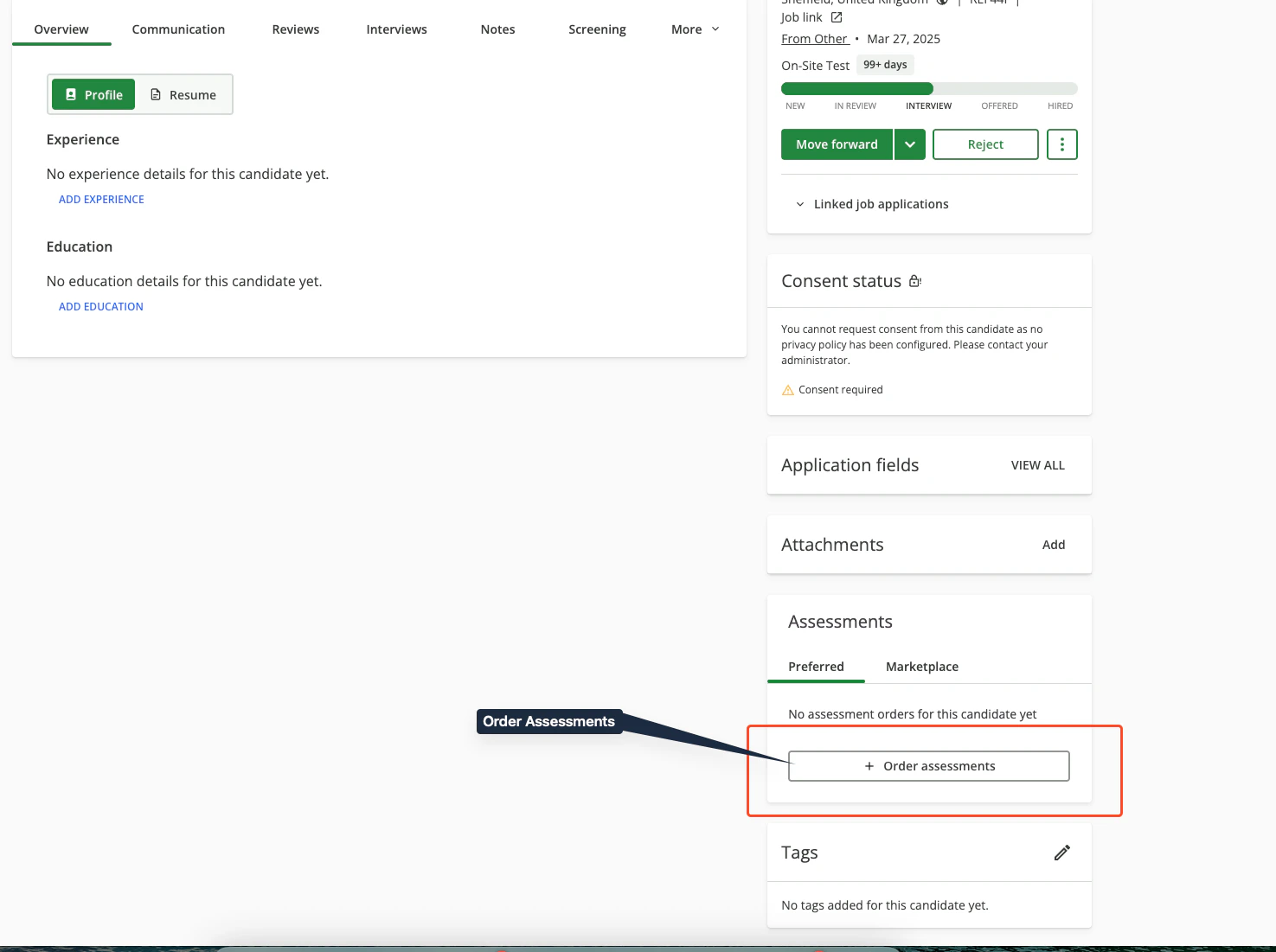
    2. Click the `Order Assessments` button.
    <Frame>
      <img className="rounded-md" style={{ margin: '0 auto', border: '1px solid #efefef' }} alt="Package Selection Form" src="https://mintcdn.com/stackone-hub-claude-issue-384-20260409-1436/knyftILoDWacwCGB/images/smartrecruiters-assessments-background-checks/order-assessment-button.png?fit=max&auto=format&n=knyftILoDWacwCGB&q=85&s=1b88cc9ef09453d390996edd8d291baa" width="1475" height="1101" data-path="images/smartrecruiters-assessments-background-checks/order-assessment-button.png" />
    </Frame>
  </Step>

  <Step title="Select package">
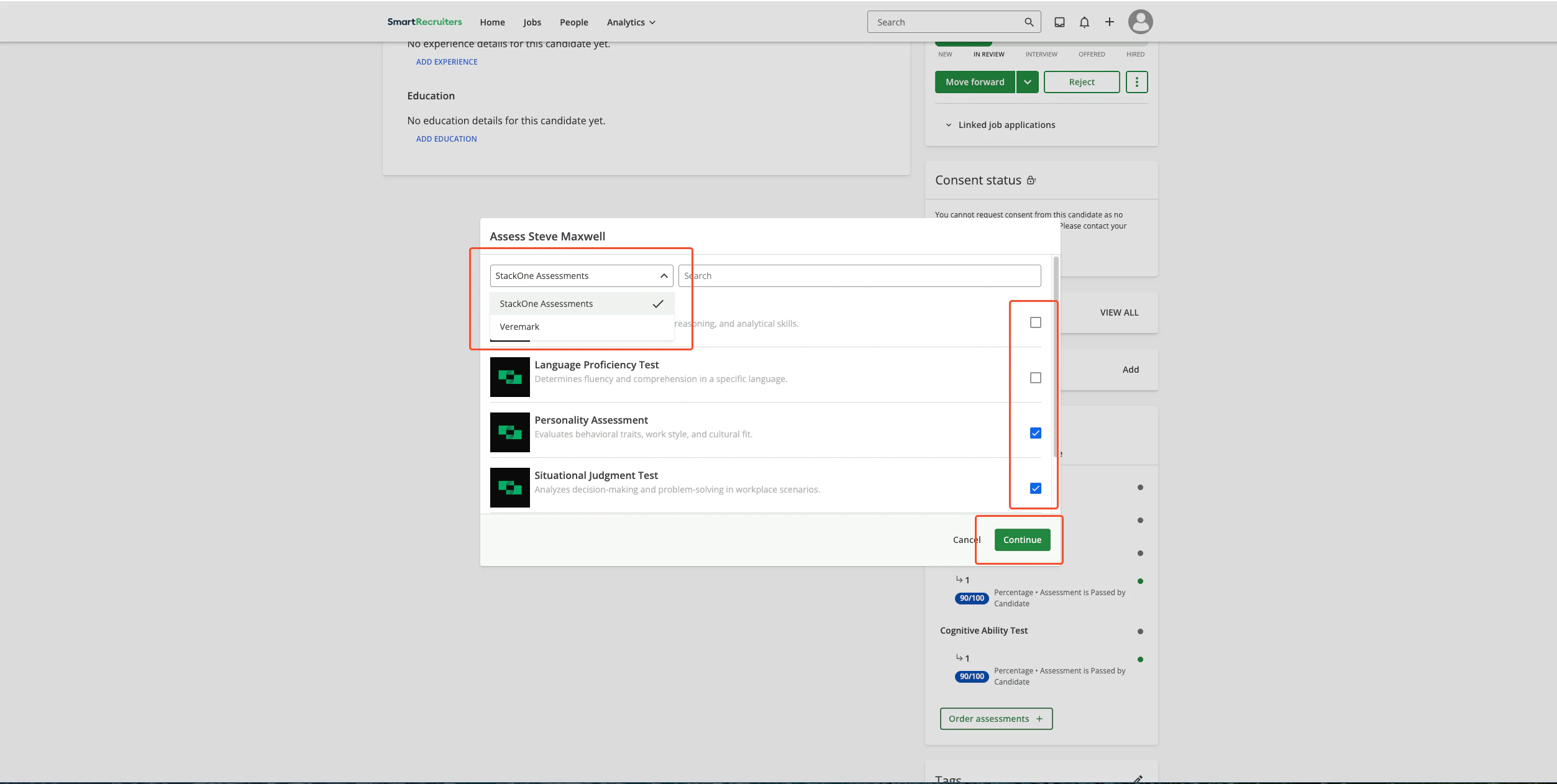
    In the assessment modal:

    1. <b>Select Assessment Partner</b>: Choose the assessment vendor.
    2. <b>Select Package</b>: Pick a test package.
    3. Click **Continue**.
    <Frame>
      <img className="rounded-md" style={{ margin: '0 auto', border: '1px solid #efefef' }} alt="Package Selection Form" src="https://mintcdn.com/stackone-hub-claude-issue-384-20260409-1436/knyftILoDWacwCGB/images/smartrecruiters-assessments-background-checks/package-selection-form.png?fit=max&auto=format&n=knyftILoDWacwCGB&q=85&s=aea9dfc18f82f8b86bd9d8719547b2f7" width="2506" height="1262" data-path="images/smartrecruiters-assessments-background-checks/package-selection-form.png" />
    </Frame>
  </Step>

  <Step title="Send to candidate">
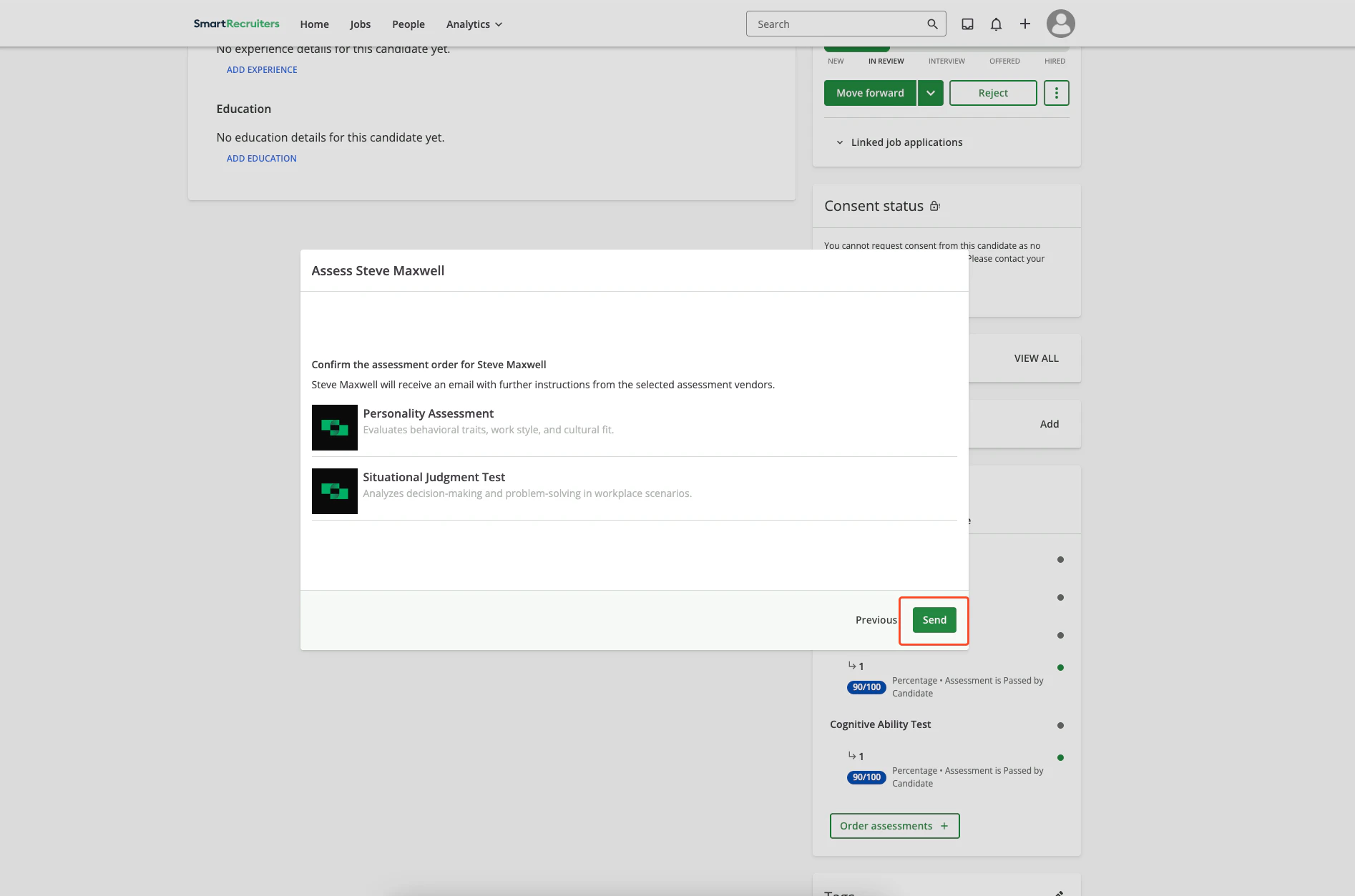
    1. Review test details and candidate information.
    2. Click **Send**.
    3. The candidate receives an email with the test link and instructions.
    <Frame>
      <img className="rounded-md" style={{ margin: '0 auto', border: '1px solid #efefef' }} alt="Send Test to Candidate" src="https://mintcdn.com/stackone-hub-claude-issue-384-20260409-1436/knyftILoDWacwCGB/images/smartrecruiters-assessments-background-checks/send-test-to-candidate.png?fit=max&auto=format&n=knyftILoDWacwCGB&q=85&s=fa5a4d33d6e77aea031b23543af62439" width="1894" height="1253" data-path="images/smartrecruiters-assessments-background-checks/send-test-to-candidate.png" />
    </Frame>
  </Step>
</Steps>

### Auto Trigger Assessments

Configure an assessment that auto‑triggers when a candidate is added to a job or moved into the assessment stage:

<Steps>
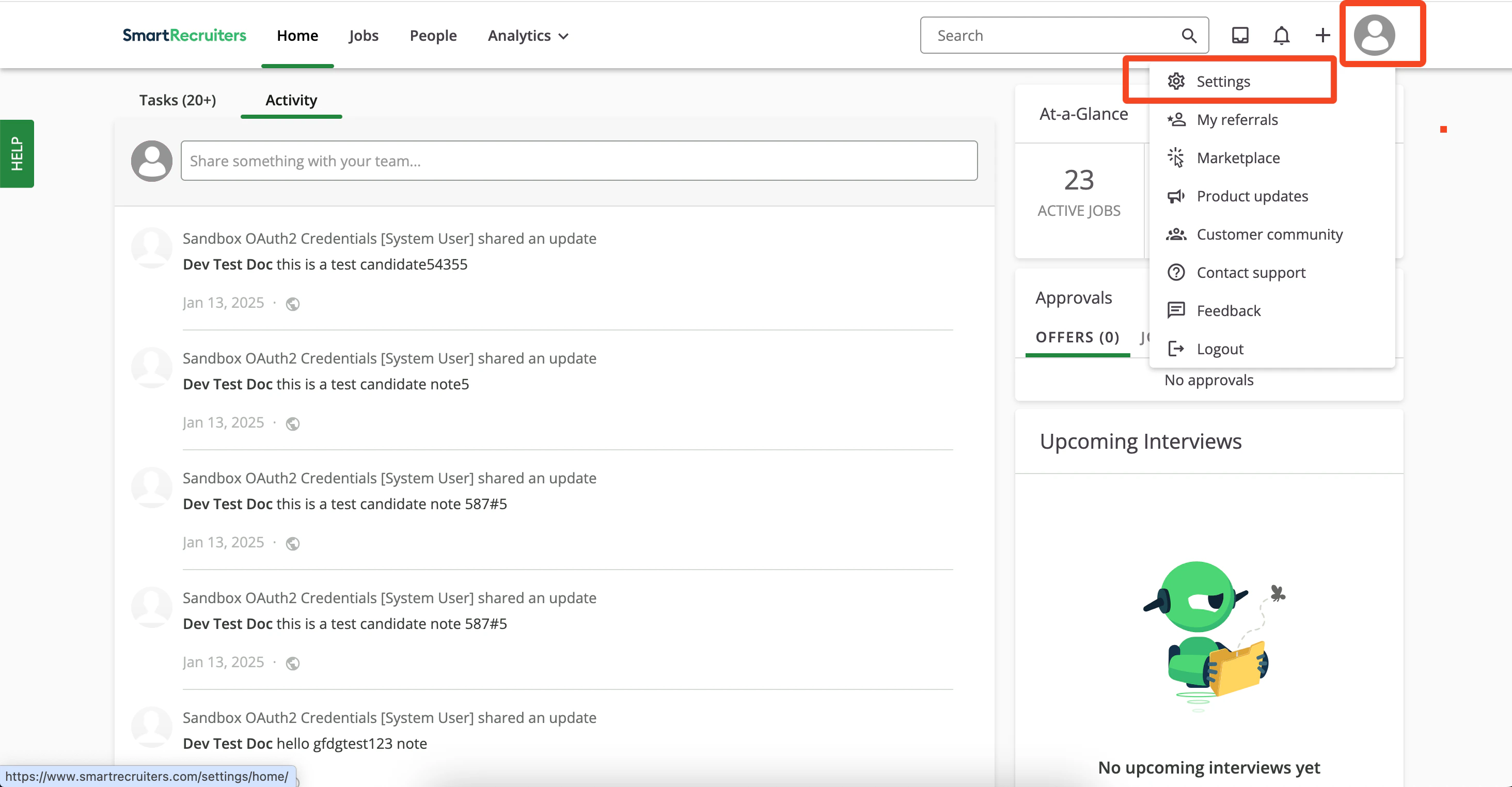
  <Step title="Open Settings">
    Click the profile icon and select `Settings`.
    <Frame>
      <img className="rounded-md" style={{ margin: '0 auto', border: '1px solid #efefef' }} alt="Access Admin Settings" src="https://mintcdn.com/stackone-hub-claude-issue-384-20260409-1436/knyftILoDWacwCGB/images/smartrecruiters-assessments-background-checks/access-admin-settings.png?fit=max&auto=format&n=knyftILoDWacwCGB&q=85&s=ca69ccfa127eda5337b28612342ca04e" width="2928" height="1524" data-path="images/smartrecruiters-assessments-background-checks/access-admin-settings.png" />
    </Frame>
  </Step>

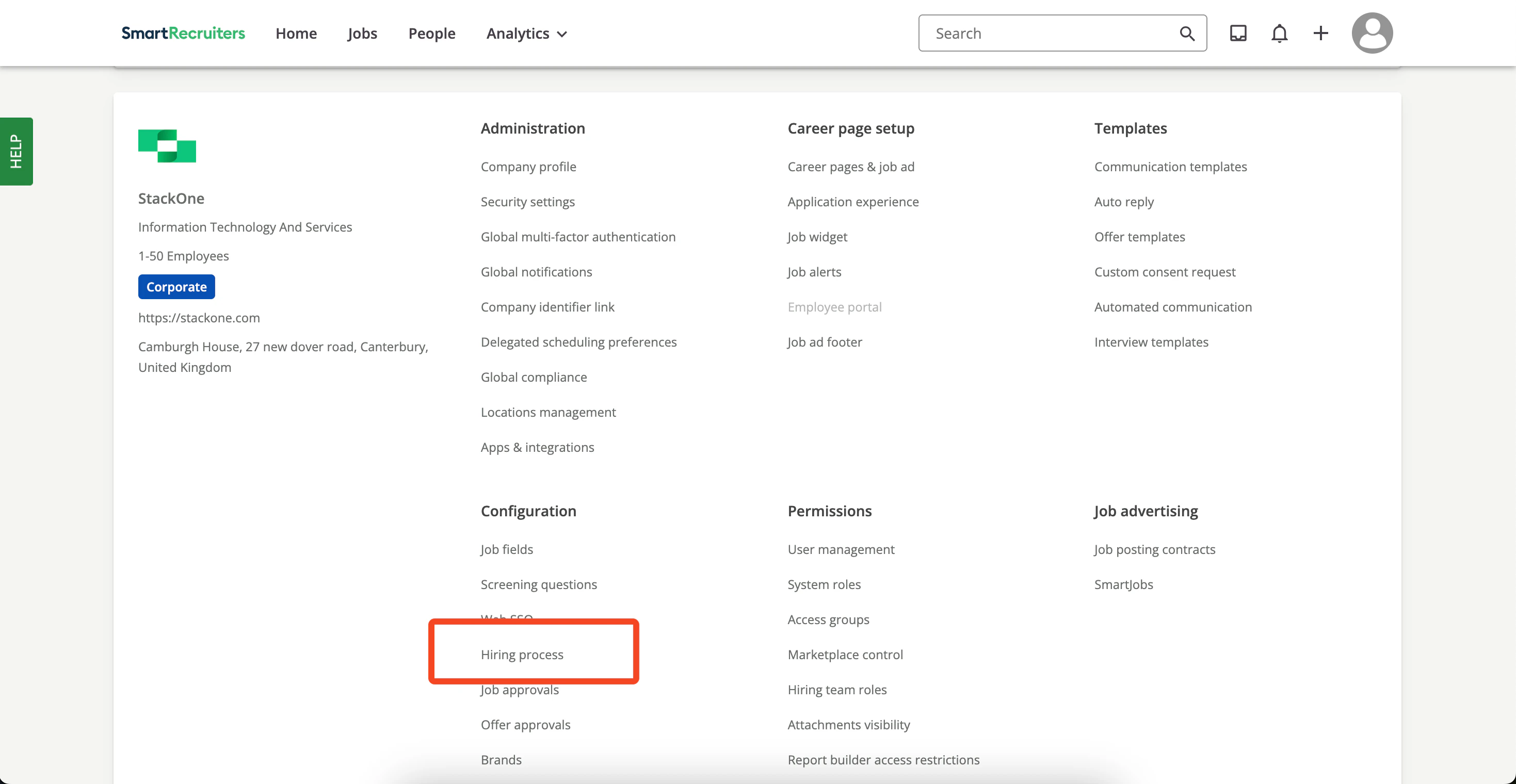
  <Step title="Open Hiring Process">
    Under Settings, click `Hiring Process`.
    <Frame>
      <img className="rounded-md" style={{ margin: '0 auto', border: '1px solid #efefef' }} alt="Access Hiring Process" src="https://mintcdn.com/stackone-hub-claude-issue-384-20260409-1436/knyftILoDWacwCGB/images/smartrecruiters-assessments-background-checks/access-hiring-process.png?fit=max&auto=format&n=knyftILoDWacwCGB&q=85&s=b77cdc5da07e1bcb3b174723969d2a0d" width="2938" height="1520" data-path="images/smartrecruiters-assessments-background-checks/access-hiring-process.png" />
    </Frame>
  </Step>

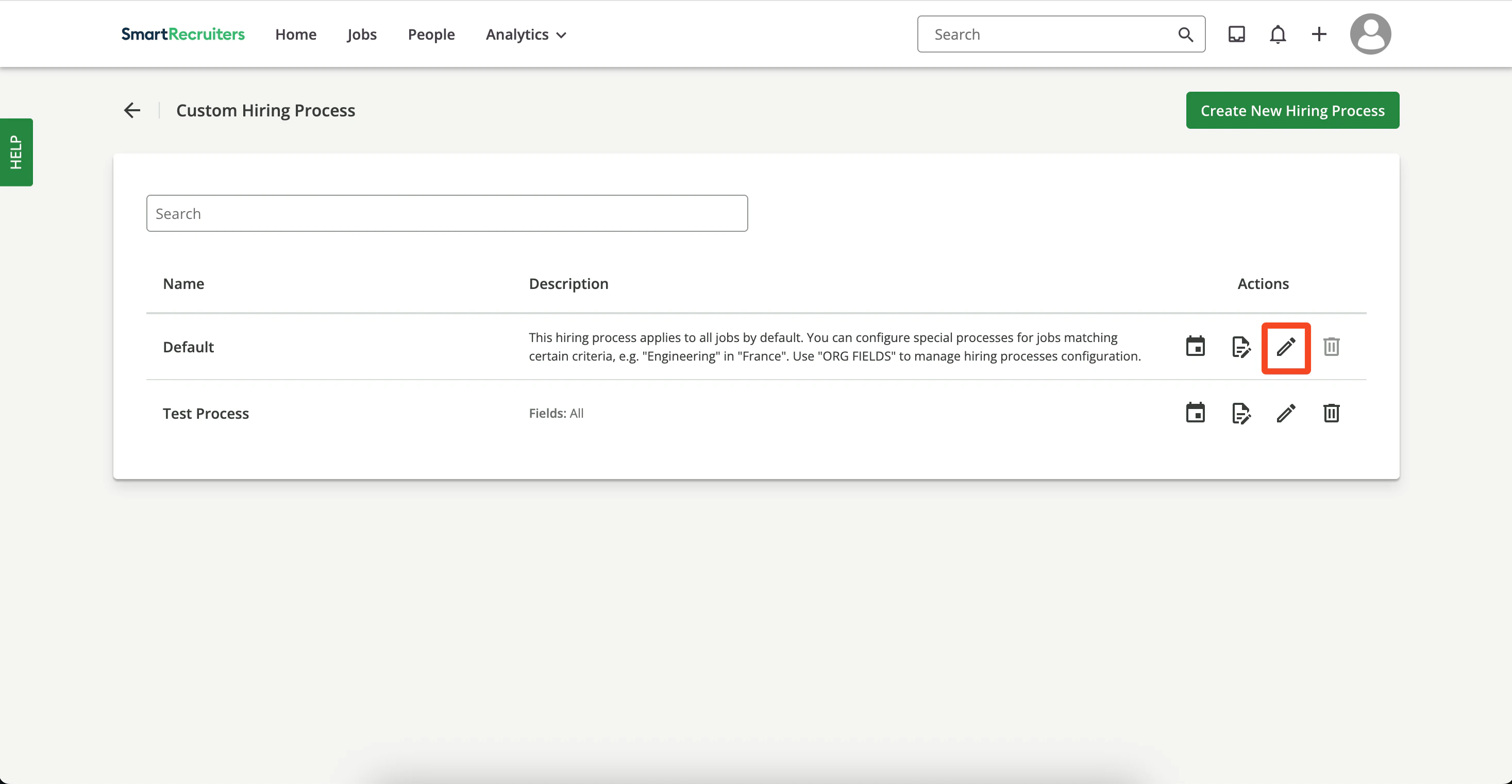
  <Step title="Select hiring process">
    Create a new hiring process or select the default one, then click the `Edit` icon.
    <Frame>
      <img className="rounded-md" style={{ margin: '0 auto', border: '1px solid #efefef' }} alt="Select Hiring Process" src="https://mintcdn.com/stackone-hub-claude-issue-384-20260409-1436/knyftILoDWacwCGB/images/smartrecruiters-assessments-background-checks/select-hiring-process-type.png?fit=max&auto=format&n=knyftILoDWacwCGB&q=85&s=a3b71990b254aaaed370d27899c751d6" width="2934" height="1522" data-path="images/smartrecruiters-assessments-background-checks/select-hiring-process-type.png" />
    </Frame>
  </Step>

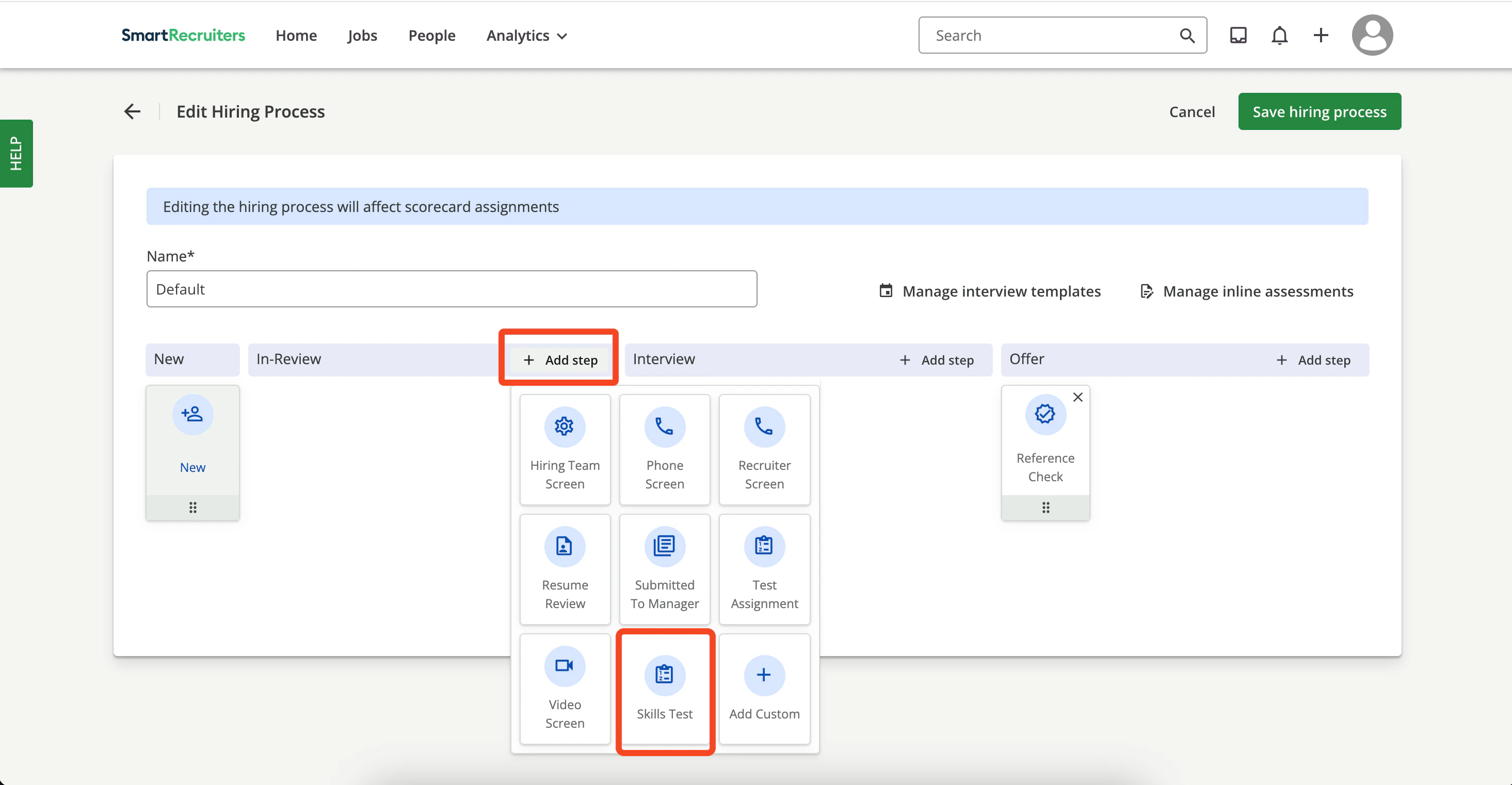
  <Step title="Add step">
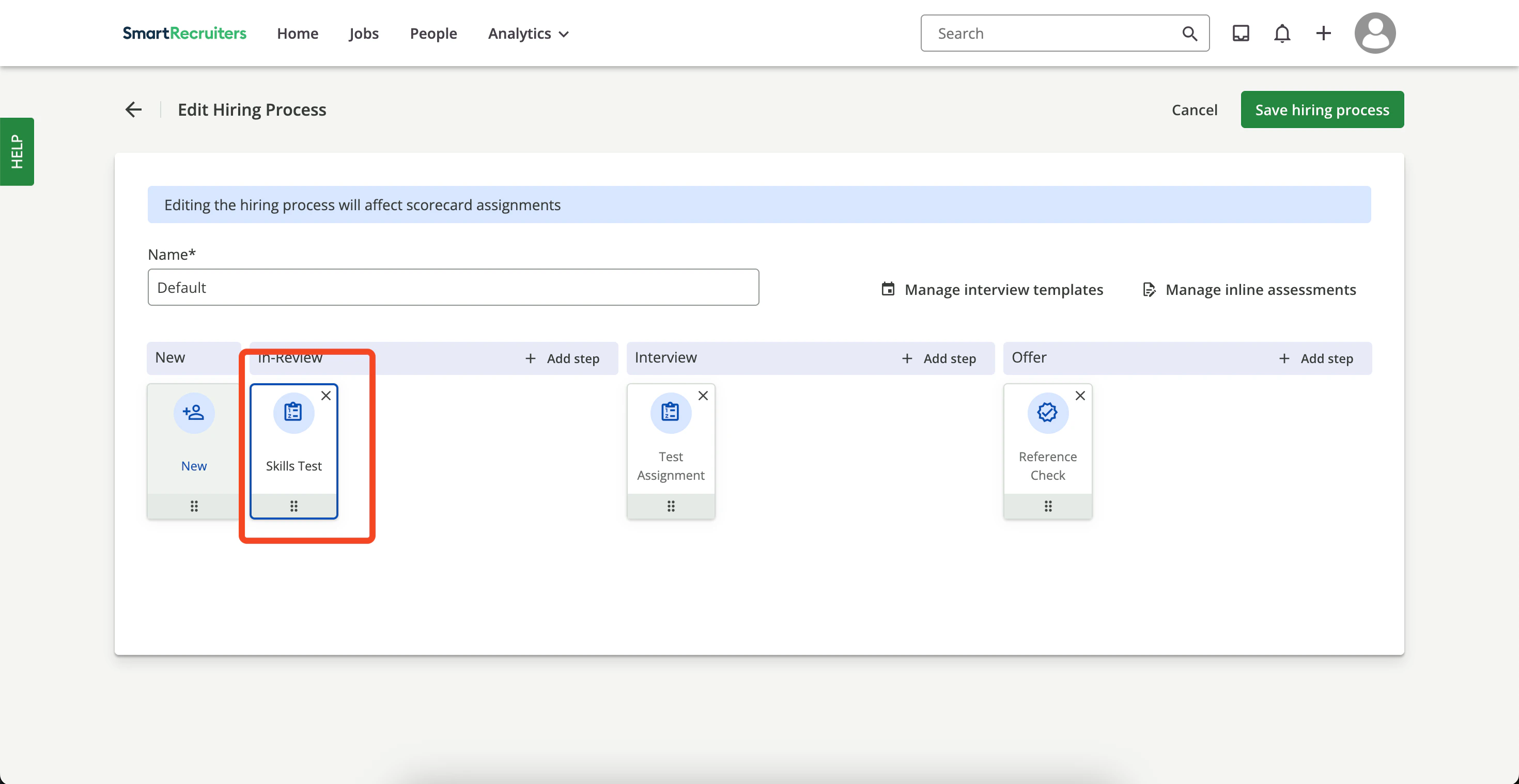
    Click `Add Step` and choose `Skills Test` or any other `Stage` on which you want to configure the `Assessments`.
    <Frame>
      <img className="rounded-md" style={{ margin: '0 auto', border: '1px solid #efefef' }} alt="Add Skills Test Step" src="https://mintcdn.com/stackone-hub-claude-issue-384-20260409-1436/knyftILoDWacwCGB/images/smartrecruiters-assessments-background-checks/add-select-step.png?fit=max&auto=format&n=knyftILoDWacwCGB&q=85&s=e6cf766f66d803bf651e1952810c6ebf" width="2930" height="1522" data-path="images/smartrecruiters-assessments-background-checks/add-select-step.png" />
    </Frame>

    Once you select the step, it will be added to the hiring process.
    <Frame>
      <img className="rounded-md" style={{ margin: '0 auto', border: '1px solid #efefef' }} alt="Skills Test Step Added" src="https://mintcdn.com/stackone-hub-claude-issue-384-20260409-1436/knyftILoDWacwCGB/images/smartrecruiters-assessments-background-checks/selected-step.png?fit=max&auto=format&n=knyftILoDWacwCGB&q=85&s=35e036f767e301d15de87d83d707cd5d" width="2940" height="1518" data-path="images/smartrecruiters-assessments-background-checks/selected-step.png" />
    </Frame>

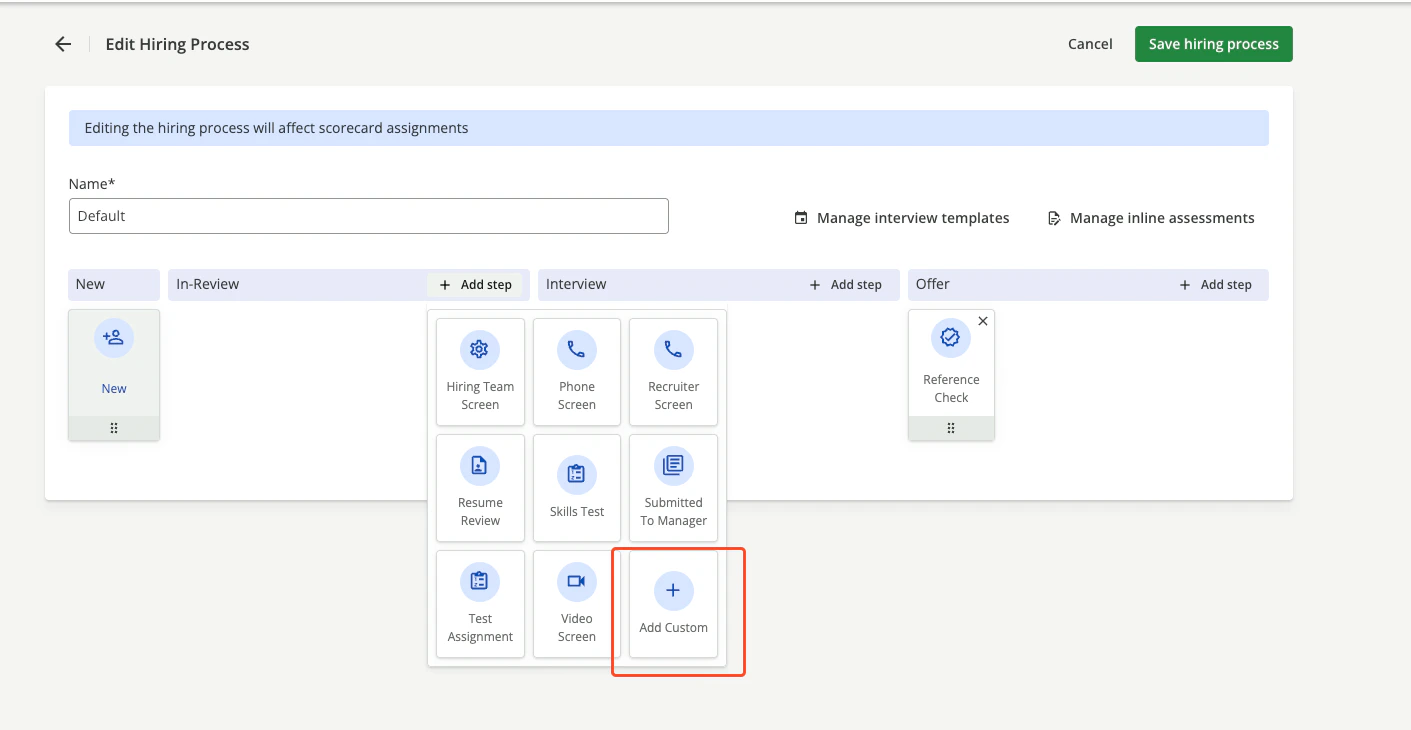
    You can also add a `Custom Stage` by selecting the `Add Custom` button.
    <Frame>
      <img className="rounded-md" style={{ margin: '0 auto', border: '1px solid #efefef' }} alt="Skills Test Step Added" src="https://mintcdn.com/stackone-hub-claude-issue-384-20260409-1436/knyftILoDWacwCGB/images/smartrecruiters-assessments-background-checks/select-custom-stage.png?fit=max&auto=format&n=knyftILoDWacwCGB&q=85&s=5cac7844f110494cedd17463a504040c" width="1411" height="730" data-path="images/smartrecruiters-assessments-background-checks/select-custom-stage.png" />
    </Frame>

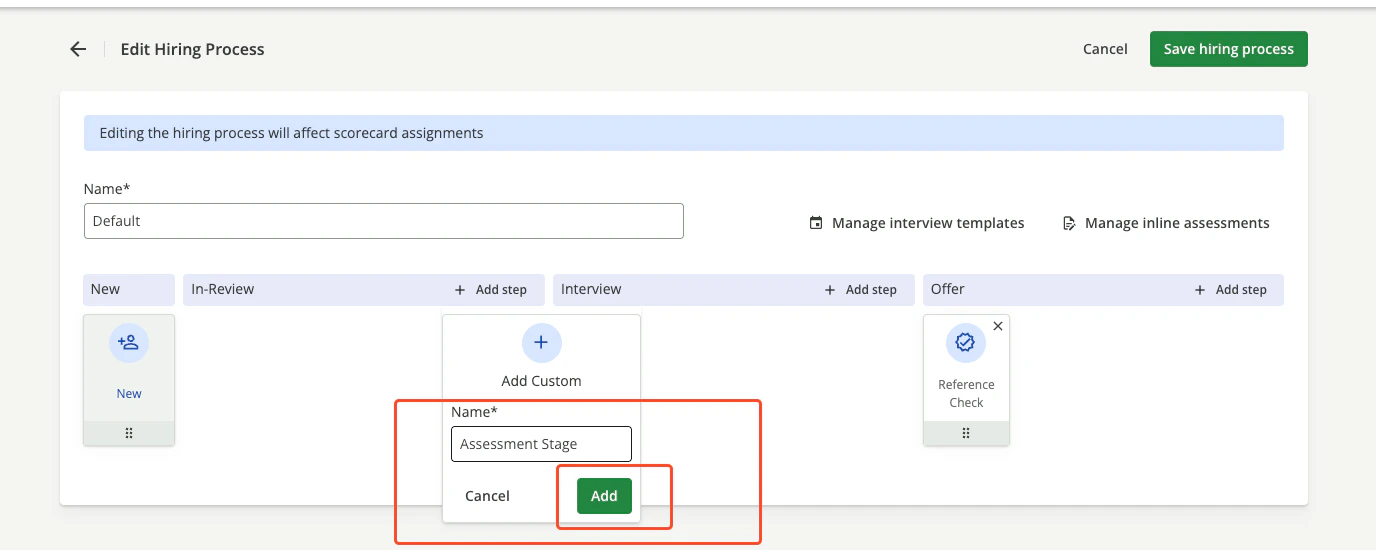
    Enter the name of the `Stage`.

    <Frame>
      <img className="rounded-md" style={{ margin: '0 auto', border: '1px solid #efefef' }} alt="Skills Test Step Added" src="https://mintcdn.com/stackone-hub-claude-issue-384-20260409-1436/knyftILoDWacwCGB/images/smartrecruiters-assessments-background-checks/custom-stage-name.png?fit=max&auto=format&n=knyftILoDWacwCGB&q=85&s=1fe87c8aae2bf643b8688f2ed1b1faef" width="1376" height="550" data-path="images/smartrecruiters-assessments-background-checks/custom-stage-name.png" />
    </Frame>

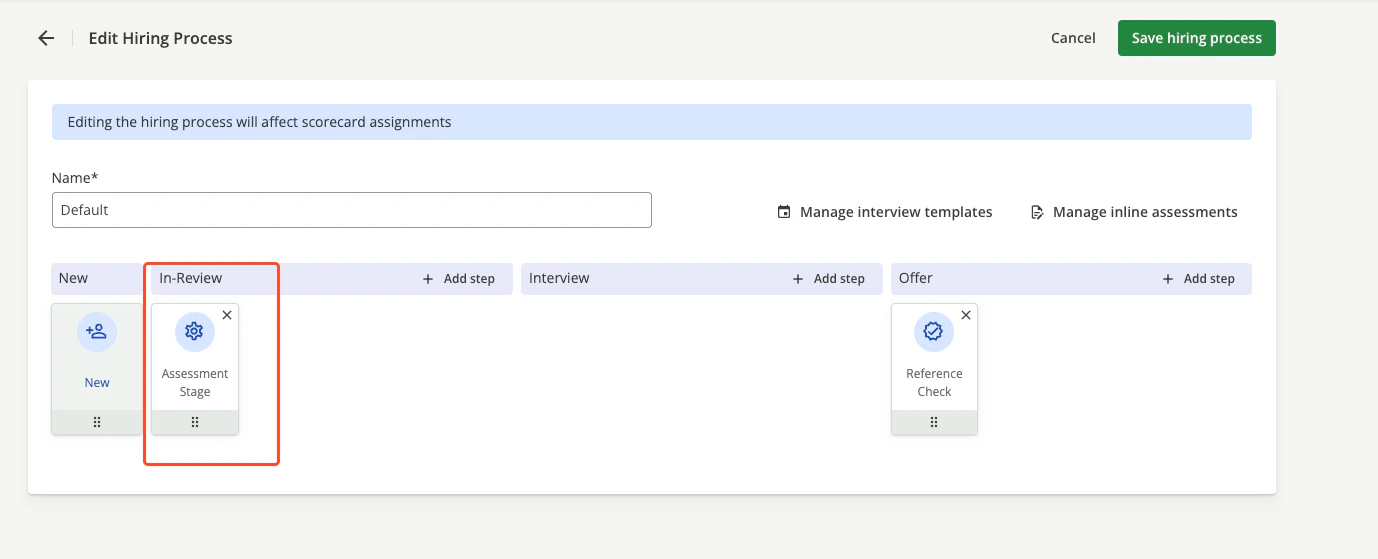
    Once you click the `Add` button, the step will be added to the hiring process.
    <Frame>
      <img className="rounded-md" style={{ margin: '0 auto', border: '1px solid #efefef' }} alt="Skills Test Step Added" src="https://mintcdn.com/stackone-hub-claude-issue-384-20260409-1436/knyftILoDWacwCGB/images/smartrecruiters-assessments-background-checks/selected-custom-step.png?fit=max&auto=format&n=knyftILoDWacwCGB&q=85&s=c2d678a76e2af8dd37fbf6d516d0f021" width="1378" height="559" data-path="images/smartrecruiters-assessments-background-checks/selected-custom-step.png" />
    </Frame>
  </Step>

  <Step title="Save hiring process">
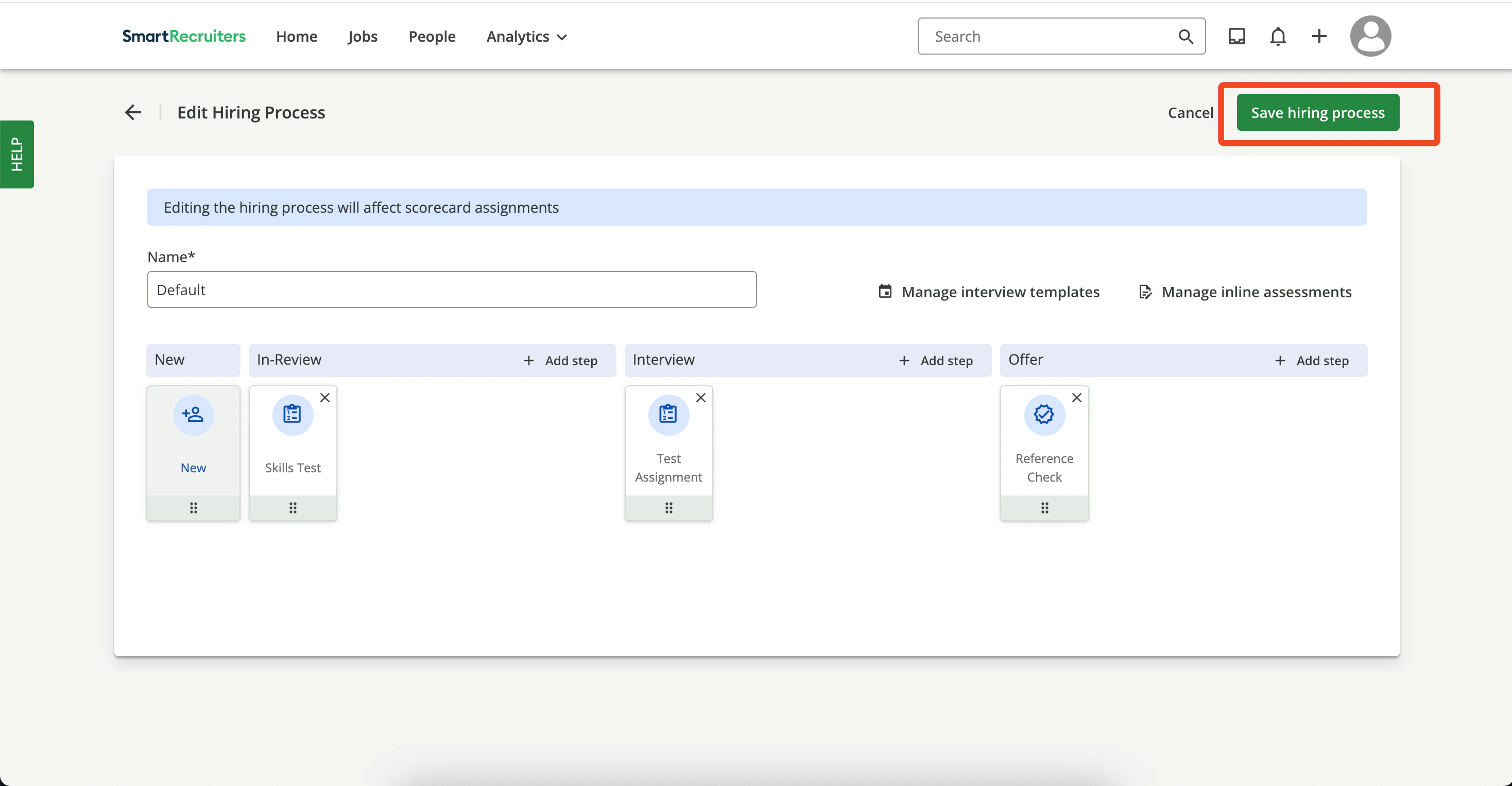
    Click `Save Hiring Process` to persist the changes.
    <Frame>
      <img className="rounded-md" style={{ margin: '0 auto', border: '1px solid #efefef' }} alt="Save Hiring Process" src="https://mintcdn.com/stackone-hub-claude-issue-384-20260409-1436/knyftILoDWacwCGB/images/smartrecruiters-assessments-background-checks/save-hiring-process.png?fit=max&auto=format&n=knyftILoDWacwCGB&q=85&s=892f7c41c81b7dcd8c4ba7260b79627d" width="2936" height="1526" data-path="images/smartrecruiters-assessments-background-checks/save-hiring-process.png" />
    </Frame>
  </Step>

  <Step title="Add assessment entry">
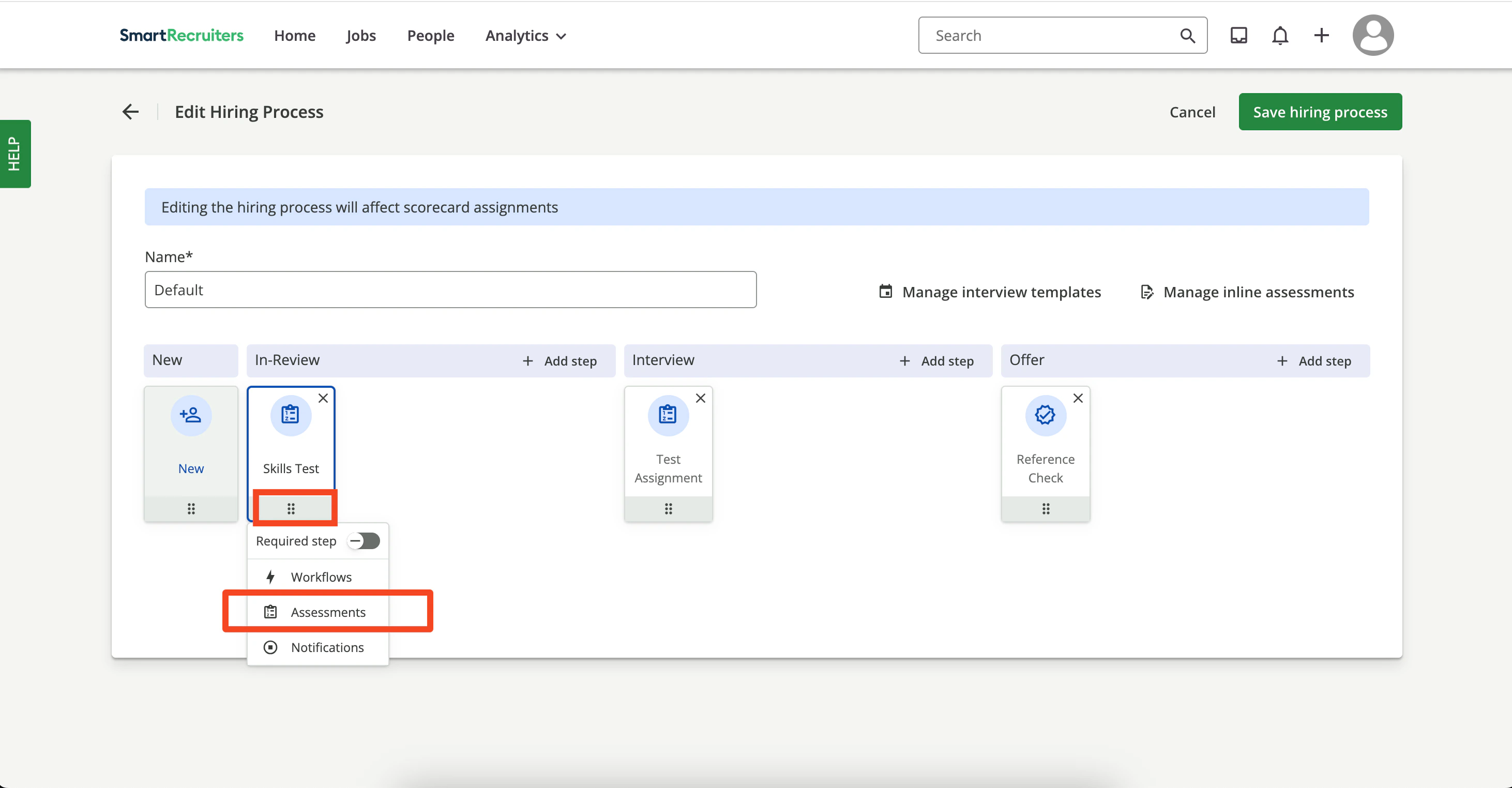
    In the `Skills Test` step, open the menu and select `Assessments`.
    <Frame>
      <img className="rounded-md" style={{ margin: '0 auto', border: '1px solid #efefef' }} alt="Add Assessments" src="https://mintcdn.com/stackone-hub-claude-issue-384-20260409-1436/knyftILoDWacwCGB/images/smartrecruiters-assessments-background-checks/add-assessments.png?fit=max&auto=format&n=knyftILoDWacwCGB&q=85&s=ae76480ff7edf3c0f3f3ec3582f62ca2" width="2924" height="1524" data-path="images/smartrecruiters-assessments-background-checks/add-assessments.png" />
    </Frame>
  </Step>

  <Step title="Configure assessment">
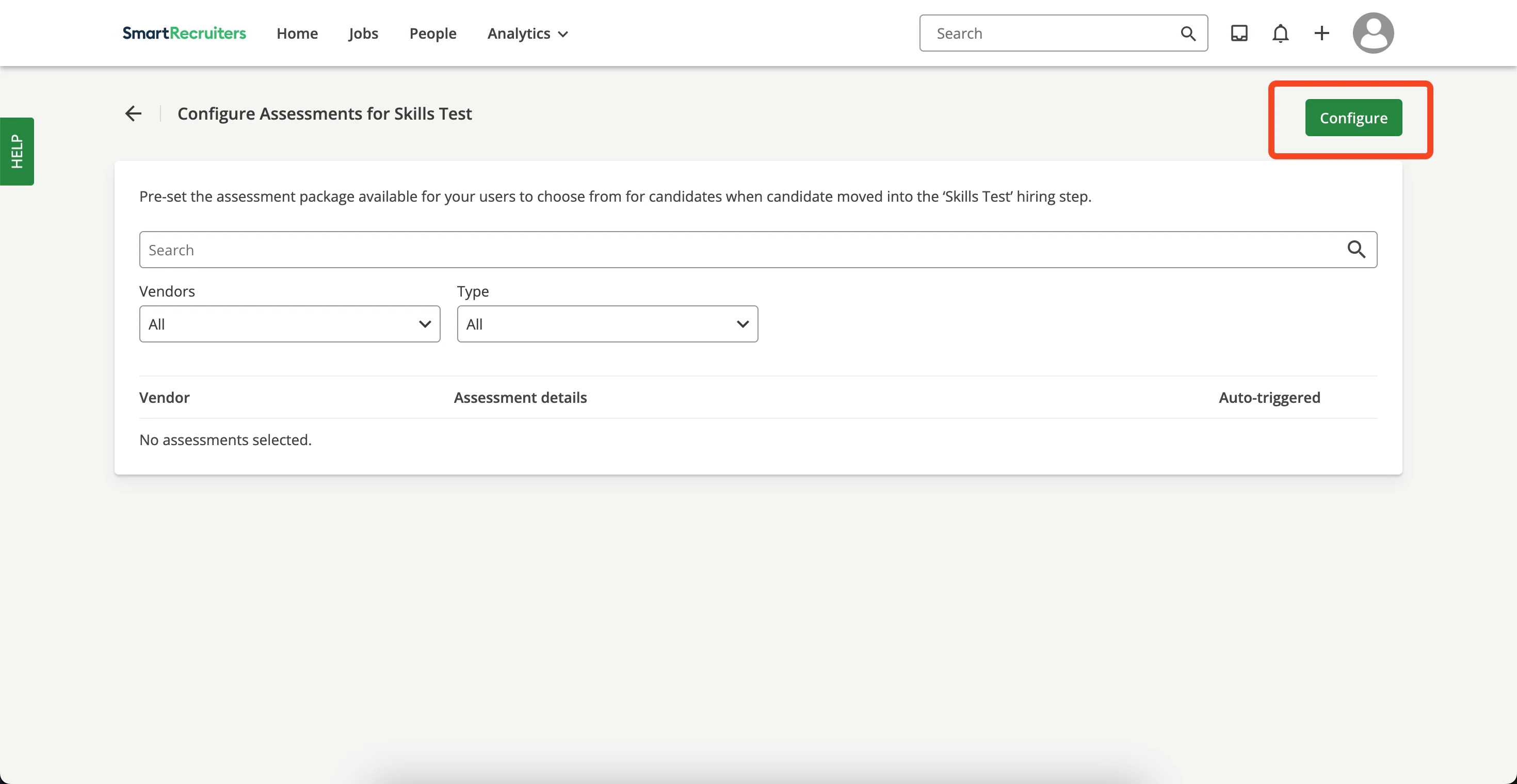
    Click `Configure`.

    <Frame>
      <img className="rounded-md" style={{ margin: '0 auto', border: '1px solid #efefef' }} alt="Configure Assessment" src="https://mintcdn.com/stackone-hub-claude-issue-384-20260409-1436/knyftILoDWacwCGB/images/smartrecruiters-assessments-background-checks/configure-assessments.png?fit=max&auto=format&n=knyftILoDWacwCGB&q=85&s=e3eed426010a1a1f33ca0e60a404425d" width="2940" height="1520" data-path="images/smartrecruiters-assessments-background-checks/configure-assessments.png" />
    </Frame>

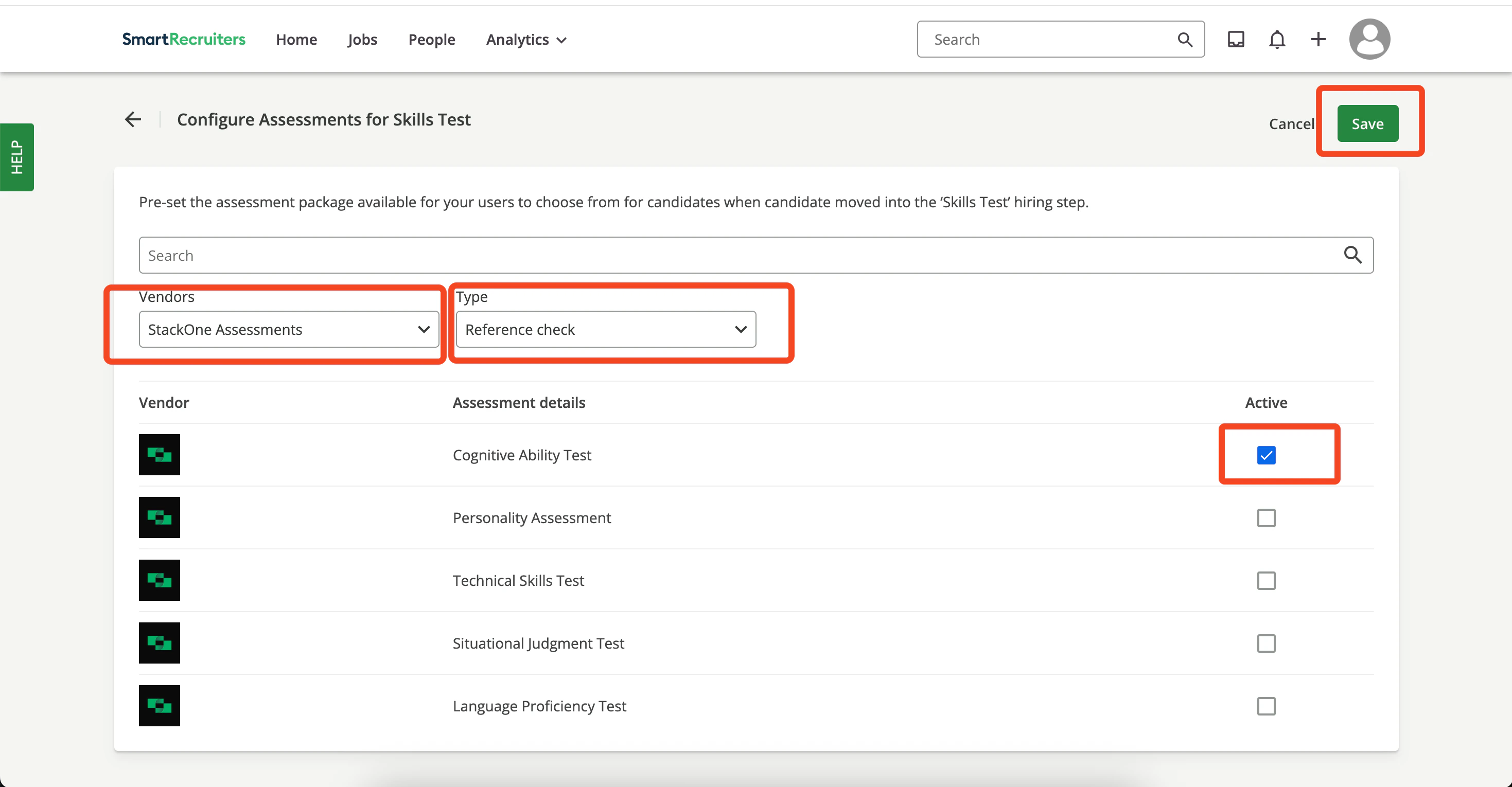
    Select the assessment partner, assessment type, and package. Click `Save`.
    <Frame>
      <img className="rounded-md" style={{ margin: '0 auto', border: '1px solid #efefef' }} alt="Select Assessment Package" src="https://mintcdn.com/stackone-hub-claude-issue-384-20260409-1436/knyftILoDWacwCGB/images/smartrecruiters-assessments-background-checks/select-assessment-package-config.png?fit=max&auto=format&n=knyftILoDWacwCGB&q=85&s=8ac695c0f383d019142d6669b20163d2" width="2938" height="1530" data-path="images/smartrecruiters-assessments-background-checks/select-assessment-package-config.png" />
    </Frame>
  </Step>

  <Step title="Enable auto‑trigger">
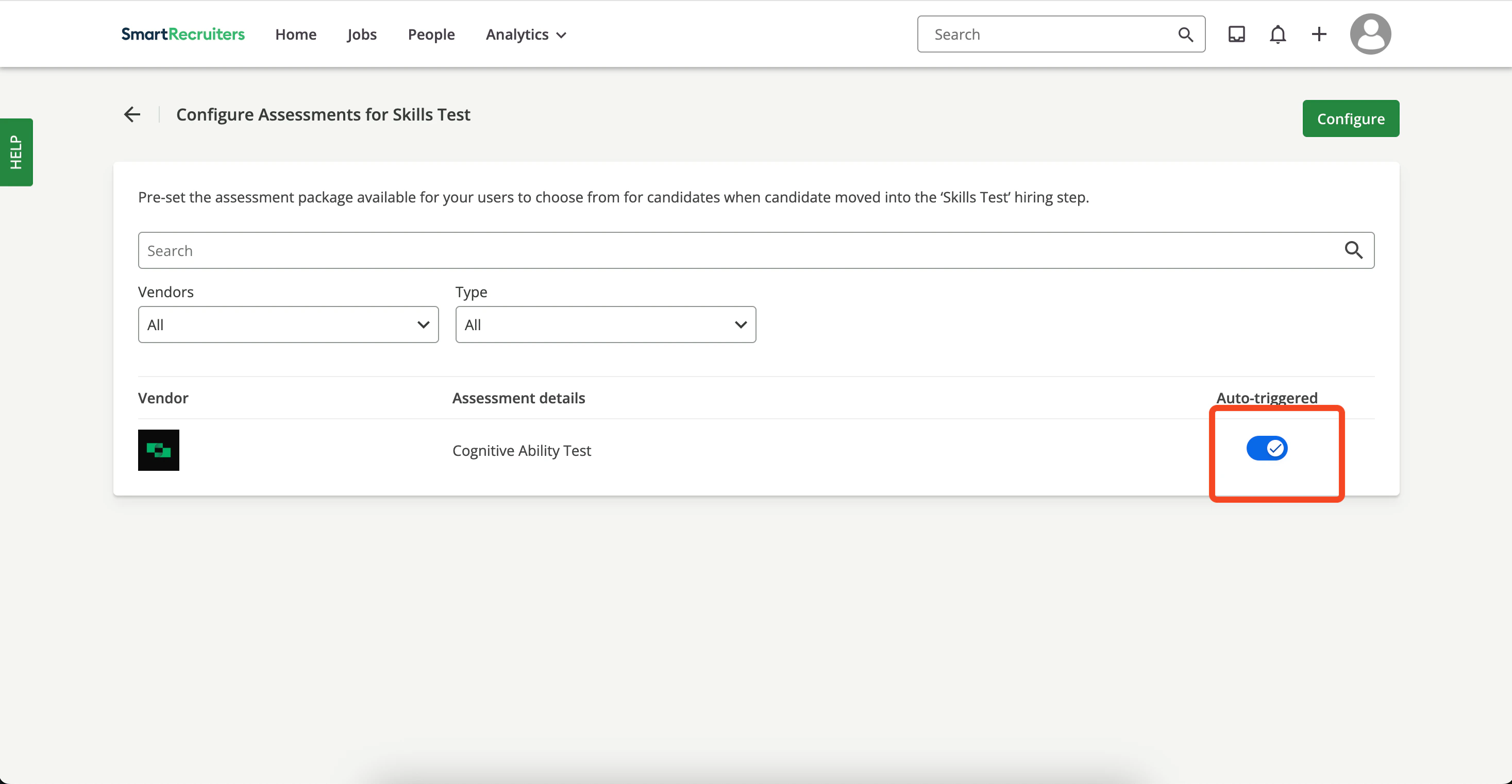
    Return to the `Config` page and enable the `Auto-triggered` toggle for the package.
    <Frame>
      <img className="rounded-md" style={{ margin: '0 auto', border: '1px solid #efefef' }} alt="Enable Auto Trigger" src="https://mintcdn.com/stackone-hub-claude-issue-384-20260409-1436/knyftILoDWacwCGB/images/smartrecruiters-assessments-background-checks/enable-auto-trigger.png?fit=max&auto=format&n=knyftILoDWacwCGB&q=85&s=b260eadf6cd27bc11202e931ce2c53c3" width="2934" height="1522" data-path="images/smartrecruiters-assessments-background-checks/enable-auto-trigger.png" />
    </Frame>
  </Step>

  <Step title="Add candidate">
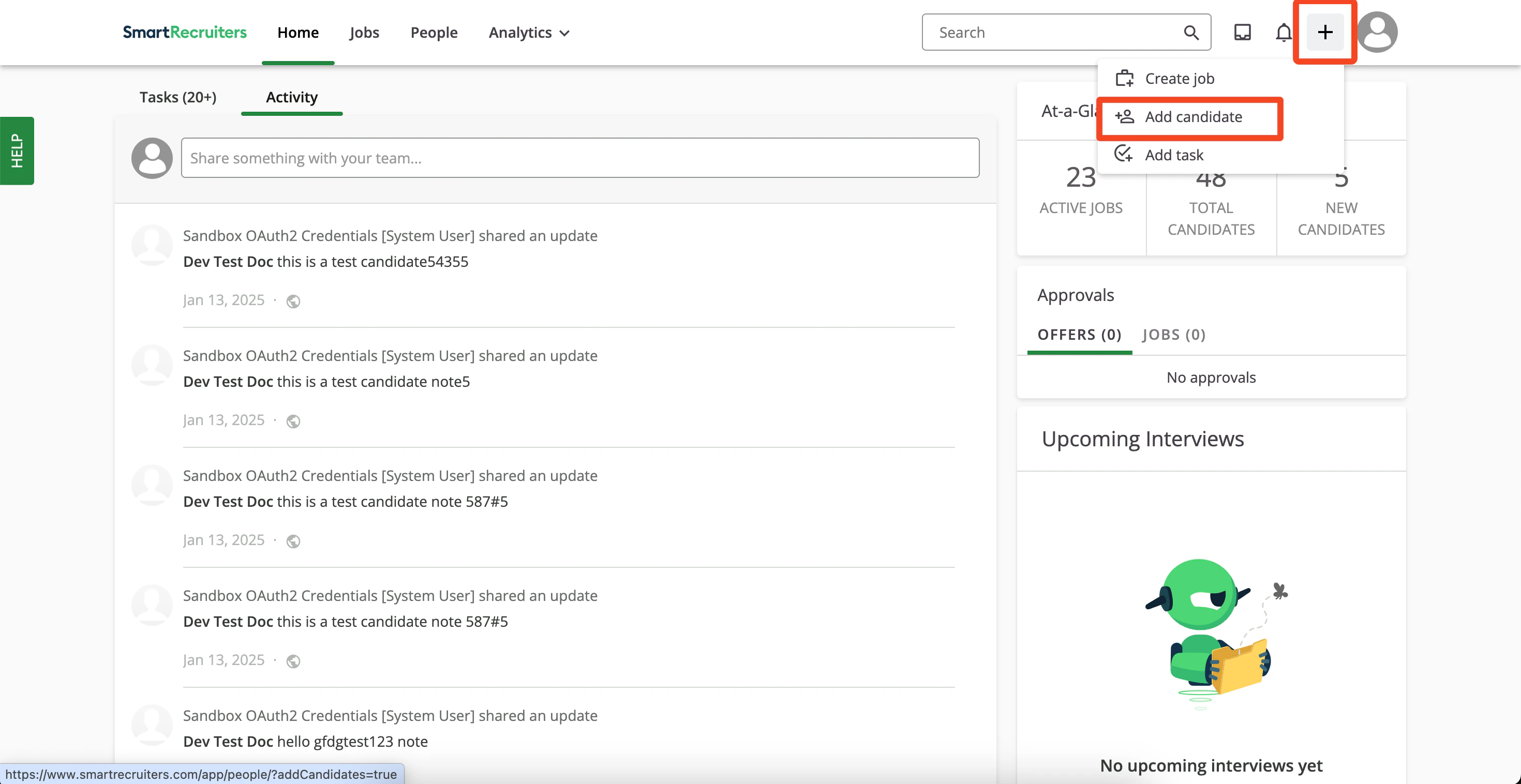
    Click the `+` icon (top right) and choose `Add Candidate`.
    <Frame>
      <img className="rounded-md" style={{ margin: '0 auto', border: '1px solid #efefef' }} alt="Add Candidate" src="https://mintcdn.com/stackone-hub-claude-issue-384-20260409-1436/knyftILoDWacwCGB/images/smartrecruiters-assessments-background-checks/add-candidate.png?fit=max&auto=format&n=knyftILoDWacwCGB&q=85&s=ddf303b57ab63cc9b87134a9ab987d1a" width="2940" height="1516" data-path="images/smartrecruiters-assessments-background-checks/add-candidate.png" />
    </Frame>

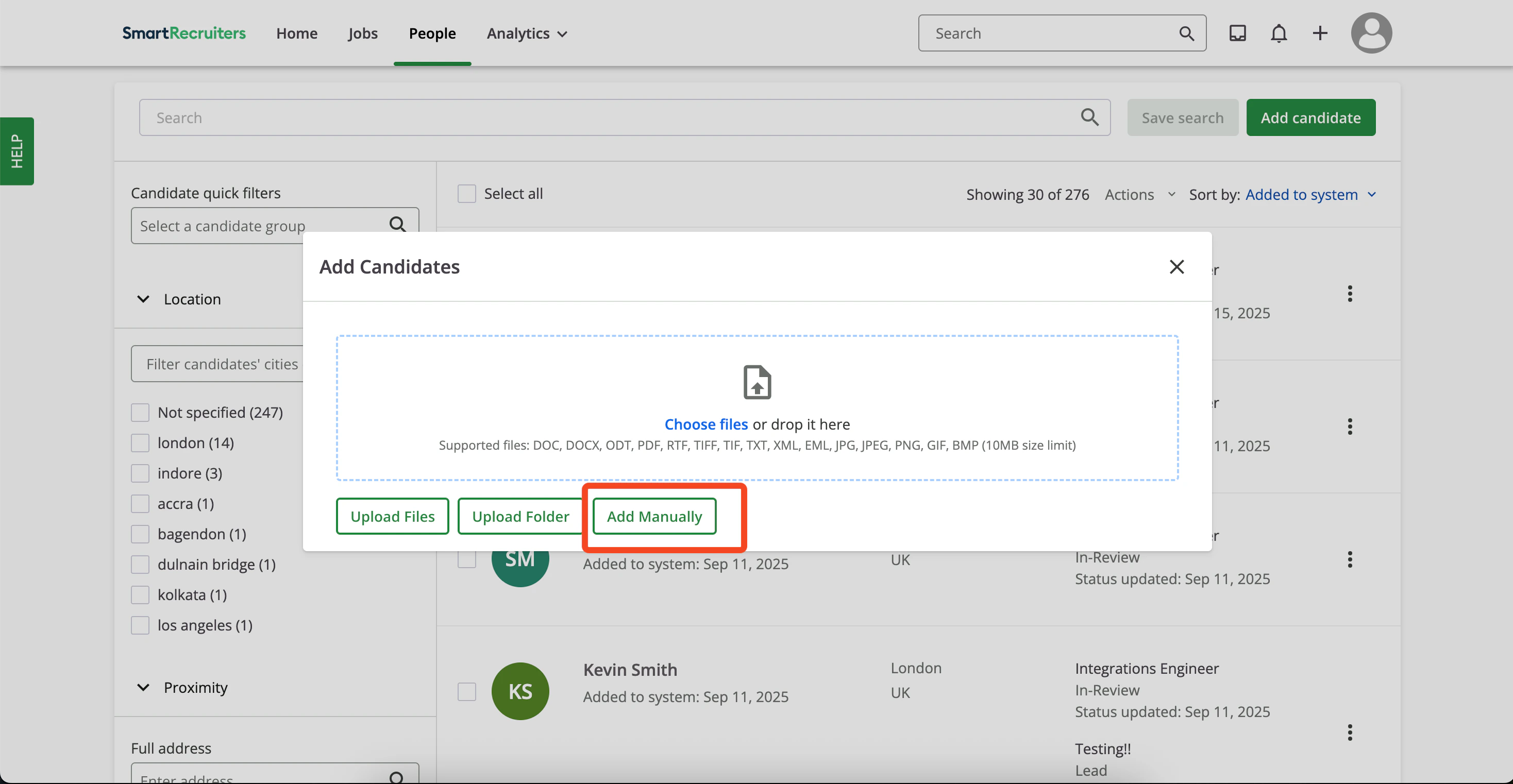
    You can upload files or add a candidate manually. For this guide we follow the manual addition form path.
    <Frame>
      <img className="rounded-md" style={{ margin: '0 auto', border: '1px solid #efefef' }} alt="Manually Added Candidate" src="https://mintcdn.com/stackone-hub-claude-issue-384-20260409-1436/knyftILoDWacwCGB/images/smartrecruiters-assessments-background-checks/manually-added-candidate.png?fit=max&auto=format&n=knyftILoDWacwCGB&q=85&s=259a738dc4ae6e36e2c1a26f24724283" width="2936" height="1522" data-path="images/smartrecruiters-assessments-background-checks/manually-added-candidate.png" />
    </Frame>

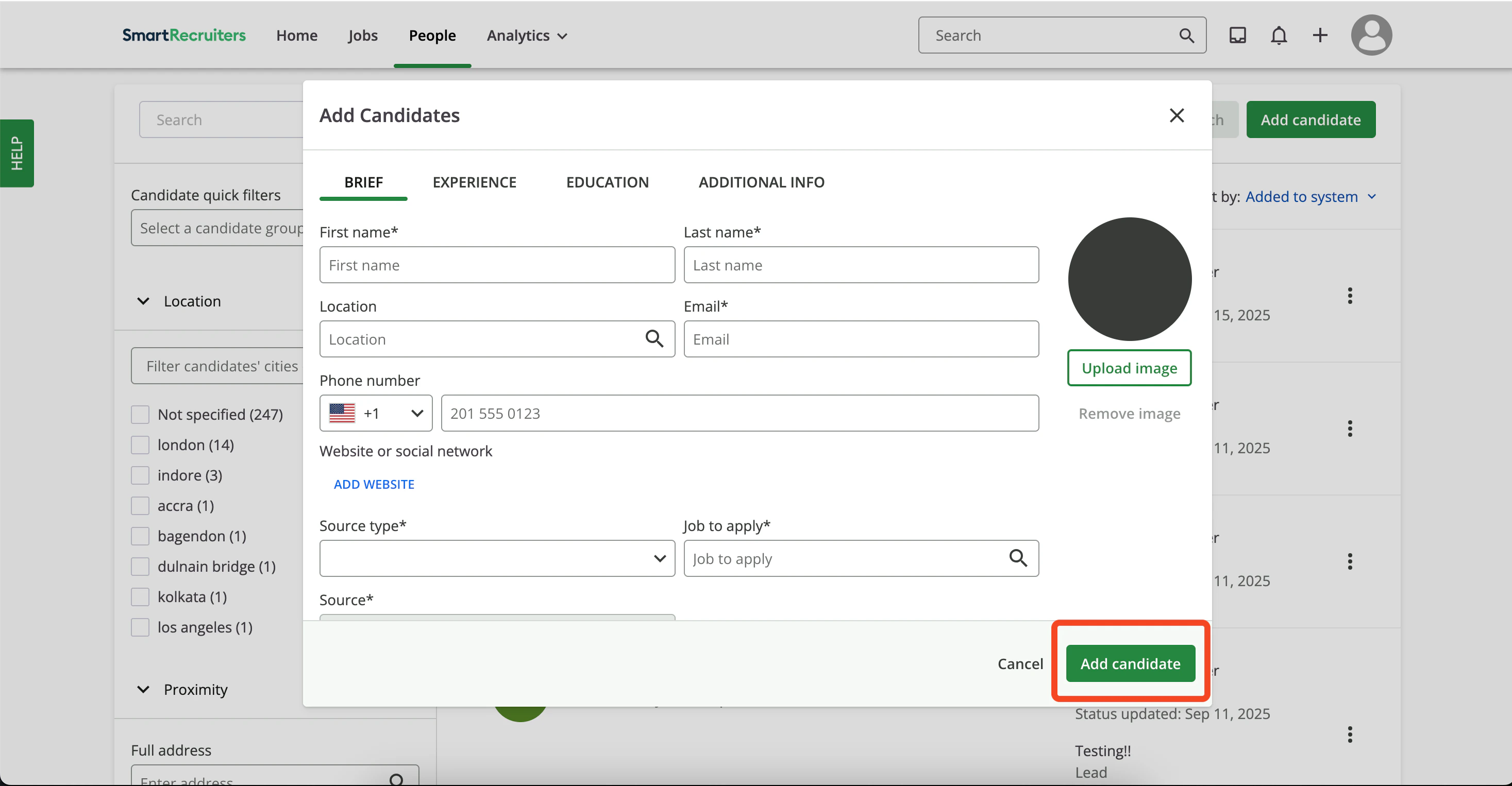
    Complete the form and click `Add Candidate`.
    <Frame>
      <img className="rounded-md" style={{ margin: '0 auto', border: '1px solid #efefef' }} alt="Candidate Form" src="https://mintcdn.com/stackone-hub-claude-issue-384-20260409-1436/knyftILoDWacwCGB/images/smartrecruiters-assessments-background-checks/candidate-form.png?fit=max&auto=format&n=knyftILoDWacwCGB&q=85&s=049b2ba9bef31553cc594f598bf7fe87" width="2934" height="1526" data-path="images/smartrecruiters-assessments-background-checks/candidate-form.png" />
    </Frame>
  </Step>

  <Step title="Move candidate to assessment stage">
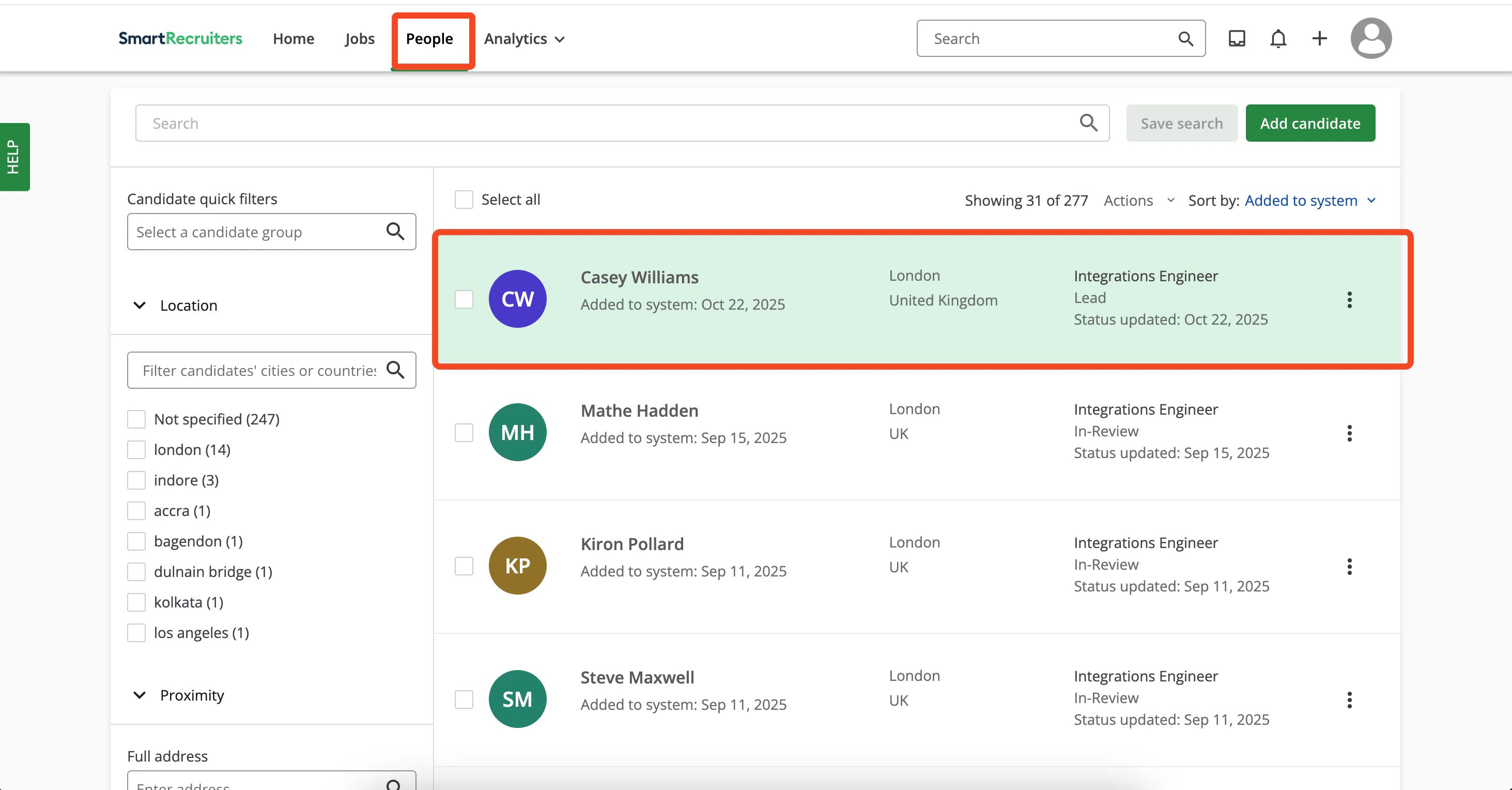
    Open **People** and select the candidate.
    <Frame>
      <img className="rounded-md" style={{ margin: '0 auto', border: '1px solid #efefef' }} alt="Select Candidate for Stage" src="https://mintcdn.com/stackone-hub-claude-issue-384-20260409-1436/knyftILoDWacwCGB/images/smartrecruiters-assessments-background-checks/select-candidate-for-stage.png?fit=max&auto=format&n=knyftILoDWacwCGB&q=85&s=32aaf567a7fe327a48f447848a661b50" width="2926" height="1528" data-path="images/smartrecruiters-assessments-background-checks/select-candidate-for-stage.png" />
    </Frame>

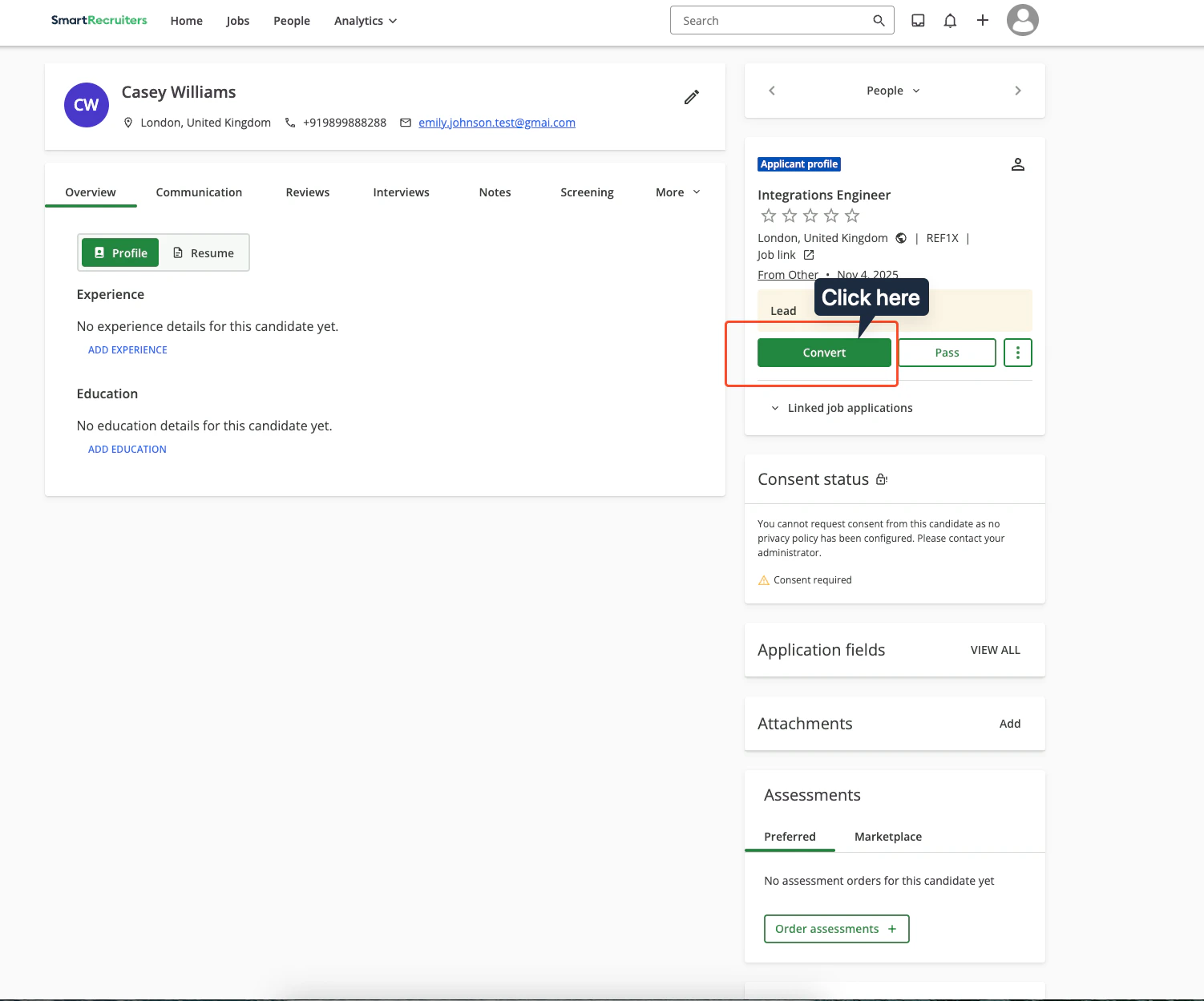
    Click the `Convert` button under the `Applicant profile` section.
    <Frame>
      <img className="rounded-md" style={{ margin: '0 auto', border: '1px solid #efefef' }} alt="Select Candidate for Stage" src="https://mintcdn.com/stackone-hub-claude-issue-384-20260409-1436/knyftILoDWacwCGB/images/smartrecruiters-assessments-background-checks/select-convert-candidate-profile.png?fit=max&auto=format&n=knyftILoDWacwCGB&q=85&s=f7c80479e7ce25df93f418084f7464b6" width="1502" height="1249" data-path="images/smartrecruiters-assessments-background-checks/select-convert-candidate-profile.png" />
    </Frame>

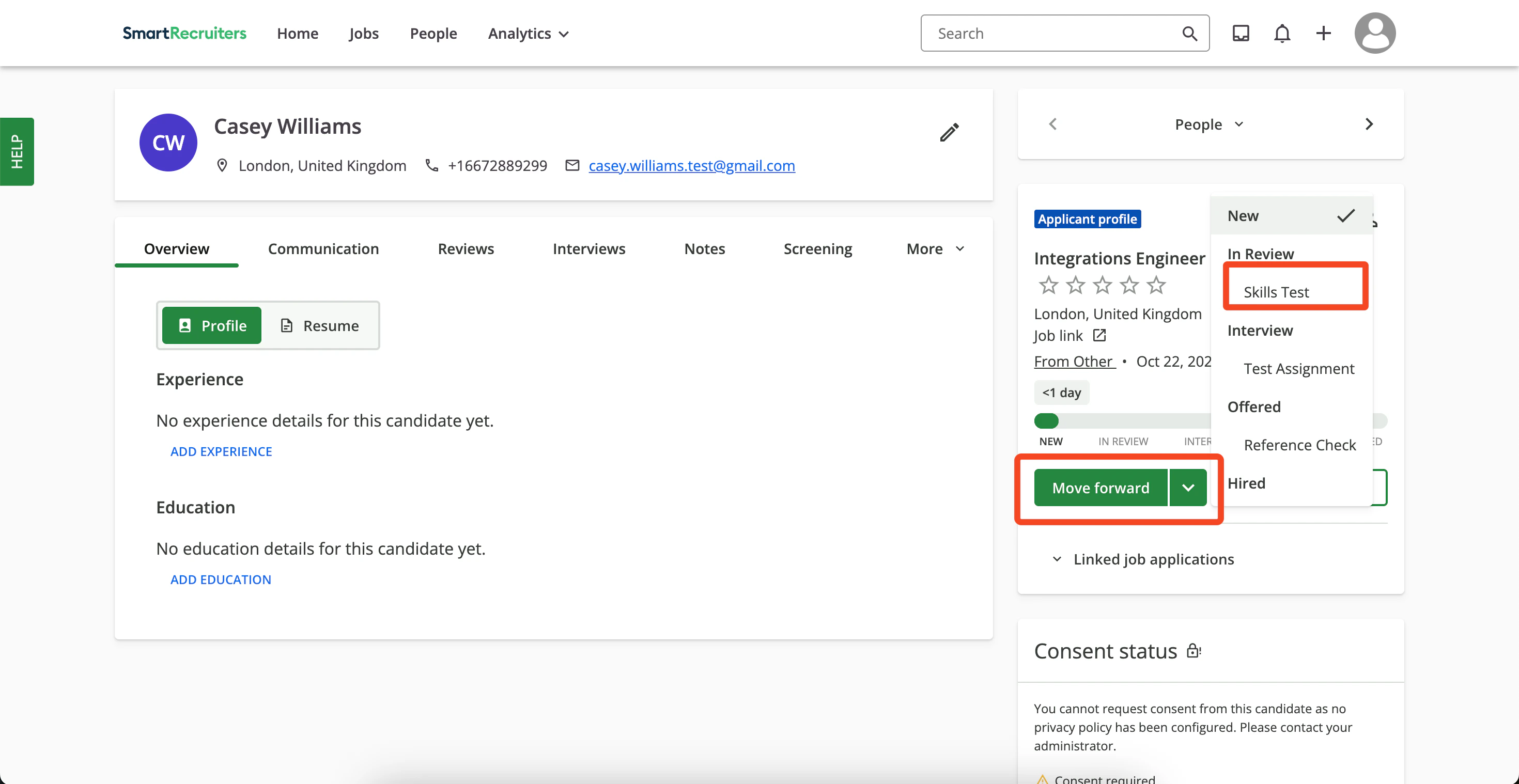
    Click `Move Forward` and select `Skills Test` under the `In Review` stage.
    <Frame>
      <img className="rounded-md" style={{ margin: '0 auto', border: '1px solid #efefef' }} alt="Select Assessment Stage" src="https://mintcdn.com/stackone-hub-claude-issue-384-20260409-1436/knyftILoDWacwCGB/images/smartrecruiters-assessments-background-checks/select-assessment-stage.png?fit=max&auto=format&n=knyftILoDWacwCGB&q=85&s=9ce733becf87f5b995fedff847e899a6" width="2940" height="1518" data-path="images/smartrecruiters-assessments-background-checks/select-assessment-stage.png" />
    </Frame>

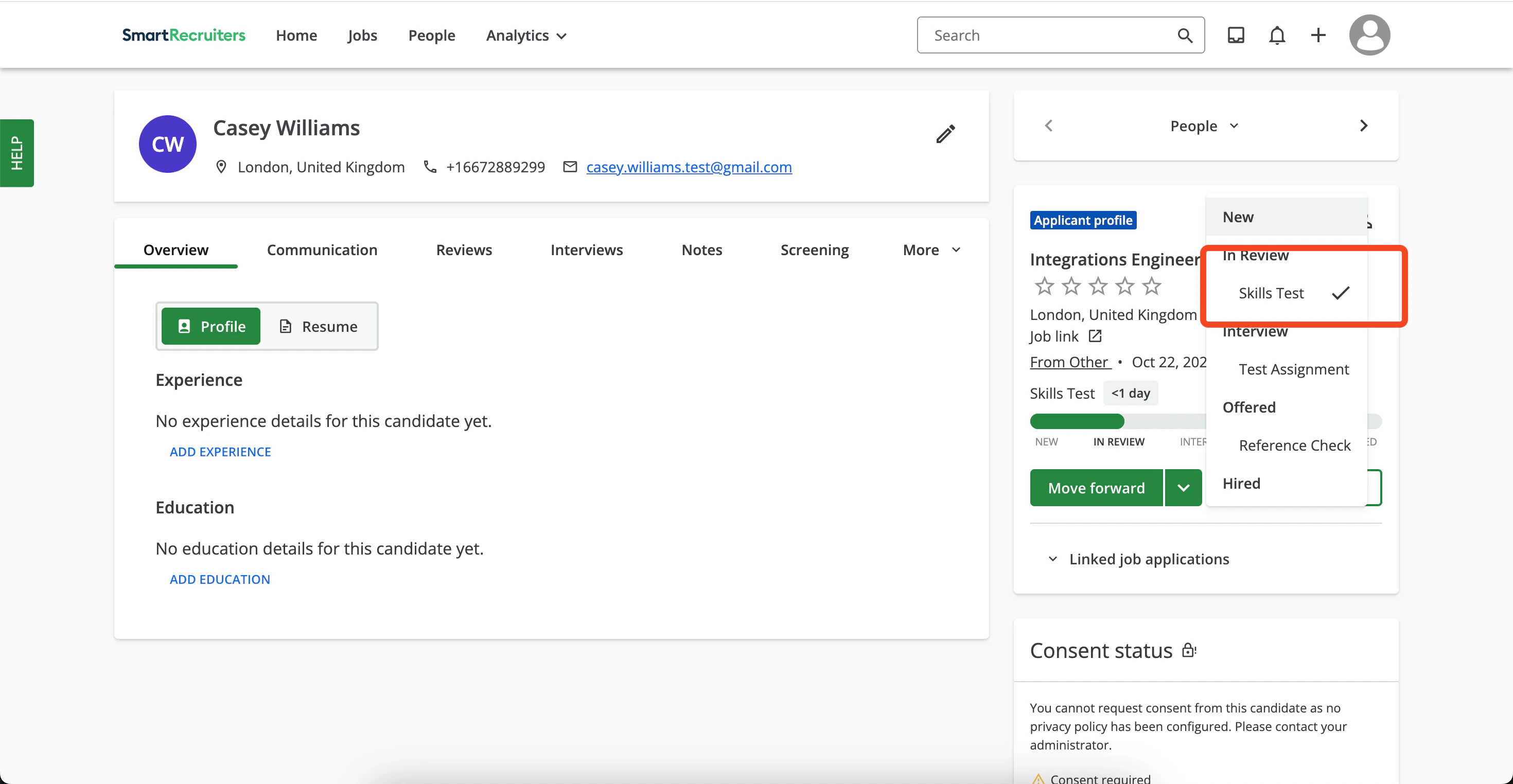
    A checkmark appears on `Skills Test` once the assessment order is sent.
    <Frame>
      <img className="rounded-md" style={{ margin: '0 auto', border: '1px solid #efefef' }} alt="Inline Stage Sent" src="https://mintcdn.com/stackone-hub-claude-issue-384-20260409-1436/knyftILoDWacwCGB/images/smartrecruiters-assessments-background-checks/inline-stage-sent.png?fit=max&auto=format&n=knyftILoDWacwCGB&q=85&s=2af897c8a0231482f3e2cf83d54867d3" width="2940" height="1524" data-path="images/smartrecruiters-assessments-background-checks/inline-stage-sent.png" />
    </Frame>
  </Step>
</Steps>

## View order status and assessment result in SmartRecruiters

Navigate to the candidate application to check the status of assessment orders or results.

<Steps>
  <Step title="View status">
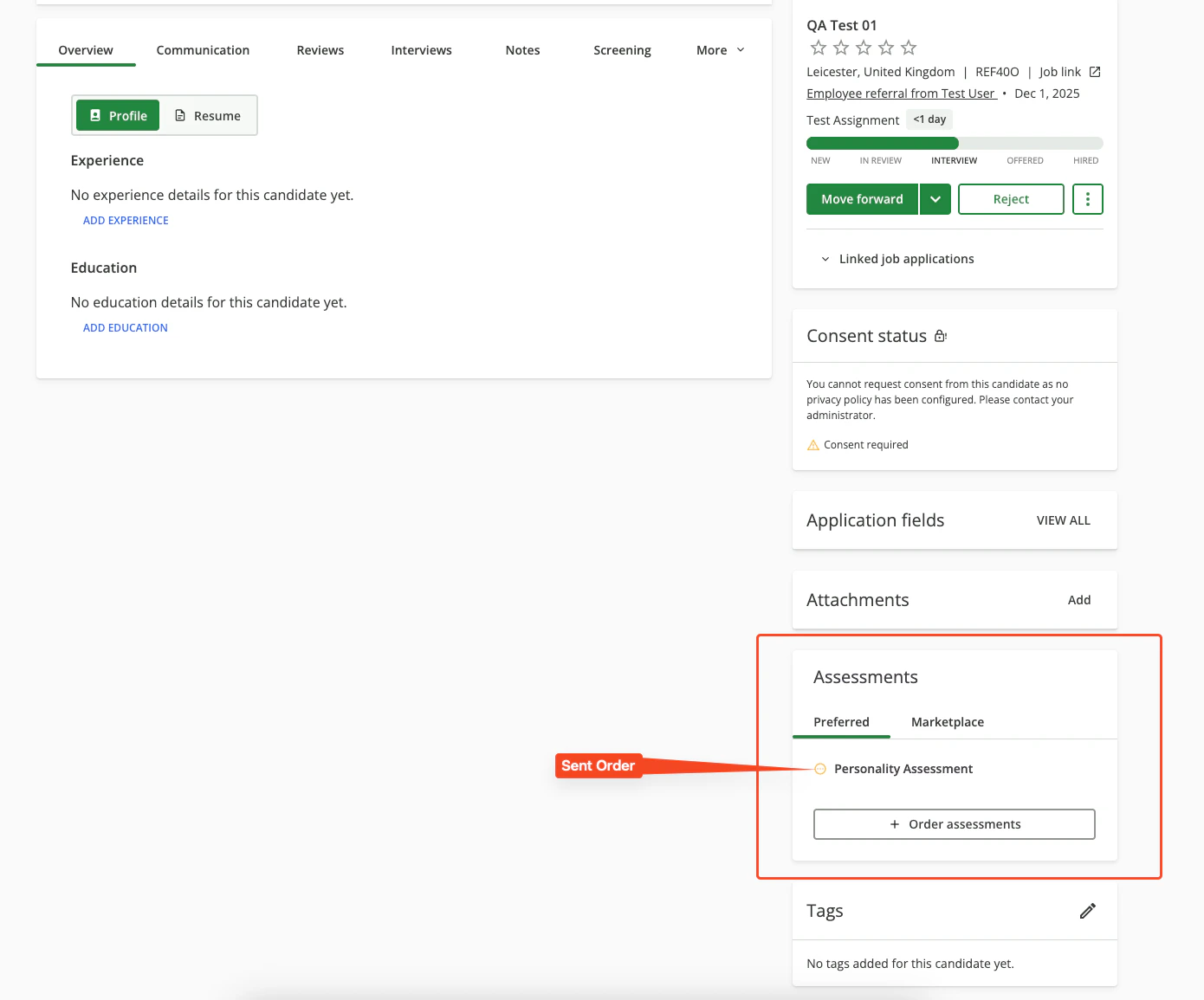
    When an assessment is sent to the candidate, you will see the assessment status in the candidate's application profile.
    <Frame>
      <img className="rounded-md" style={{ margin: '0 auto', border: '1px solid #efefef' }} alt="Assessment Sent Status" src="https://mintcdn.com/stackone-hub-claude-issue-384-20260409-1436/knyftILoDWacwCGB/images/smartrecruiters-assessments-background-checks/assessment-sent-status.png?fit=max&auto=format&n=knyftILoDWacwCGB&q=85&s=b0ac9d8e9d4672be0d59bc4878ea1e05" width="1390" height="1155" data-path="images/smartrecruiters-assessments-background-checks/assessment-sent-status.png" />
    </Frame>
  </Step>

  <Step title="View results">
    After the candidate completes the assessment:

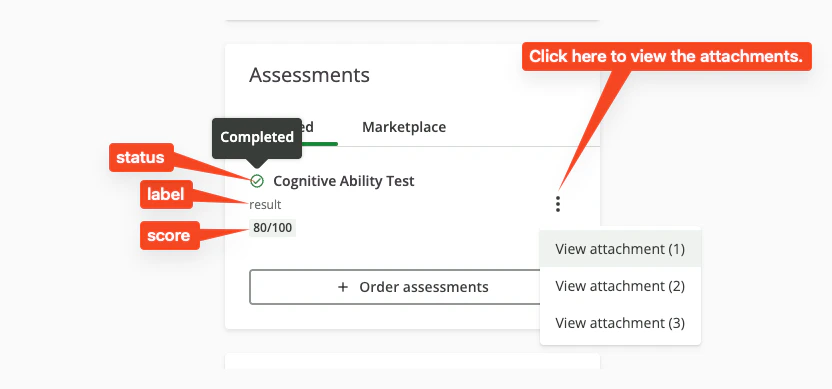
    1. **Status updates**: Track status (Sent, In Progress, Completed) in the candidate profile.
    2. **Score updates**: View the score or result of the assessment for the candidate.
    3. **Attachments / report**: Open the detailed results or follow the full report link (if provided).
    <Frame>
      <img className="rounded-md" style={{ margin: '0 auto', border: '1px solid #efefef' }} alt="Assessment Status and Result Tracking" src="https://mintcdn.com/stackone-hub-claude-issue-384-20260409-1436/knyftILoDWacwCGB/images/smartrecruiters-assessments-background-checks/assessment-status-and-result-tracking.png?fit=max&auto=format&n=knyftILoDWacwCGB&q=85&s=e438f42b3b1897a64ea5d6a5e8750473" width="832" height="389" data-path="images/smartrecruiters-assessments-background-checks/assessment-status-and-result-tracking.png" />
    </Frame>
  </Step>
</Steps>

<br />

Congratulations, you're all set! If you face any issues with the steps mentioned above,
please contact us by emailing [integrations@stackone.com](mailto:integrations@stackone.com). We're always here to assist you!

## Useful Links

<Card title="API Reference" icon="link" href="https://developers.smartrecruiters.com/reference/apply-api">
  [https://developers.smartrecruiters.com/reference/apply-api](https://developers.smartrecruiters.com/reference/apply-api)
</Card>