> ## Documentation Index
> Fetch the complete documentation index at: https://stackone-hub-claude-issue-384-20260409-1436.mintlify.site/llms.txt
> Use this file to discover all available pages before exploring further.

# SAP SuccessFactors Background Check

> To successfully send webhook notifications from SAP SuccessFactors, follow these steps in your SAP SuccessFactors account and complete the necessary actions.

## Associate background check to the Job Requisition

<Steps>
  <Step title="Go to Job Requisition">
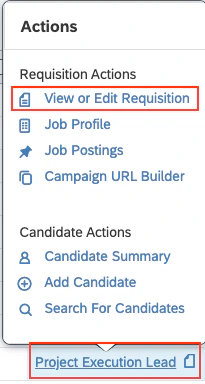
    Navigate to specific *Job Requisition*, hover over the specific requisition title to open the Actions menu and then select `View or Edit Requisition`.
    <Frame>
      <img className="rounded-md" style={{ margin: '0 auto', border: '1px solid #efefef' }} alt="Go to Actions menu" src="https://mintcdn.com/stackone-hub-claude-issue-384-20260409-1436/XtWN6VpDQ6FX0wH-/images/sapsuccessfactors/background-check/sap_sf_bc_recruiting_JR_hove_actions_32.png?fit=max&auto=format&n=XtWN6VpDQ6FX0wH-&q=85&s=007dccbf675eee05dc6df2b0d2ac9069" width="205" height="384" data-path="images/sapsuccessfactors/background-check/sap_sf_bc_recruiting_JR_hove_actions_32.png" />
    </Frame>

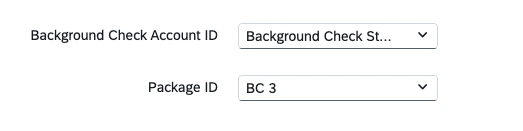
    Select the correct values for the *Account ID* and *Package ID* fields. Click on the `Save Changes` button.
    <Frame>
      <img className="rounded-md" style={{ margin: '0 auto', border: '1px solid #efefef' }} alt="Both fields are visible" src="https://mintcdn.com/stackone-hub-claude-issue-384-20260409-1436/XtWN6VpDQ6FX0wH-/images/sapsuccessfactors/background-check/sap_sf_bc_job_req_bgi_package_fields_40.png?fit=max&auto=format&n=XtWN6VpDQ6FX0wH-&q=85&s=bc5d78dc4fd3c4c4ac2ba57b3d3947b7" width="523" height="131" data-path="images/sapsuccessfactors/background-check/sap_sf_bc_job_req_bgi_package_fields_40.png" />
    </Frame>
  </Step>
</Steps>

## To Send the background check to the Candidate

<Steps>
  <Step title="Go to Talent Pipeline">
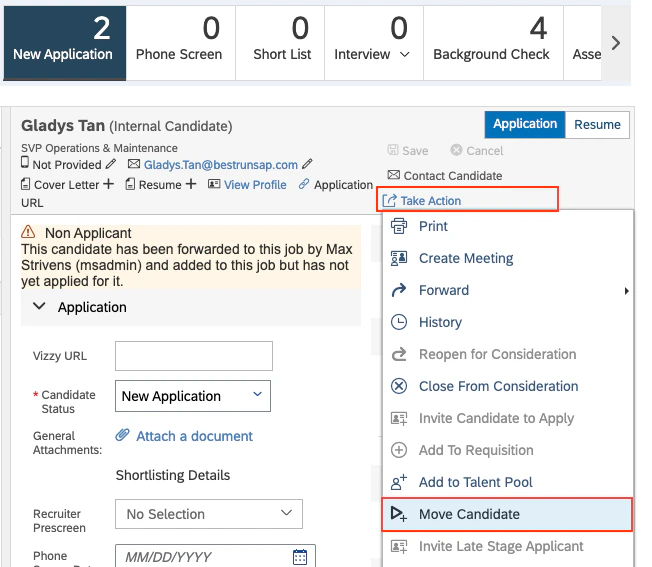
    Navigate to the specific *Job Requisition* and click on Candidates. Select the candidate, then choose the `Move Candidate` option from the Take Action menu.
    <Frame>
      <img className="rounded-md" style={{ margin: '0 auto', border: '1px solid #efefef' }} alt="Go to Talent Pipeline" src="https://mintcdn.com/stackone-hub-claude-issue-384-20260409-1436/4hgmS_s89vgVik8I/images/sapsuccessfactors/background-check/sap_sf_bc_candidate_take_actions_33.png?fit=max&auto=format&n=4hgmS_s89vgVik8I&q=85&s=4ff8c2e28387b286aab065e590c315a9" width="652" height="567" data-path="images/sapsuccessfactors/background-check/sap_sf_bc_candidate_take_actions_33.png" />
    </Frame>

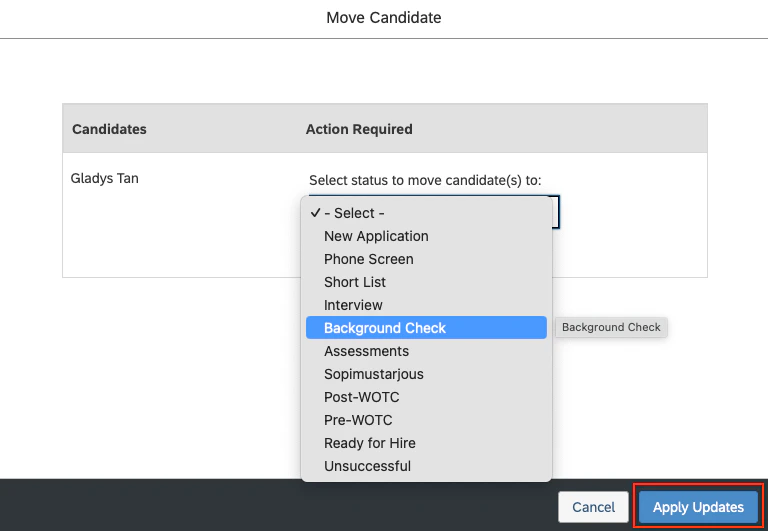
    Choose `Background Check` from the dropdown menu, then click `Apply Updates` to move the candidate forward.
    <Frame>
      <img className="rounded-md" style={{ margin: '0 auto', border: '1px solid #efefef' }} alt="Apply Updates" src="https://mintcdn.com/stackone-hub-claude-issue-384-20260409-1436/4hgmS_s89vgVik8I/images/sapsuccessfactors/background-check/sap_sf_bc_candidate_move_candidate_modal_34.png?fit=max&auto=format&n=4hgmS_s89vgVik8I&q=85&s=6d48f30386c8949bd4f23eededb15f0a" width="768" height="531" data-path="images/sapsuccessfactors/background-check/sap_sf_bc_candidate_move_candidate_modal_34.png" />
    </Frame>
  </Step>

  <Step title="Send Background Check to Candidate">
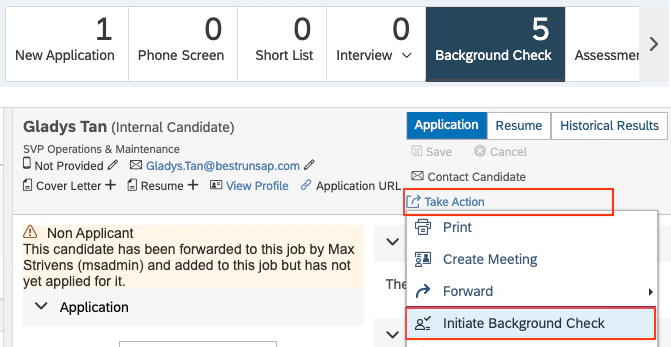
    Navigate to *Background Check*, click on the `Initiate Background Check` option in the Take Action menu.
    <Frame>
      <img className="rounded-md" style={{ margin: '0 auto', border: '1px solid #efefef' }} alt="Initiate Background Check" src="https://mintcdn.com/stackone-hub-claude-issue-384-20260409-1436/XtWN6VpDQ6FX0wH-/images/sapsuccessfactors/background-check/sap_sf_bc_initiate_bc_to_send_35.png?fit=max&auto=format&n=XtWN6VpDQ6FX0wH-&q=85&s=163a1af30340c81ff7cc96521348a98a" width="671" height="347" data-path="images/sapsuccessfactors/background-check/sap_sf_bc_initiate_bc_to_send_35.png" />
    </Frame>

    Click on the `Confirm` to send the Background Check. You'll get the success on the same modal.
  </Step>

  <Step title="How to view the requested background check?">
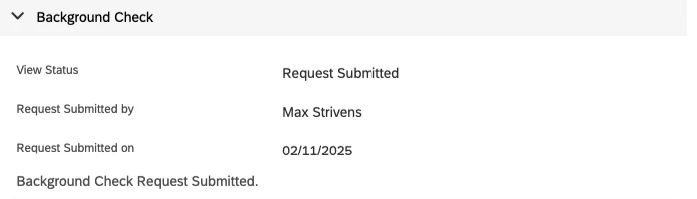
    The initiated background check request will appear in the candidate's application under the Background Check portlet.
    <Frame>
      <img className="rounded-md" style={{ margin: '0 auto', border: '1px solid #efefef' }} alt="Background Check Request portlet" src="https://mintcdn.com/stackone-hub-claude-issue-384-20260409-1436/4hgmS_s89vgVik8I/images/sapsuccessfactors/background-check/sap_sf_bc_bc_request_portlet_36.png?fit=max&auto=format&n=4hgmS_s89vgVik8I&q=85&s=792cd411c6a7992e14199d058f84d6f2" width="697" height="199" data-path="images/sapsuccessfactors/background-check/sap_sf_bc_bc_request_portlet_36.png" />
    </Frame>
  </Step>
</Steps>

## To Check Result of the Background Check

<Steps>
  <Step title="Go to Background Check portlet">
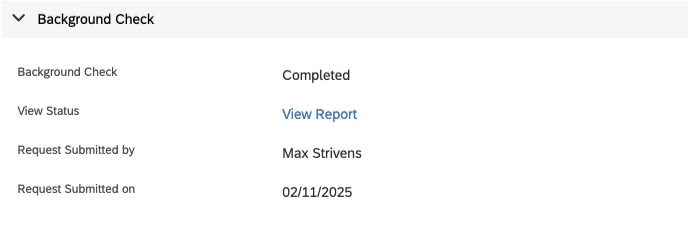
    Go to the `Background Check` stage, The results will be available in the Background Check portlet within the candidate's application.
    <Frame>
      <img className="rounded-md" style={{ margin: '0 auto', border: '1px solid #efefef' }} alt="Check Result of the Background Check" src="https://mintcdn.com/stackone-hub-claude-issue-384-20260409-1436/XtWN6VpDQ6FX0wH-/images/sapsuccessfactors/background-check/sap_sf_bc_result_updated_37.png?fit=max&auto=format&n=XtWN6VpDQ6FX0wH-&q=85&s=7cda16f0a0a3a9652f39e96352e1d3fd" width="690" height="227" data-path="images/sapsuccessfactors/background-check/sap_sf_bc_result_updated_37.png" />
    </Frame>
  </Step>
</Steps>

<br />

Congratulations, you're all set! If you face any issues with the steps mentioned above,
please contact us by emailing [integrations@stackone.com](mailto:integrations@stackone.com). We're always here to assist you!

## Useful Links

<Card title="API Reference" icon="link" href="https://api.sap.com/products/SAPSuccessFactors/apis/all">
  [https://api.sap.com/products/SAPSuccessFactors/apis/all](https://api.sap.com/products/SAPSuccessFactors/apis/all)
</Card>
