> ## Documentation Index
> Fetch the complete documentation index at: https://stackone-hub-claude-issue-384-20260409-1436.mintlify.site/llms.txt
> Use this file to discover all available pages before exploring further.
# Teamviewer (OAuth)
> Follow these steps to connect Teamviewer via the StackOne Hub successfully.
Ensure that your Teamviewer account has Admin privileges.
If you've been directed to StackOne to integrate with Teamviewer, the following steps will help you understand the process and any necessary actions to configure a successful integration.
## Log in to Teamviewer
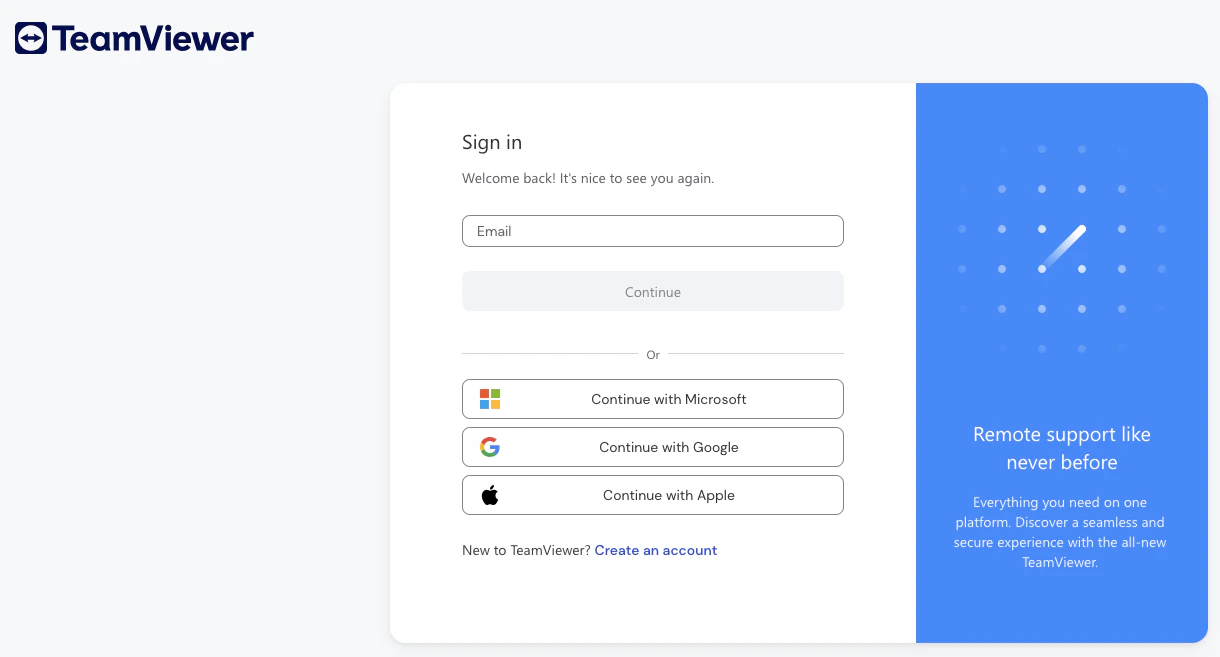
Log in to your Teamviewer account at [https://account.teamviewer.com](https://account.teamviewer.com)
 ## Create a New Teamviewer App
This connection will authenticate on behalf of a registered Application in Teamviewer.
Go to your Teamviewer Management Console at [https://login.teamviewer.com/nav/managecompany/apps](https://login.teamviewer.com/nav/managecompany/apps)
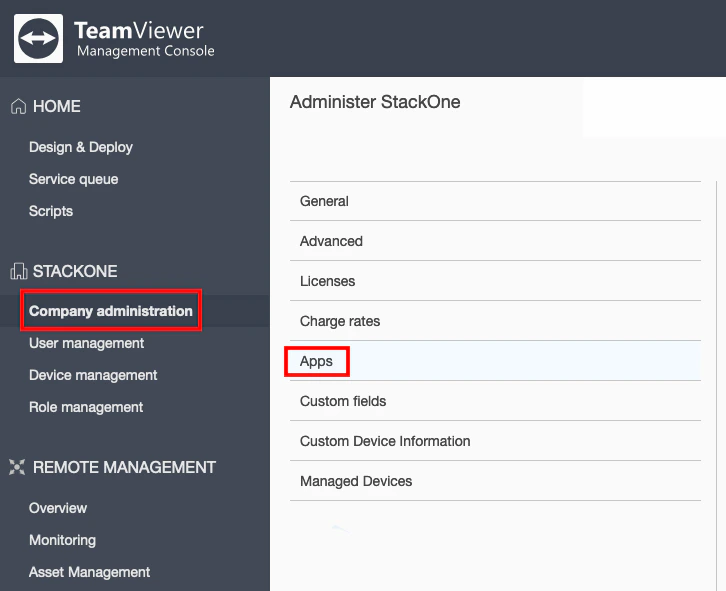
Click **Company Administration** on the left, then click **Apps**.
## Create a New Teamviewer App
This connection will authenticate on behalf of a registered Application in Teamviewer.
Go to your Teamviewer Management Console at [https://login.teamviewer.com/nav/managecompany/apps](https://login.teamviewer.com/nav/managecompany/apps)
Click **Company Administration** on the left, then click **Apps**.
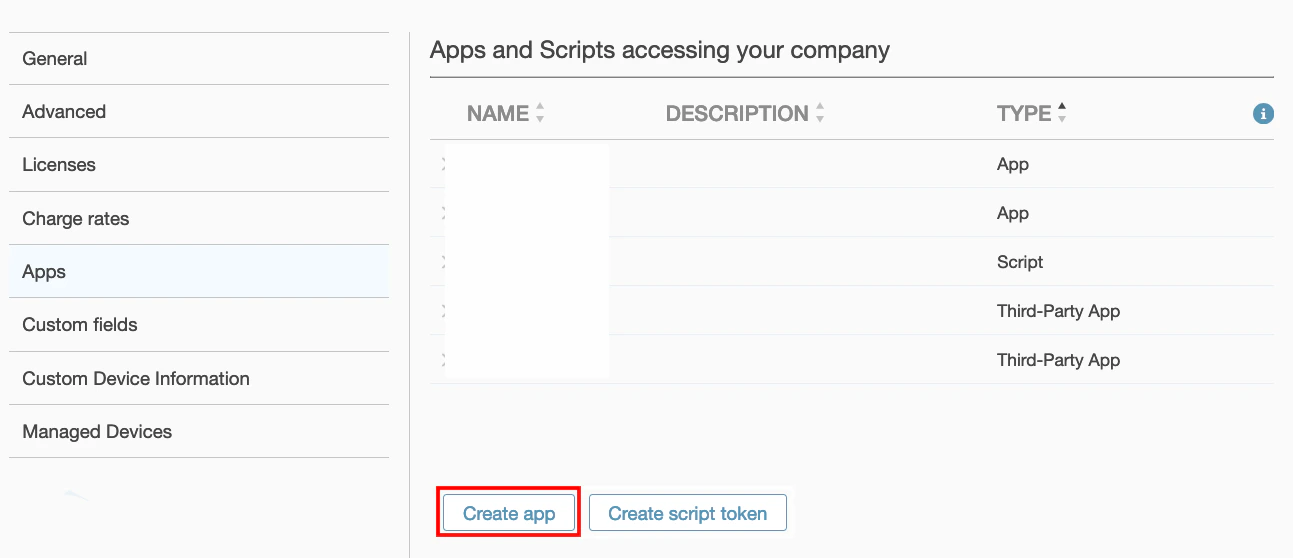
 Under *Apps and Scripts accessing your company*, click the **Create app** button
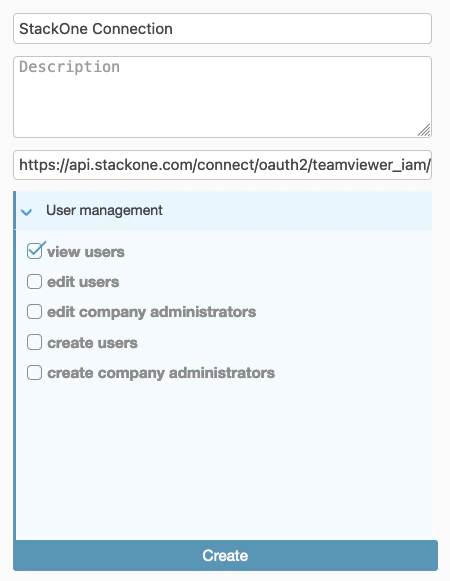
 In the winow that appears on the right, enter a **Name** for this new token.
In the *Redirect URI* field, enter `https://api.stackone.com/connect/oauth2/teamviewer_iam/callback`
Select the following two permissions required for this integration:
* User management: **view users**
* Group management: **read groups**
Click the **Create** button to proceed.
In the winow that appears on the right, enter a **Name** for this new token.
In the *Redirect URI* field, enter `https://api.stackone.com/connect/oauth2/teamviewer_iam/callback`
Select the following two permissions required for this integration:
* User management: **view users**
* Group management: **read groups**
Click the **Create** button to proceed.
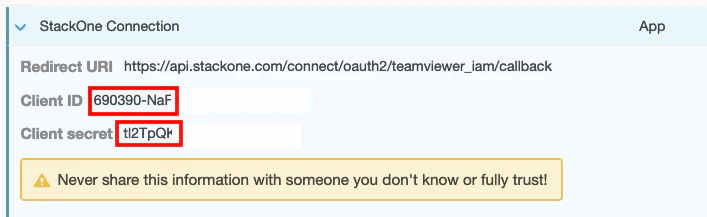
 Next to your new listed App, click the **>** icon to expand.
Copy the displayed **Client ID** and **Client Secret** and store them securely to be used in the next step.
Next to your new listed App, click the **>** icon to expand.
Copy the displayed **Client ID** and **Client Secret** and store them securely to be used in the next step.
 ## Connecting with StackOne
Upon reaching the Link Account page, enter the credentials from the previous steps:
* **Client ID**
* **Client Secret**
Proceed by clicking the Connect button.
## Connecting with StackOne
Upon reaching the Link Account page, enter the credentials from the previous steps:
* **Client ID**
* **Client Secret**
Proceed by clicking the Connect button.
Congratulations, you're all set! If you face any issues with the steps mentioned above,
please contact us by emailing [integrations@stackone.com](mailto:integrations@stackone.com). We're always here to assist you!
## Available data
This integration has the following [IAM Resources](https://docs.stackone.com/reference/getting-started-with-your-api) available from the provider: