> ## Documentation Index
> Fetch the complete documentation index at: https://stackone-hub-claude-issue-384-20260409-1436.mintlify.site/llms.txt
> Use this file to discover all available pages before exploring further.
# Teamtailor
> Follow these steps to connect Teamtailor with StackOne Hub successfully.
Ensure you have Admin privileges for your Teamtailor account.
If you've been directed to StackOne to integrate with Teamtailor, the following steps will help you understand the process and any necessary actions to configure successful integration.
## Generating API key and getting Company ID
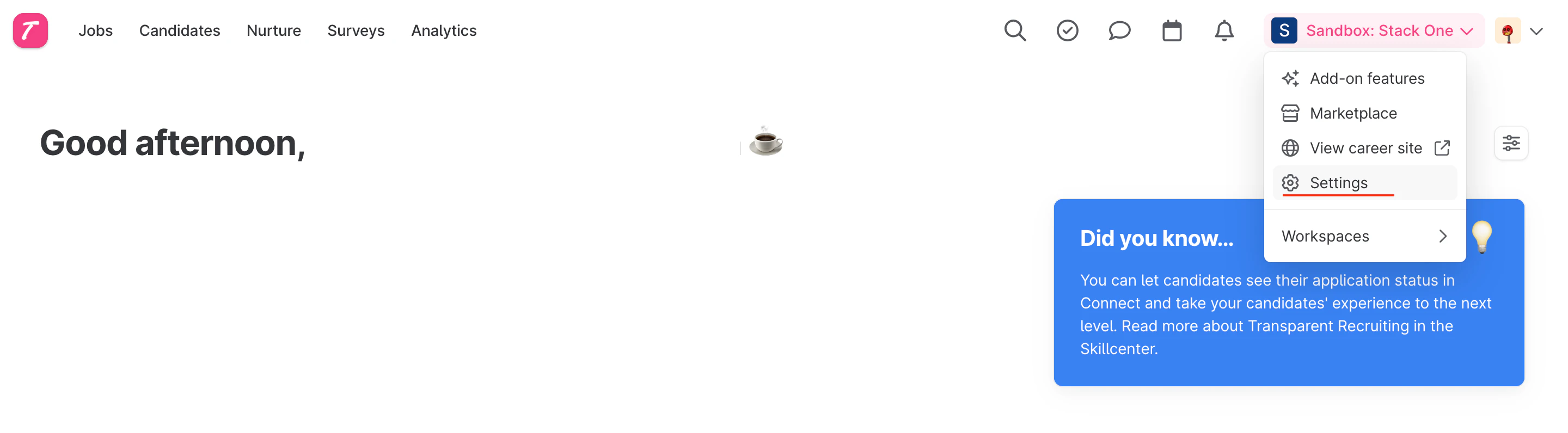
In your Teamtailor account, click on Settings.
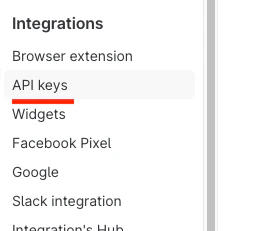
 On the left-hand menu under the integrations header, find API keys.
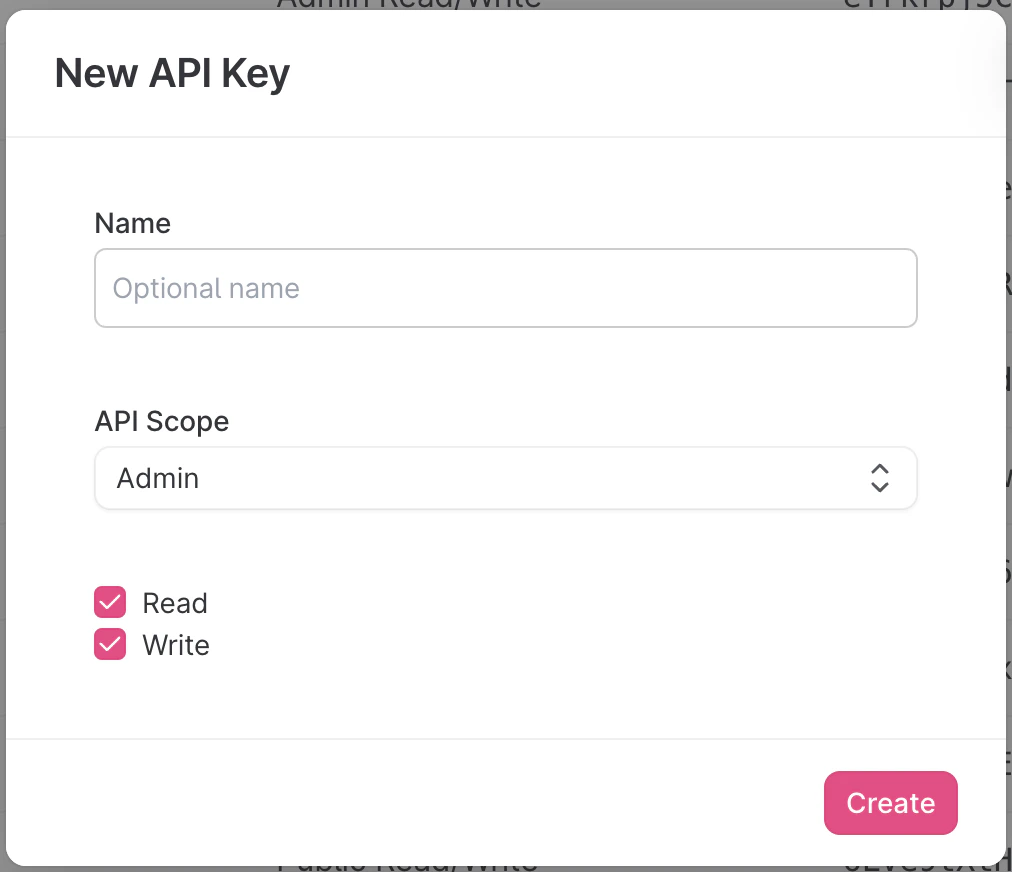
 Click the New API Key button at the top right of the page.
 Enter a descriptive name, set the scope to `admin` and permissions, where only Read is required.
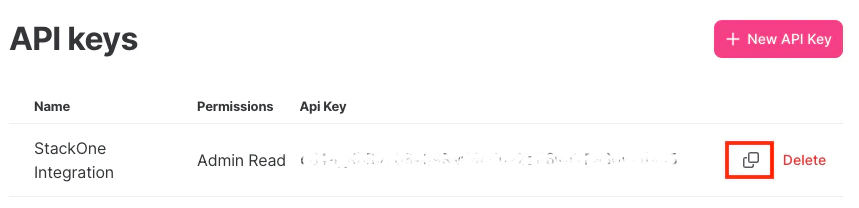
 Copy the API key to a safe place.
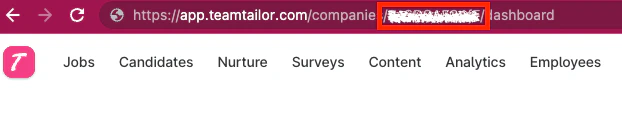
 Make a note of the `company ID`, which is part of the URL as shown below:
 ## Get user credentials
You will also need to provide a user email and password. It is recommended that you set up a new account for integration purposes.
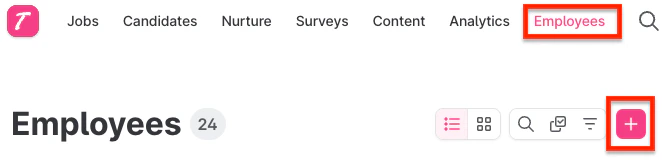
Find the employees tab and click the ➕ to create a new employee.
## Get user credentials
You will also need to provide a user email and password. It is recommended that you set up a new account for integration purposes.
Find the employees tab and click the ➕ to create a new employee.
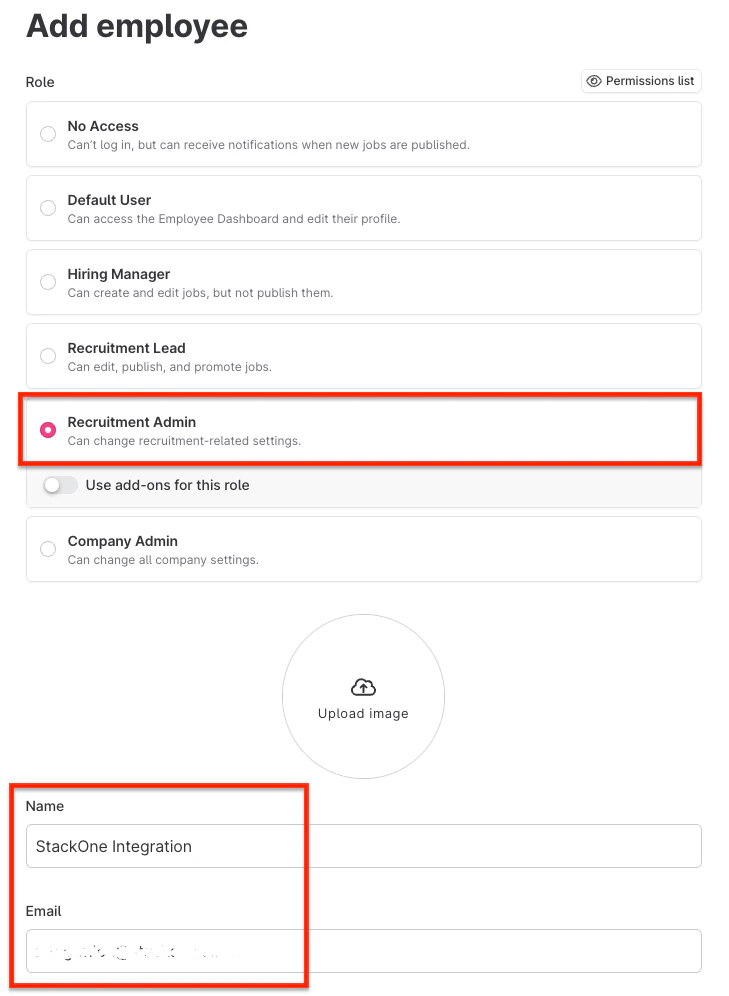
 Fill out the required fields and set the Role to Recruitment Admin. This will ensure the account has the correct permissions.
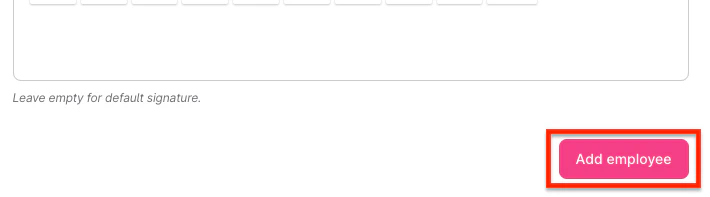
 Click Add employee.
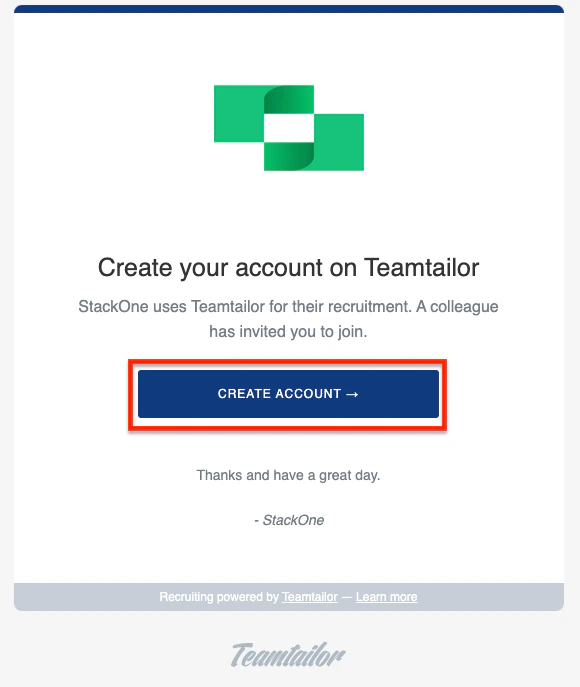
 The email address you entered will receive an invitation. Click `Create account`, you may have to log out of your current account to create the password.
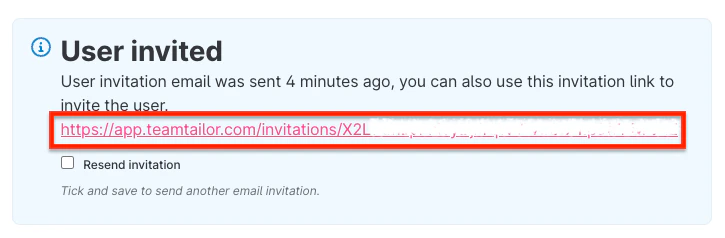
 If you have not received an invitation, you can go to the `Employees` tab again and click on the user's `pencil` ✏️ icon to edit their profile. You will see a link to the invitation, and you can click through this to set up the account.
 You should now have the account email address and password to proceed with the Hub.
⚠️ If your account uses SSO, you may have to create the account differently:
### Accounts with Single Sign-On (SSO)
Follow steps 2.1 to 2.2 inclusive to create the employee, you will then have to exclude the employee from SSO, under the heading `Exclude individual users from SSO login`, as detailed here:
After the user has been excluded, ensure a password is set. You may have to edit the permissions of the user by accessing the Employees tab and clicking on the gear ⚙️ here.
You should now have the account email address and password to proceed with the Hub.
⚠️ If your account uses SSO, you may have to create the account differently:
### Accounts with Single Sign-On (SSO)
Follow steps 2.1 to 2.2 inclusive to create the employee, you will then have to exclude the employee from SSO, under the heading `Exclude individual users from SSO login`, as detailed here:
After the user has been excluded, ensure a password is set. You may have to edit the permissions of the user by accessing the Employees tab and clicking on the gear ⚙️ here.
 You will see a page similar to step 2.2, where you can set the role to `Recruitment admin`.
 ## Input the collected inputs into the StackOne Hub
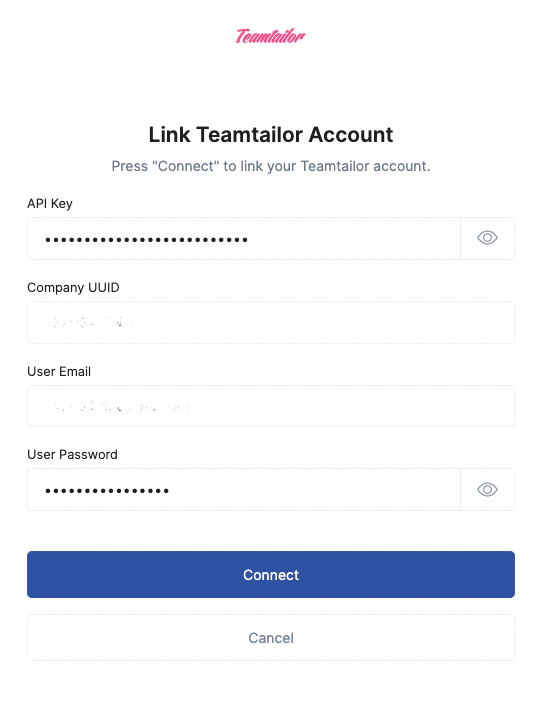
Upon reaching the Link Account page, enter the gathered details and proceed by clicking the `Connect` button.
## Input the collected inputs into the StackOne Hub
Upon reaching the Link Account page, enter the gathered details and proceed by clicking the `Connect` button.
Congratulations, you're all set! If you face any issues with the steps mentioned above,
please contact us by emailing [integrations@stackone.com](mailto:integrations@stackone.com). We're always here to assist you!
## Available data
This integration has the following [IAM Resources](https://docs.stackone.com/reference/iam_list_users) available from the provider:
## Useful Links
[https://support.teamtailor.com/en/articles/5963369-use-our-teamtailor-api](https://support.teamtailor.com/en/articles/5963369-use-our-teamtailor-api)
[https://support.teamtailor.com](https://support.teamtailor.com)