> ## Documentation Index
> Fetch the complete documentation index at: https://stackone-hub-claude-issue-384-20260409-1436.mintlify.site/llms.txt
> Use this file to discover all available pages before exploring further.
# Qlik - API Key Authentication
> Follow these steps to connect Qlik via the StackOne Hub successfully.
Ensure you have Admin privileges within your Qlik Cloud.
If you've been directed to StackOne to integrate with Qlik, the following steps will help you understand the process and any necessary actions to configure successful integration.
## Get Your Qlik Tenant
Log in to your [Qlik Cloud](https://qlikcloud.com/). Your Tenant is found in the URL.
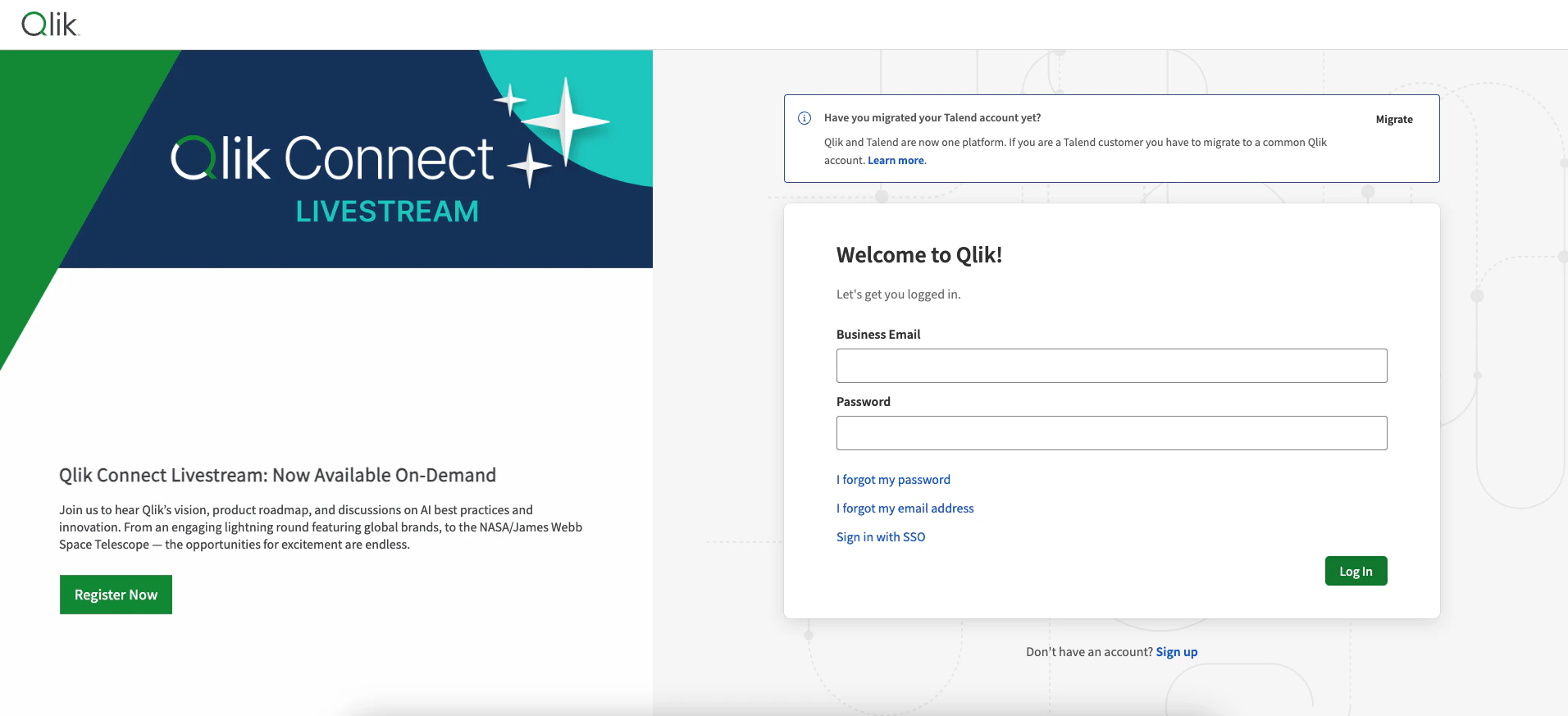 Given the URL: `https://my-tenant.eu.qlikcloud.com/hub`
The Tenant is `my-tenant`.
## Get your Qlik API Key
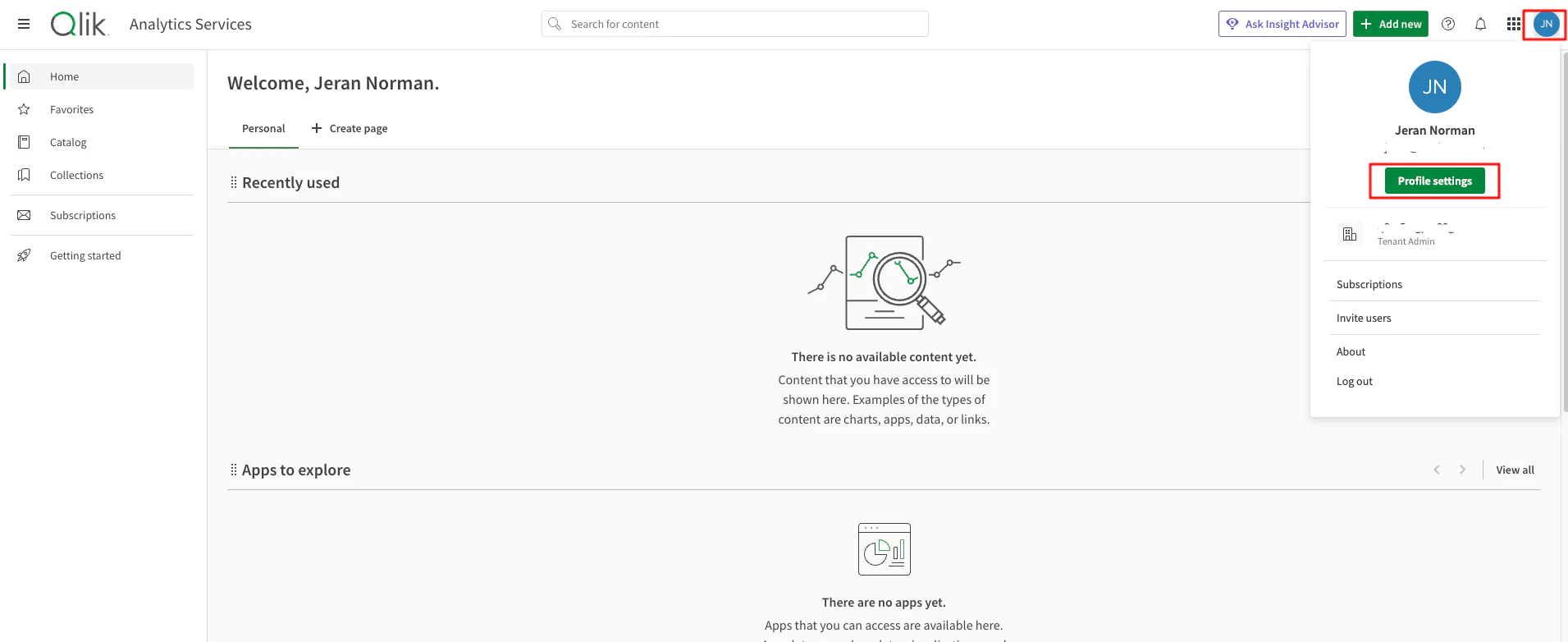
Click on profile button at top right corner and click `Profile settings`.
Given the URL: `https://my-tenant.eu.qlikcloud.com/hub`
The Tenant is `my-tenant`.
## Get your Qlik API Key
Click on profile button at top right corner and click `Profile settings`.
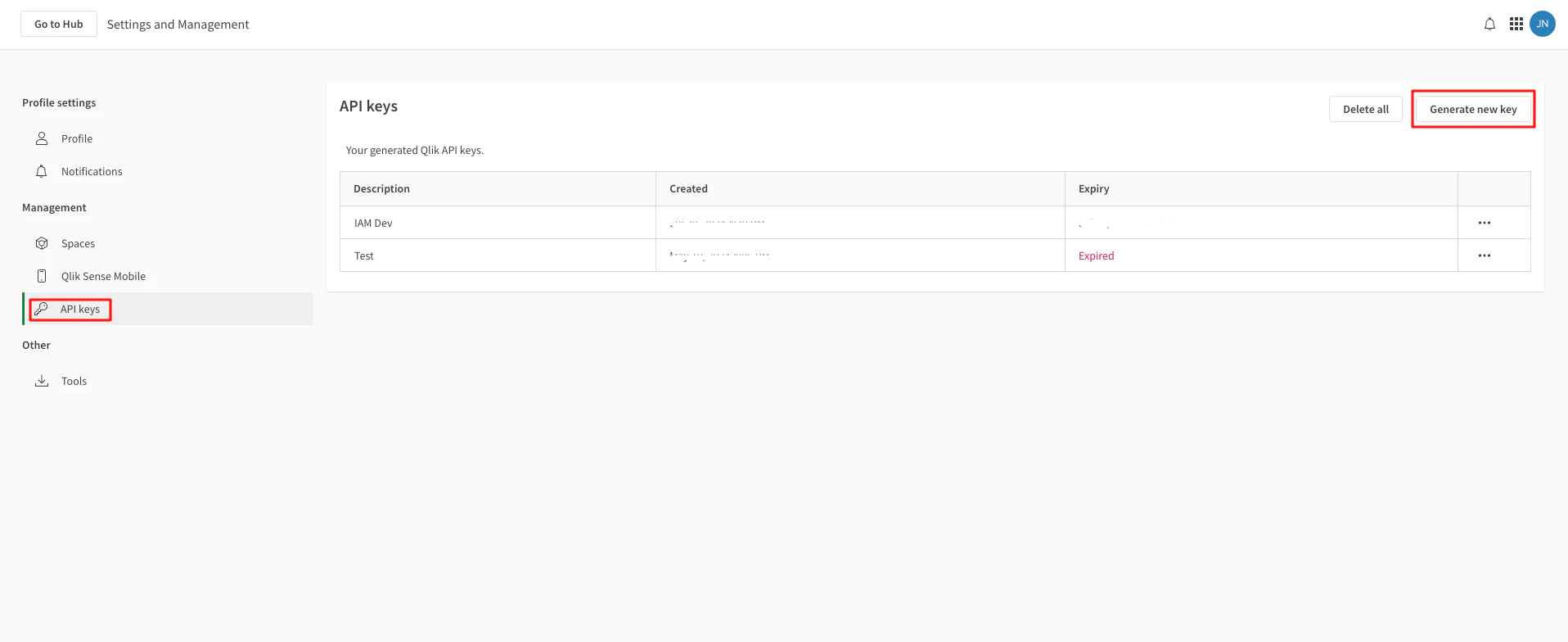
 Go to `Management > API keys` from left menu and click on `Generate new key`.
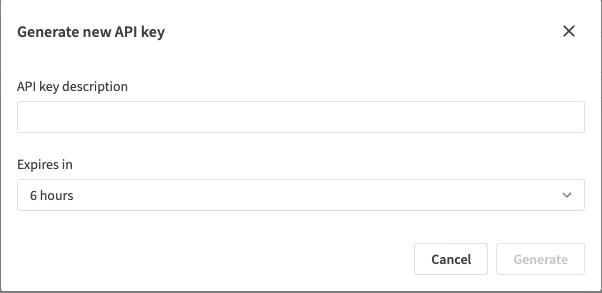
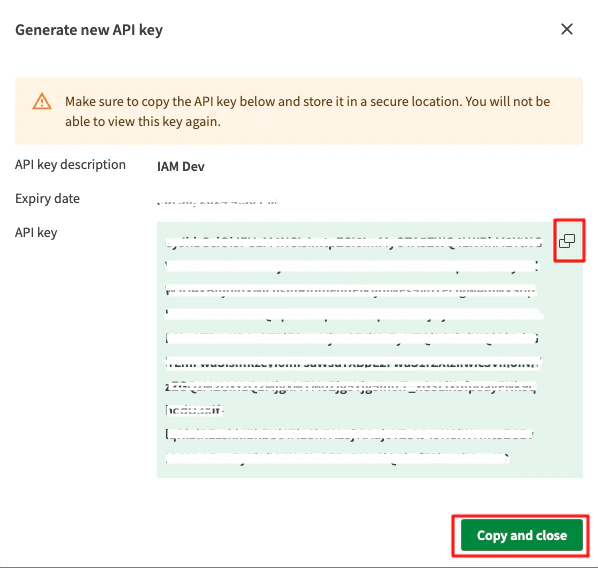
 Enter an API key description and the desired expiry date, then click on `Generate`.
 Copy your new API Key to a safe place to be used in the next step. Click Copy and close in the bottom once complete.
 ## Connecting with StackOne
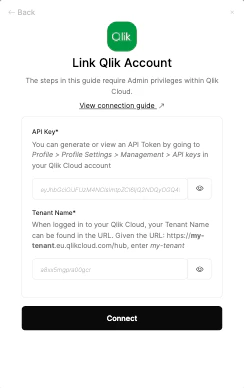
Upon reaching the Link Account page, enter the API key and tenant name from the previous steps and proceed by clicking the Connect button.
## Connecting with StackOne
Upon reaching the Link Account page, enter the API key and tenant name from the previous steps and proceed by clicking the Connect button.
Congratulations, you're all set! If you face any issues with the steps mentioned above,
please contact us by emailing [integrations@stackone.com](mailto:integrations@stackone.com). We're always here to assist you!
## Available data
This integration has the following [IAM Resources](https://docs.stackone.com/reference/iam_list_users) available from the provider:
## Useful Links
[https://qlik.dev/authenticate/api-key/generate-your-first-api-key/](https://qlik.dev/authenticate/api-key/generate-your-first-api-key/)