> ## Documentation Index
> Fetch the complete documentation index at: https://stackone-hub-claude-issue-384-20260409-1436.mintlify.site/llms.txt
> Use this file to discover all available pages before exploring further.

# Oneflow

> Follow these steps to connect Oneflow via the StackOne Hub successfully.

<Warning>
  Ensure that your Oneflow account has Administrator privileges.
</Warning>

If you've been directed to StackOne to integrate with Oneflow, the following steps will help you understand the process and any necessary actions to configure successful integration.

## Get your Oneflow API Token

<Steps>
  <Step title="Login to Oneflow">
    Log in to your [Oneflow account](https://app.oneflow.com/login).

    <Frame>
      <img className="rounded-md" style={{ margin: '0 auto', border: '1px solid #efefef' }} alt="Oneflow Login" src="https://mintcdn.com/stackone-hub-claude-issue-384-20260409-1436/FzpNSkEq1zal2KzY/images/oneflow/image1.png?fit=max&auto=format&n=FzpNSkEq1zal2KzY&q=85&s=39f2de7b14fe413f59a2f3e877299c67" width="1905" height="1039" data-path="images/oneflow/image1.png" />
    </Frame>
  </Step>

  <Step title="Navigate to API tokens">
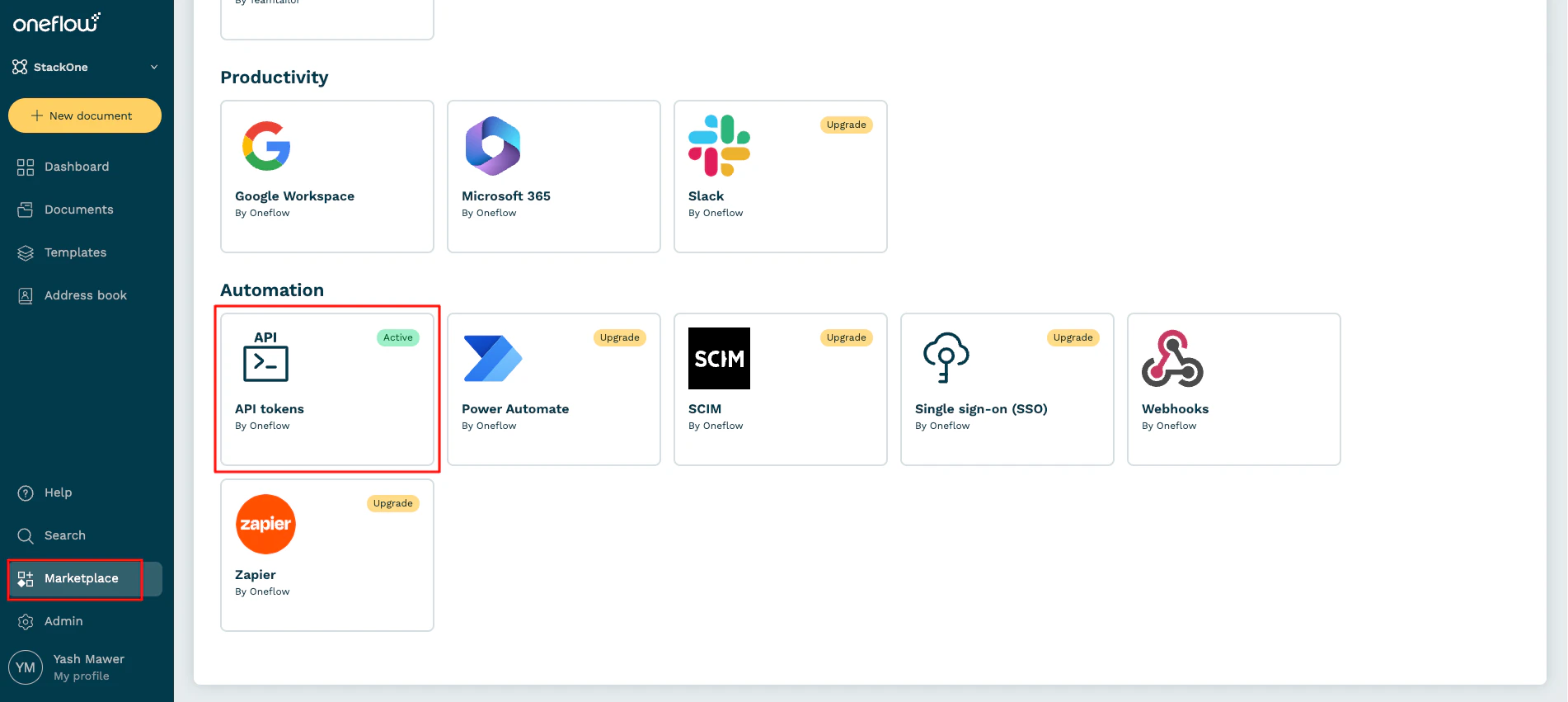
    Select `Marketplace` in the bottom left corner. Scroll down and click on `Automation > API tokens`.
    <Frame>
      <img className="rounded-md" style={{ margin: '0 auto', border: '1px solid #efefef' }} alt="Settings" src="https://mintcdn.com/stackone-hub-claude-issue-384-20260409-1436/FzpNSkEq1zal2KzY/images/oneflow/image2.png?fit=max&auto=format&n=FzpNSkEq1zal2KzY&q=85&s=f033cd7cbb6a22ac05c84eae5b4d2220" width="1902" height="851" data-path="images/oneflow/image2.png" />
    </Frame>
  </Step>

  <Step title="Generate a new token">
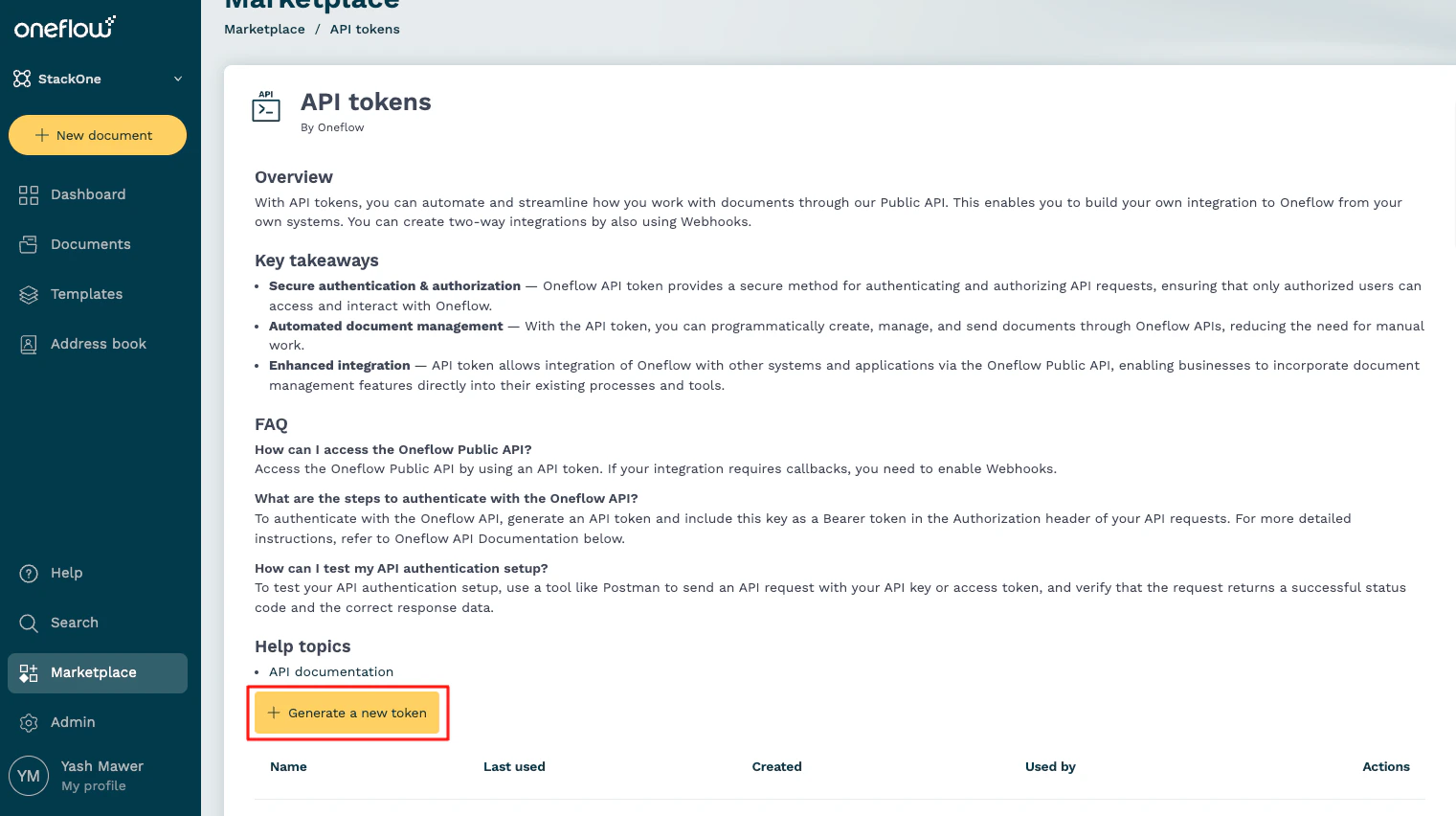
    Click on the `Generate a new token` button.
    <Frame>
      <img className="rounded-md" style={{ margin: '0 auto', border: '1px solid #efefef' }} alt="Create new API Key" src="https://mintcdn.com/stackone-hub-claude-issue-384-20260409-1436/FzpNSkEq1zal2KzY/images/oneflow/image3.png?fit=max&auto=format&n=FzpNSkEq1zal2KzY&q=85&s=2594aa4245e5bb313162aa49f5db326c" width="1521" height="852" data-path="images/oneflow/image3.png" />
    </Frame>
  </Step>

  <Step title="Enter Token Details">
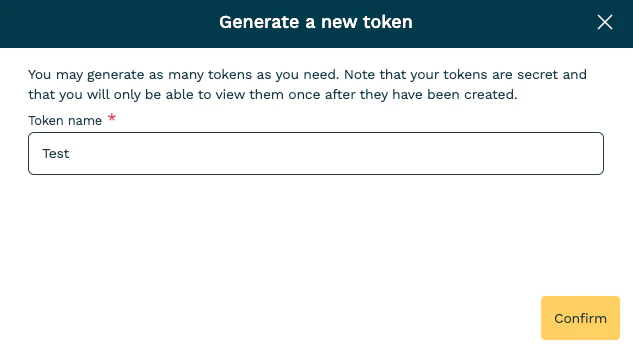
    Enter a new Token Name and click `Confirm`.
    <Frame>
      <img className="rounded-md" style={{ margin: '0 auto', border: '1px solid #efefef' }} alt="API Key Details" src="https://mintcdn.com/stackone-hub-claude-issue-384-20260409-1436/FzpNSkEq1zal2KzY/images/oneflow/image4.png?fit=max&auto=format&n=FzpNSkEq1zal2KzY&q=85&s=6b05b9eb7b6d21b57ad805fe3a23a199" width="633" height="353" data-path="images/oneflow/image4.png" />
    </Frame>
  </Step>

  <Step title="Copy Token">
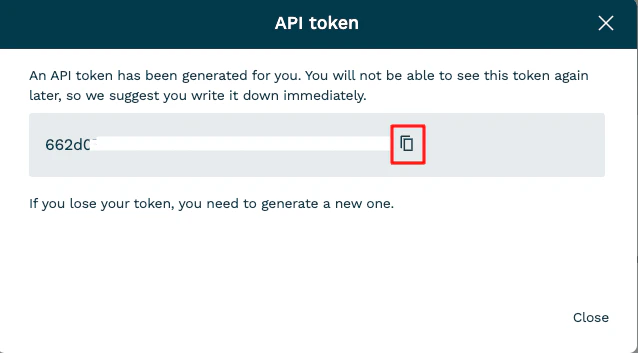
    Your new API token will be displayed. Copy and store it safely. Click on the `Close` button once done.
    <Frame>
      <img className="rounded-md" style={{ margin: '0 auto', border: '1px solid #efefef' }} alt="Copy API Key" src="https://mintcdn.com/stackone-hub-claude-issue-384-20260409-1436/FzpNSkEq1zal2KzY/images/oneflow/image5.png?fit=max&auto=format&n=FzpNSkEq1zal2KzY&q=85&s=3a287192ff61f52684c63dd65f426b77" width="638" height="353" data-path="images/oneflow/image5.png" />
    </Frame>
  </Step>
</Steps>

## Connecting with StackOne

<Steps>
  <Step title="Enter Credentials">
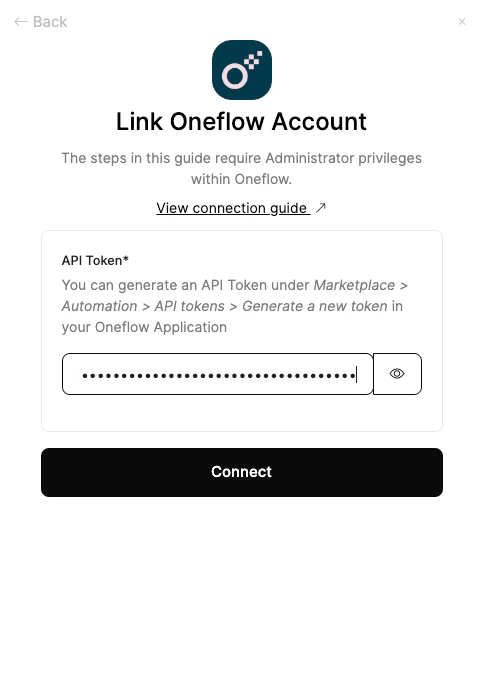
    Upon reaching the Link Account page, enter the API token from the previous steps.

    Proceed by clicking the Connect button.
    <Frame>
      <img className="rounded-md" style={{ margin: '0 auto', border: '1px solid #efefef' }} alt="Link Account" src="https://mintcdn.com/stackone-hub-claude-issue-384-20260409-1436/FzpNSkEq1zal2KzY/images/oneflow/image6.png?fit=max&auto=format&n=FzpNSkEq1zal2KzY&q=85&s=e4258cce0c29f0bcfbce2bdbc2002923" width="484" height="681" data-path="images/oneflow/image6.png" />
    </Frame>
  </Step>
</Steps>

<br />

Congratulations, you're all set! If you face any issues with the steps mentioned above,
please contact us by emailing [integrations@stackone.com](mailto:integrations@stackone.com). We're always here to assist you!

## Available data

This integration has the following [IAM Resources](https://docs.stackone.com/reference/iam_list_users) available from the provider:

<ul>
  <li>Users</li>
  <li>Roles</li>
</ul>
