> ## Documentation Index
> Fetch the complete documentation index at: https://stackone-hub-claude-issue-384-20260409-1436.mintlify.site/llms.txt
> Use this file to discover all available pages before exploring further.
# Notion
> Follow these steps to connect Notion via the StackOne Hub successfully.
Ensure that your Notion account has **Workspace owner** or **Workspace admin** privileges.
If you've been directed to StackOne to integrate with Notion, the following steps will help you understand the process and any necessary actions to configure a successful integration.
## Log in to Notion
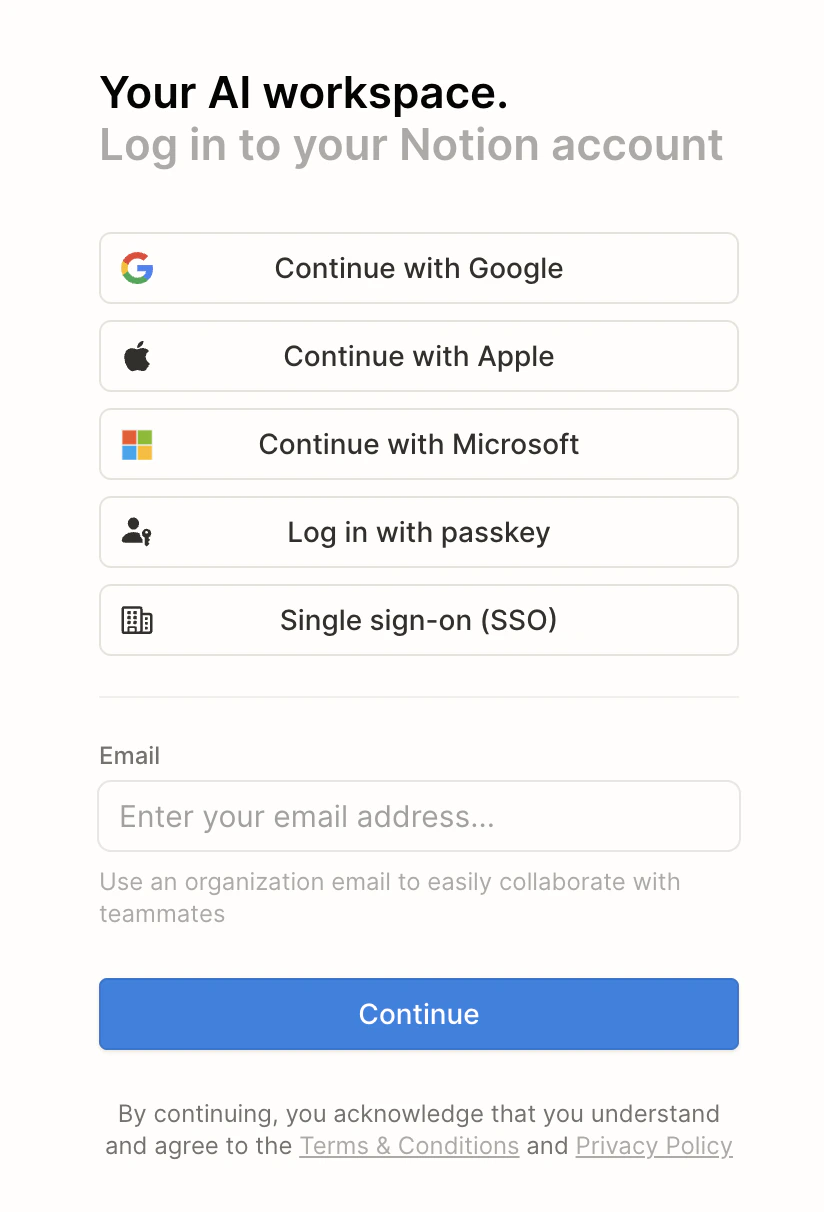
Log in to your Notion account.
 ## Create your Notion API Key
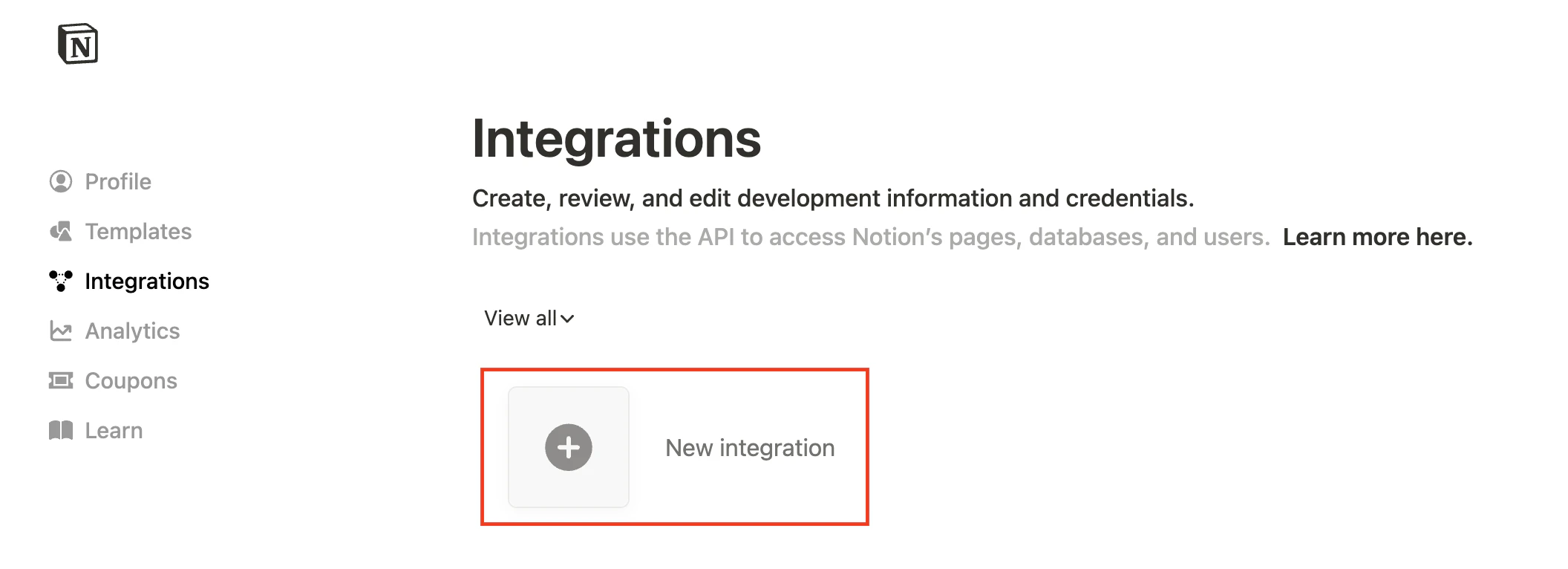
Go to your Notion Profile Integrations page at [https://www.notion.so/profile/integrations](https://www.notion.so/profile/integrations) and click **New integration**.
## Create your Notion API Key
Go to your Notion Profile Integrations page at [https://www.notion.so/profile/integrations](https://www.notion.so/profile/integrations) and click **New integration**.
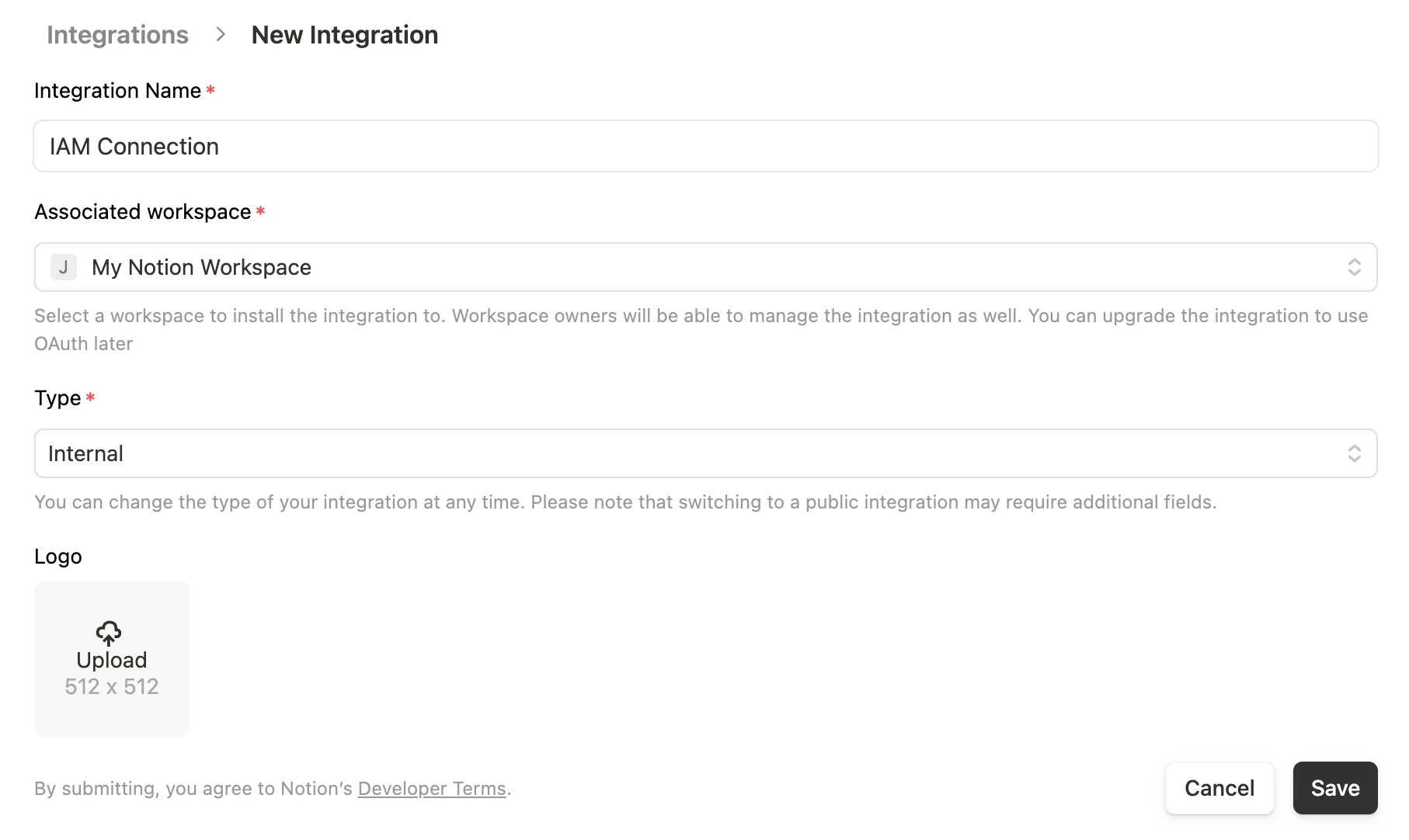
 Enter/select the following fields:
* **Integration Name**: A name for your integration
* **Associated workspace**: The Notion Workspace that this integration will have access to
* **Type**: Select *Internal*
Click **Save** to continue.
Enter/select the following fields:
* **Integration Name**: A name for your integration
* **Associated workspace**: The Notion Workspace that this integration will have access to
* **Type**: Select *Internal*
Click **Save** to continue.
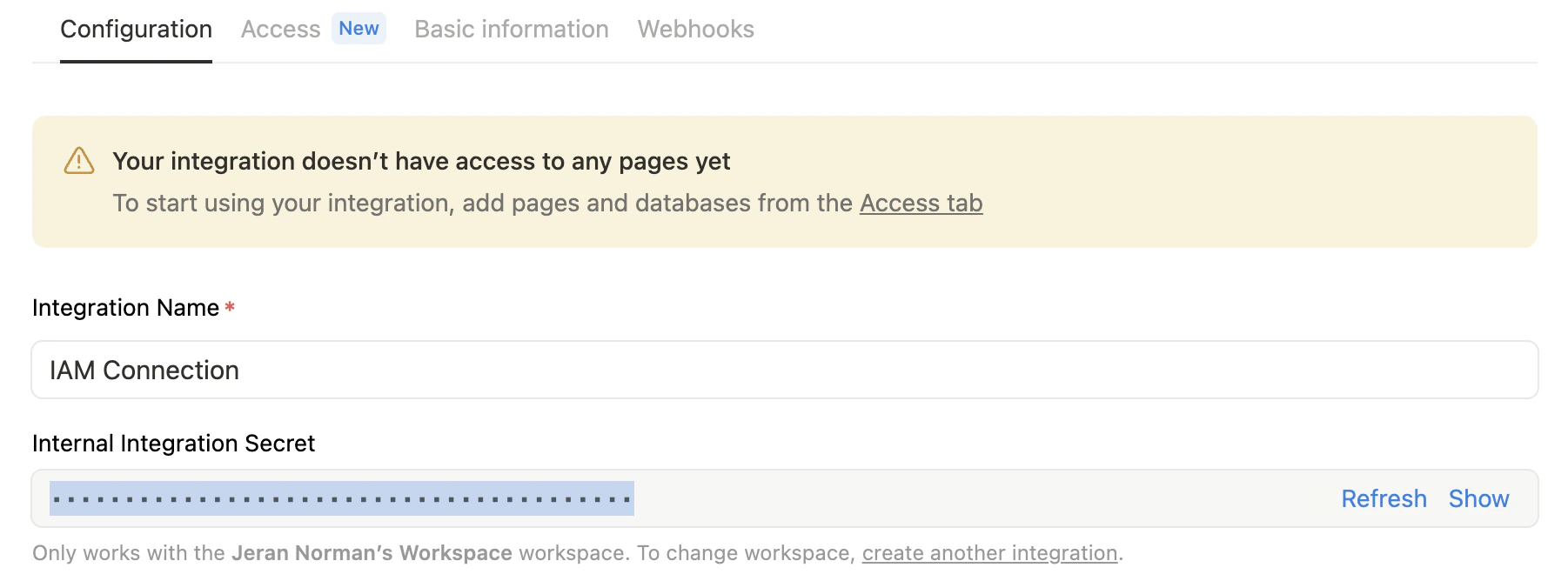
 A popup will appear displaying that the integration has been created successfully. Click **Configure integration settings** to continue.
Your **API Key** will be available to copy under *Internal Integration Secret*. **Copy** this value and store it safely to be used in a later step.
A popup will appear displaying that the integration has been created successfully. Click **Configure integration settings** to continue.
Your **API Key** will be available to copy under *Internal Integration Secret*. **Copy** this value and store it safely to be used in a later step.
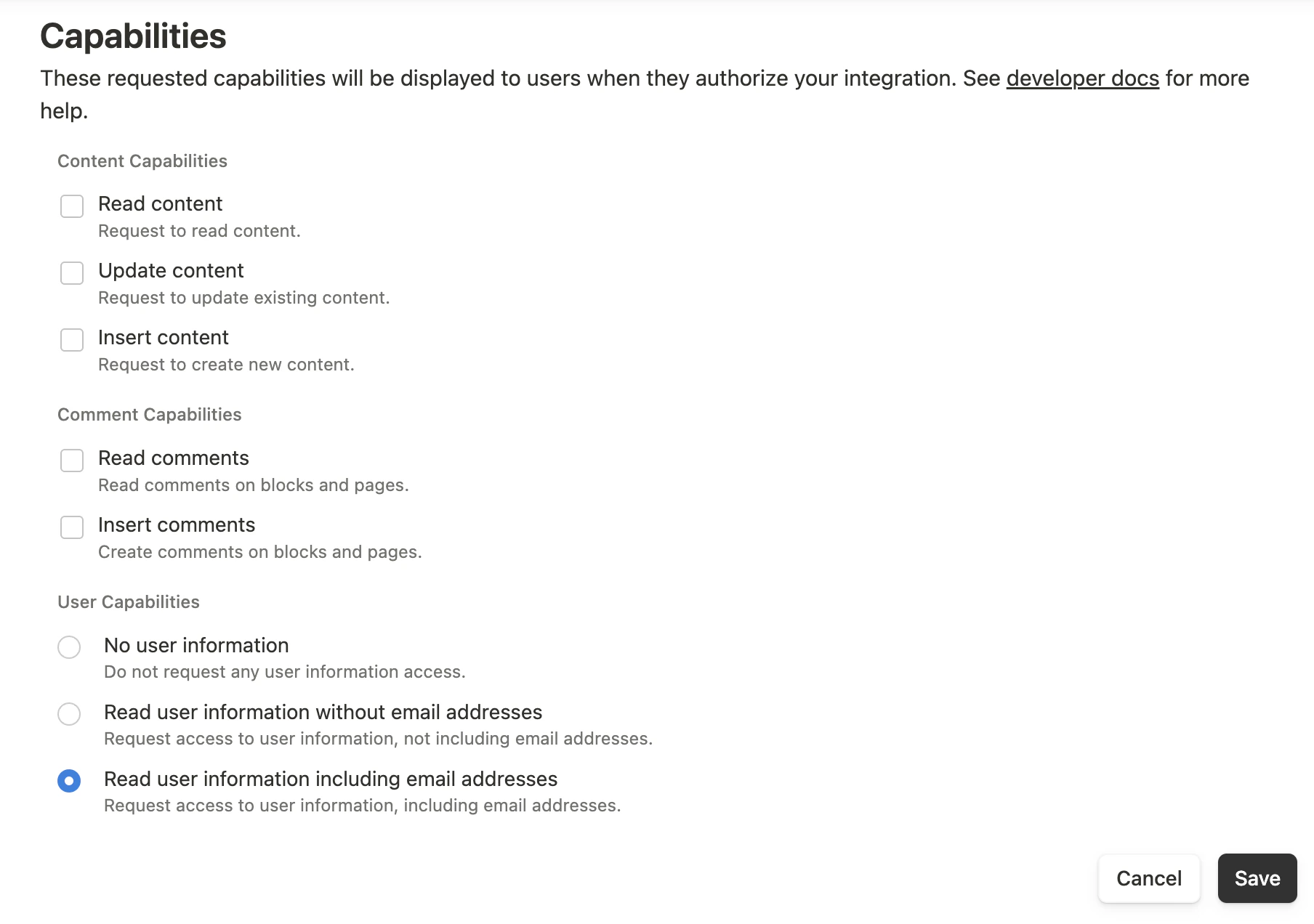
 Under *Capabilities* > *User Capabilities* ensure that "Read user information including email addresses" is selected. This is the only capability required for this integration.
Click **Save** to continue.
Under *Capabilities* > *User Capabilities* ensure that "Read user information including email addresses" is selected. This is the only capability required for this integration.
Click **Save** to continue.
 ## Create your Notion SCIM Token (optional)
A SCIM Token is needed for retrieving User Roles via this integration, but is only available for Notion Enterprise customers with SCIM Provisioning enabled.
For more information on this and obtaining a SCIM Token, please refer to the [Notion SCIM Provisioning documentation](https://www.notion.com/help/provision-users-and-groups-with-scim).
## Connecting with StackOne
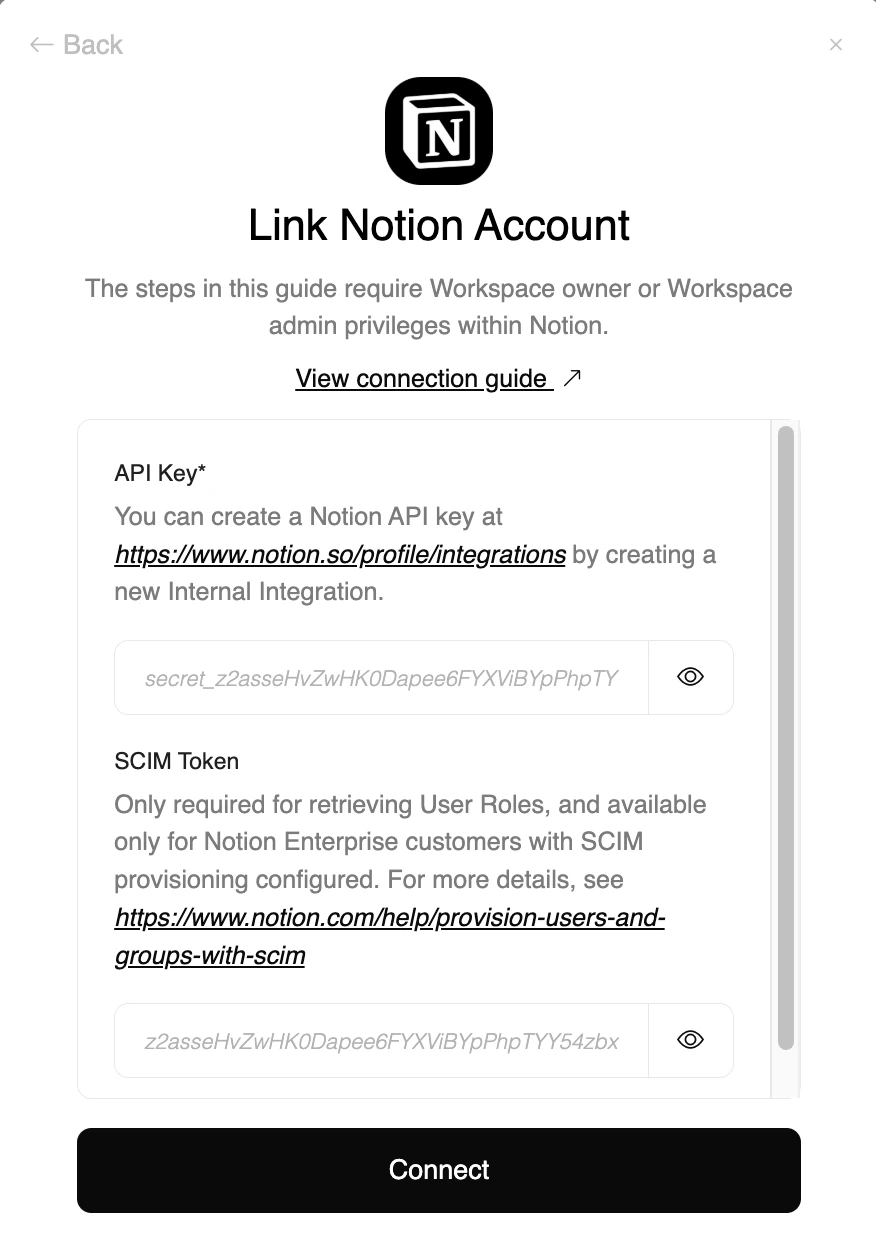
Upon reaching the Link Account page, enter the credential(s) from the previous steps:
* **API Key**
* **SCIM Token** (optional)
Proceed by clicking the Connect button.
## Create your Notion SCIM Token (optional)
A SCIM Token is needed for retrieving User Roles via this integration, but is only available for Notion Enterprise customers with SCIM Provisioning enabled.
For more information on this and obtaining a SCIM Token, please refer to the [Notion SCIM Provisioning documentation](https://www.notion.com/help/provision-users-and-groups-with-scim).
## Connecting with StackOne
Upon reaching the Link Account page, enter the credential(s) from the previous steps:
* **API Key**
* **SCIM Token** (optional)
Proceed by clicking the Connect button.
Congratulations, you're all set! If you face any issues with the steps mentioned above,
please contact us by emailing [integrations@stackone.com](mailto:integrations@stackone.com). We're always here to assist you!
## Available data
This integration has the following [IAM Resources](https://docs.stackone.com/reference/getting-started-with-your-api) available from the provider: