> ## Documentation Index
> Fetch the complete documentation index at: https://stackone-hub-claude-issue-384-20260409-1436.mintlify.site/llms.txt
> Use this file to discover all available pages before exploring further.

# Leapsome

> Follow these steps to connect Leapsome via the StackOne Hub successfully.

<Warning>
  Ensure you have Admin privileges for your Leapsome account.
</Warning>

If you've been directed to StackOne to integrate with Leapsome, the following steps will help you understand the process and any necessary actions to configure successful integration.

## Get your Leapsome API Secret

<Steps>
  <Step title="Log in to Leapsome">
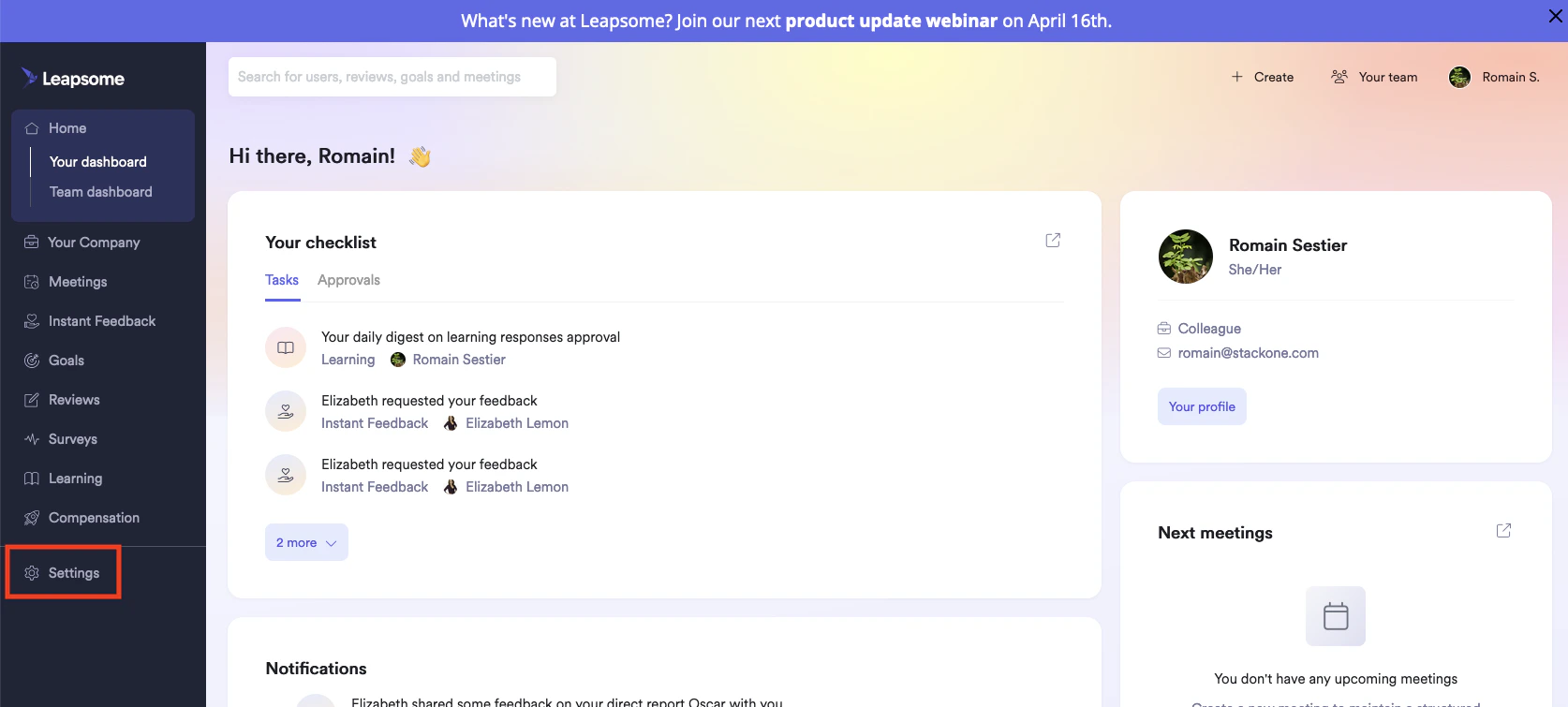
    After logging in to [Leapsome](https://www.leapsome.com), click Settings in the left navigation panel.
    <Frame>
      <img className="rounded-md" style={{ margin: '0 auto', border: '1px solid #efefef' }} alt="Settings" src="https://mintcdn.com/stackone-hub-claude-issue-384-20260409-1436/fLEXrwHFcC6FXcmC/images/leapsome/image1.png?fit=max&auto=format&n=fLEXrwHFcC6FXcmC&q=85&s=2629eb0e6e1e1e39b6150d9bade18bcf" width="1674" height="755" data-path="images/leapsome/image1.png" />
    </Frame>
  </Step>

  <Step title="Navigate to Integrations">
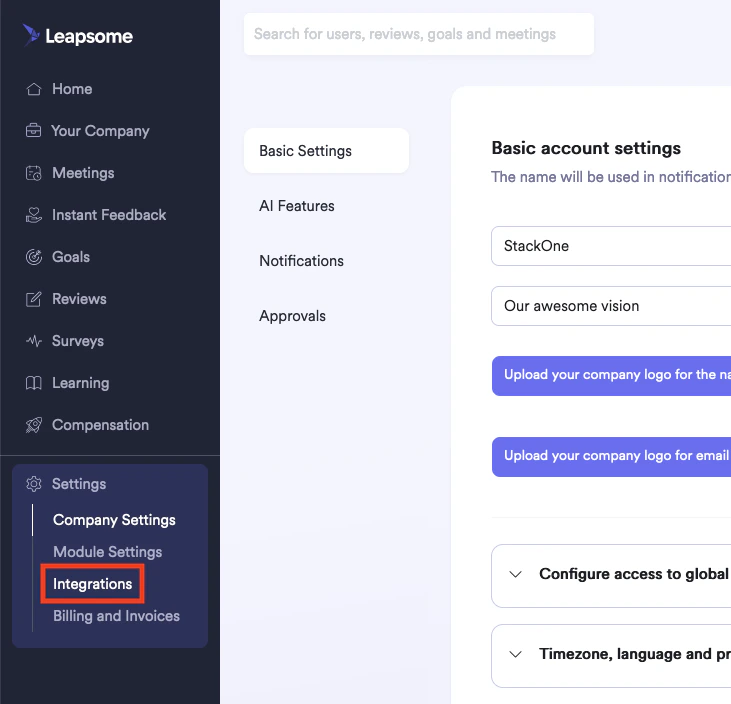
    Click Settings > Integrations in the left navigation panel.
    <Frame>
      <img className="rounded-md" style={{ margin: '0 auto', border: '1px solid #efefef' }} alt="Integrations" src="https://mintcdn.com/stackone-hub-claude-issue-384-20260409-1436/fLEXrwHFcC6FXcmC/images/leapsome/image2.png?fit=max&auto=format&n=fLEXrwHFcC6FXcmC&q=85&s=7e62830cea7a2ba760b6d73f1391a533" width="731" height="704" data-path="images/leapsome/image2.png" />
    </Frame>
  </Step>

  <Step title="Access API">
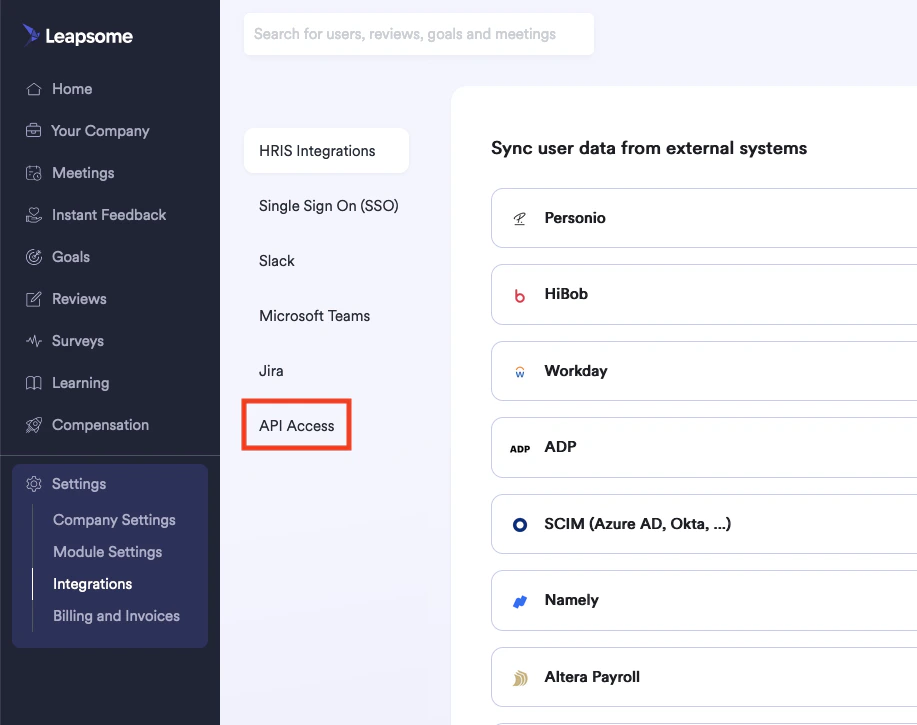
    Click API Access in the page that appears.
    <Frame>
      <img className="rounded-md" style={{ margin: '0 auto', border: '1px solid #efefef' }} alt="API Access" src="https://mintcdn.com/stackone-hub-claude-issue-384-20260409-1436/fLEXrwHFcC6FXcmC/images/leapsome/image3.png?fit=max&auto=format&n=fLEXrwHFcC6FXcmC&q=85&s=53e6e28bb39eb1740ab0e130694ee12b" width="917" height="725" data-path="images/leapsome/image3.png" />
    </Frame>
  </Step>

  <Step title="Copy API Secret">
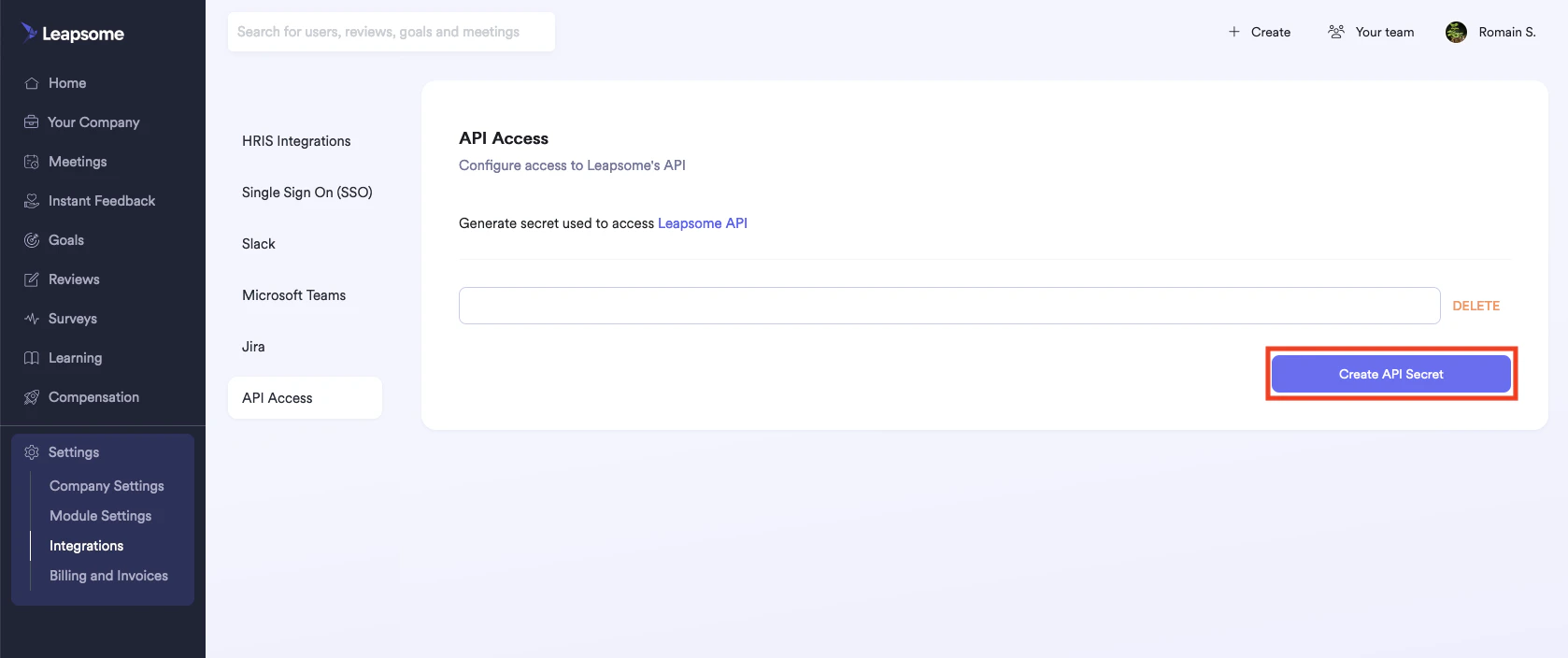
    Copy the displayed API Secret and store it safely. If one does not yet exist, first click the Create API Secret button.
    <Frame>
      <img className="rounded-md" style={{ margin: '0 auto', border: '1px solid #efefef' }} alt="API Secret" src="https://mintcdn.com/stackone-hub-claude-issue-384-20260409-1436/fLEXrwHFcC6FXcmC/images/leapsome/image4.png?fit=max&auto=format&n=fLEXrwHFcC6FXcmC&q=85&s=d55781e153844866029cb148c0e89f93" width="1678" height="704" data-path="images/leapsome/image4.png" />
    </Frame>
  </Step>
</Steps>

## Get your Leapsome SCIM Token

<Steps>
  <Step title="Navigate to HRIS Integrations">
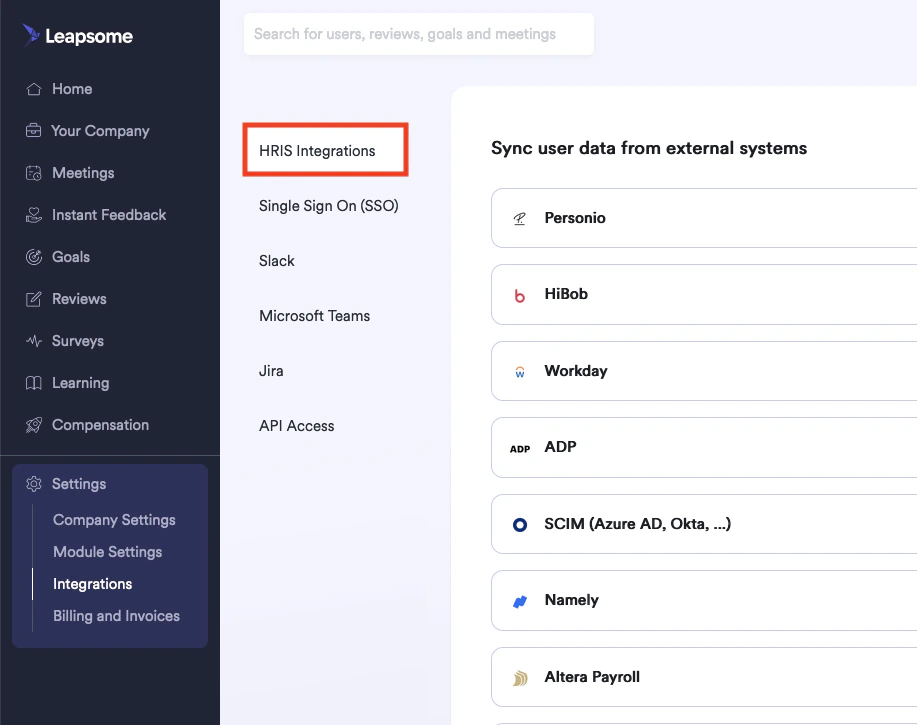
    Within the Settings > Integrations page, click HRIS Integrations.
    <Frame>
      <img className="rounded-md" style={{ margin: '0 auto', border: '1px solid #efefef' }} alt="HRIS Integrations" src="https://mintcdn.com/stackone-hub-claude-issue-384-20260409-1436/fLEXrwHFcC6FXcmC/images/leapsome/image5.png?fit=max&auto=format&n=fLEXrwHFcC6FXcmC&q=85&s=ce0a23141b4c36e003ebc371e54a17e1" width="917" height="725" data-path="images/leapsome/image5.png" />
    </Frame>
  </Step>

  <Step title="Select SCIM Integration">
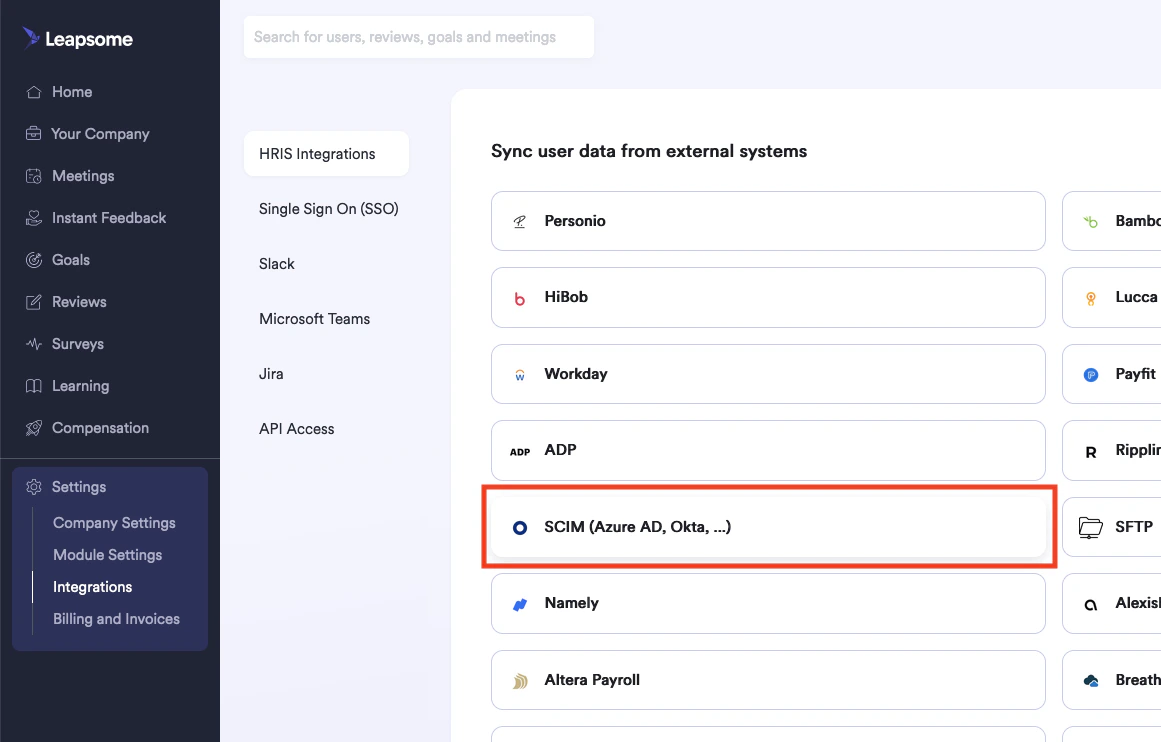
    From the displayed tiles, click the tile named SCIM (Azure AD, Okta, ... ).
    <Frame>
      <img className="rounded-md" style={{ margin: '0 auto', border: '1px solid #efefef' }} alt="SCIM Integration" src="https://mintcdn.com/stackone-hub-claude-issue-384-20260409-1436/fLEXrwHFcC6FXcmC/images/leapsome/image6.png?fit=max&auto=format&n=fLEXrwHFcC6FXcmC&q=85&s=6c485a8ff1d099b6dd72b70da4e86c3e" width="1161" height="742" data-path="images/leapsome/image6.png" />
    </Frame>
  </Step>

  <Step title="Copy SCIM Authentication Token">
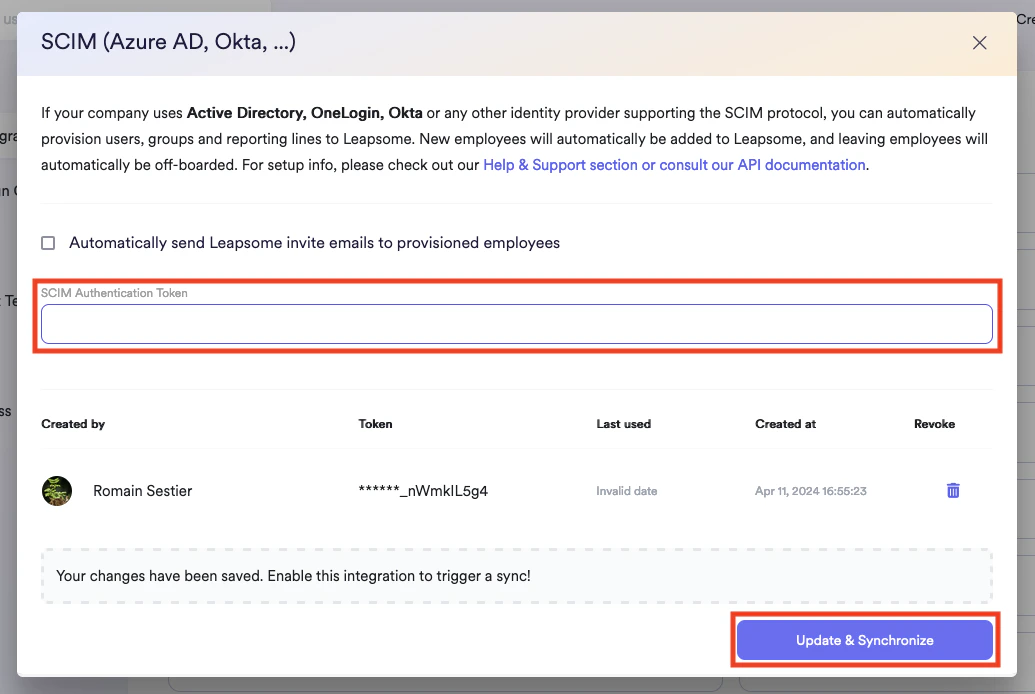
    In the window that appears, copy the displayed SCIM Authentication Token and store it safely. If one does not yet exist, click the Update & Synchronize button.
    <Frame>
      <img className="rounded-md" style={{ margin: '0 auto', border: '1px solid #efefef' }} alt="SCIM Authentication Token" src="https://mintcdn.com/stackone-hub-claude-issue-384-20260409-1436/fLEXrwHFcC6FXcmC/images/leapsome/image7.png?fit=max&auto=format&n=fLEXrwHFcC6FXcmC&q=85&s=03923c8cbb47069f83f994c4ef57d0fa" width="1035" height="694" data-path="images/leapsome/image7.png" />
    </Frame>
  </Step>
</Steps>

## Connecting to StackOne

<Steps>
  <Step title="Enter API Secret and SCIM Token">
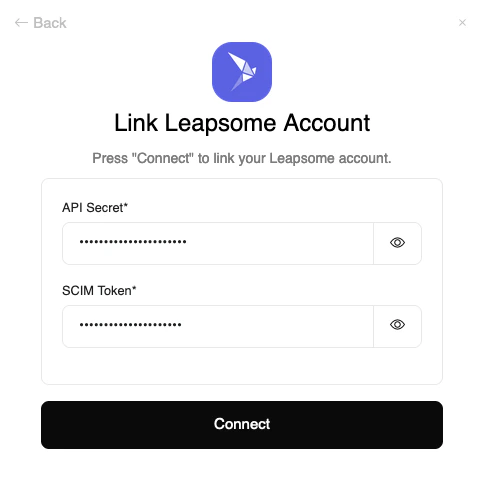
    Upon reaching the Link Account page, enter the API Secret and SCIM Token from the previous steps.
    <Frame>
      <img className="rounded-md" style={{ margin: '0 auto', border: '1px solid #efefef' }} alt="Link Account" src="https://mintcdn.com/stackone-hub-claude-issue-384-20260409-1436/fLEXrwHFcC6FXcmC/images/leapsome/image8.png?fit=max&auto=format&n=fLEXrwHFcC6FXcmC&q=85&s=281c8e6cedff0e68fb7ba510a2c9d4a9" width="484" height="478" data-path="images/leapsome/image8.png" />
    </Frame>
  </Step>

  <Step title="Connect">
    Proceed by clicking the Connect button.
  </Step>
</Steps>

<br />

Congratulations, you're all set! If you face any issues with the steps mentioned above,
please contact us by emailing [integrations@stackone.com](mailto:integrations@stackone.com). We're always here to assist you!

## Available data

This integration has the following [IAM Resources](https://docs.stackone.com/reference/iam_list_users) available from the provider:

<ul>
  <li>Users</li>
  <li>Groups</li>
</ul>
