> ## Documentation Index
> Fetch the complete documentation index at: https://stackone-hub-claude-issue-384-20260409-1436.mintlify.site/llms.txt
> Use this file to discover all available pages before exploring further.
# Klaviyo
> Follow these steps to connect Klaviyo via the StackOne Hub successfully.
Ensure you have a paid Klaviyo plan and that you are an Admin or Owner in your Klaviyo account.
If you've been directed to StackOne to integrate with Klaviyo, the following steps will help you understand the process and any necessary actions to configure successful integration.
## Enable Klaviyo SCIM user provisioning
Click your organization name in the lower left corner, then Settings in the modal that appears.
Click Security.
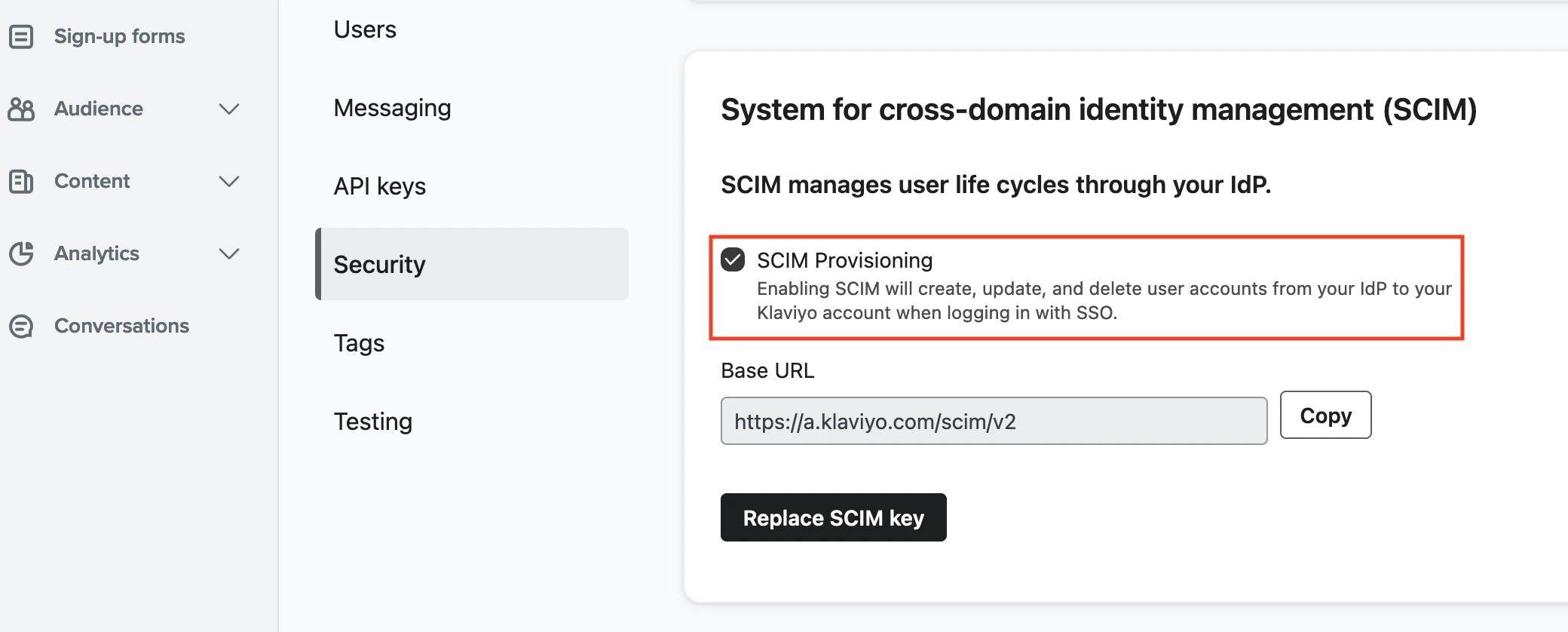 Scroll down to System for cross-domain identity management (SCIM) and check the SCIM Provisioning box.
 ## Generate a Klaviyo SCIM key
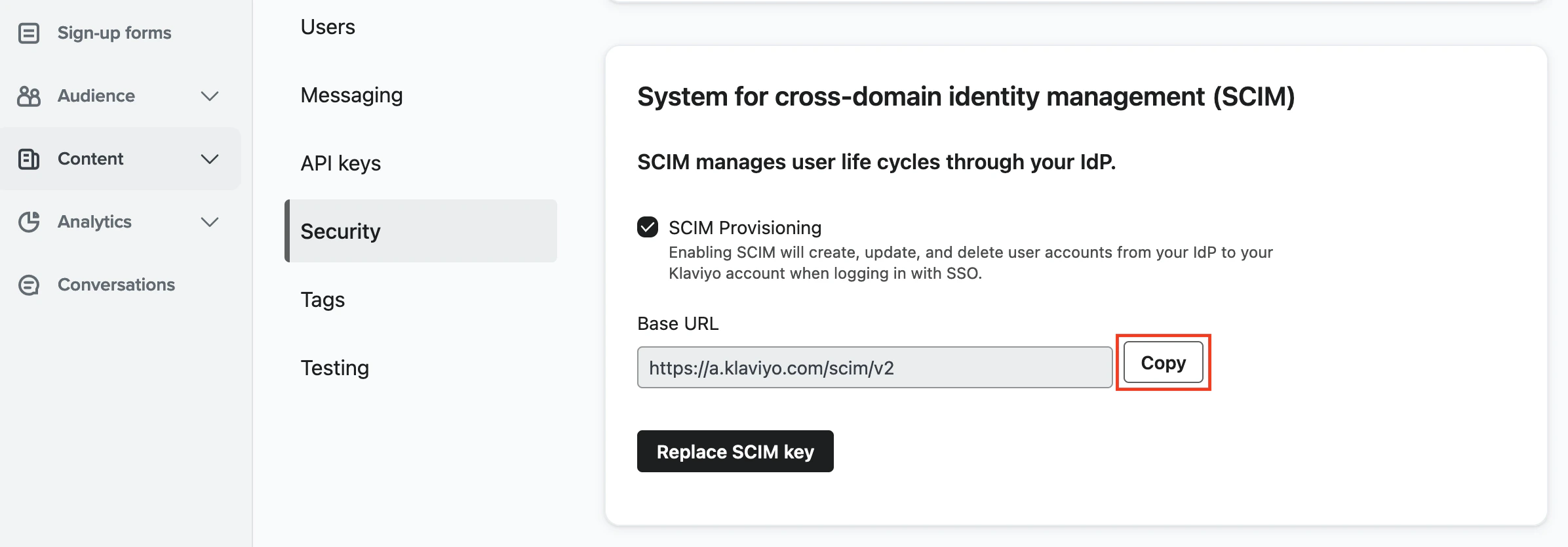
In the System for cross-domain identity management (SCIM) section, click Copy to display the SCIM key.
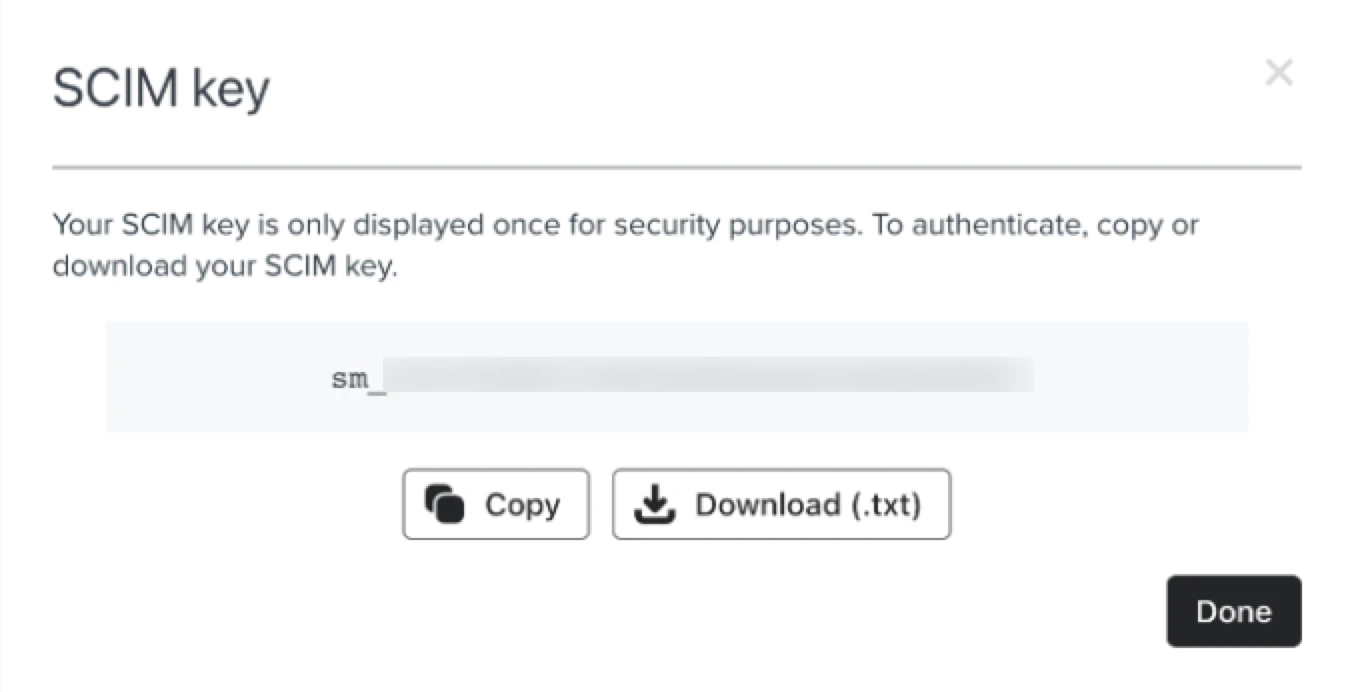
Copy or download the access key to a safe place, including the prefix `Klaviyo-API-Key`.
## Generate a Klaviyo SCIM key
In the System for cross-domain identity management (SCIM) section, click Copy to display the SCIM key.
Copy or download the access key to a safe place, including the prefix `Klaviyo-API-Key`.
- Note that this key is only displayed once. If copying it, paste it somewhere secure immediately.
 ## Connecting with StackOne
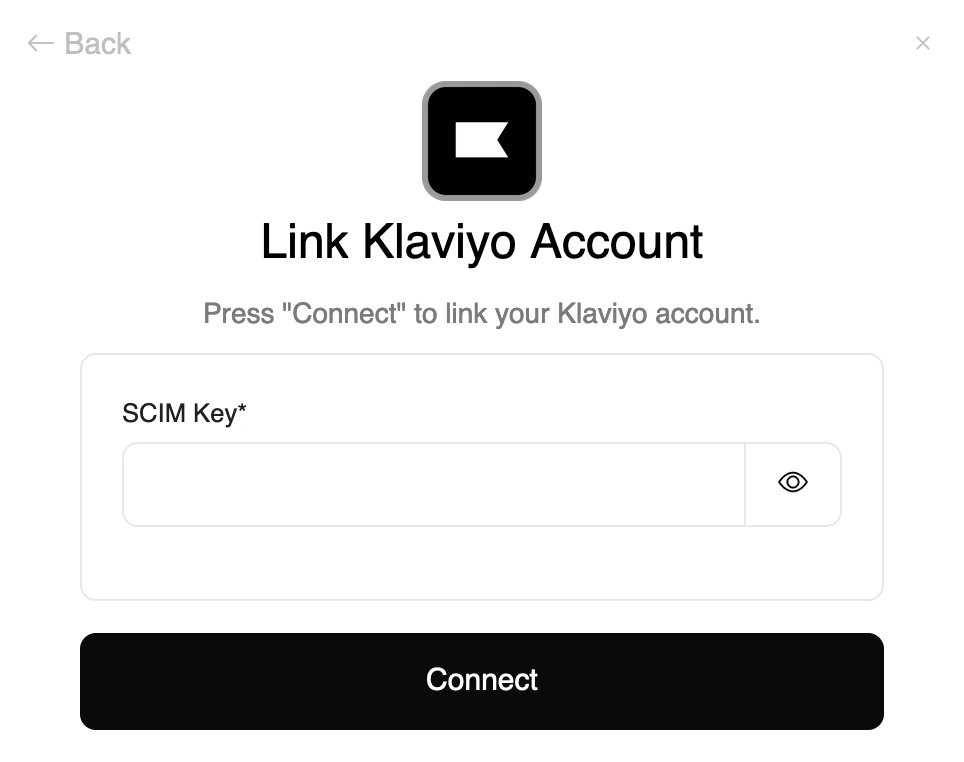
Upon reaching the Link Account page, enter the SCIM key and proceed by clicking the Connect button.
## Connecting with StackOne
Upon reaching the Link Account page, enter the SCIM key and proceed by clicking the Connect button.
Congratulations, you're all set! If you face any issues with the steps mentioned above,
please contact us by emailing [integrations@stackone.com](mailto:integrations@stackone.com). We're always here to assist you!
## Available data
This integration has the following [IAM Resources](https://docs.stackone.com/reference/iam_list_users) available from the provider:
## Useful Links
[https://help.klaviyo.com/hc/en-us/articles/10952782535579](https://help.klaviyo.com/hc/en-us/articles/10952782535579)