> ## Documentation Index
> Fetch the complete documentation index at: https://stackone-hub-claude-issue-384-20260409-1436.mintlify.site/llms.txt
> Use this file to discover all available pages before exploring further.

# Attio

> Follow these steps to connect Attio with StackOne Hub successfully.

<Warning>
  Ensure you have Admin privileges for your Attio account.
</Warning>

If you've been directed to StackOne to integrate with Attio, the following steps will help you understand the process and any necessary actions to configure successful integration.

## Generating an API key

<Steps>
  <Step title="Sign in to Attio">
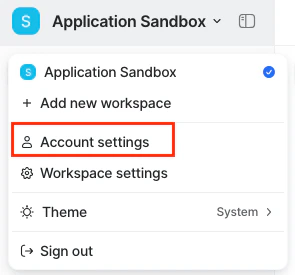
    Sign in to the Attio Dashboard and click on your account name.
    <Frame>
      <img className="rounded-md" style={{ margin: '0 auto', border: '1px solid #efefef' }} alt="Attio Dashboard" src="https://mintcdn.com/stackone-hub-claude-issue-384-20260409-1436/3ZzjaTY7nnONY9wS/images/attio/image1.png?fit=max&auto=format&n=3ZzjaTY7nnONY9wS&q=85&s=22f2754d89e3acdfd342903dedc86c7f" width="455" height="111" data-path="images/attio/image1.png" />
    </Frame>
  </Step>

  <Step title="Go to Account settings">
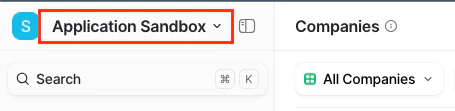
    Click on the Account settings option.

    <Frame>
      <img className="rounded-md" style={{ margin: '0 auto', border: '1px solid #efefef' }} alt="Account settings" src="https://mintcdn.com/stackone-hub-claude-issue-384-20260409-1436/3ZzjaTY7nnONY9wS/images/attio/image2.png?fit=max&auto=format&n=3ZzjaTY7nnONY9wS&q=85&s=1fde2b281a1508c54cd811adcafab25c" width="295" height="275" data-path="images/attio/image2.png" />
    </Frame>
  </Step>

  <Step title="Open Developers settings">
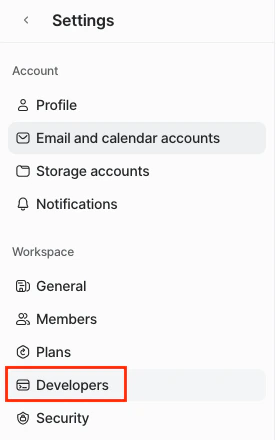
    Inside the Settings page, click on the Developers option.
    <Frame>
      <img className="rounded-md" style={{ margin: '0 auto', border: '1px solid #efefef' }} alt="Developers settings" src="https://mintcdn.com/stackone-hub-claude-issue-384-20260409-1436/3ZzjaTY7nnONY9wS/images/attio/image3.png?fit=max&auto=format&n=3ZzjaTY7nnONY9wS&q=85&s=8c4d8009646dbccc4afd58983e6d34a9" width="276" height="440" data-path="images/attio/image3.png" />
    </Frame>
  </Step>

  <Step title="Create a new integration">
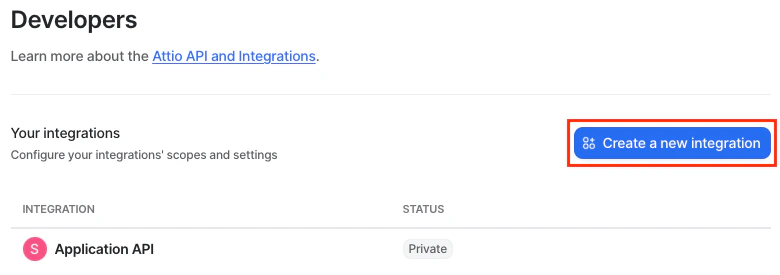
    Click on Create a new integration button.
    <Frame>
      <img className="rounded-md" style={{ margin: '0 auto', border: '1px solid #efefef' }} alt="Create integration" src="https://mintcdn.com/stackone-hub-claude-issue-384-20260409-1436/3ZzjaTY7nnONY9wS/images/attio/image4.png?fit=max&auto=format&n=3ZzjaTY7nnONY9wS&q=85&s=9466202dde471cb67b3aa9811de1ad1b" width="780" height="275" data-path="images/attio/image4.png" />
    </Frame>
  </Step>

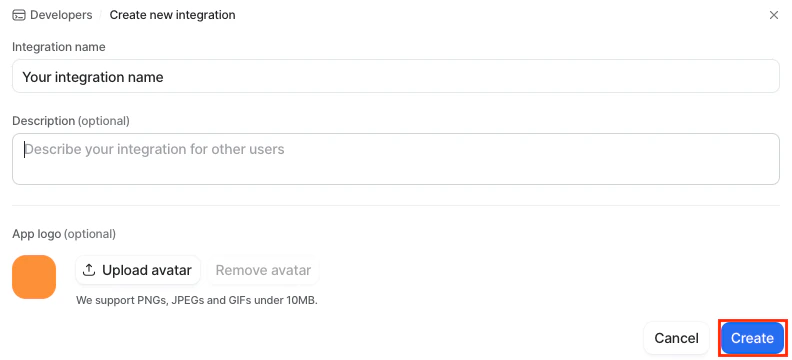
  <Step title="Add integration details">
    Add your integration name and, optionally, description/avatar. Afterward, click Create.
    <Frame>
      <img className="rounded-md" style={{ margin: '0 auto', border: '1px solid #efefef' }} alt="Integration details" src="https://mintcdn.com/stackone-hub-claude-issue-384-20260409-1436/3ZzjaTY7nnONY9wS/images/attio/image5.png?fit=max&auto=format&n=3ZzjaTY7nnONY9wS&q=85&s=1e7443372fab7f37a6cc98a993682af6" width="792" height="360" data-path="images/attio/image5.png" />
    </Frame>
  </Step>

  <Step title="Access tokens">
    Once you have successfully created your integration, click on Access tokens option.

    <Frame>
      <img className="rounded-md" style={{ margin: '0 auto', border: '1px solid #efefef' }} alt="Access tokens" src="https://mintcdn.com/stackone-hub-claude-issue-384-20260409-1436/3ZzjaTY7nnONY9wS/images/attio/image6.png?fit=max&auto=format&n=3ZzjaTY7nnONY9wS&q=85&s=8bab7e11d76884b278e3ed605799133f" width="773" height="110" data-path="images/attio/image6.png" />
    </Frame>
  </Step>

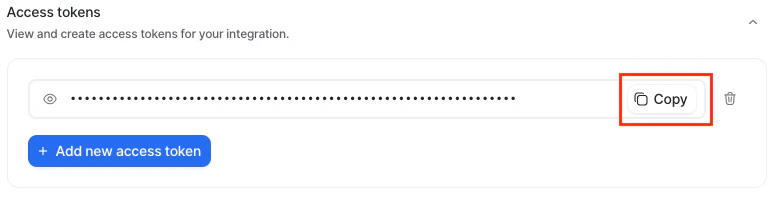
  <Step title="Generate or copy API token">
    You can either generate a new access token (API Key) or copy the existing access token (API Key) for immediate use.
    <Frame>
      <img className="rounded-md" style={{ margin: '0 auto', border: '1px solid #efefef' }} alt="API token" src="https://mintcdn.com/stackone-hub-claude-issue-384-20260409-1436/3ZzjaTY7nnONY9wS/images/attio/image7.png?fit=max&auto=format&n=3ZzjaTY7nnONY9wS&q=85&s=f21d7794ad905815f7d8f25ef687715b" width="773" height="199" data-path="images/attio/image7.png" />
    </Frame>
  </Step>

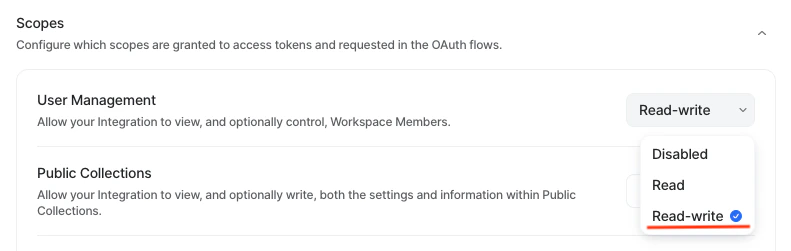
  <Step title="Configure integration scopes">
    Configure the integration scopes by clicking on the Scopes menu and setting the appropriate scope for your work – `Read-write`.
    <Frame>
      <img className="rounded-md" style={{ margin: '0 auto', border: '1px solid #efefef' }} alt="Scopes" src="https://mintcdn.com/stackone-hub-claude-issue-384-20260409-1436/TClBDBl2qSn4XKCa/images/attio/image8.png?fit=max&auto=format&n=TClBDBl2qSn4XKCa&q=85&s=8801f5cc023f4b232bfac0230d064999" width="791" height="251" data-path="images/attio/image8.png" />
    </Frame>
  </Step>
</Steps>

## Connecting with StackOne

<Steps>
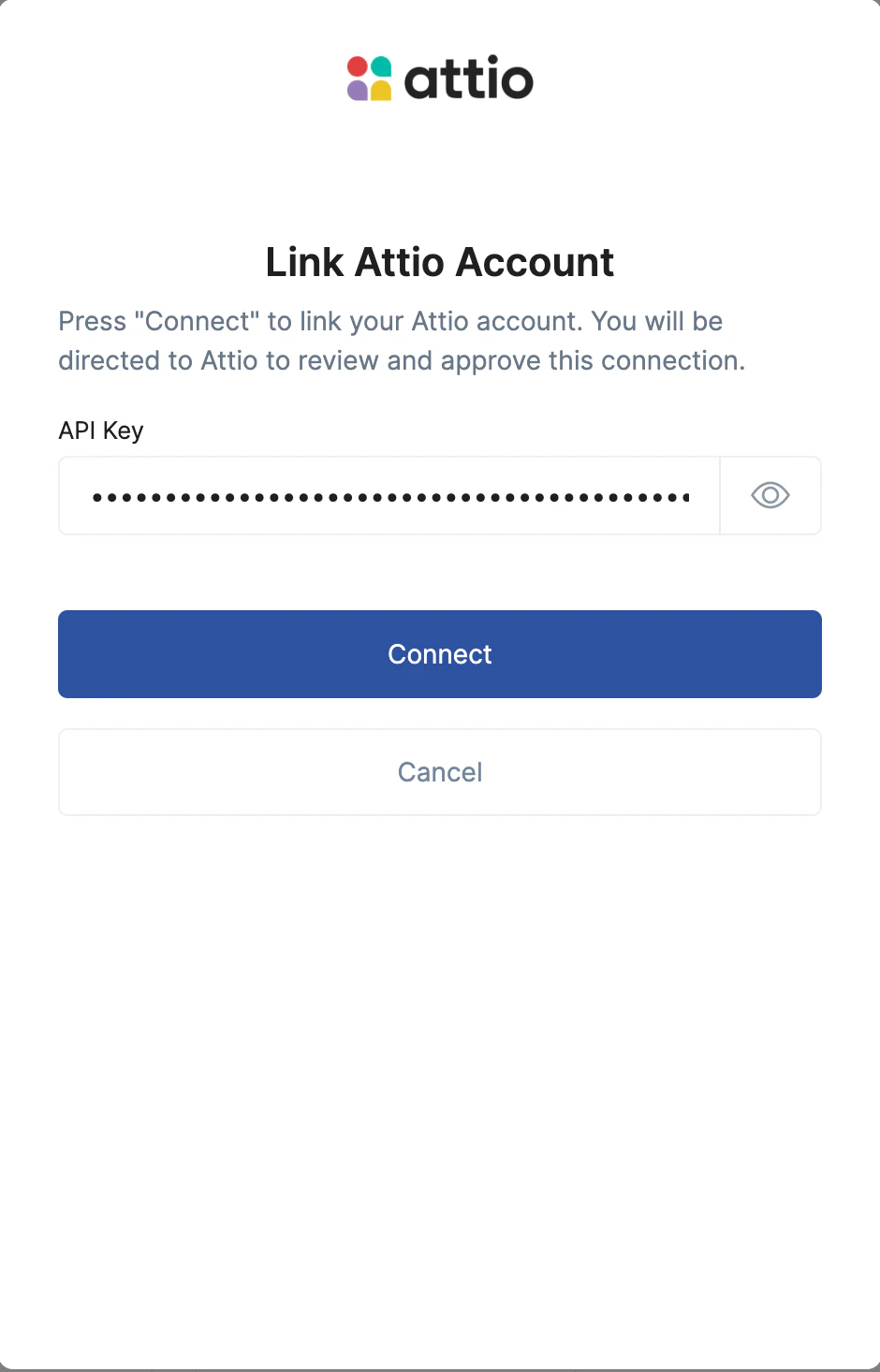
  <Step title="Enter the Details">
    Upon reaching the Link Account page, enter the gathered details and proceed by clicking the `Connect` button.
    <Frame>
      <img className="rounded-md" style={{ margin: '0 auto', border: '1px solid #efefef' }} alt="Link Account" src="https://mintcdn.com/stackone-hub-claude-issue-384-20260409-1436/TClBDBl2qSn4XKCa/images/attio/image9.png?fit=max&auto=format&n=TClBDBl2qSn4XKCa&q=85&s=cc8036fee21445a1032ca9b993443743" width="940" height="1466" data-path="images/attio/image9.png" />
    </Frame>
  </Step>
</Steps>

<br />

Congratulations, you're all set! If you face any issues with the steps mentioned above,
please contact us by emailing [integrations@stackone.com](mailto:integrations@stackone.com). We're always here to assist you!

## Available data

This integration has the following [IAM Resources](https://docs.stackone.com/reference/iam_list_users) available from the provider:

<ul>
  <li>Users</li>
  <li>Roles</li>
</ul>

## Useful Links

<Card title="API Reference" icon="link" href="https://developers.attio.com/docs/getting-started">
  [https://developers.attio.com/docs/getting-started](https://developers.attio.com/docs/getting-started)
</Card>