

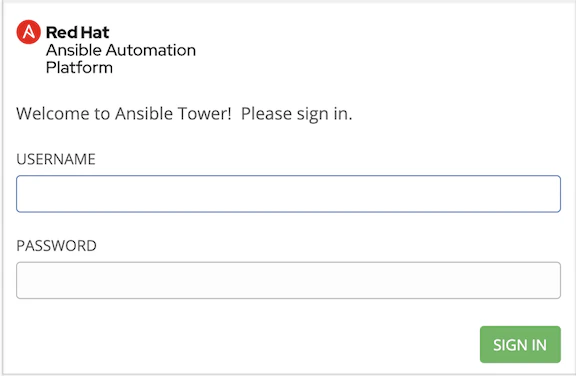
Log in to Ansible Tower
Log in to your Ansible Tower instance, and note your Ansible Tower URL to be used in a later step. (Example:https://ansible.myapp-exp.com)
Create a New OAuth Application
This connection will authenticate on behalf of a registered Application in Ansible.1
Navigate to Applications
Click Applications in the left navigation bar.
2
Create New Application
Click the + button in the top right to begin creating a new application.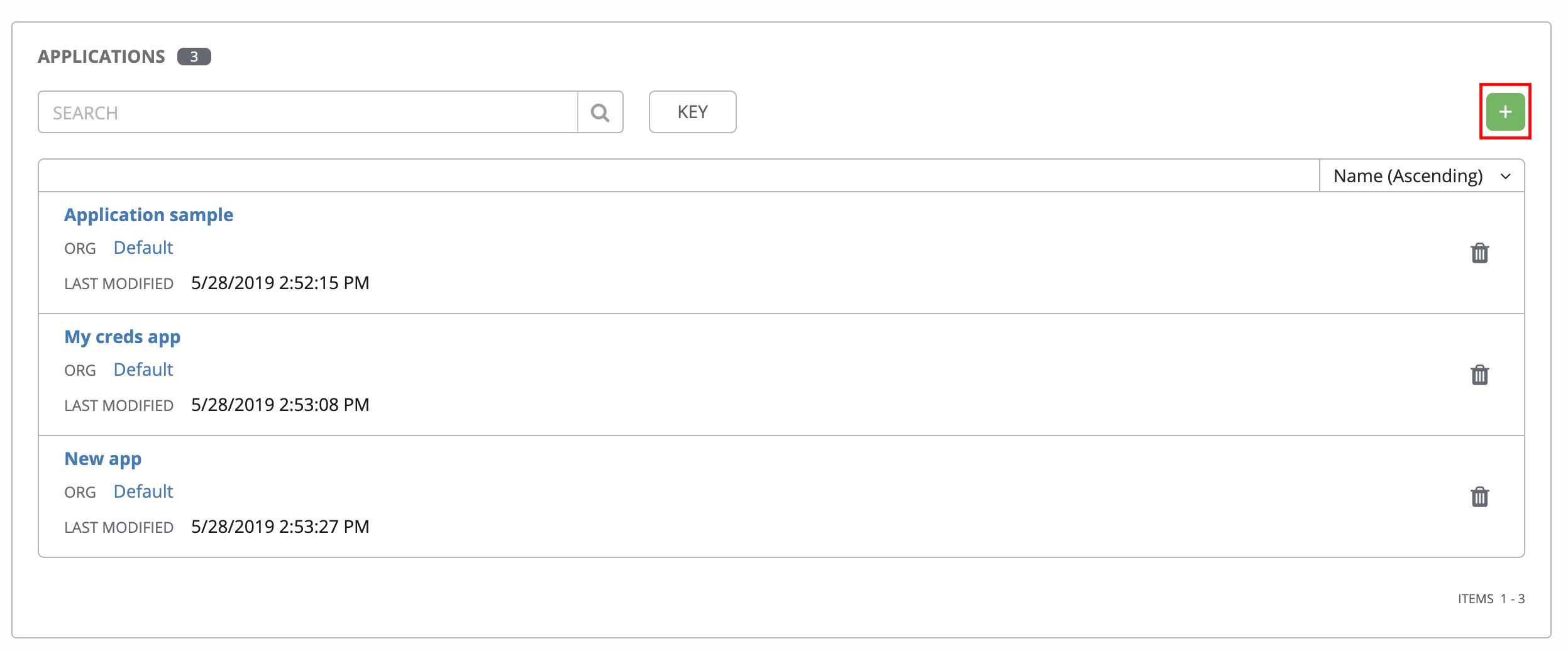
3
Enter Application Details
Enter the following details in the Create New Application window: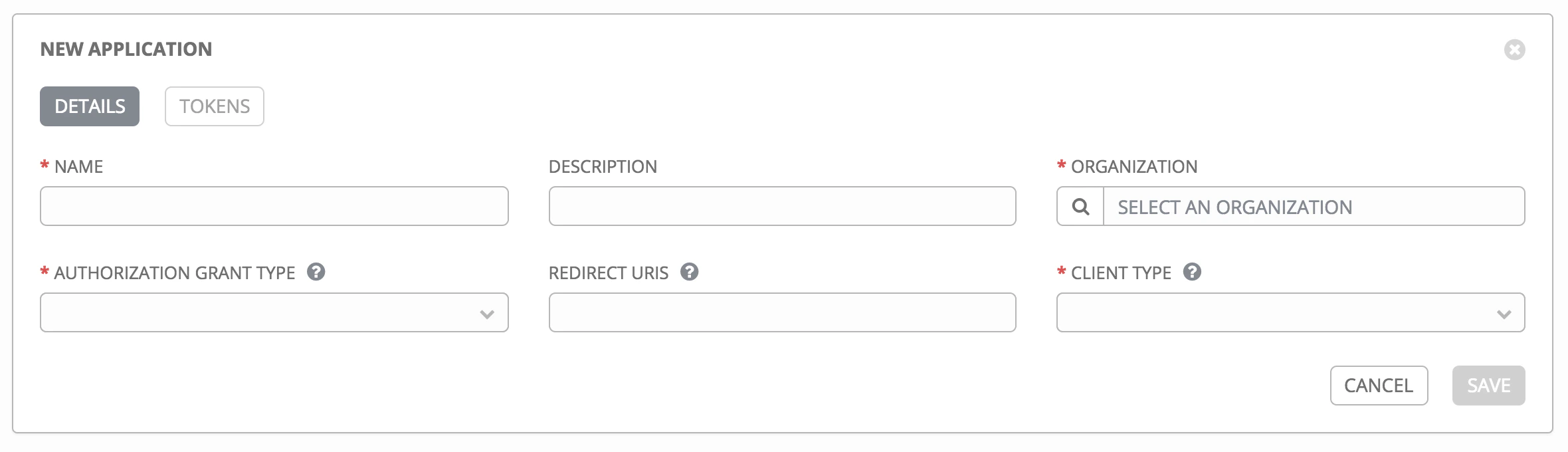
- Name
- Description (optional)
- Organization: select the organization to be associated with this connection
- Authorization Grant Type: Select Authorization Code
- Redirect URIS: Enter
https://api.stackone.com/connect/oauth2/ansibletower_iam/callback - Client Type: Confidential or Public can be selected for this connection
4
Copy Application Credentials
Your new Application Client ID and Client Secret will be displayed. Copy these and store them securely to be used in a later step.
Connecting with StackOne
1
Enter Credentials
Upon reaching the Link Account page, enter the credentials from the previous steps:
- Client ID
- Client Secret
- Ansible Tower URL
2
Authorize Application Access
Depending on your Ansible Tower instance configuration, a window may appear with a prompt to log in to Ansible Tower and authorize this new application.Log in again and click the Authorize button to proceed.
Congratulations, you’re all set! If you face any issues with the steps mentioned above, please contact us by emailing integrations@stackone.com. We’re always here to assist you!
Available data
This integration has the following IAM Resources available from the provider:- Users
- Roles
- Groups