> ## Documentation Index
> Fetch the complete documentation index at: https://stackone-hub-claude-issue-384-20260409-1436.mintlify.site/llms.txt
> Use this file to discover all available pages before exploring further.
# Gusto
> Follow these steps to connect Gusto with StackOne Hub successfully.
Ensure you have Admin Payroll Role privileges for your Gusto account.
If you've been directed to StackOne to integrate with Gusto, the following steps will help you understand the process and any necessary actions to configure successful integration.
## Establish a connection with StackOne
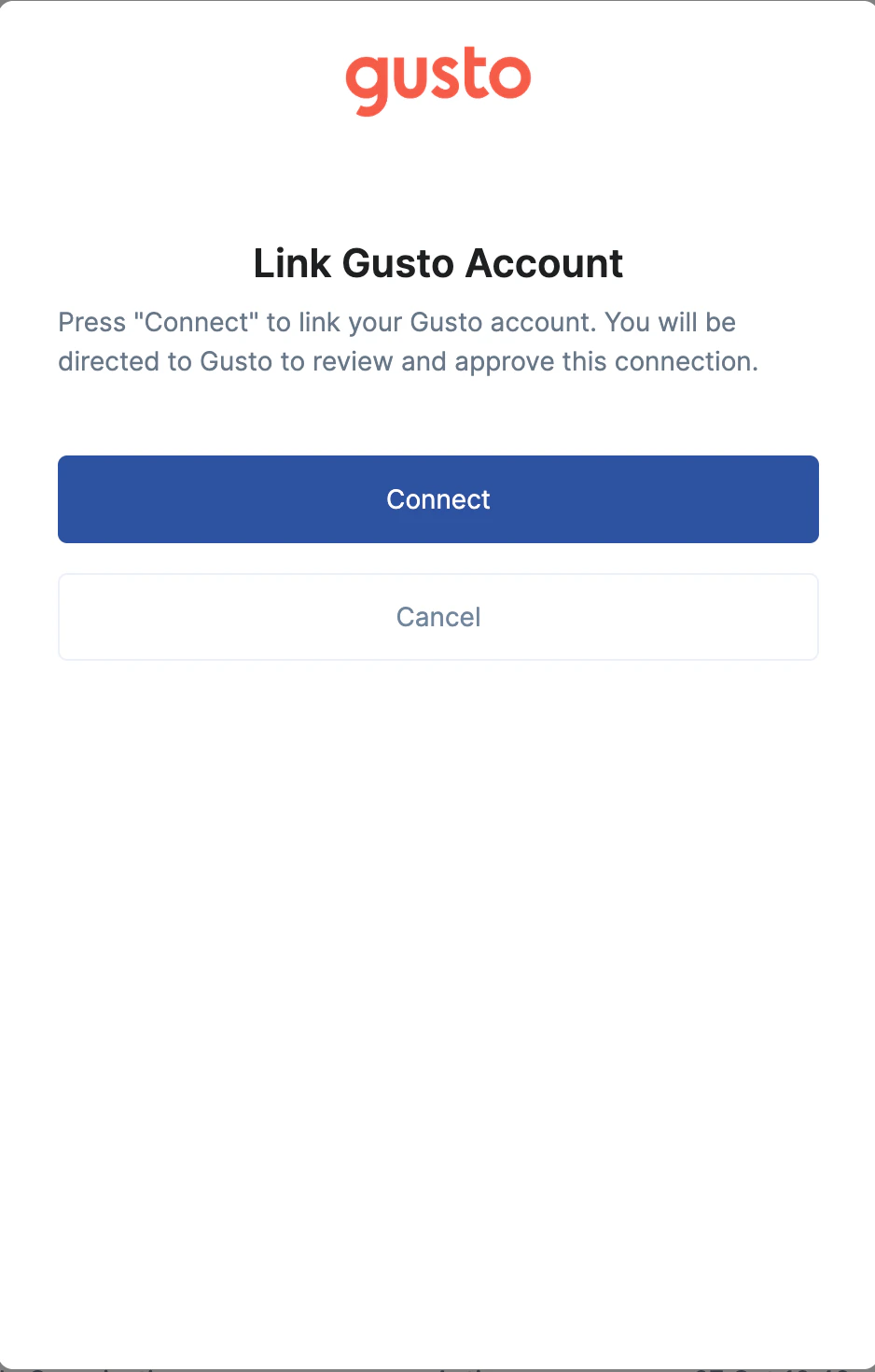
Proceed to the Accounts page to establish a connection between Gusto and StackOne. Then click the `Connect` button.
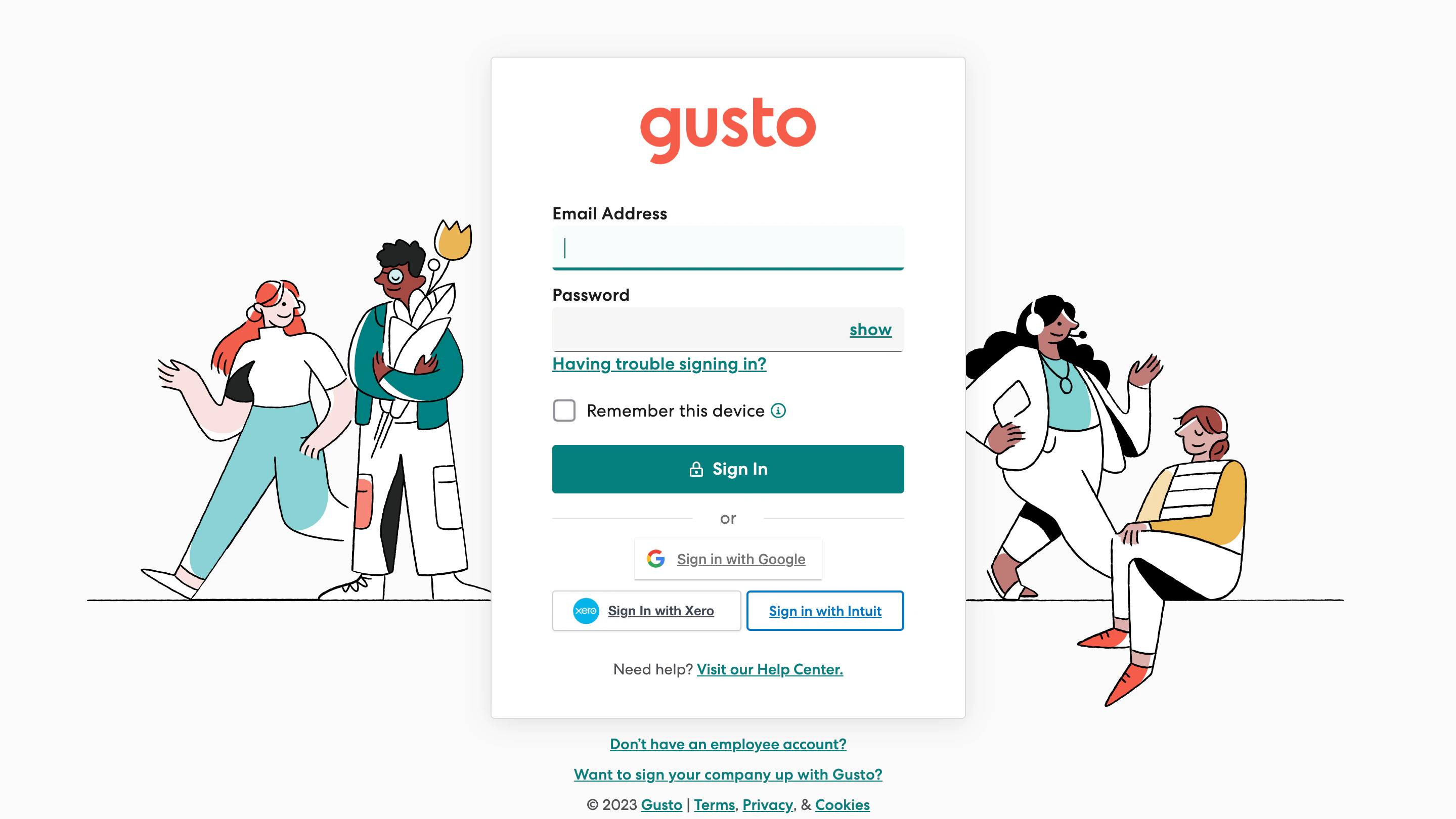
 Enter your Gusto account credentials in the opened tab.
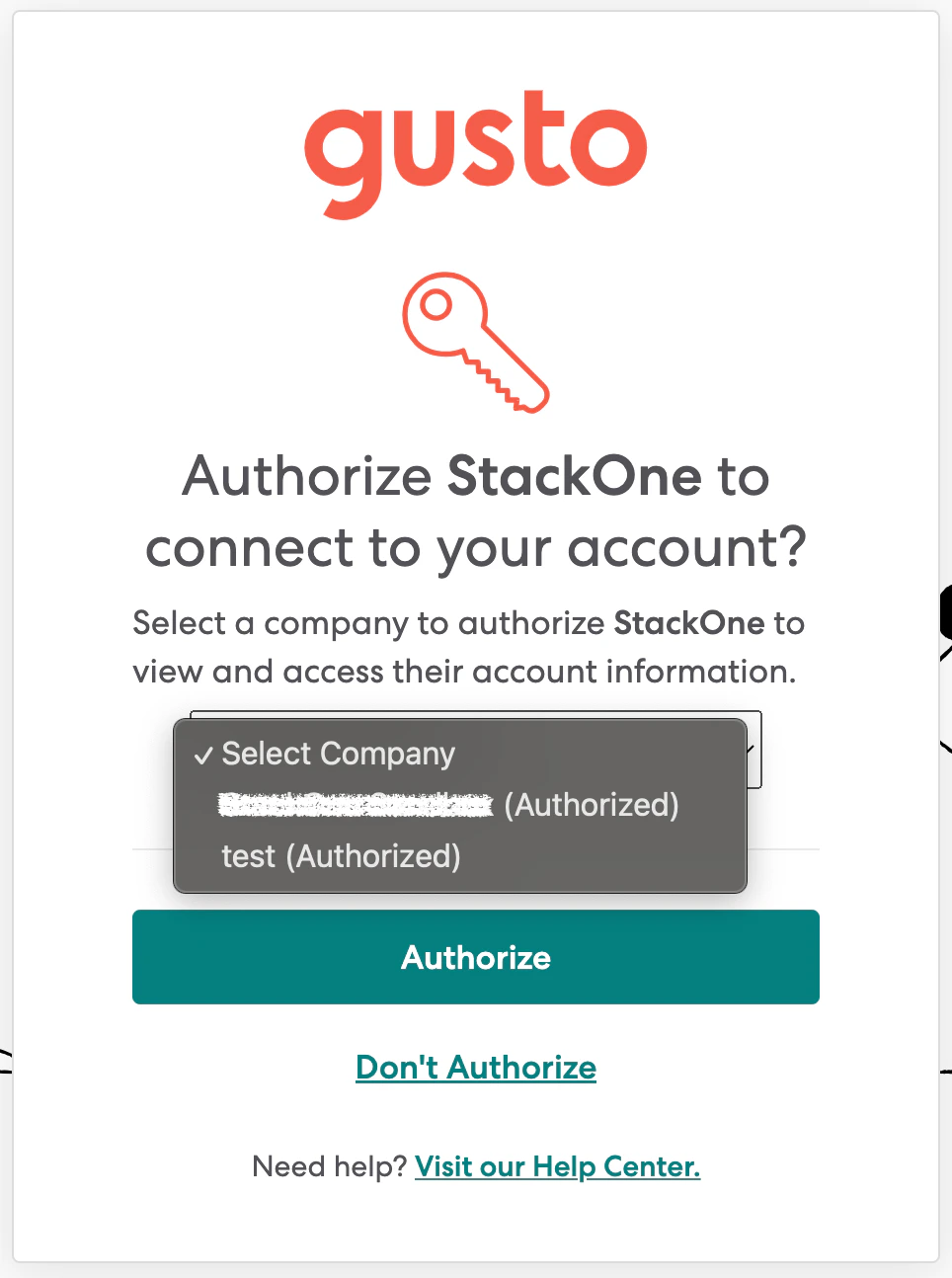
 Select your Company from the drop-down list, and click Authorize.
 You'll get an instant "`Account connected`" success message and the opened tab will close.
Congratulations, you're all set! If you face any issues with the steps mentioned above,
please contact us by emailing [integrations@stackone.com](mailto:integrations@stackone.com). We're always here to assist you!