> ## Documentation Index
> Fetch the complete documentation index at: https://stackone-hub-claude-issue-384-20260409-1436.mintlify.site/llms.txt
> Use this file to discover all available pages before exploring further.

# Charlie HR

> Follow these steps to connect Charlie HR with StackOne Hub successfully.

<Warning>
  Ensure you have Admin privileges for your Charlie HR account.
</Warning>

If you've been directed to StackOne to integrate with Charlie HR, the following steps will help you understand the process and any necessary actions to configure successful integration.

## Getting your Client ID and Client Secret

<Steps>
  <Step title="Log in to Charlie HR">
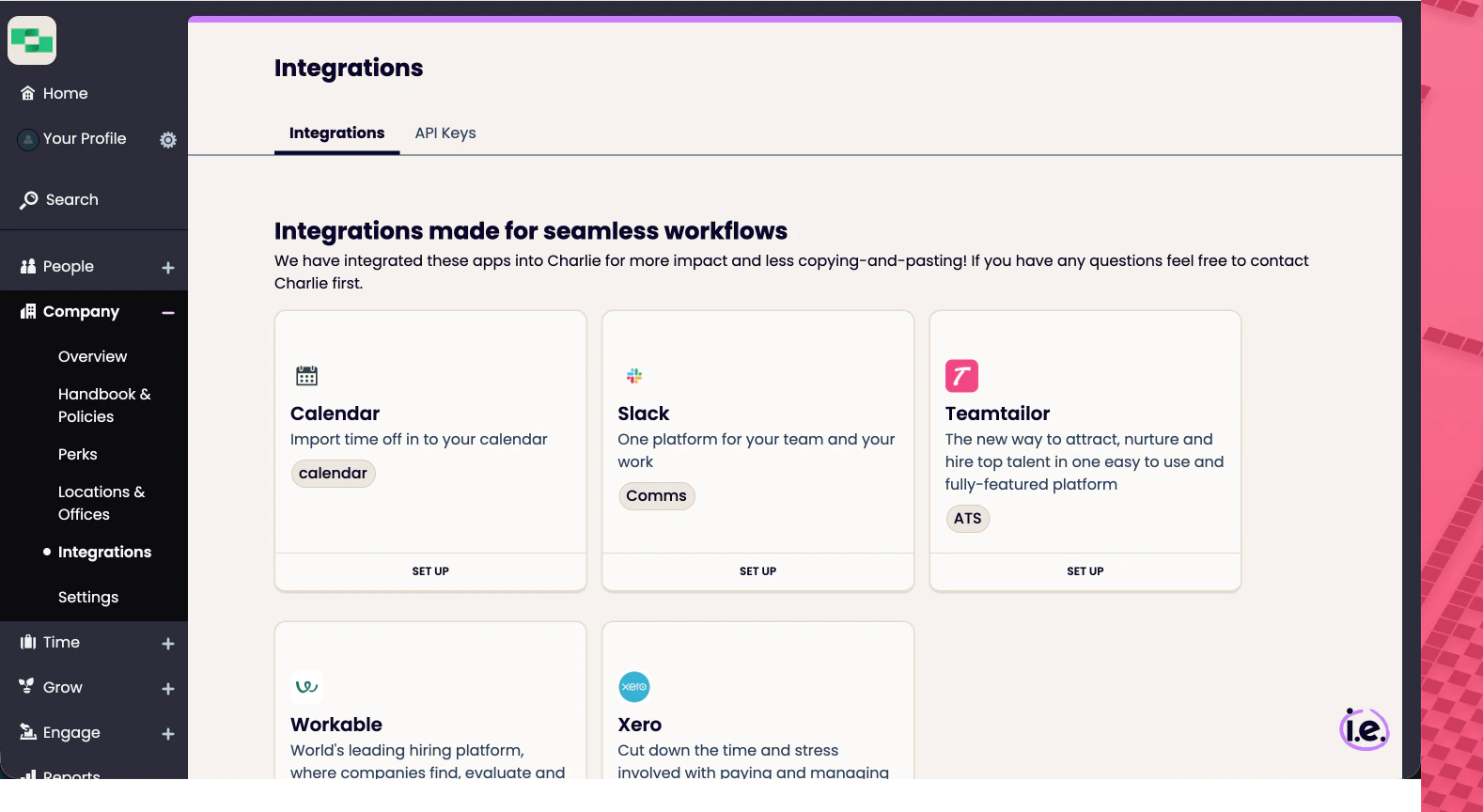
    Log in to your Charlie HR dashboard, click on the **Company** option in the sidebar, then select **Integrations** from the sub-menu.
    <Frame>
      <img className="rounded-md" style={{ margin: '0 auto', border: '1px solid #efefef' }} alt="Charlie HR Dashboard" src="https://mintcdn.com/stackone-hub-claude-issue-384-20260409-1436/_o5wW7tnj99F2Kie/images/charliehr/image1.png?fit=max&auto=format&n=_o5wW7tnj99F2Kie&q=85&s=3e1a2f9dd0efb54da3c0f2a9eb68f72b" width="1578" height="864" data-path="images/charliehr/image1.png" />
    </Frame>
  </Step>

  <Step title="Locate API Keys">
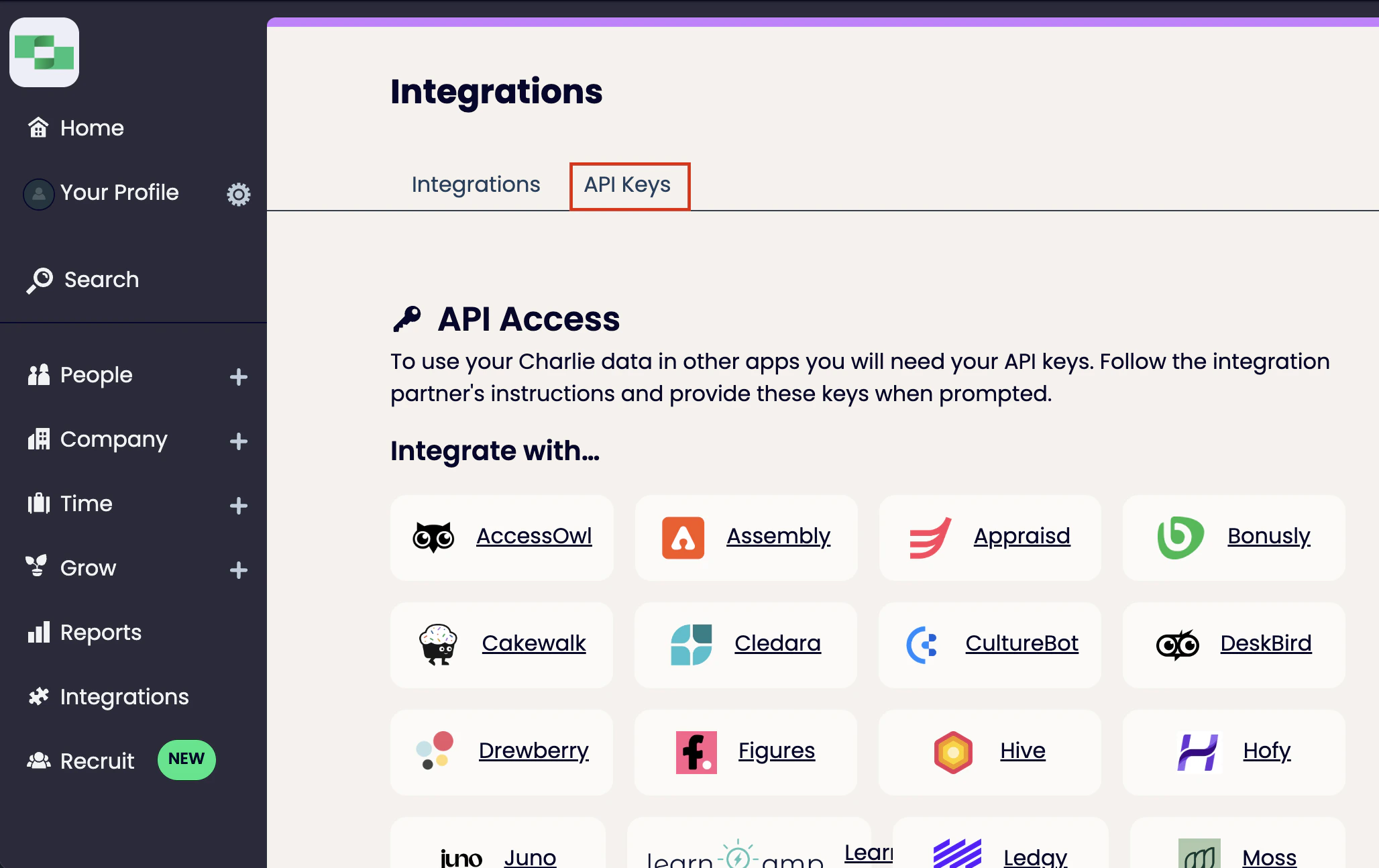
    Inside the new page, locate the API Keys option in the top navigation bar.
    <Frame>
      <img className="rounded-md" style={{ margin: '0 auto', border: '1px solid #efefef' }} alt="API Setup" src="https://mintcdn.com/stackone-hub-claude-issue-384-20260409-1436/_o5wW7tnj99F2Kie/images/charliehr/image2.png?fit=max&auto=format&n=_o5wW7tnj99F2Kie&q=85&s=6cb80a3396185bd0e07e077774e4fd46" width="2056" height="1294" data-path="images/charliehr/image2.png" />
    </Frame>
  </Step>

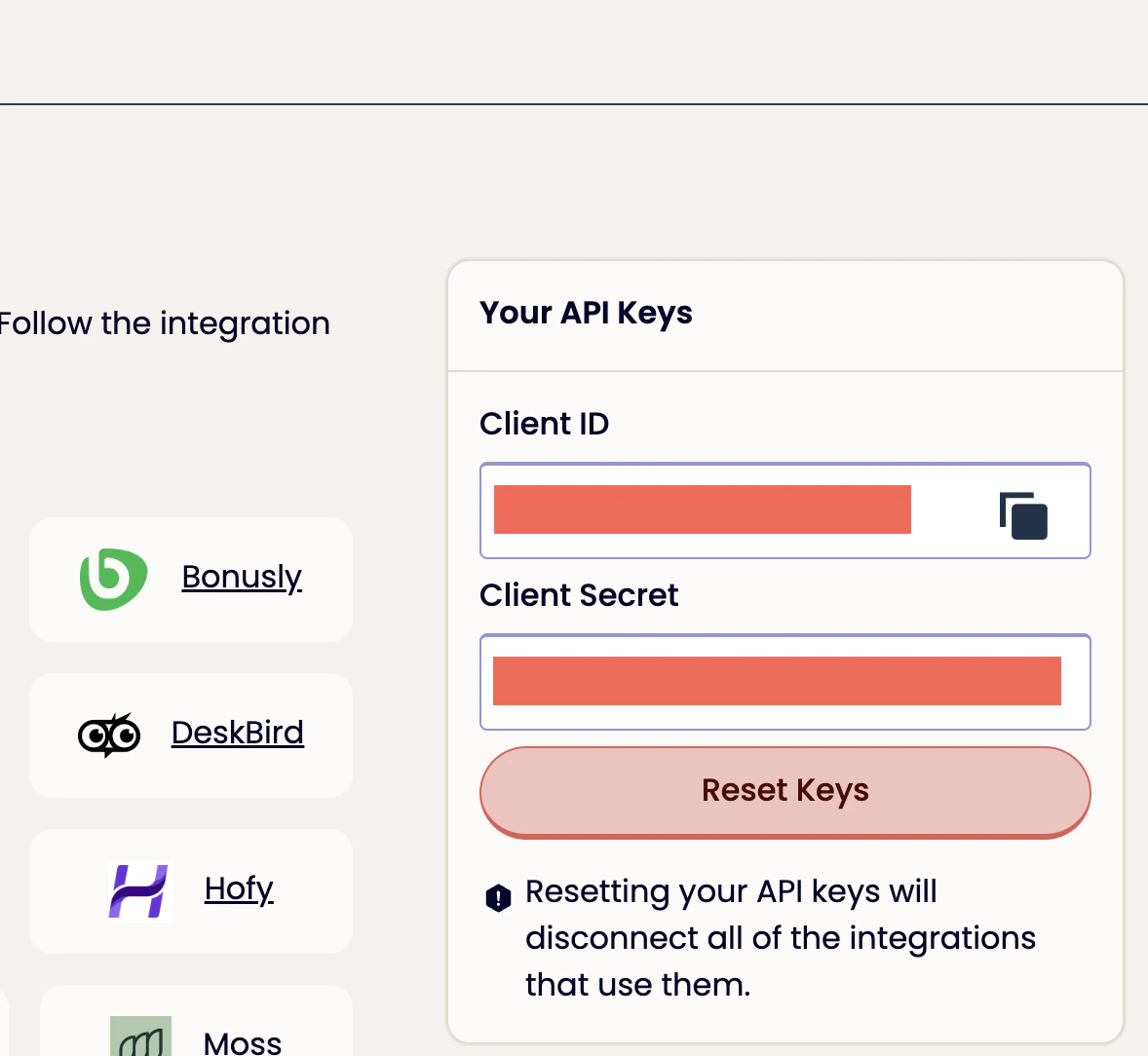
  <Step title="Copy Client ID and Client Key">
    Copy the keys to a safe place.

    <Frame>
      <img className="rounded-md" style={{ margin: '0 auto', border: '1px solid #efefef' }} alt="API Keys" src="https://mintcdn.com/stackone-hub-claude-issue-384-20260409-1436/_o5wW7tnj99F2Kie/images/charliehr/image3.png?fit=max&auto=format&n=_o5wW7tnj99F2Kie&q=85&s=84baf0d8bd6206a06b17d11616457b78" width="1178" height="1084" data-path="images/charliehr/image3.png" />
    </Frame>
  </Step>
</Steps>

## Connecting with StackOne

<Steps>
  <Step title="Enter your Credentials">
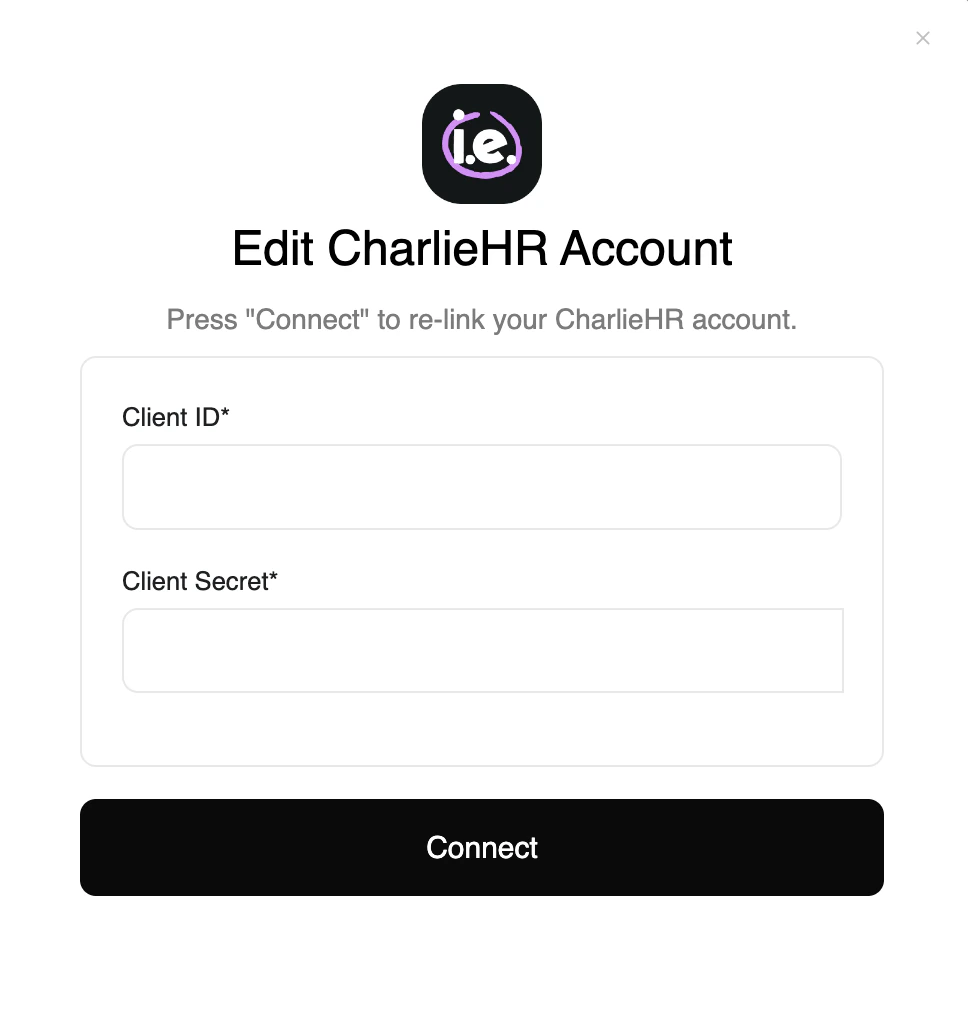
    Enter your Client ID and Client Secret and proceed by clicking the `Connect` button.
    <Frame>
      <img className="rounded-md" style={{ margin: '0 auto', border: '1px solid #efefef' }} alt="Connect Button" src="https://mintcdn.com/stackone-hub-claude-issue-384-20260409-1436/_o5wW7tnj99F2Kie/images/charliehr/image4.png?fit=max&auto=format&n=_o5wW7tnj99F2Kie&q=85&s=bbc195876910fc3e47806853ce9eefbe" width="968" height="1034" data-path="images/charliehr/image4.png" />
    </Frame>
  </Step>
</Steps>

<br />

Congratulations, you're all set! If you face any issues with the steps mentioned above,
please contact us by emailing [integrations@stackone.com](mailto:integrations@stackone.com). We're always here to assist you!

## Useful Links

<Card title="API Documentation" icon="link" href="https://www.charliehr.com/api_docs">
  [https://www.charliehr.com/api\_docs](https://www.charliehr.com/api_docs)
</Card>