> ## Documentation Index
> Fetch the complete documentation index at: https://stackone-hub-claude-issue-384-20260409-1436.mintlify.site/llms.txt
> Use this file to discover all available pages before exploring further.

# Cezanne HR

> Follow these steps to connect Cezanne HR with StackOne Hub successfully.

<Warning>
  Ensure you have Admin privileges for your Cezanne HR account.
</Warning>

If you've been directed to StackOne to integrate with Cezanne HR, the following steps will help you understand the process and any necessary actions to configure successful integration.

## Getting your Subdomain

<Steps>
  <Step title="Find the Subdomain">
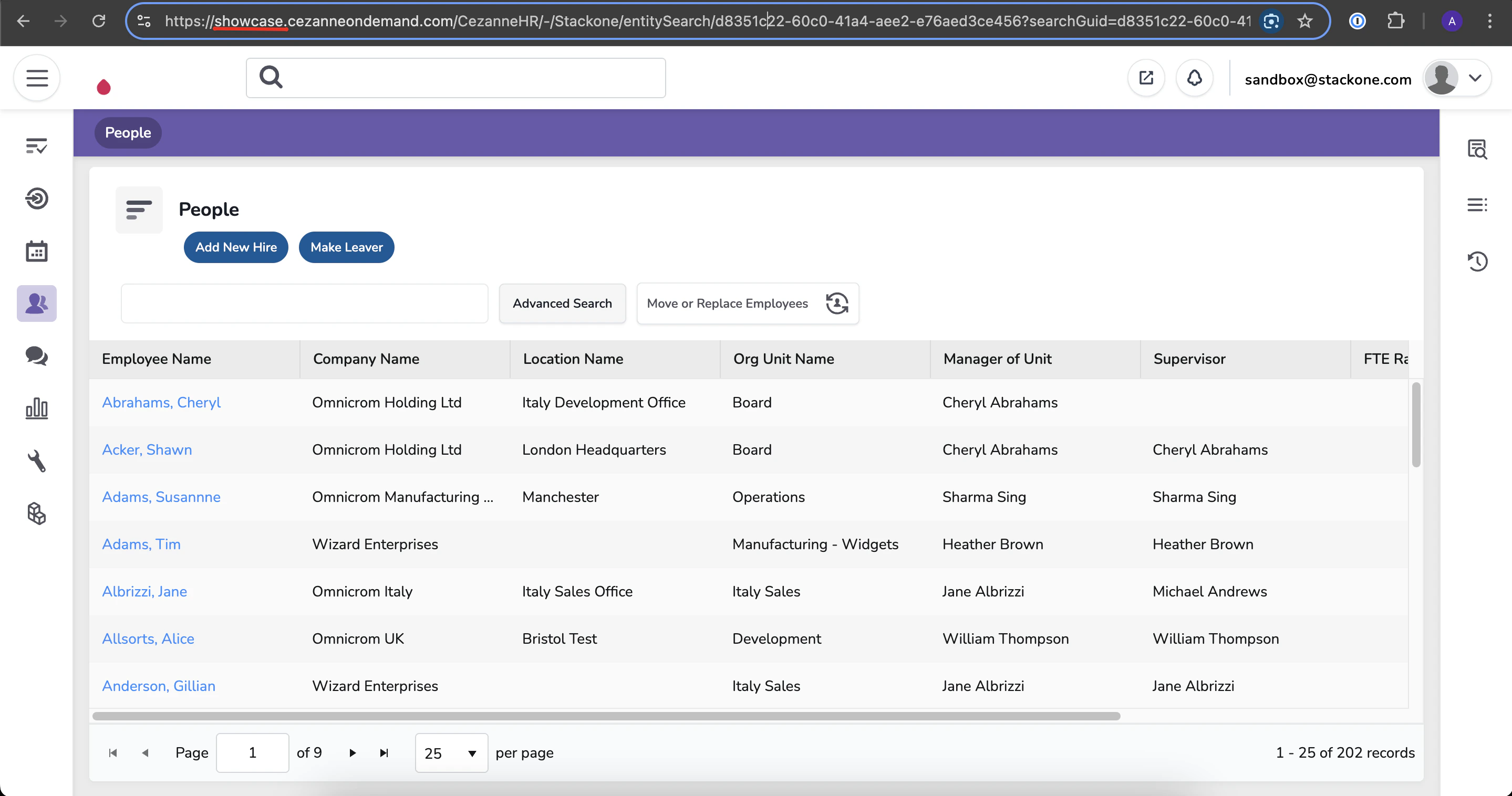
    You can find the subdomain in the URL of your Cezanne HR account by taking the portion that appears before `.cezanneondemand.com` and after `https://`.
    <Frame>
      <img className="rounded-md" style={{ margin: '0 auto', border: '1px solid #efefef' }} alt="Subdomain Example" src="https://mintcdn.com/stackone-hub-claude-issue-384-20260409-1436/_o5wW7tnj99F2Kie/images/cezannehr/image6.png?fit=max&auto=format&n=_o5wW7tnj99F2Kie&q=85&s=c8c6b0c41d1c6935e77bf939d180494e" width="2878" height="1516" data-path="images/cezannehr/image6.png" />
    </Frame>
  </Step>
</Steps>

## Creating an Application

<Steps>
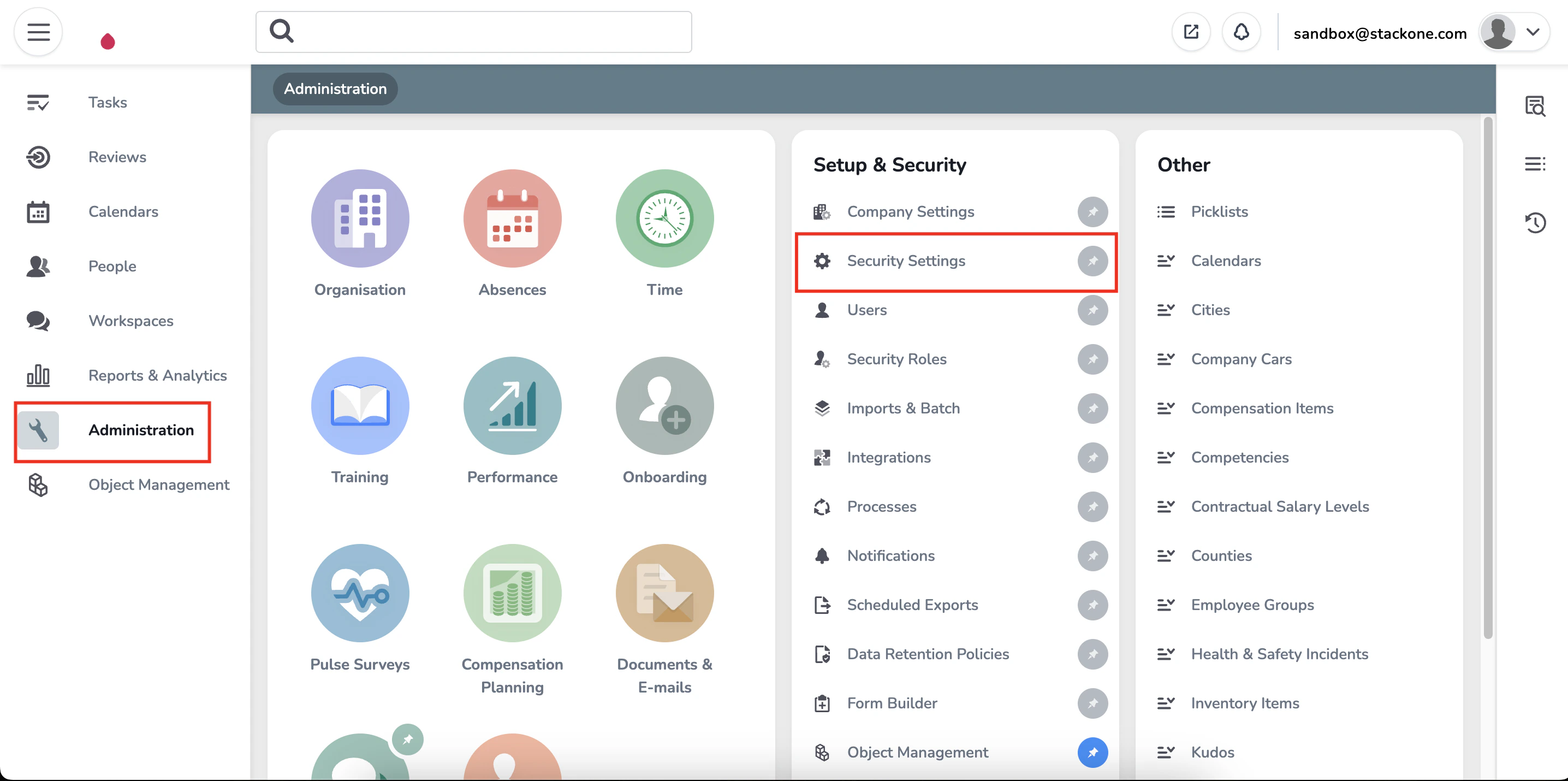
  <Step title="Navigate to Applications">
    Sign in to your Cezanne HR account.

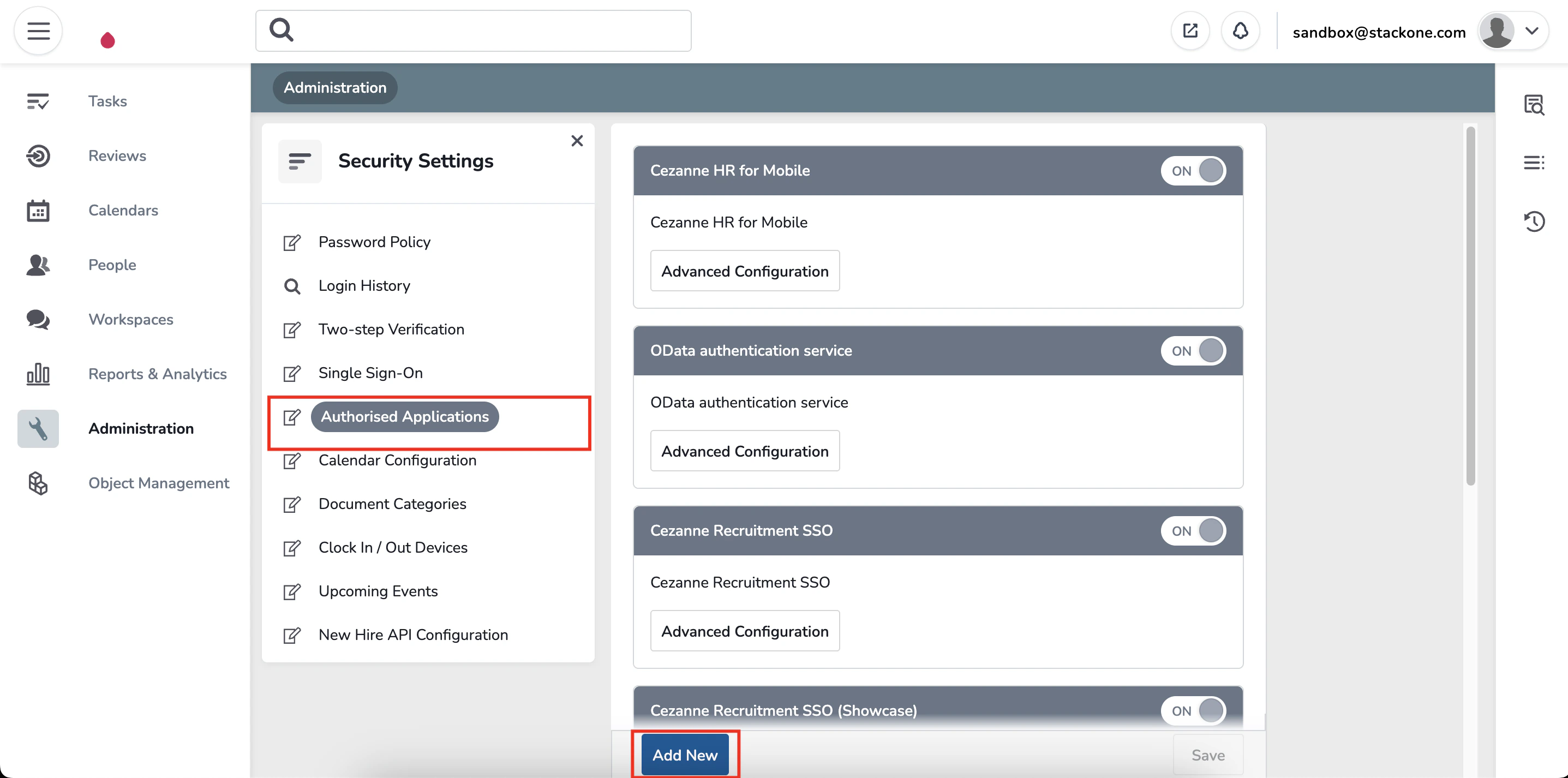
    In the sidebar, navigate to `Administration` → `Security Settings` → `Authorised Applications`.

    Click **Add New**.
    <Frame>
      <img className="rounded-md" style={{ margin: '0 auto', border: '1px solid #efefef' }} alt="Navigate to Applications" src="https://mintcdn.com/stackone-hub-claude-issue-384-20260409-1436/_o5wW7tnj99F2Kie/images/cezannehr/image1.png?fit=max&auto=format&n=_o5wW7tnj99F2Kie&q=85&s=41be8e446b7583d5dcb5dfc7fff172d2" width="2872" height="1430" data-path="images/cezannehr/image1.png" />
    </Frame>

    <Frame>
      <img className="rounded-md" style={{ margin: '0 auto', border: '1px solid #efefef' }} alt="Navigate to Applications" src="https://mintcdn.com/stackone-hub-claude-issue-384-20260409-1436/_o5wW7tnj99F2Kie/images/cezannehr/image2.png?fit=max&auto=format&n=_o5wW7tnj99F2Kie&q=85&s=34d0512a8a9a19b4e48cdcf5bcccfb35" width="2874" height="1426" data-path="images/cezannehr/image2.png" />
    </Frame>
  </Step>

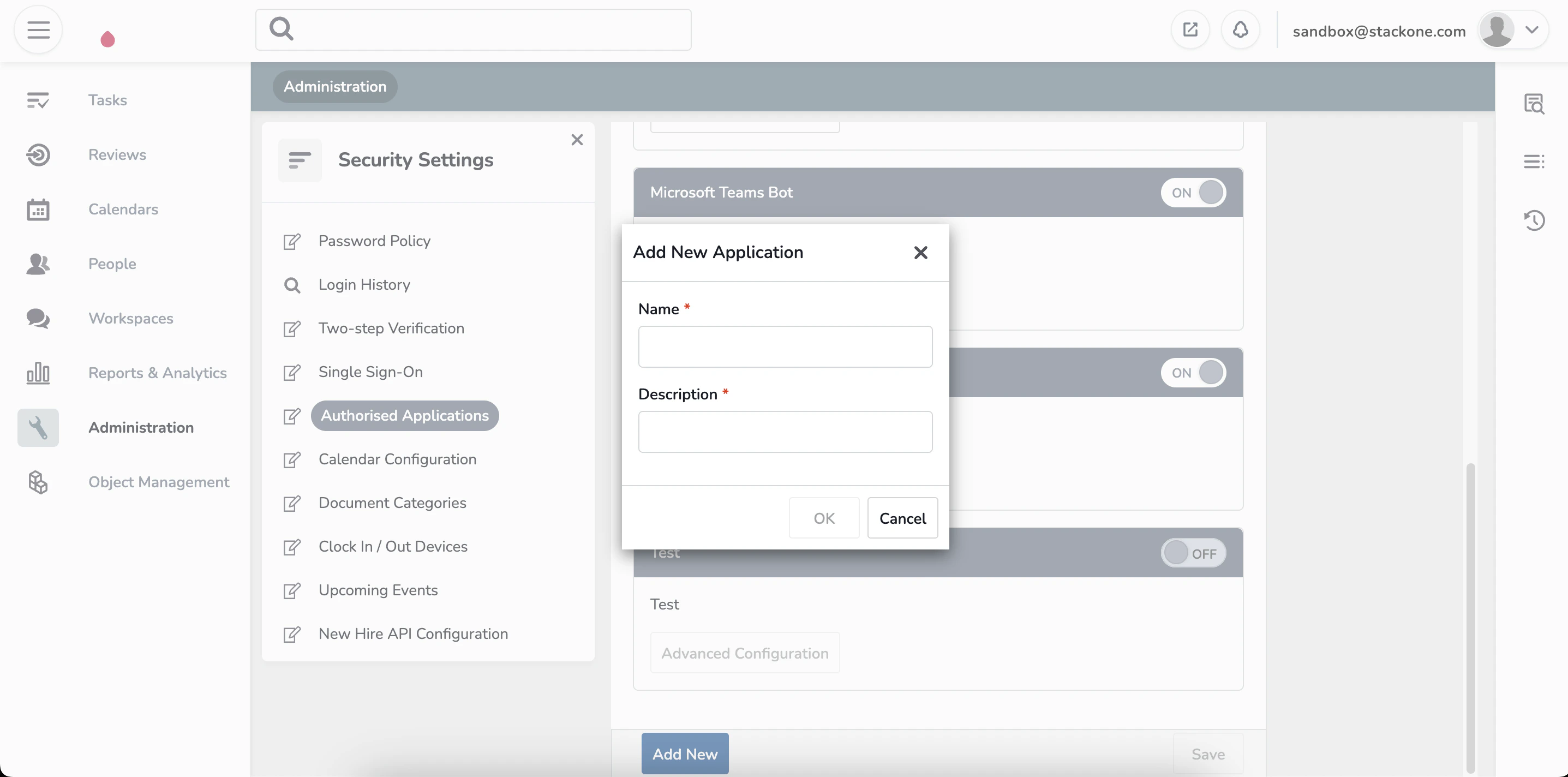
  <Step title="Creating an Application">
    Enter `Name` and `Description` for the application.

    Click **Ok**.
    <Frame>
      <img className="rounded-md" style={{ margin: '0 auto', border: '1px solid #efefef' }} alt="Creating Application" src="https://mintcdn.com/stackone-hub-claude-issue-384-20260409-1436/_o5wW7tnj99F2Kie/images/cezannehr/image3.png?fit=max&auto=format&n=_o5wW7tnj99F2Kie&q=85&s=a0fa1bada172e2503af32970f43575ae" width="2874" height="1424" data-path="images/cezannehr/image3.png" />
    </Frame>

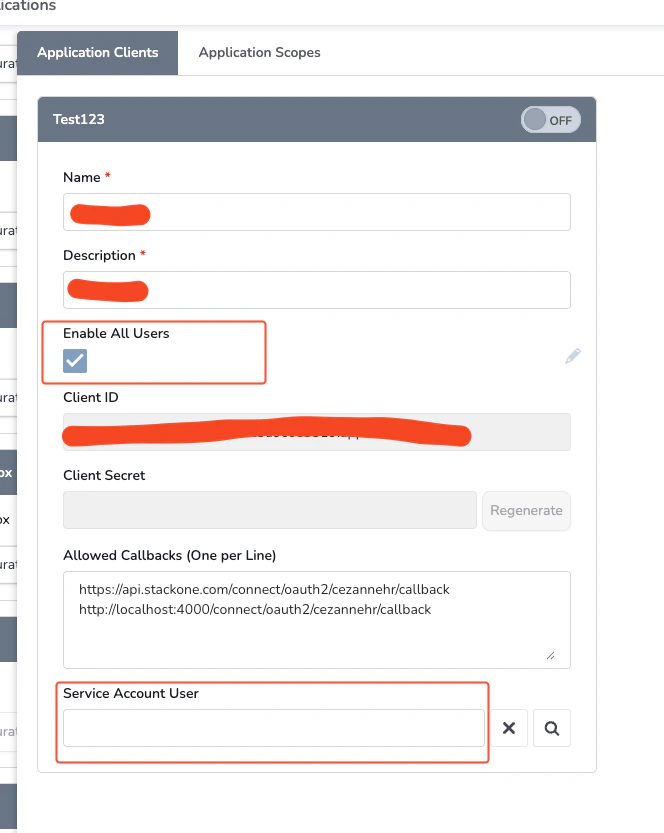
    Check the **Enable All Users** checkbox to allow any service user to authenticate using this application. If unchecked, only users explicitly added will be able to authenticate.
    <Frame>
      <img className="rounded-md" style={{ margin: '0 auto', border: '1px solid #efefef' }} alt="Enable All Users" src="https://mintcdn.com/stackone-hub-claude-issue-384-20260409-1436/_o5wW7tnj99F2Kie/images/cezannehr/image11.png?fit=max&auto=format&n=_o5wW7tnj99F2Kie&q=85&s=96b1a728a87db2782fb1104dc248bde4" width="664" height="833" data-path="images/cezannehr/image11.png" />
    </Frame>

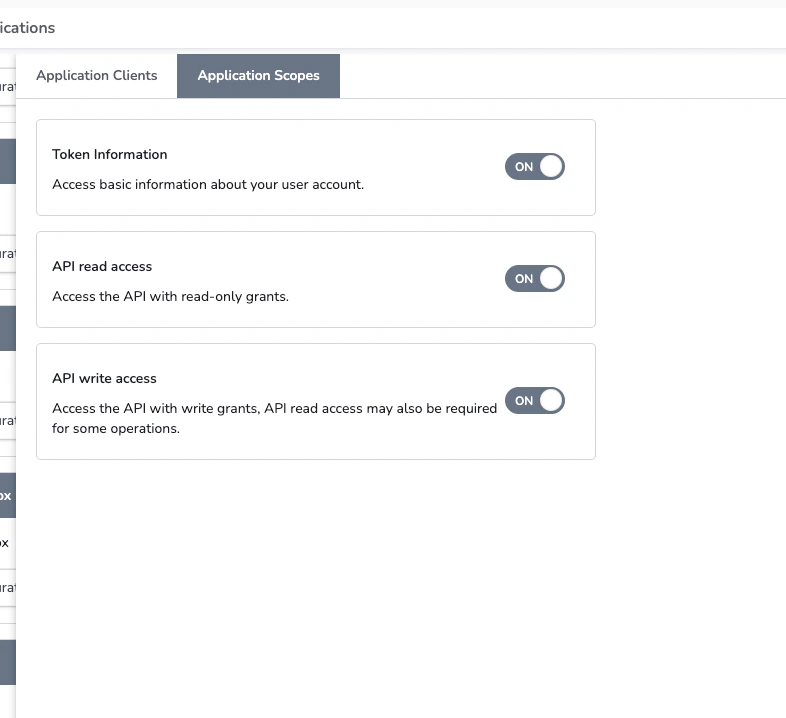
    In the scopes section, ensure at a minimum the following permissions are enabled:

    * **Token Details** - Required for authentication
    * **API Read Access** - Required for data retrieval
    <Frame>
      <img className="rounded-md" style={{ margin: '0 auto', border: '1px solid #efefef' }} alt="Configure Scopes" src="https://mintcdn.com/stackone-hub-claude-issue-384-20260409-1436/_o5wW7tnj99F2Kie/images/cezannehr/image12.png?fit=max&auto=format&n=_o5wW7tnj99F2Kie&q=85&s=cfec647f0632966b5d287a9632bdf8df" width="786" height="718" data-path="images/cezannehr/image12.png" />
    </Frame>

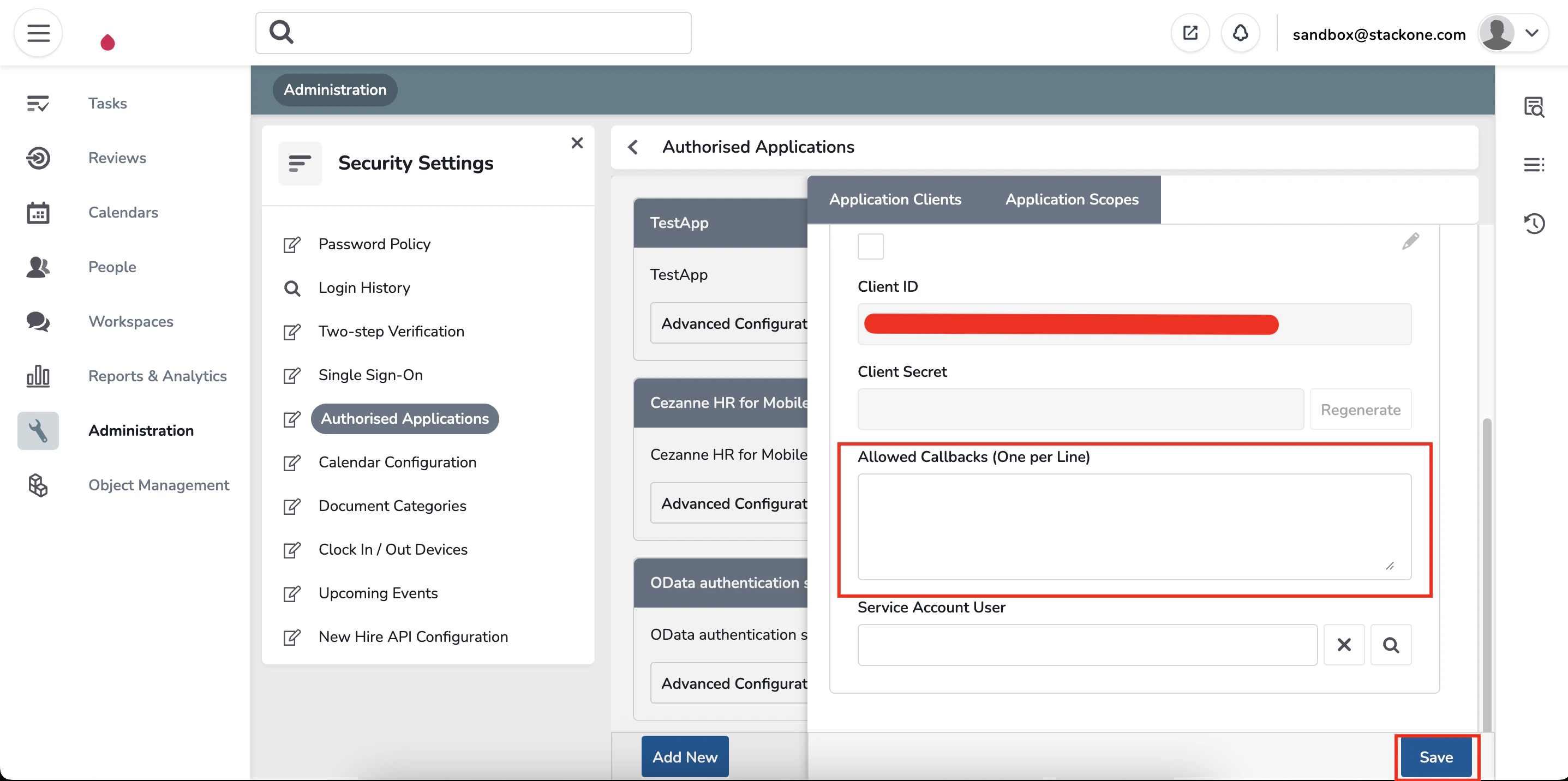
    In the `Allowed Callbacks` field, enter the following URL:

    ```
    https://api.stackone.com/connect/oauth2/cezannehr/callback
    ```

    Click **Save**.
    <Frame>
      <img className="rounded-md" style={{ margin: '0 auto', border: '1px solid #efefef' }} alt="Creating Application" src="https://mintcdn.com/stackone-hub-claude-issue-384-20260409-1436/_o5wW7tnj99F2Kie/images/cezannehr/image4.png?fit=max&auto=format&n=_o5wW7tnj99F2Kie&q=85&s=1413b6df7fa0d68c0a5eb8dab7f95d71" width="2874" height="1432" data-path="images/cezannehr/image4.png" />
    </Frame>
  </Step>

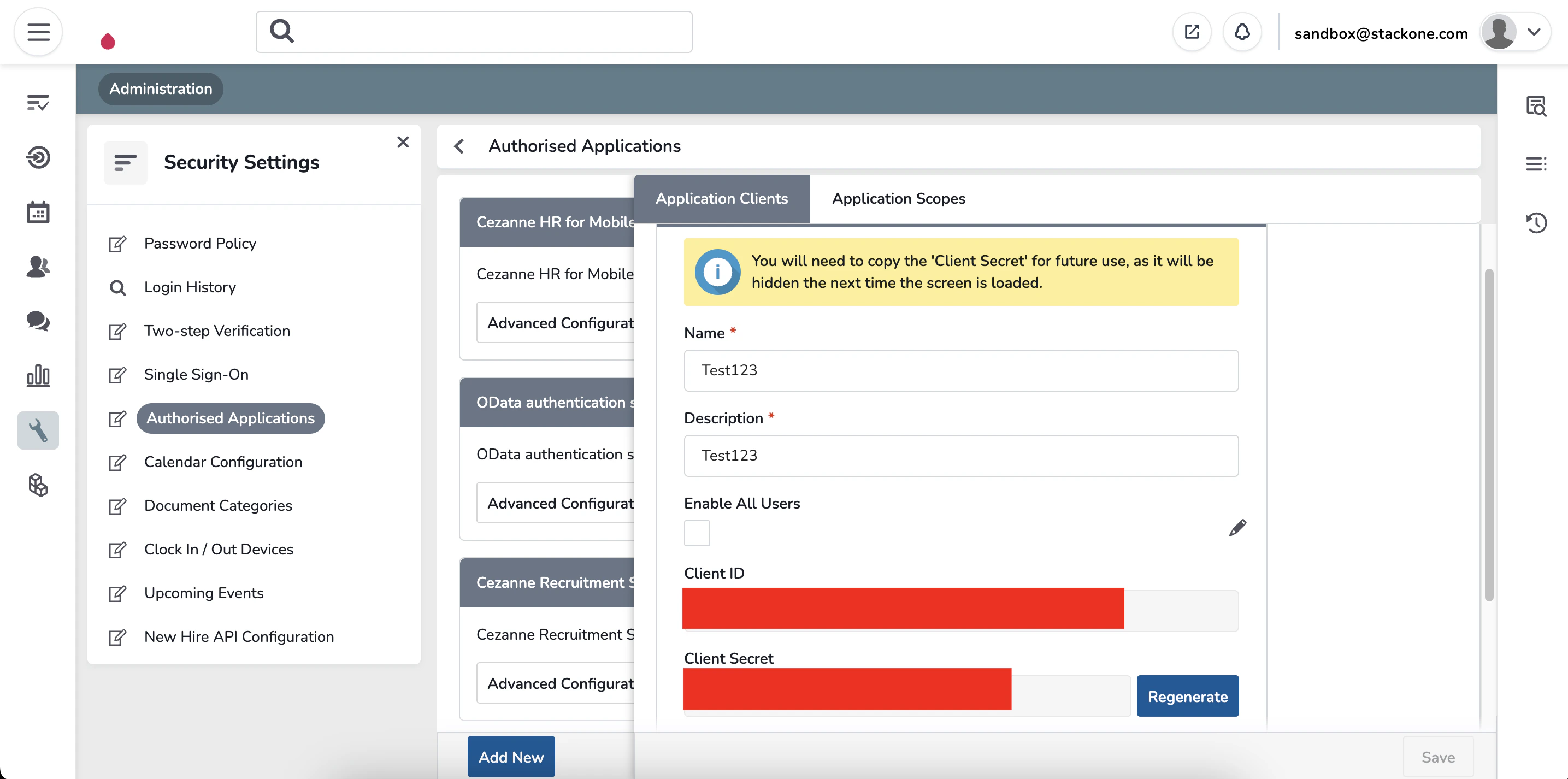
  <Step title="Note Client ID and Client Secret">
    Record the `Client ID` and `Client Secret` for use in the next steps.
    <Frame>
      <img className="rounded-md" style={{ margin: '0 auto', border: '1px solid #efefef' }} alt="Creating Application" src="https://mintcdn.com/stackone-hub-claude-issue-384-20260409-1436/_o5wW7tnj99F2Kie/images/cezannehr/image5.png?fit=max&auto=format&n=_o5wW7tnj99F2Kie&q=85&s=45b32347626dc7d3381812e0a40f12d9" width="2870" height="1426" data-path="images/cezannehr/image5.png" />
    </Frame>
  </Step>
</Steps>

## Linking to StackOne

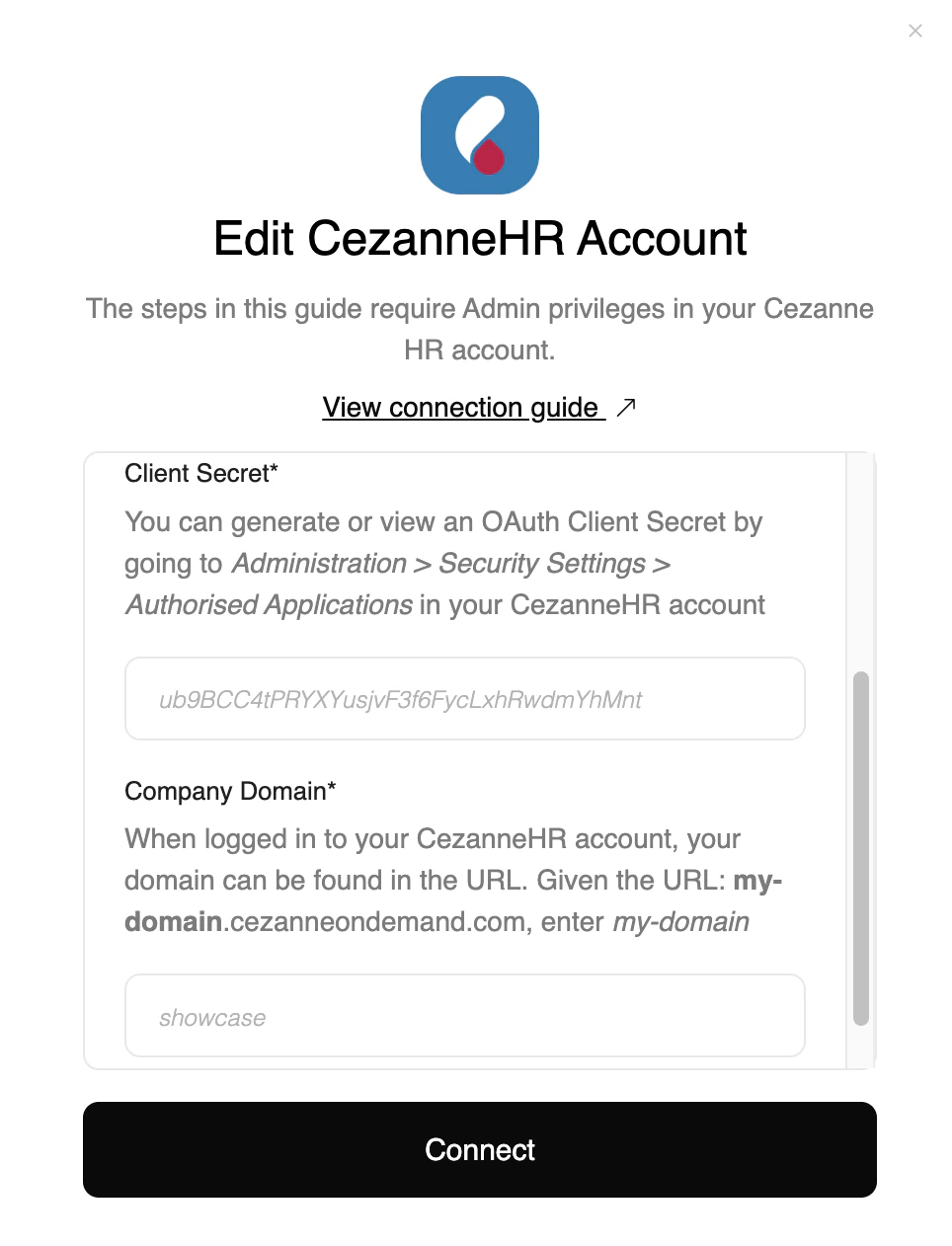
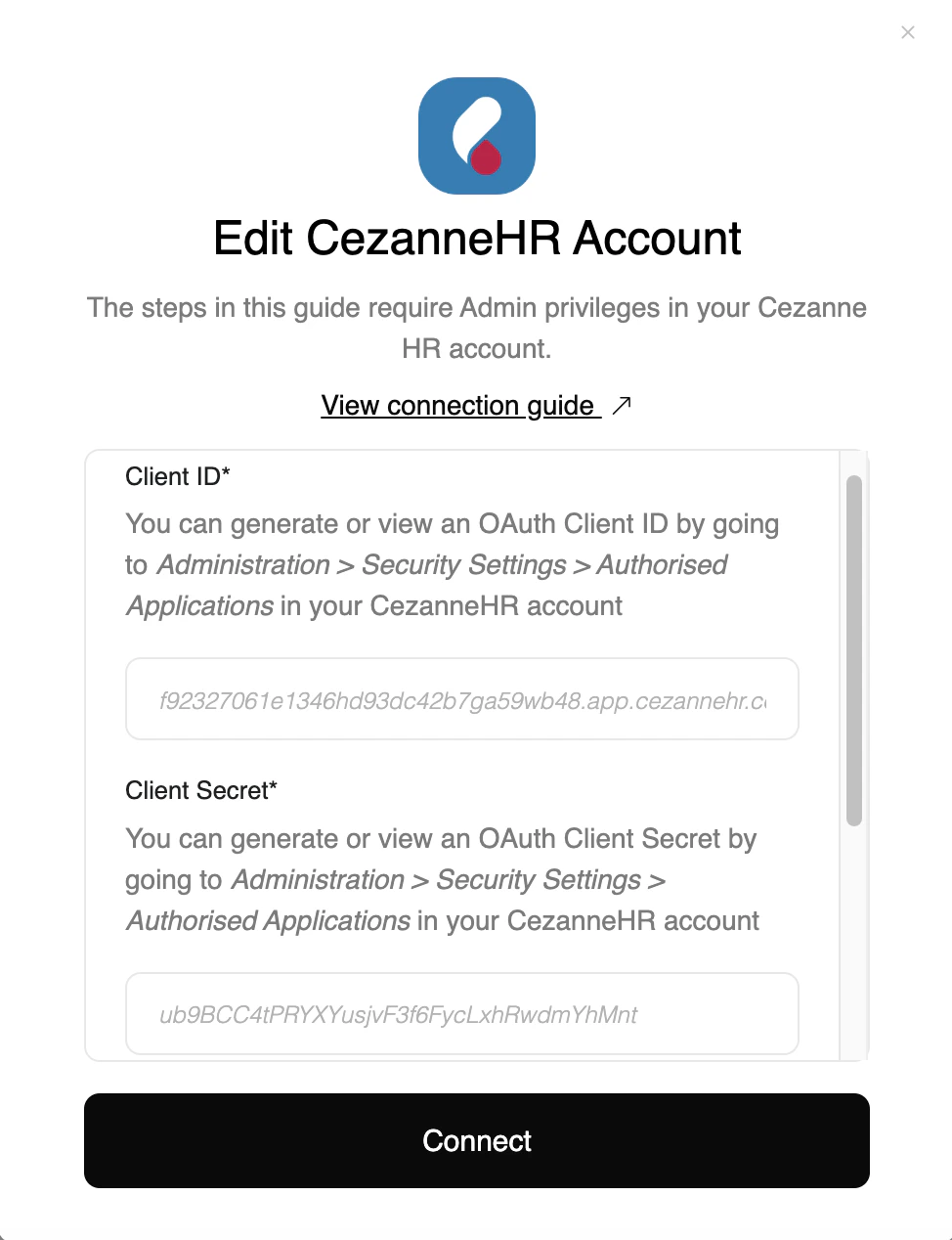
You can use the `Client ID`, `Client Secret`, and `Domain` to link your Cezanne HR account with StackOne.

<Steps>
  <Step title="Link Cezanne HR Account">
    In the modal, enter the `Client ID`, `Client Secret`, and `Domain` from the previous steps.

    Click **Connect**.
    <Frame>
      <img className="rounded-md" style={{ margin: '0 auto', border: '1px solid #efefef' }} alt="Link Account" src="https://mintcdn.com/stackone-hub-claude-issue-384-20260409-1436/_o5wW7tnj99F2Kie/images/cezannehr/image7.png?fit=max&auto=format&n=_o5wW7tnj99F2Kie&q=85&s=0ca0a0d036db017e747057ada10e2411" width="974" height="1268" data-path="images/cezannehr/image7.png" />

      <img className="rounded-md" style={{ margin: '0 auto', border: '1px solid #efefef' }} alt="Link Account" src="https://mintcdn.com/stackone-hub-claude-issue-384-20260409-1436/_o5wW7tnj99F2Kie/images/cezannehr/image8.png?fit=max&auto=format&n=_o5wW7tnj99F2Kie&q=85&s=d27142e5725920a4dbe294619179cb9e" width="964" height="1262" data-path="images/cezannehr/image8.png" />
    </Frame>
  </Step>

  <Step title="Enter Login Details">
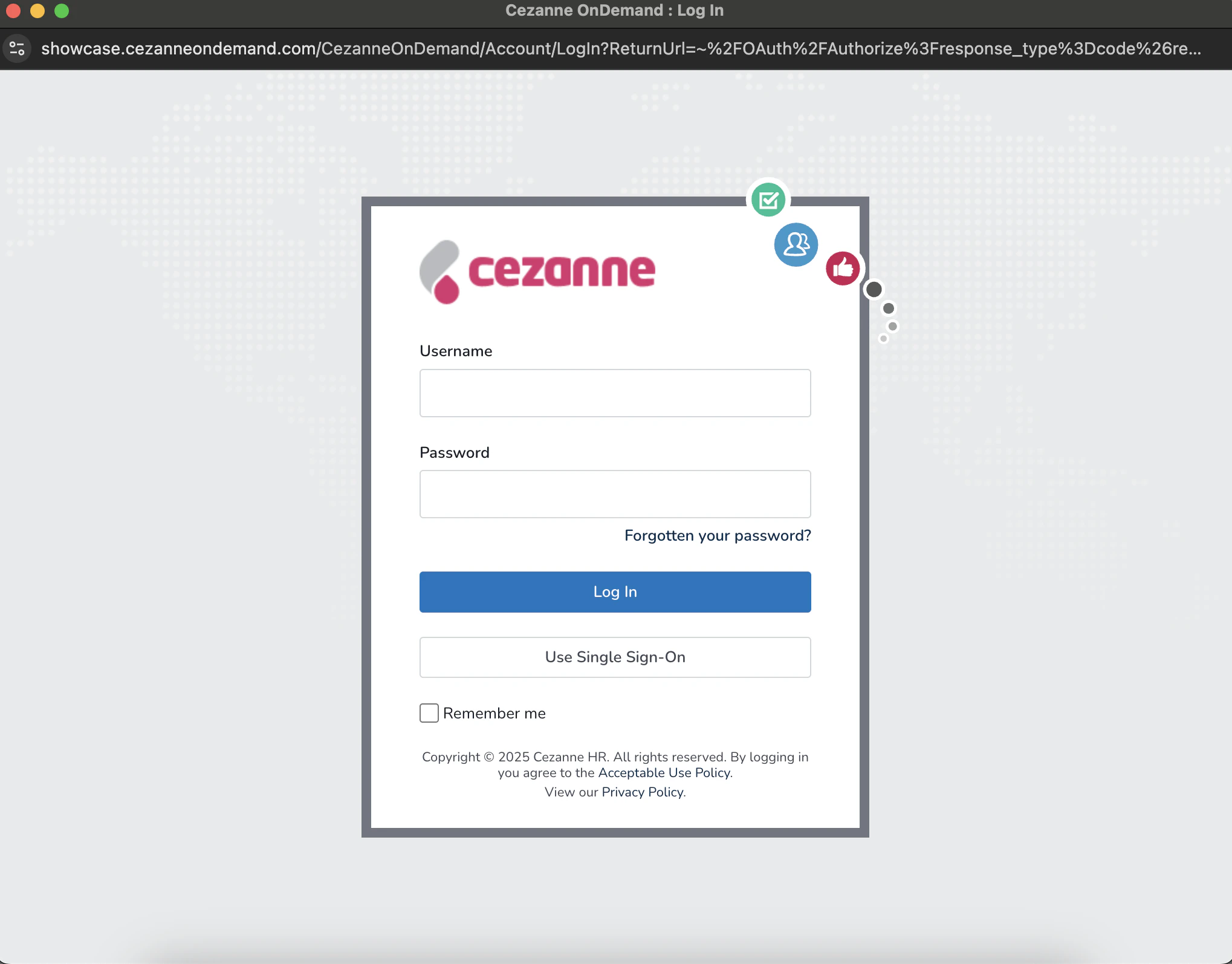
    In the Cezanne HR popup modal, enter your `Email` and `Password`.

    Click **Log In**.
    <Frame>
      <img className="rounded-md" style={{ margin: '0 auto', border: '1px solid #efefef' }} alt="Link Account" src="https://mintcdn.com/stackone-hub-claude-issue-384-20260409-1436/_o5wW7tnj99F2Kie/images/cezannehr/image9.png?fit=max&auto=format&n=_o5wW7tnj99F2Kie&q=85&s=bd457279d14619004b58d6c96009c952" width="2038" height="1594" data-path="images/cezannehr/image9.png" />
    </Frame>
  </Step>

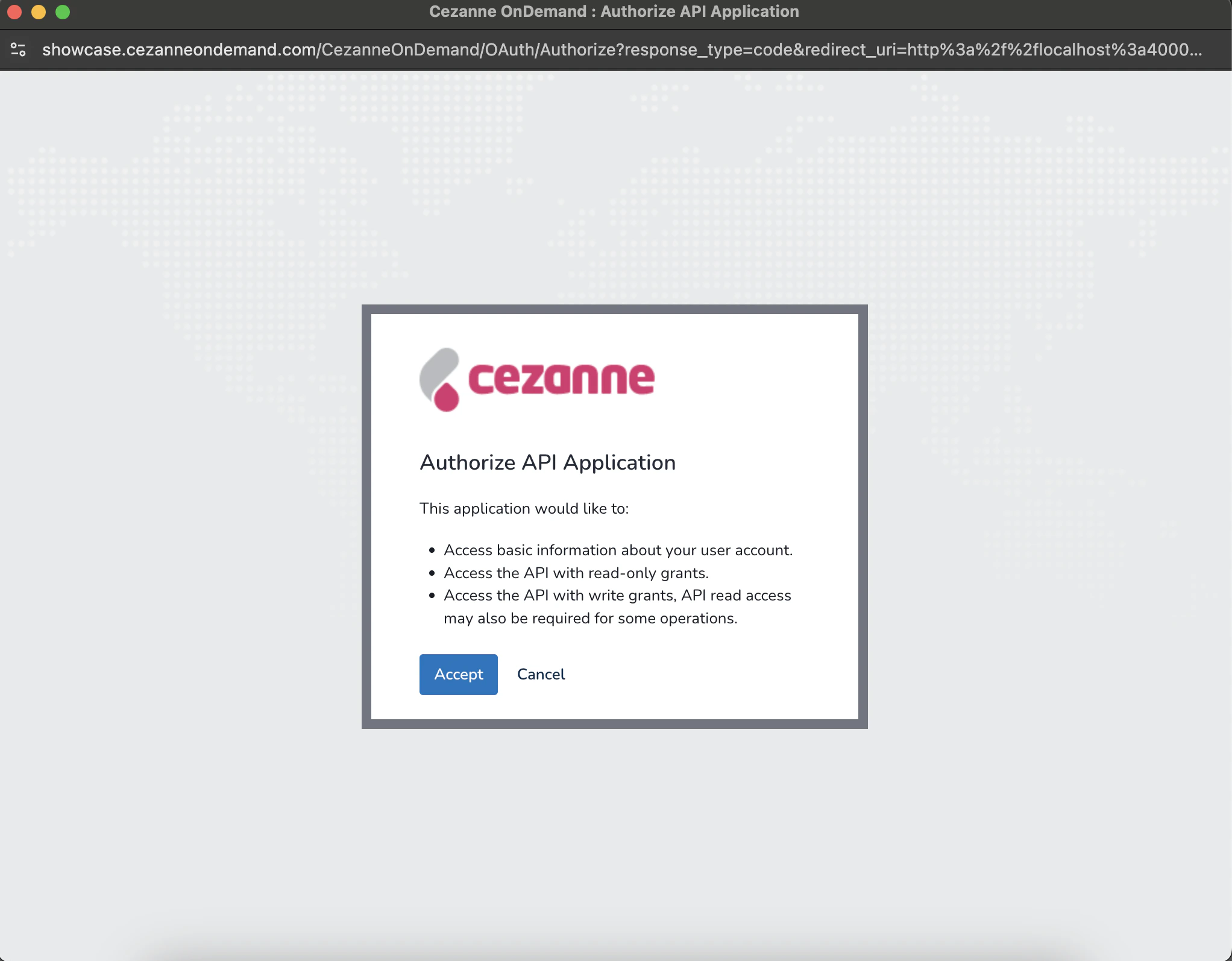
  <Step title="Authorize Request">
    Click **Accept**.

    <Frame>
      <img className="rounded-md" style={{ margin: '0 auto', border: '1px solid #efefef' }} alt="Link Account" src="https://mintcdn.com/stackone-hub-claude-issue-384-20260409-1436/_o5wW7tnj99F2Kie/images/cezannehr/image10.png?fit=max&auto=format&n=_o5wW7tnj99F2Kie&q=85&s=57678e4b5b162781ec6d47de92a78591" width="2044" height="1594" data-path="images/cezannehr/image10.png" />
    </Frame>
  </Step>
</Steps>

<br />

Congratulations, you're all set! If you face any issues with the steps mentioned above,
please contact us by emailing [integrations@stackone.com](mailto:integrations@stackone.com). We're always here to assist you!

## Useful Links

<Card title="API Reference" icon="link" href="https://api.cezannehr.com/">
  [https://api.cezannehr.com/](https://api.cezannehr.com/)
</Card>