> ## Documentation Index
> Fetch the complete documentation index at: https://stackone-hub-claude-issue-384-20260409-1436.mintlify.site/llms.txt
> Use this file to discover all available pages before exploring further.
# BambooHR
> Follow these steps to connect BambooHR with StackOne Hub successfully.
Ensure you have Admin privileges for your BambooHR account.
If you've been directed to StackOne to integrate with BambooHR, the following steps will help you understand the process and any necessary actions to configure successful integration.
## Getting your Company Domain
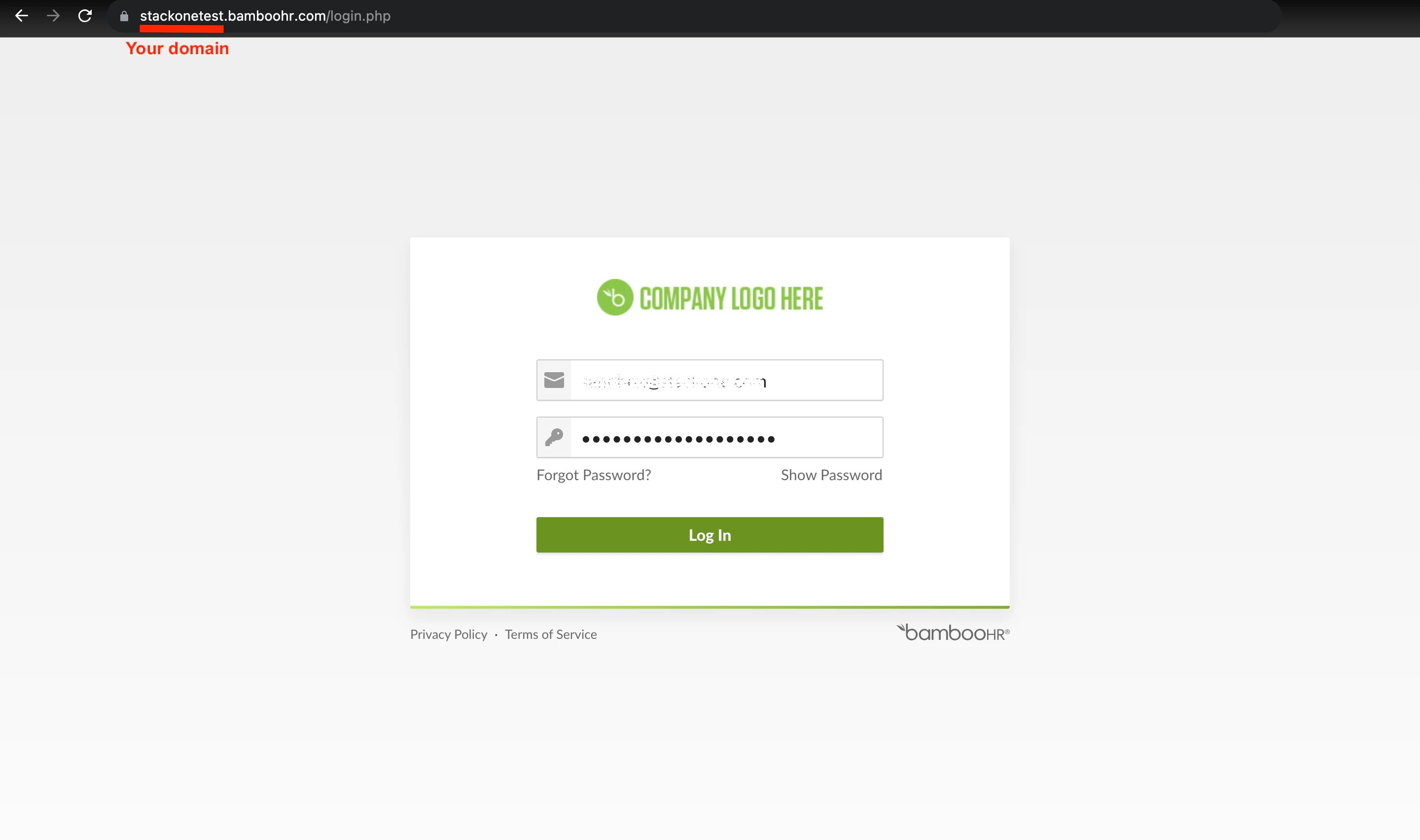
Sign in to your BambooHR instance and take note of your company domain as the URL's prefix. In the example below, the Company Domain is `stackonetest`.
 ## OpenID SSO Authentication
For SSO authentication, StackOne Hub requires specifying only your Company Domain from step 1.
### File Upload permission
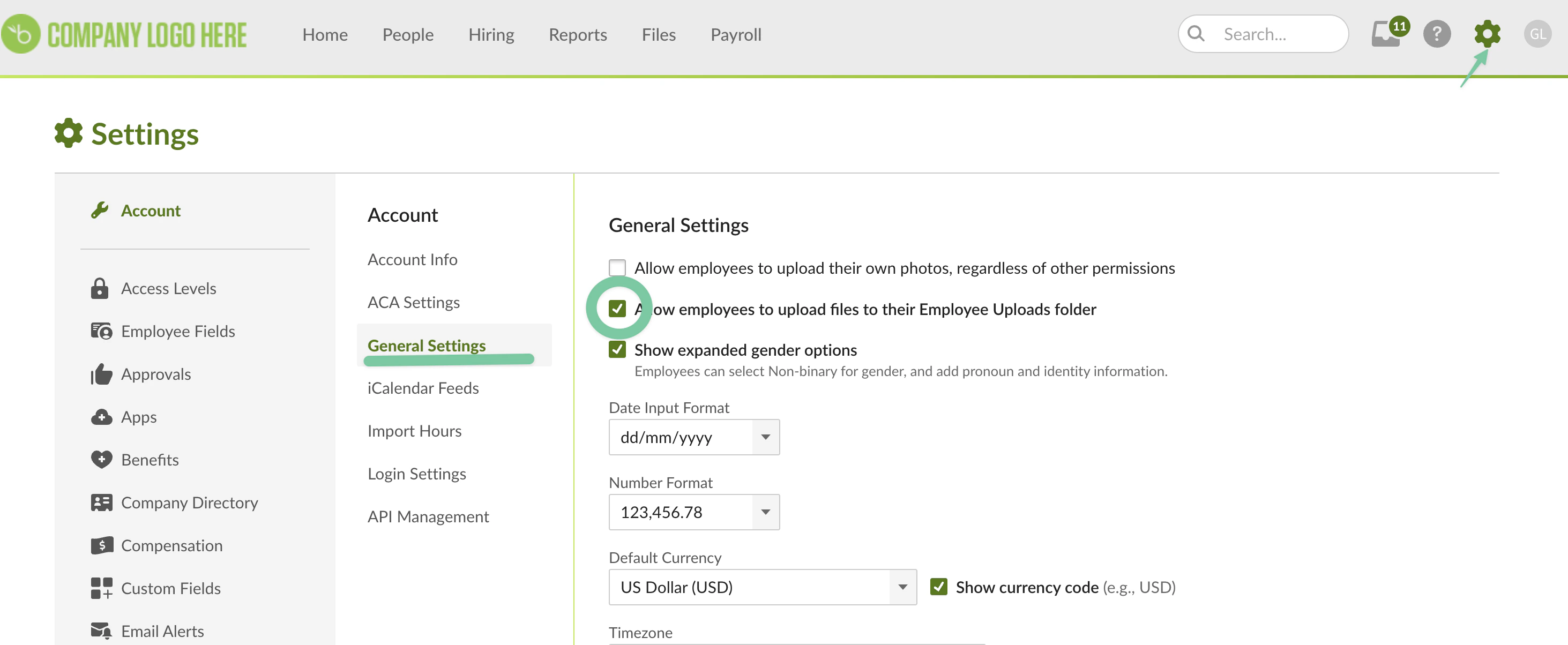
If you want to allow the connection to upload files to Employee folders, you need to enable the `Enable Employee Uploads` setting via `Account Settings > Account > General Settings`.
## OpenID SSO Authentication
For SSO authentication, StackOne Hub requires specifying only your Company Domain from step 1.
### File Upload permission
If you want to allow the connection to upload files to Employee folders, you need to enable the `Enable Employee Uploads` setting via `Account Settings > Account > General Settings`.
 ## Generating your API Key
If the connection form requires an API Key, follow these steps to generate it:
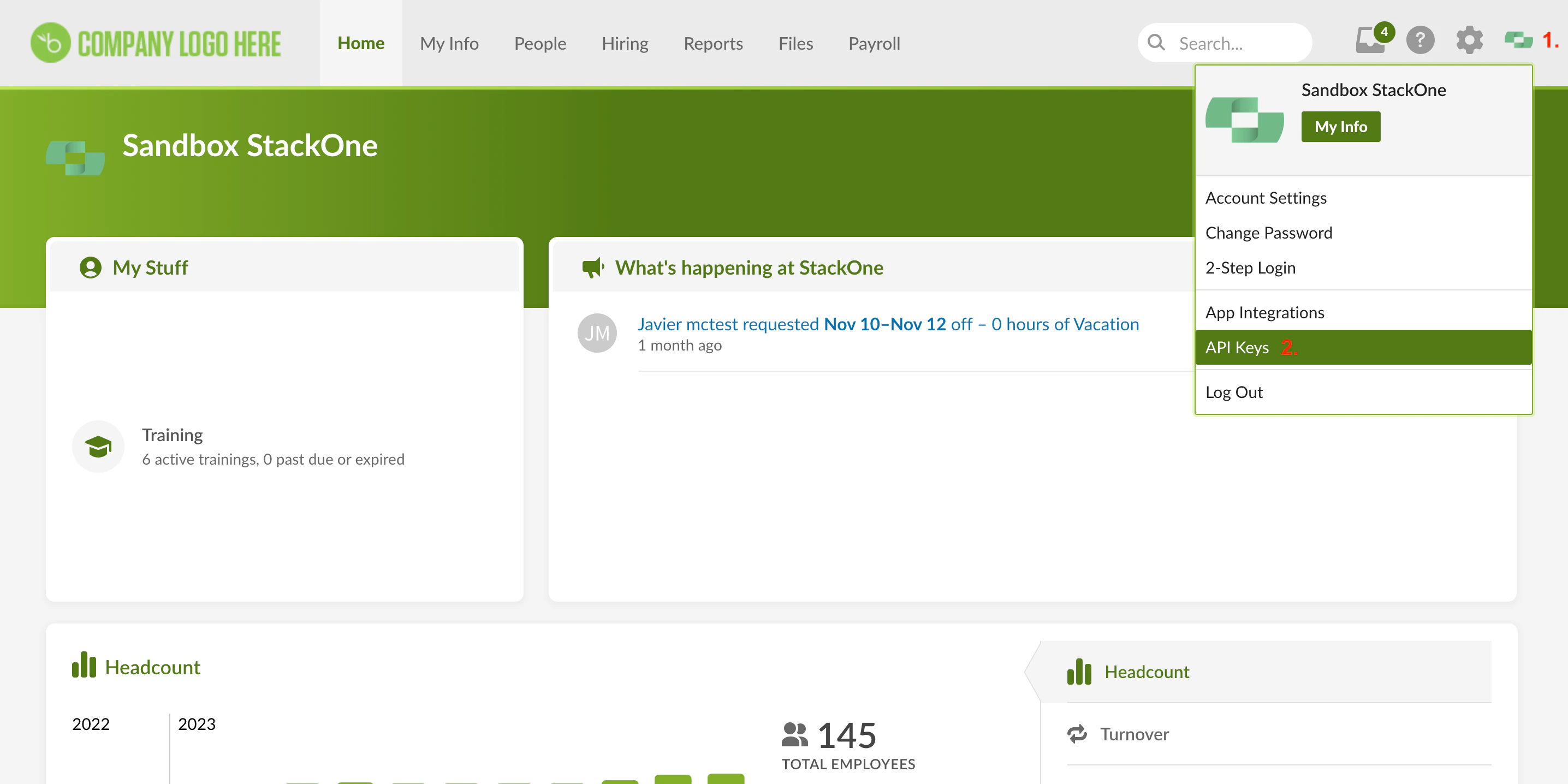
On the Home page, click on your Account avatar and select API Keys.
## Generating your API Key
If the connection form requires an API Key, follow these steps to generate it:
On the Home page, click on your Account avatar and select API Keys.
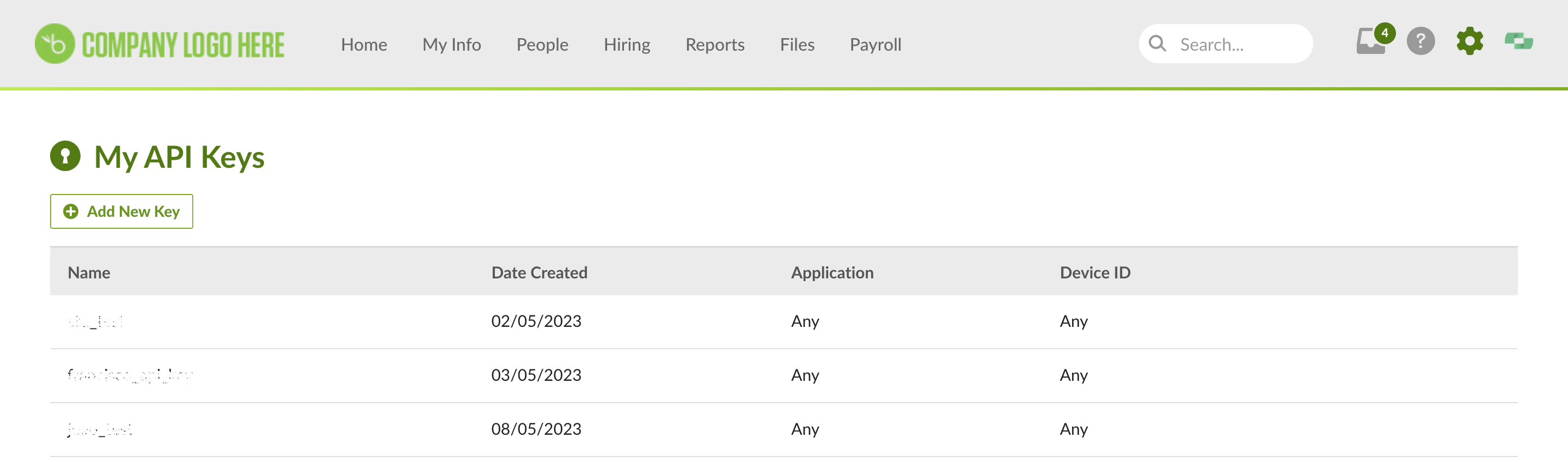
 Click Add New Key.
 Enter a name for the API key.
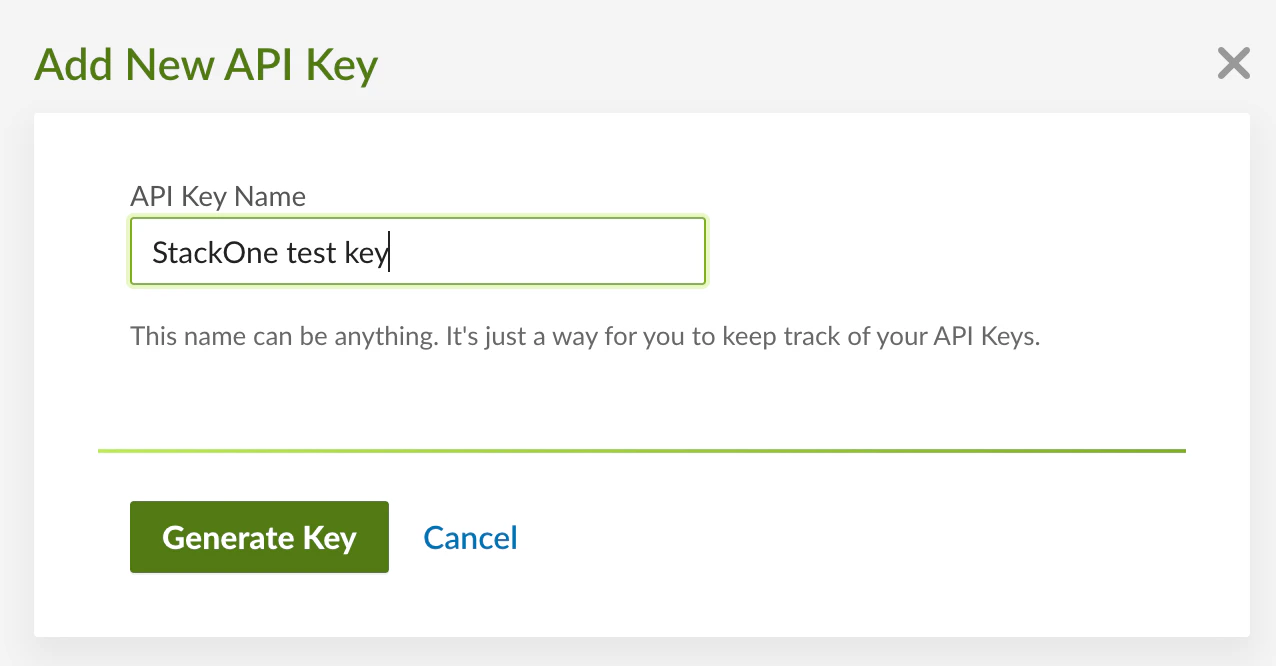 Click Generate Key.
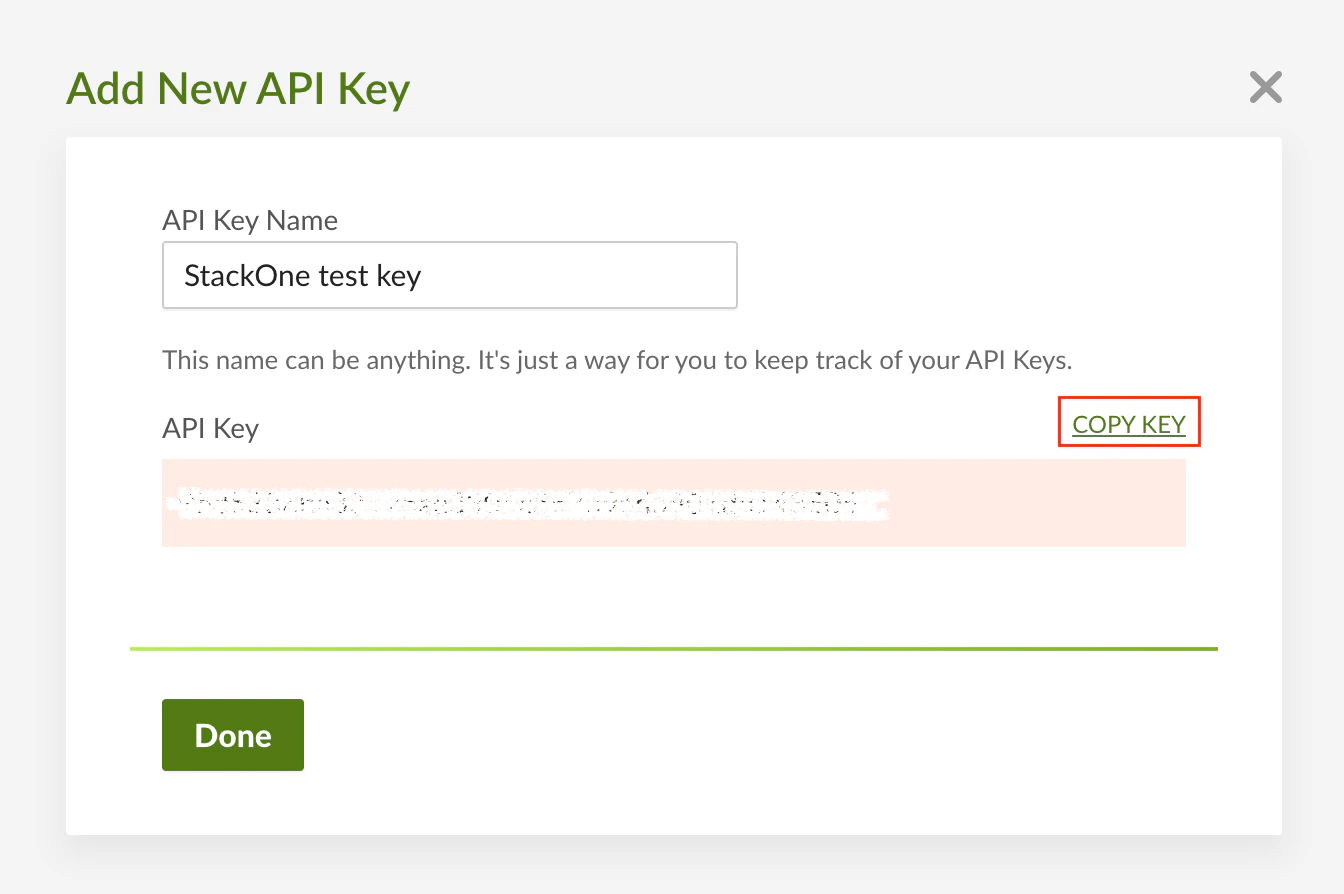
Click COPY KEY to copy the key to your clipboard (and then click Done).
Click Generate Key.
Click COPY KEY to copy the key to your clipboard (and then click Done).
 ## Connecting to StackOne
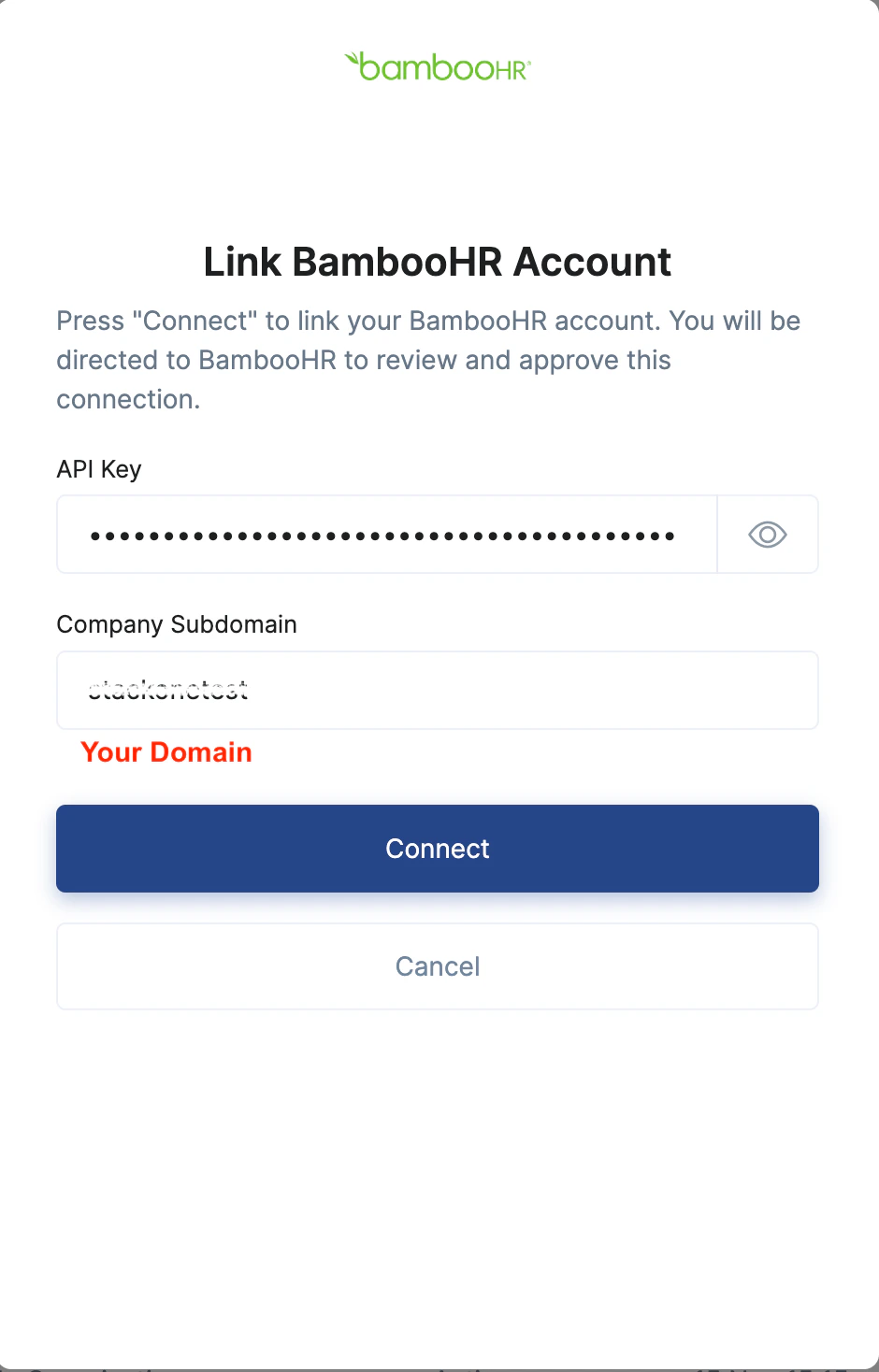
Upon reaching the Link Account page, enter the API Key and Company Domain details and proceed by clicking the `Connect` button.
## Connecting to StackOne
Upon reaching the Link Account page, enter the API Key and Company Domain details and proceed by clicking the `Connect` button.
Congratulations, you're all set! If you face any issues with the steps mentioned above,
please contact us by emailing [integrations@stackone.com](mailto:integrations@stackone.com). We're always here to assist you!