> ## Documentation Index
> Fetch the complete documentation index at: https://stackone-hub-claude-issue-384-20260409-1436.mintlify.site/llms.txt
> Use this file to discover all available pages before exploring further.

# SmartRecruiters

> Follow these steps to connect SmartRecruiters with StackOne Hub successfully.

<Warning>
  Ensure you have Admin privileges for your SmartRecruiters account.
</Warning>

If you've been directed to StackOne to integrate with SmartRecruiters, the following steps will help you understand the process and any necessary actions to configure successful integration.

## Generating Client ID and Clients Secret

<Steps>
  <Step title="Navigate to Settings">
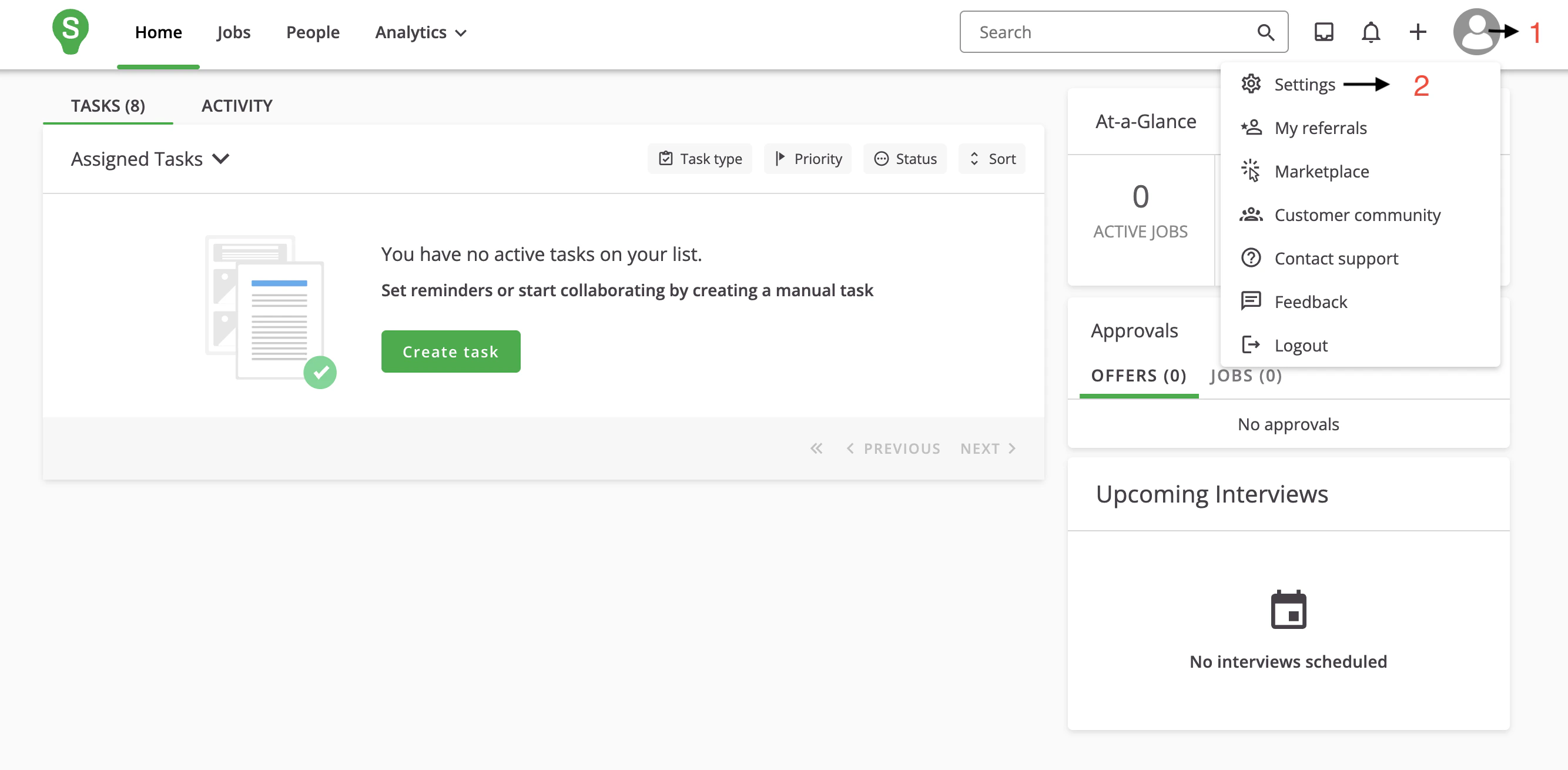
    On the Home page, click on your Account avatar and select Settings.
    <Frame>
      <img className="rounded-md" style={{ margin: '0 auto', border: '1px solid #efefef' }} alt="Account Avatar" src="https://mintcdn.com/stackone-hub-claude-issue-384-20260409-1436/knyftILoDWacwCGB/images/smartrecruiters/image1.png?fit=max&auto=format&n=knyftILoDWacwCGB&q=85&s=d2a320a4448f3fce269b28489f9f184b" width="2668" height="1310" data-path="images/smartrecruiters/image1.png" />
    </Frame>
  </Step>

  <Step title="Go to Apps & Integrations">
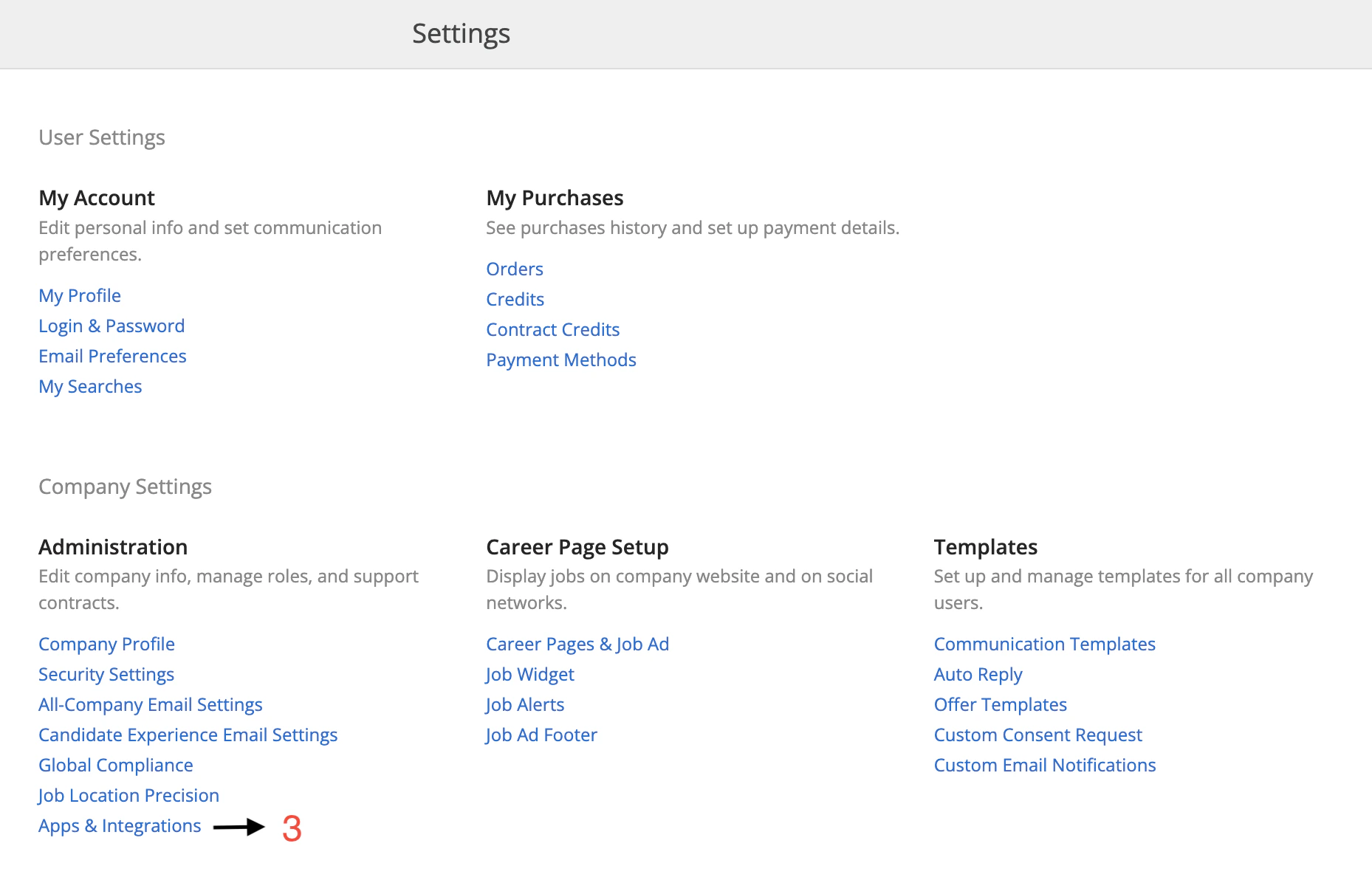
    On the Settings page, click on Apps & Integrations under the Administration section.
    <Frame>
      <img className="rounded-md" style={{ margin: '0 auto', border: '1px solid #efefef' }} alt="Apps & Integrations" src="https://mintcdn.com/stackone-hub-claude-issue-384-20260409-1436/knyftILoDWacwCGB/images/smartrecruiters/image2.png?fit=max&auto=format&n=knyftILoDWacwCGB&q=85&s=1bed5a0c39d1ea0a5ac960cd77b3341c" width="1858" height="1192" data-path="images/smartrecruiters/image2.png" />
    </Frame>
  </Step>

  <Step title="Open Credentials">
    On the Apps & Integrations page, click on CREDENTIALS.

    <Frame>
      <img className="rounded-md" style={{ margin: '0 auto', border: '1px solid #efefef' }} alt="Credentials" src="https://mintcdn.com/stackone-hub-claude-issue-384-20260409-1436/knyftILoDWacwCGB/images/smartrecruiters/image3.png?fit=max&auto=format&n=knyftILoDWacwCGB&q=85&s=5871c5ab0d58310b4f6528541ecd3f61" width="2772" height="308" data-path="images/smartrecruiters/image3.png" />
    </Frame>
  </Step>

  <Step title="Create New Credentials">
    On the CREDENTIALS page, click on the NEW CREDENTIALS button.

    <Frame>
      <img className="rounded-md" style={{ margin: '0 auto', border: '1px solid #efefef' }} alt="New Credentials" src="https://mintcdn.com/stackone-hub-claude-issue-384-20260409-1436/knyftILoDWacwCGB/images/smartrecruiters/image4.png?fit=max&auto=format&n=knyftILoDWacwCGB&q=85&s=a0d461531408a911570fd85726db8029" width="2464" height="492" data-path="images/smartrecruiters/image4.png" />
    </Frame>
  </Step>

  <Step title="Select OAuth Client ID">
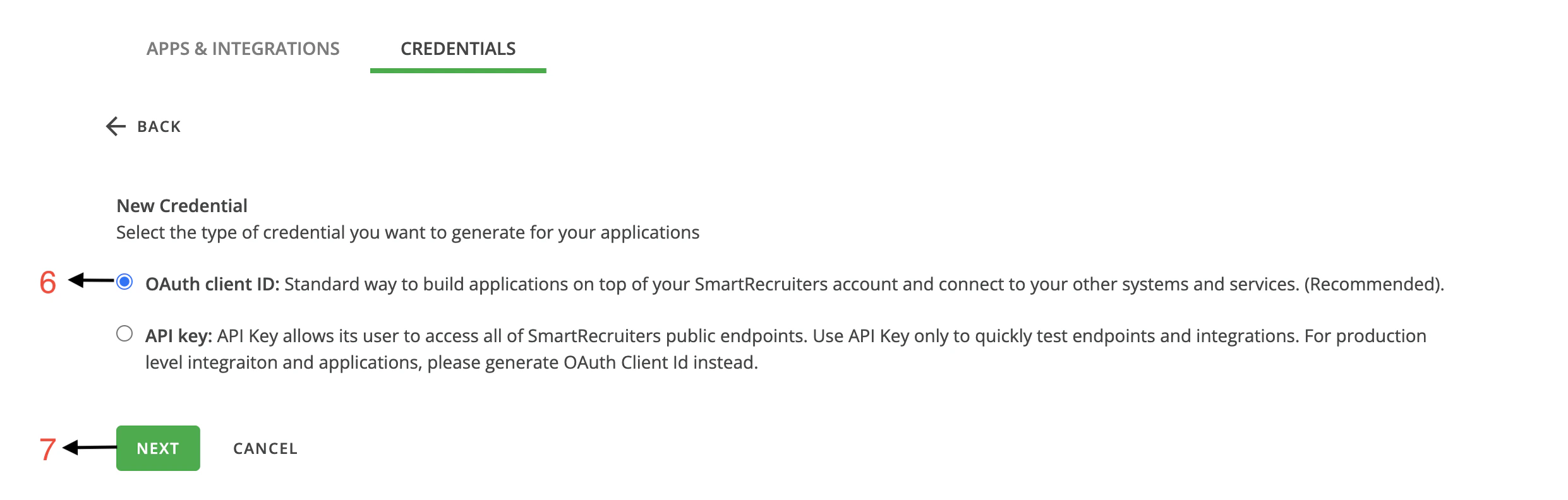
    Under the NEW CREDENTIALS section, select OAuth client ID then click on the NEXT button.
    <Frame>
      <img className="rounded-md" style={{ margin: '0 auto', border: '1px solid #efefef' }} alt="OAuth Client ID" src="https://mintcdn.com/stackone-hub-claude-issue-384-20260409-1436/knyftILoDWacwCGB/images/smartrecruiters/image5.png?fit=max&auto=format&n=knyftILoDWacwCGB&q=85&s=cf863796f93b21af0f55ce8ba6fc4794" width="2482" height="792" data-path="images/smartrecruiters/image5.png" />
    </Frame>
  </Step>

  <Step title="Generate Client ID and Secret">
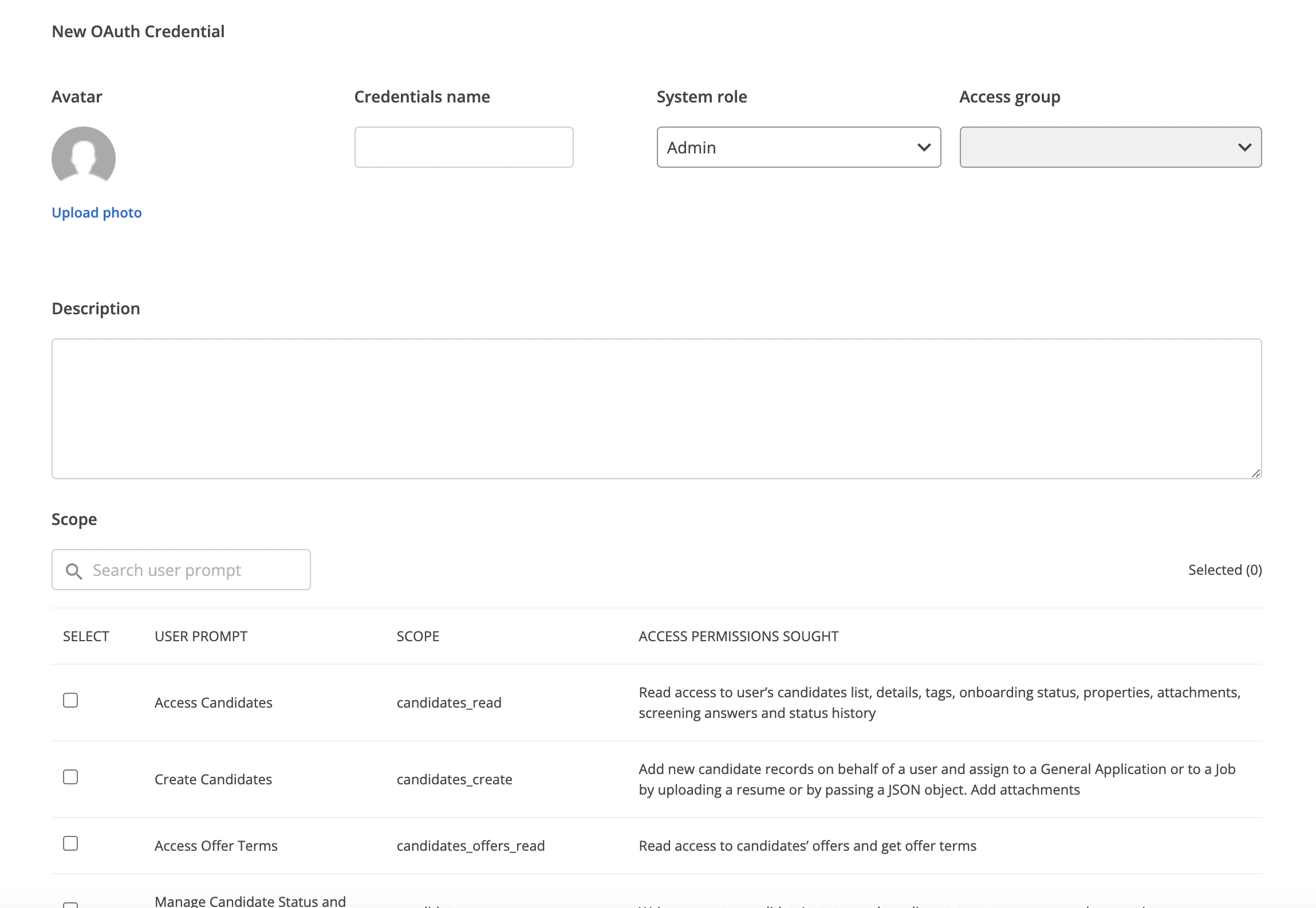
    On the OAuth client ID page, fill in the required Fields and select Scope, then click on the GENERATE button at the bottom of the page.
    <Frame>
      <img className="rounded-md" style={{ margin: '0 auto', border: '1px solid #efefef' }} alt="Generate Credentials" src="https://mintcdn.com/stackone-hub-claude-issue-384-20260409-1436/knyftILoDWacwCGB/images/smartrecruiters/image6.png?fit=max&auto=format&n=knyftILoDWacwCGB&q=85&s=7707d250f25ca274adc7822109c91158" width="2298" height="1586" data-path="images/smartrecruiters/image6.png" />
    </Frame>
  </Step>

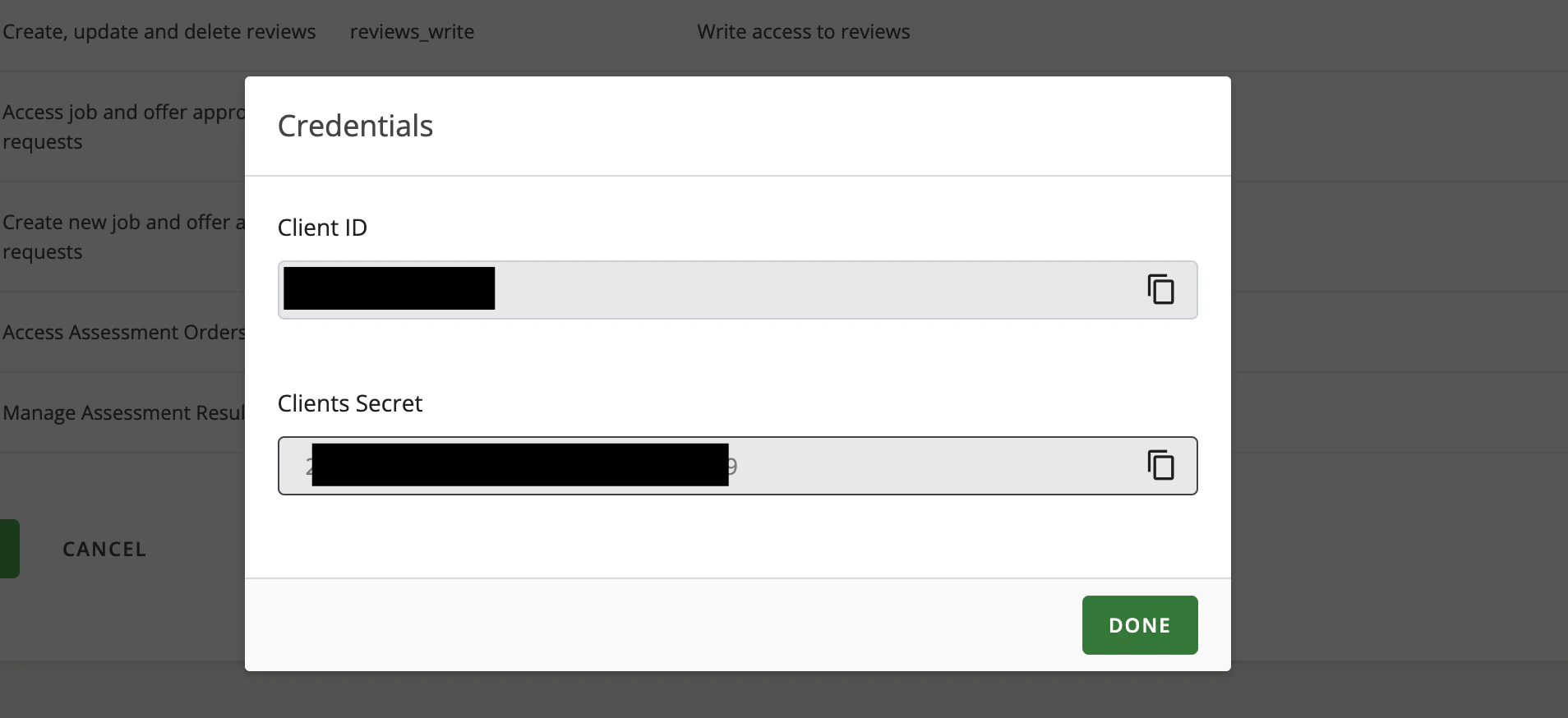
  <Step title="Copy Client ID and Secret">
    Copy your Client ID and Clients Secret by clicking Clipboard.
    <Frame>
      <img className="rounded-md" style={{ margin: '0 auto', border: '1px solid #efefef' }} alt="Copy Credentials" src="https://mintcdn.com/stackone-hub-claude-issue-384-20260409-1436/knyftILoDWacwCGB/images/smartrecruiters/image7.png?fit=max&auto=format&n=knyftILoDWacwCGB&q=85&s=1d1d4205df63f751a1314d44211409d0" width="1908" height="874" data-path="images/smartrecruiters/image7.png" />
    </Frame>
  </Step>
</Steps>

## Utilizing Client ID and Clients Secret

<Steps>
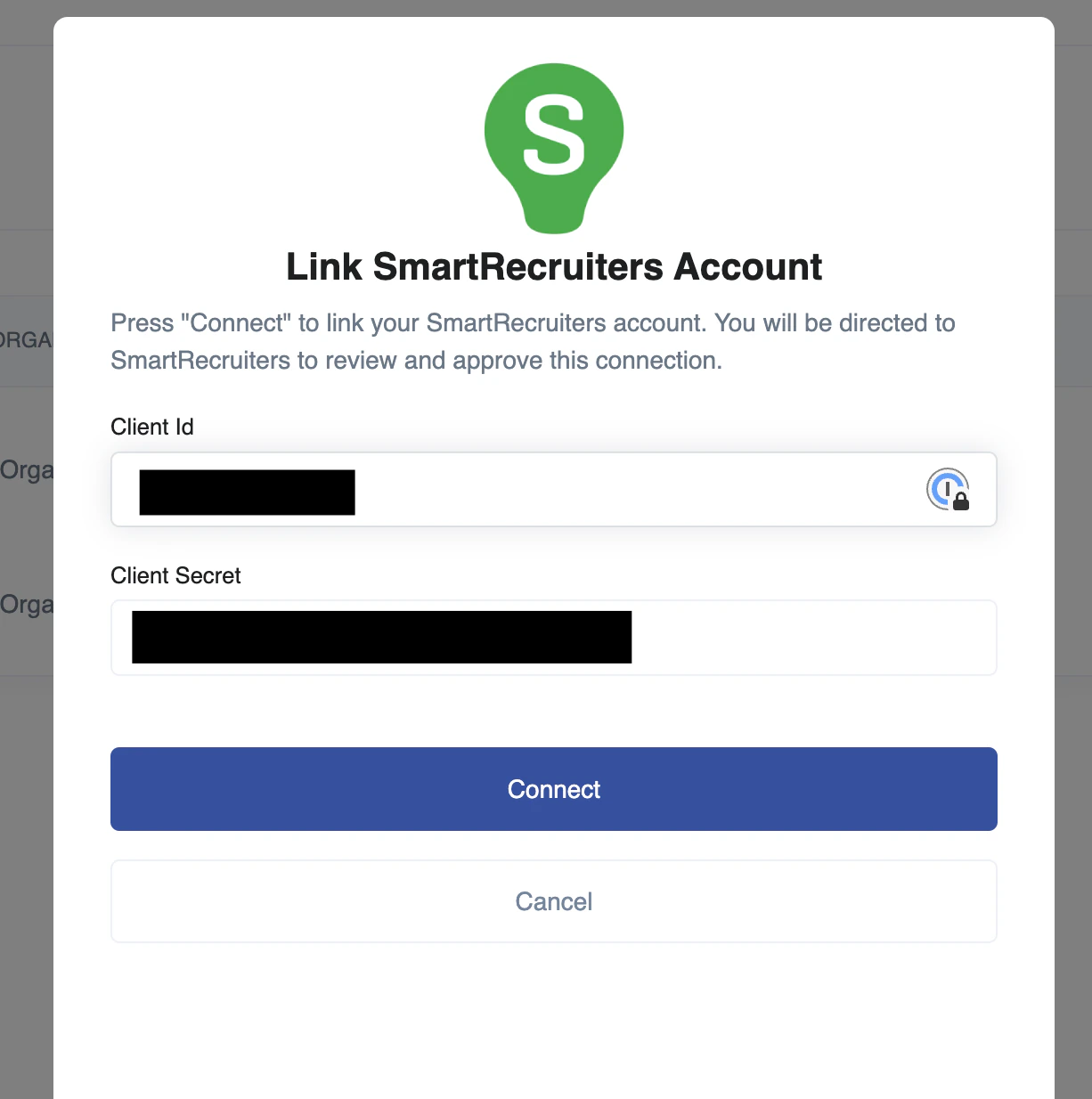
  <Step title="Enter the Details">
    Upon reaching the Link Account page, enter the gathered details and proceed by clicking the `Connect` button.
    <Frame>
      <img className="rounded-md" style={{ margin: '0 auto', border: '1px solid #efefef' }} alt="Link Account" src="https://mintcdn.com/stackone-hub-claude-issue-384-20260409-1436/knyftILoDWacwCGB/images/smartrecruiters/image8.png?fit=max&auto=format&n=knyftILoDWacwCGB&q=85&s=d504d00cf6c31593374c46ffd72451f6" width="1226" height="1234" data-path="images/smartrecruiters/image8.png" />
    </Frame>
  </Step>
</Steps>

<br />

Congratulations, you're all set! If you face any issues with the steps mentioned above,
please contact us by emailing [integrations@stackone.com](mailto:integrations@stackone.com). We're always here to assist you!

## Useful Links

<Card title="API Reference" icon="link" href="https://developers.smartrecruiters.com/docs/the-smartrecruiters-platform">
  [https://developers.smartrecruiters.com/docs/the-smartrecruiters-platform](https://developers.smartrecruiters.com/docs/the-smartrecruiters-platform)
</Card>
