> ## Documentation Index
> Fetch the complete documentation index at: https://stackone-hub-claude-issue-384-20260409-1436.mintlify.site/llms.txt
> Use this file to discover all available pages before exploring further.
# Pinpoint
> Follow these steps to connect Pinpoint with StackOne Hub successfully.
Ensure you have Admin privileges for your Pinpoint account.
If you've been directed to StackOne to integrate with Pinpoint, the following steps will help you understand the process and any necessary actions to configure successful integration.
## Getting your Subdomain
In the URL bar of your browser, you can find the subdomain by selecting the text in front of `.pinpointhq.com`.
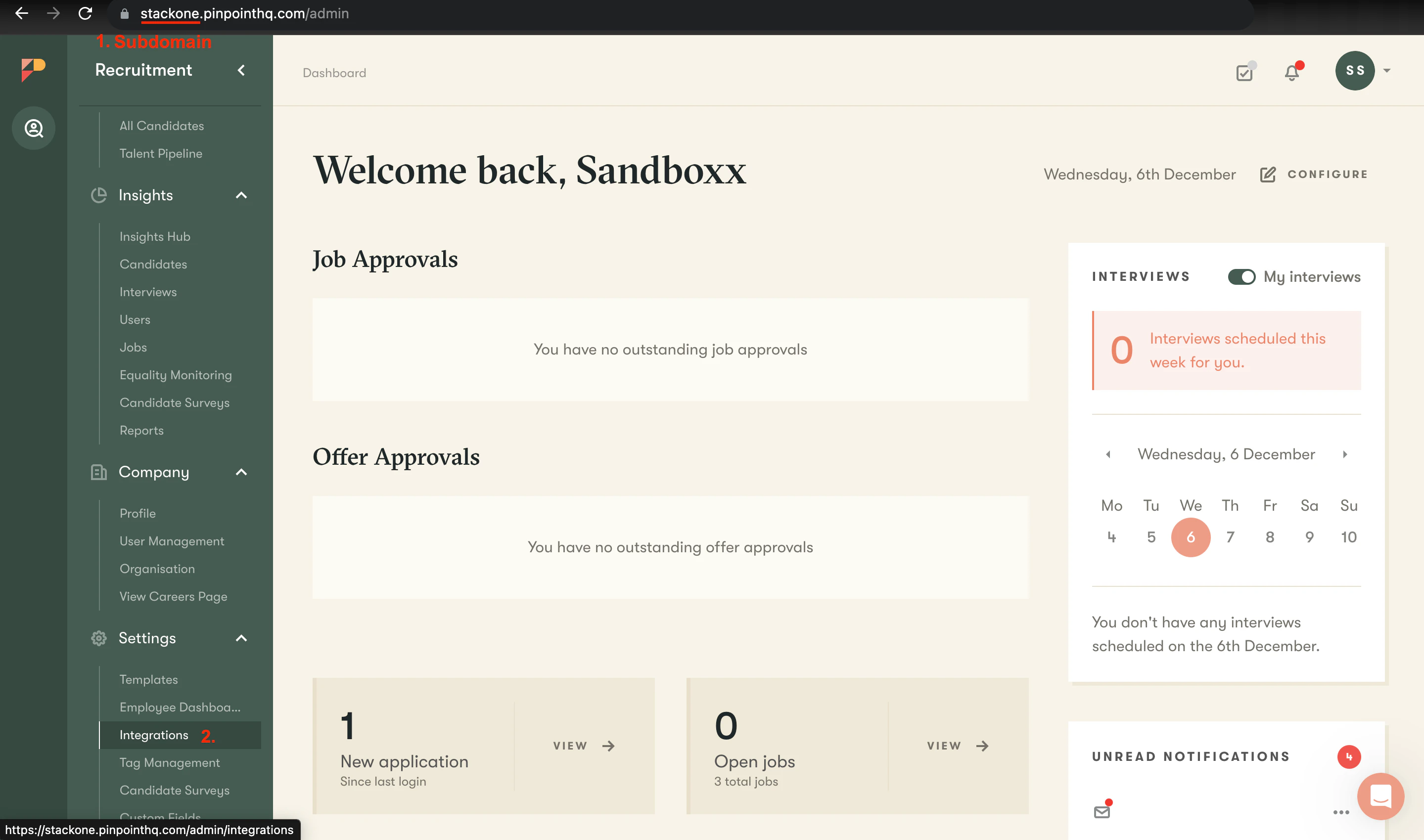 In this example, the value would be: stackone
## Generating API Key
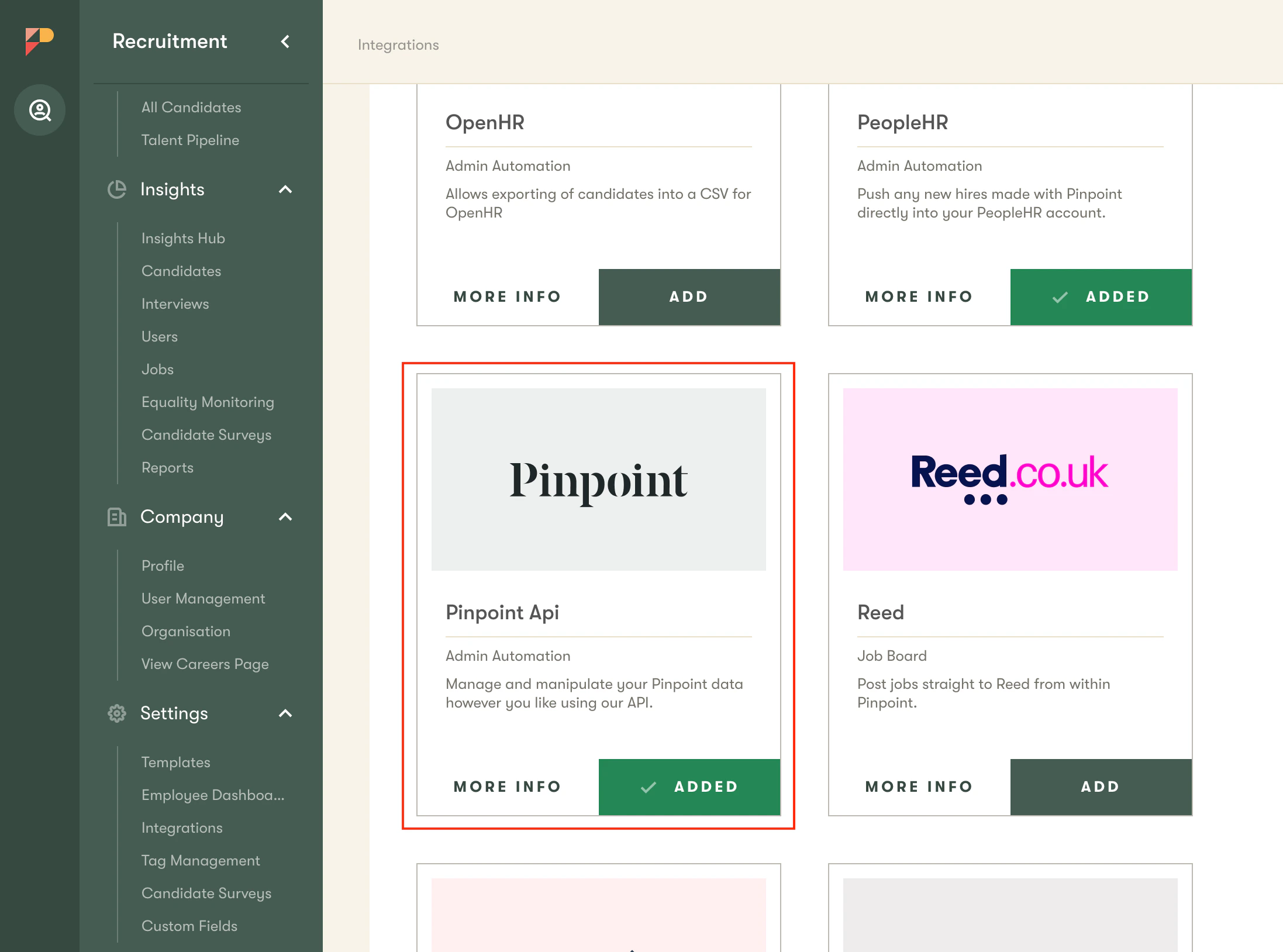
In the left Sidebar, scroll down to the Settings category and select Integrations.
Select the Apps tab and ensure that the Pinpoint API app is Added.
In this example, the value would be: stackone
## Generating API Key
In the left Sidebar, scroll down to the Settings category and select Integrations.
Select the Apps tab and ensure that the Pinpoint API app is Added.
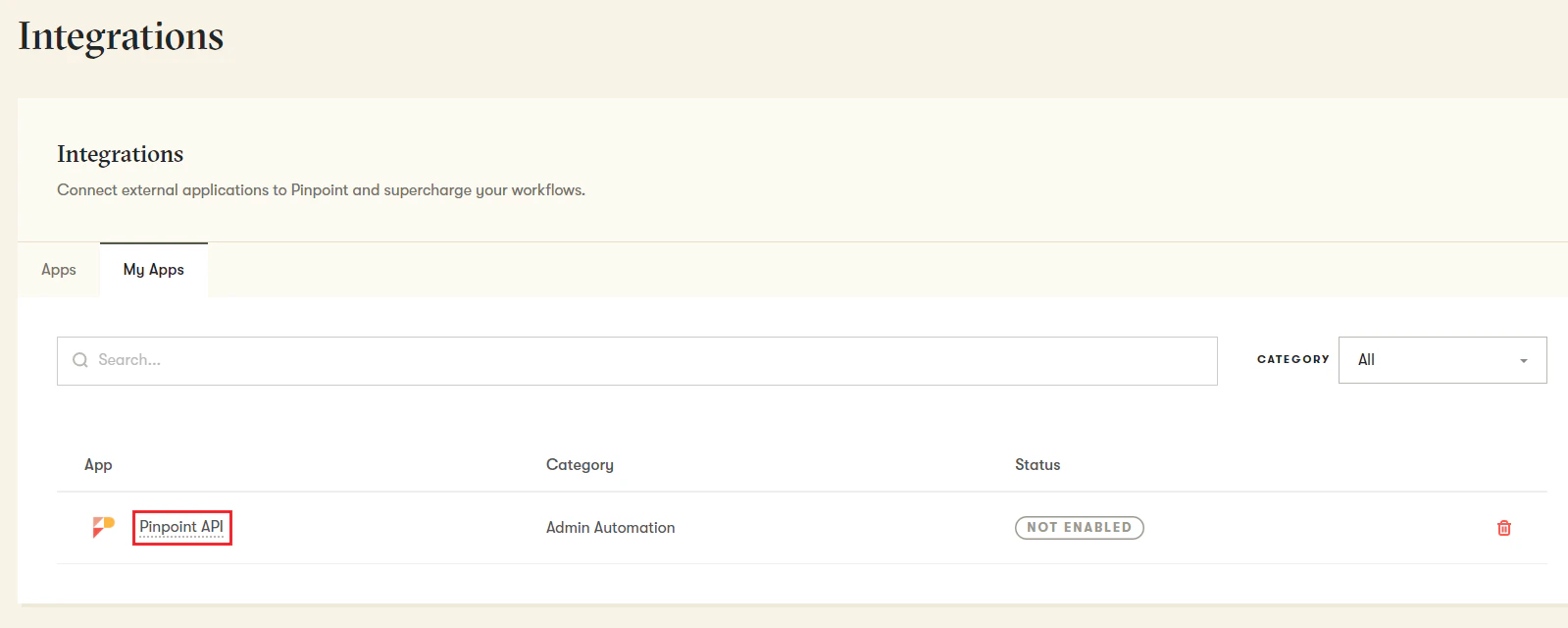
 Select the MyApps tab and select the Pinpoint API app.
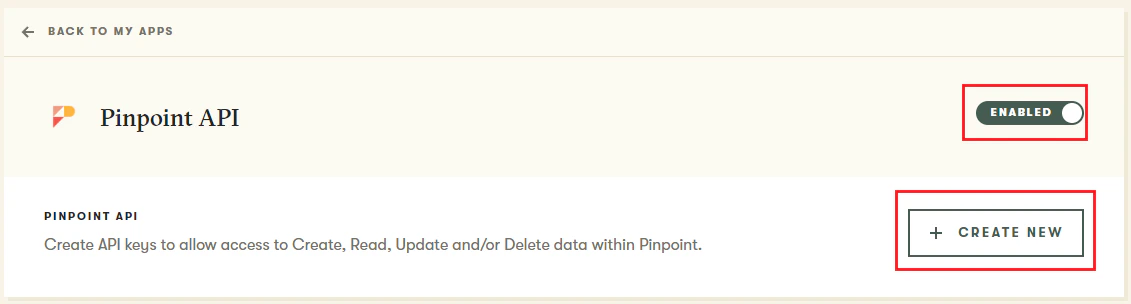
 Ensure that the slider to the right-hand side of the upper panel is set to Enabled.
Select the Create New button to create a new API Key.
Ensure that the slider to the right-hand side of the upper panel is set to Enabled.
Select the Create New button to create a new API Key.
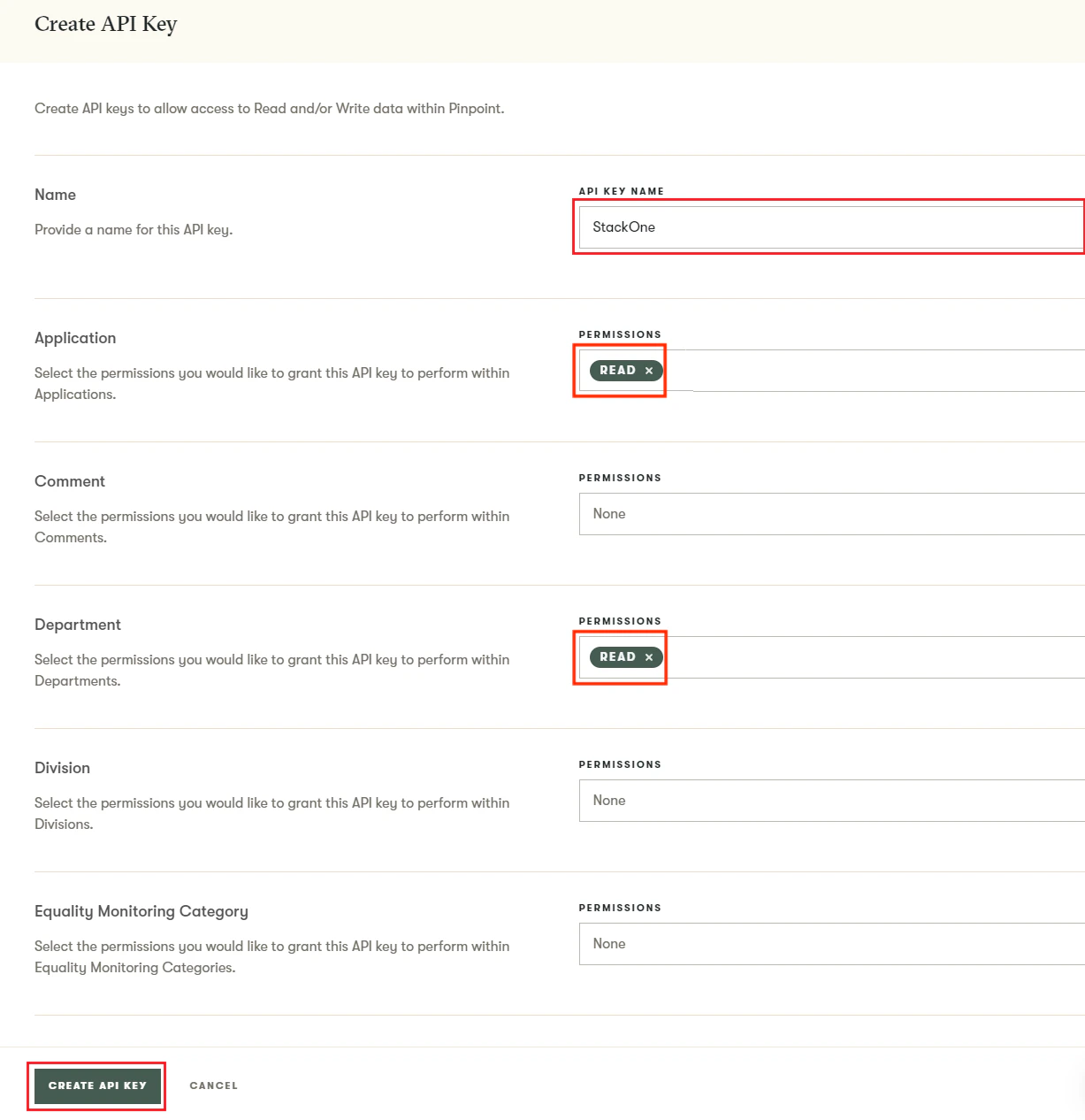
 Enter a Name for the API Key, for example: `StackOne`.
Assign Read permissions based on the Integration requirements:
* Application
* Department
* Interview
* Job
* Location
* Scorecard
* Custom fields
* User
Select Create API Key.
Enter a Name for the API Key, for example: `StackOne`.
Assign Read permissions based on the Integration requirements:
* Application
* Department
* Interview
* Job
* Location
* Scorecard
* Custom fields
* User
Select Create API Key.
 Your API Key will be generated and displayed to you. Copy the API Key to a safe place.
 ## Connecting with StackOne
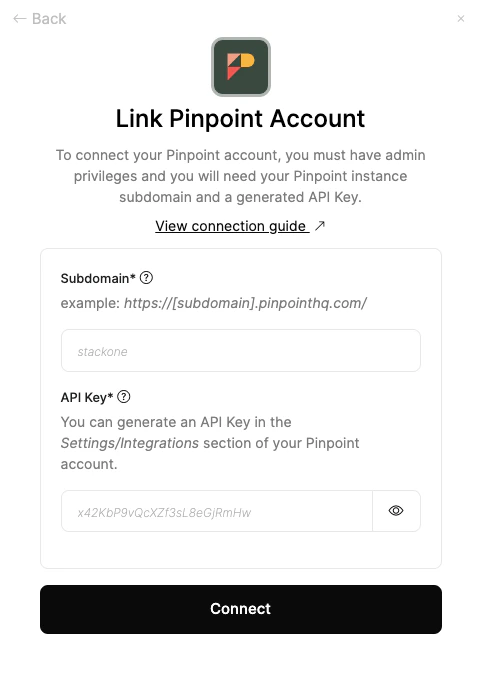
Upon reaching the Link Account page, enter the gathered details and proceed by clicking the `Connect` button.
## Connecting with StackOne
Upon reaching the Link Account page, enter the gathered details and proceed by clicking the `Connect` button.
Congratulations, you're all set! If you face any issues with the steps mentioned above,
please contact us by emailing [integrations@stackone.com](mailto:integrations@stackone.com). We're always here to assist you!
## Useful Links
[https://developers.pinpointhq.com/docs/introduction](https://developers.pinpointhq.com/docs/introduction)